ActivityHero allows you to add videos from your other online accounts to your listing, helping families see your activities in action.
Adding Activity Videos
Adding a Business Video
Adding Activity Videos
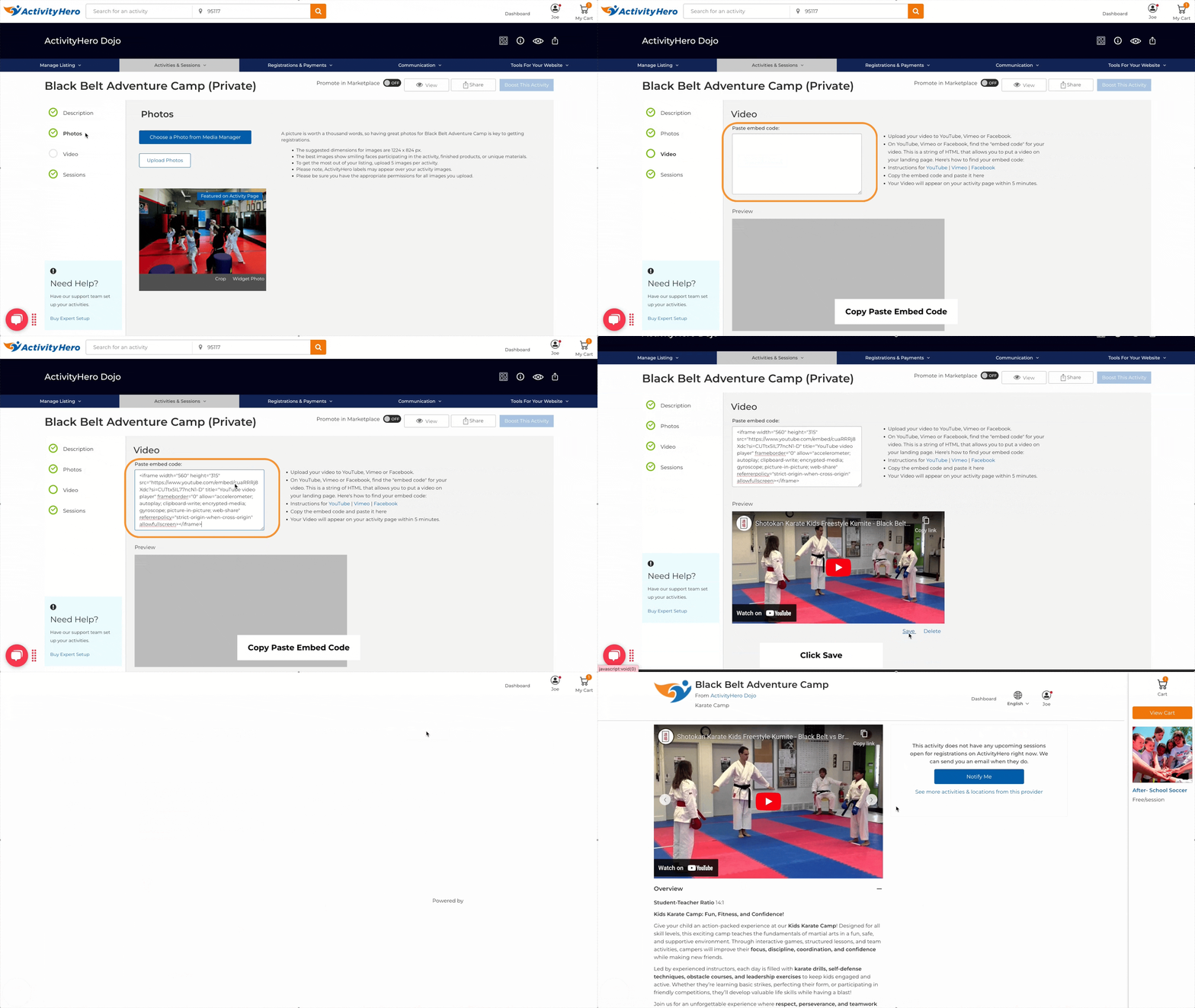
You can add videos to your activities during the activity creation process by selecting Video in the left menu. You can also add them later from your dashboard:
- Navigate to Manage Listing > Photo Manager.
- Click the Activity Videos tab at the top.
- Select the activity you want to add a video to.
Your videos appear on the activity page and are displayed in the carousel alongside your activity photos.
Uploading and Embedding Your Video
Before adding a video to ActivityHero, you must upload it to Vimeo, YouTube, or Facebook. Each of these platforms allows you to share videos using an embed code, which is required for ActivityHero.
To find the embed code for your video, check out these guides:
Once you have the embed code:
- Copy and paste it into the provided field on ActivityHero.
- The video appears in the preview window. If it does not load immediately, try clicking outside the paste field.
- Click Save if everything looks good. A confirmation message appears, and the video is visible on your page within five minutes.
- To remove a video, click Delete.
Troubleshooting
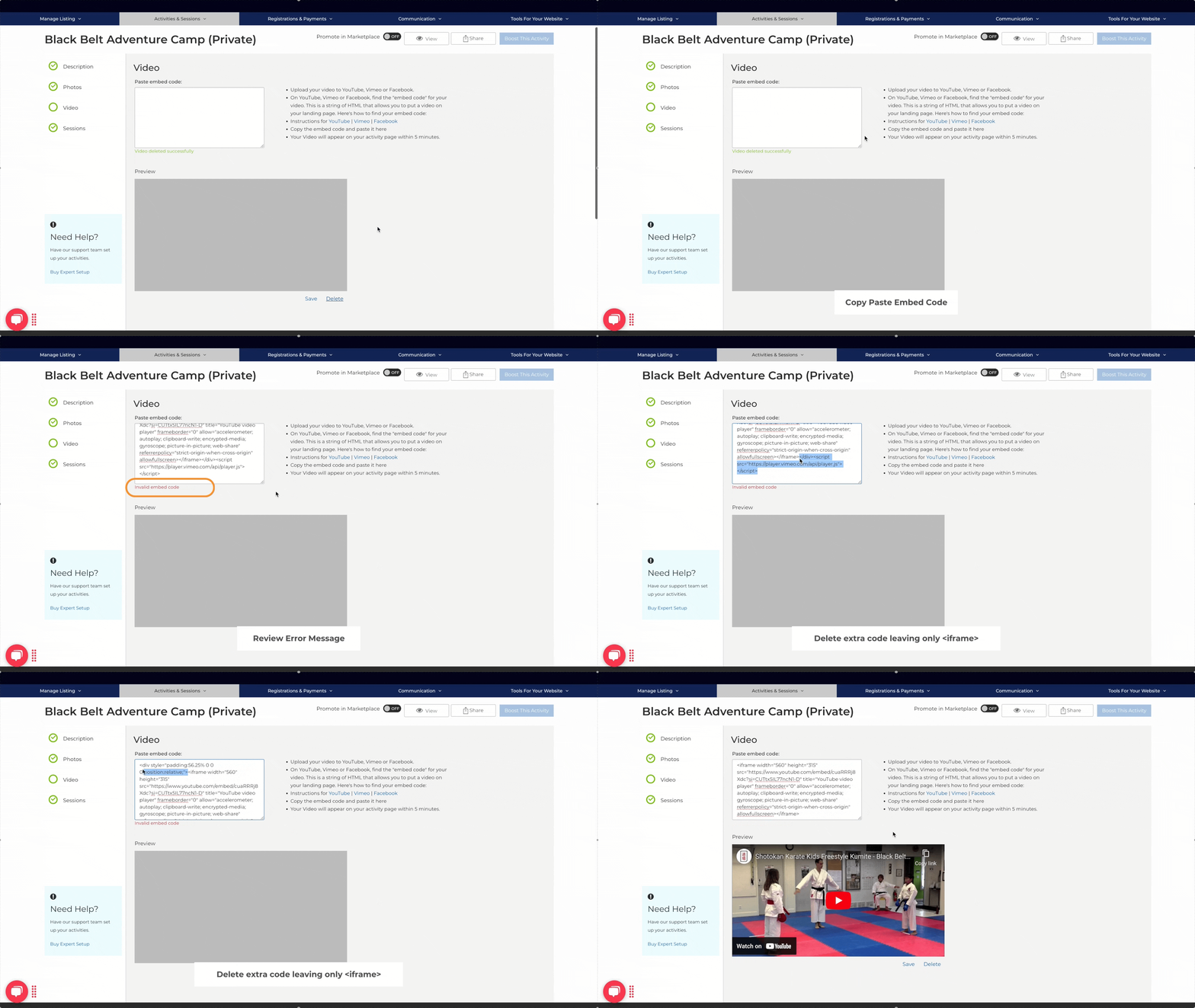
If you see an error such as Invalid embed code or if the video does not appear in the preview window:
- Double-check that you copied and pasted the correct embed code.
- Ensure the embed code starts with <iframe> and ends with </iframe>.
Adding a Business Video ↑
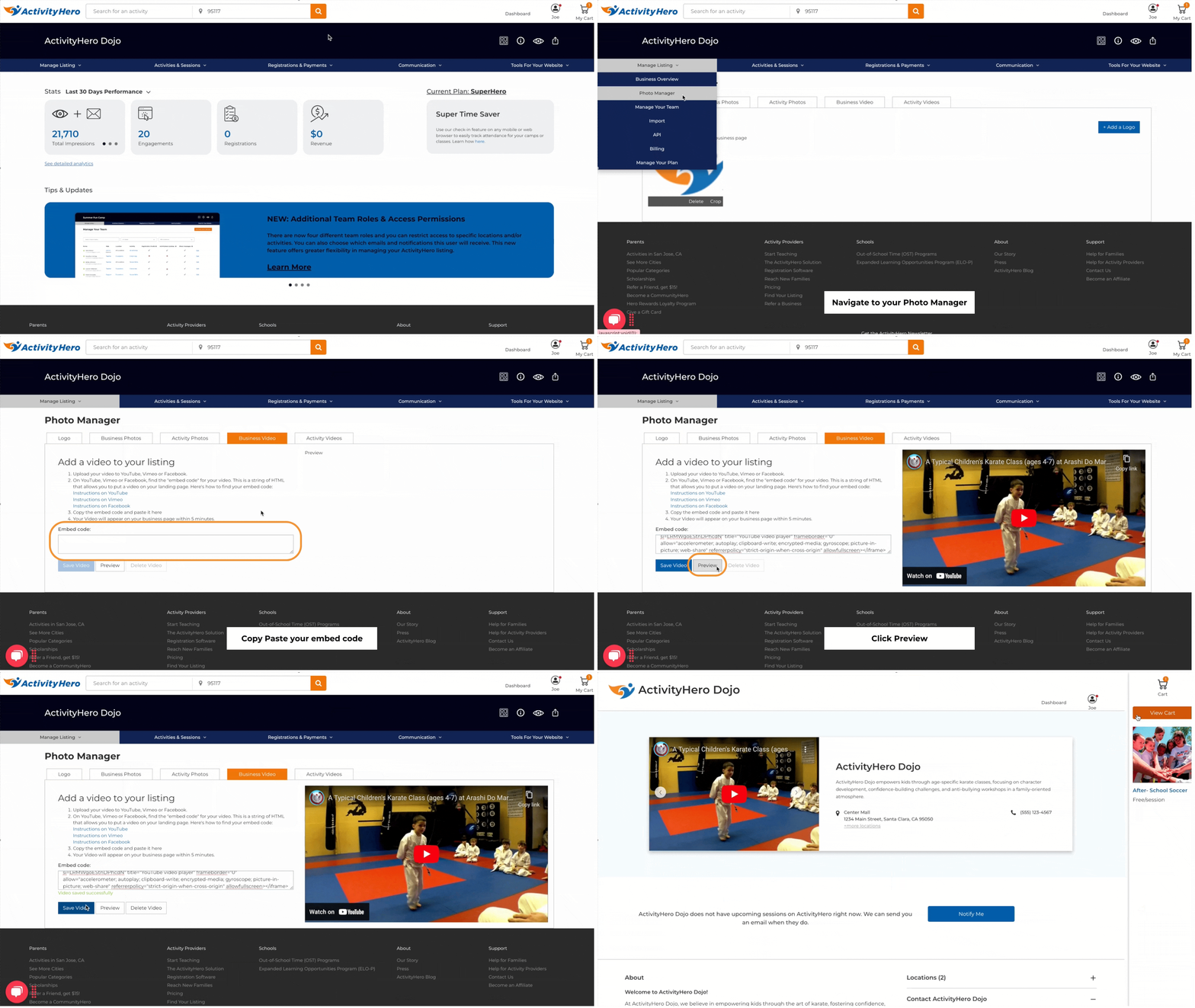
To add a video to your business page:
- Navigate to Manage Listing > Photo Manager.
- Click the Business Video tab at the top.
- Copy and paste your video's embed code into the provided field.
- Click Preview to ensure the video displays correctly.
- If everything looks good, click Save Video. To remove a video, click Delete Video.
Adding videos to your Business and Activity pages helps families get a better feel for your offerings, making your activities more engaging and appealing.
Was this article helpful?
That’s Great!
Thank you for your feedback
Sorry! We couldn't be helpful
Thank you for your feedback
Feedback sent
We appreciate your effort and will try to fix the article