ActivityHero displays your classes, camps, workshops, and other programs as individual activities. Each activity includes a unique description and photo.
Create a New Activity
Build the Activity
Photos
Videos
Sessions
Expert Setup
Create a New Activity
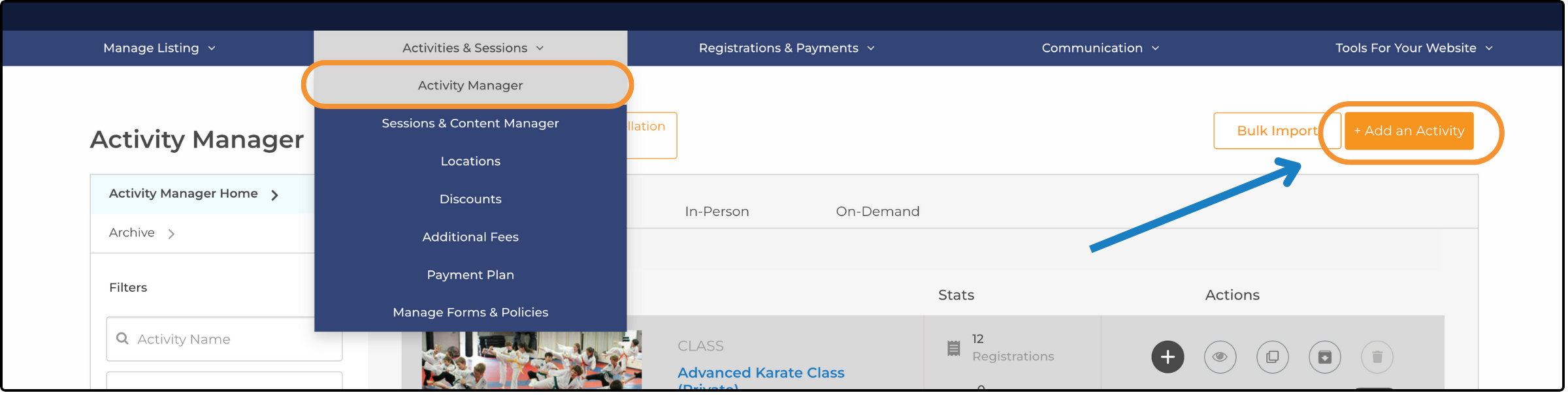
- Go to your Dashboard.
- Hover over Activities & Sessions in the navigation bar.
- Select Activity Manager.
- Click + Add an Activity in the upper right corner.
Tip: You can also copy activities to speed up the process. For more info, visit: How do I make a Copy of an Activity?
Build the Activity ↑
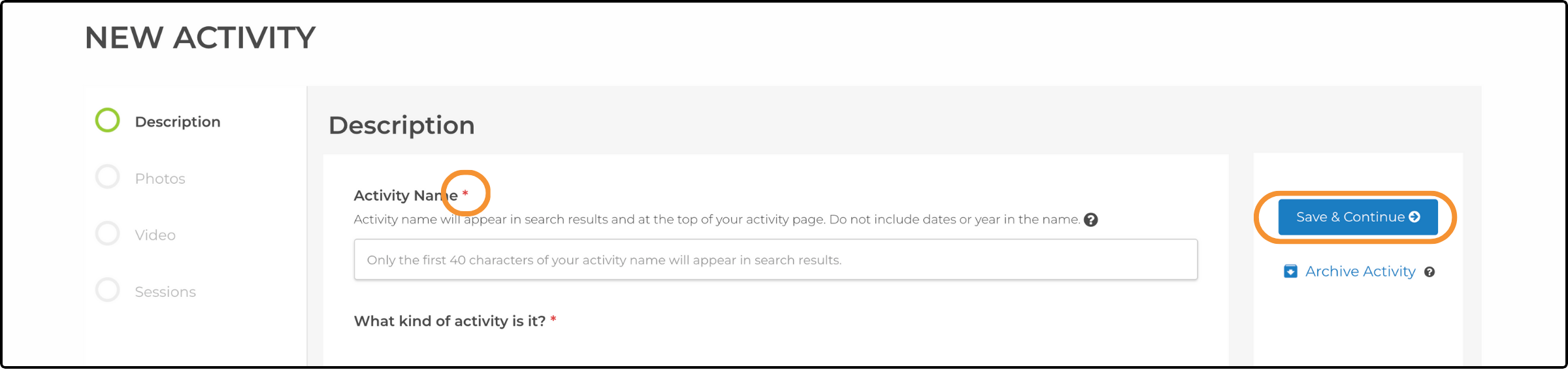
You go through the steps to create a complete activity. As you explore the different activity options, fields are displayed for entering information, with required fields marked by a red asterisk. Once all required fields are completed, click Save & Continue in the top right corner.
Activity Name

The activity name appears in search results and at the top of your activity page. There is a 50 character limit for the name, and only the first 40 characters appear in search results.
Tip: Keep the name short yet descriptive. Instead of generic names like "October Camp," use something more specific, like "Fall Break Art Camp" or "Autumn Inspired Art," to provide clarity and attract more clicks.
Occasionally, our staff may refine activity names by adding descriptors to help attract more families.
Activity Type
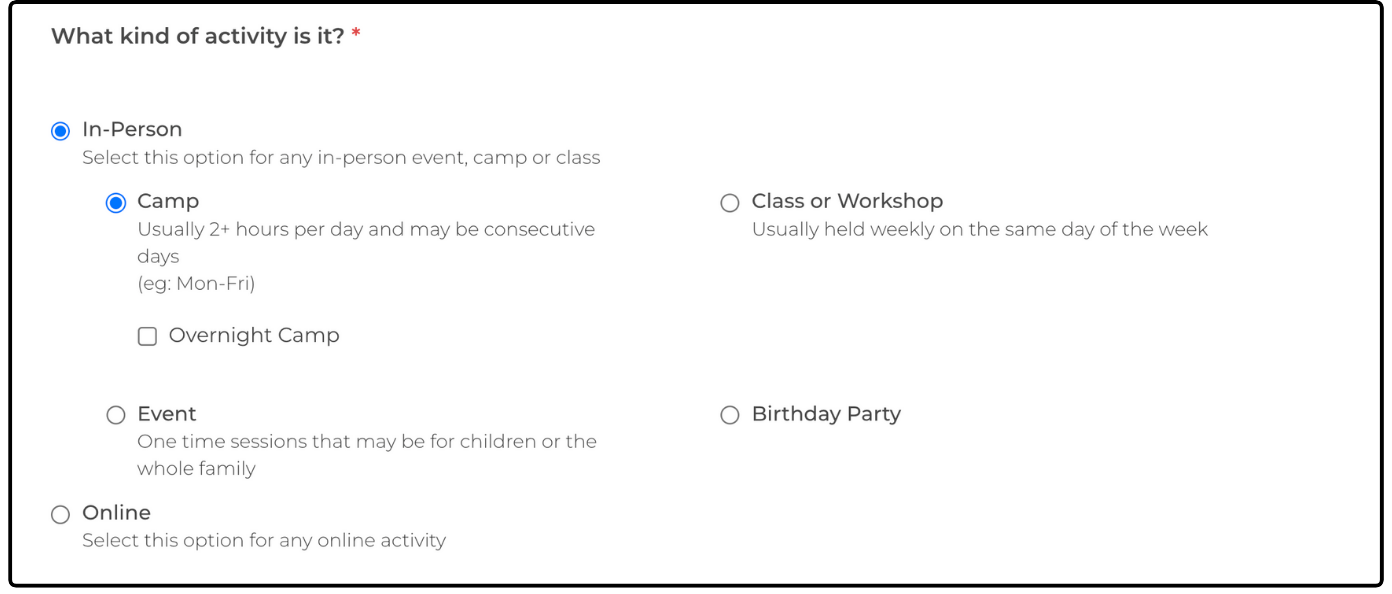
Select whether the activity is in-person or online.
In-Person - Select this option for any in-person event, camp or class
- Camp - Usually 2+ hours per day and may be consecutive days (e.g., Mon-Fri)
- Overnight Camp - select this option if your camp has participants stay the night.
- Class or Workshop - Usually held weekly on the same day of the week
- Event - One-time sessions that can be for children or the whole family
- Birthday Party - A special type of one time event
Online - For any activities that are held exclusively online.
Categories and Student-Teacher Ratio
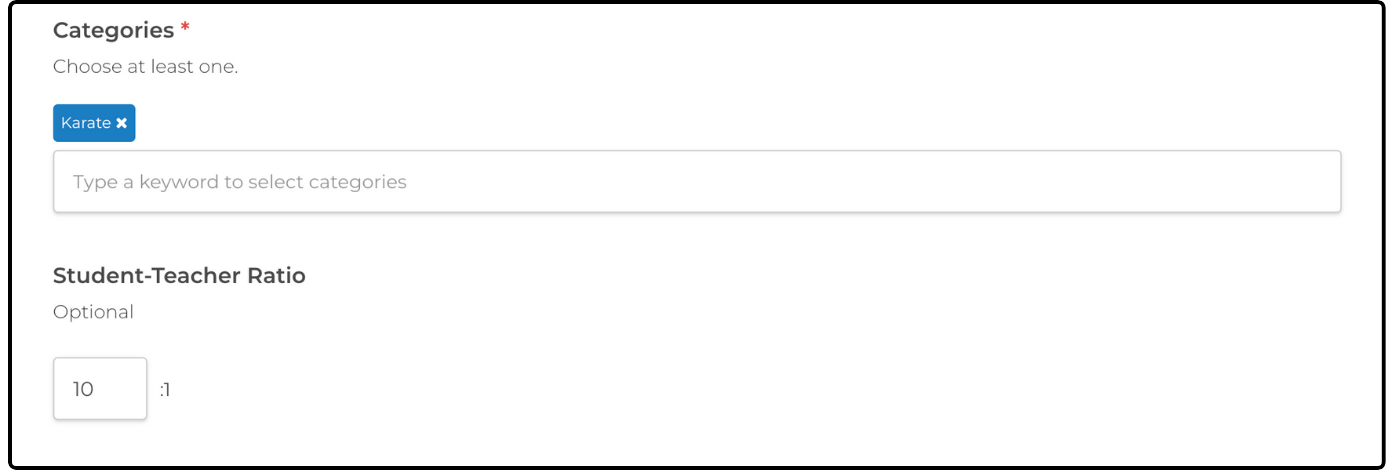
Categories - Categories help your activities appear in the ActivityHero marketplace. You must select at least one, but we recommend choosing up to five for the best visibility. Selecting more than five may reduce the effectiveness of your activity in search results.
To view the full list of categories, check out our help article What Are the Activity Categories?
Student-Teacher Ratio - You can enter a ratio to indicate the level of individual attention participants can expect from instructors (e.g., 16:1, 10:1, or 1:1).
Activity Description
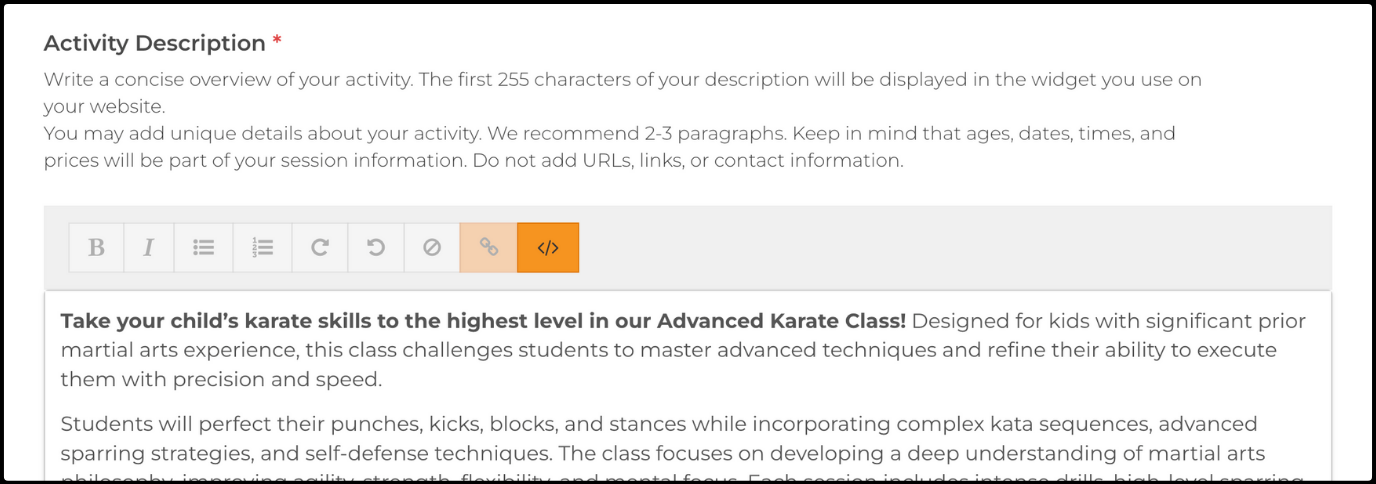
This is the main description for your activity. Write a concise overview, feel free to add unique details about your activity. We recommend two to three paragraphs, but remember that ages, dates, times, and prices are included in the session information. Avoid adding URLs, links, or contact details.
Use the text editing tools to style your description. Common features such as bold, italics, and bulleted lists are available, similar to drafting an email. If you are copying and pasting content, use the Clear Formatting option to ensure consistency and readability on ActivityHero. This text editor appears in the following sections.
Activity Short Description
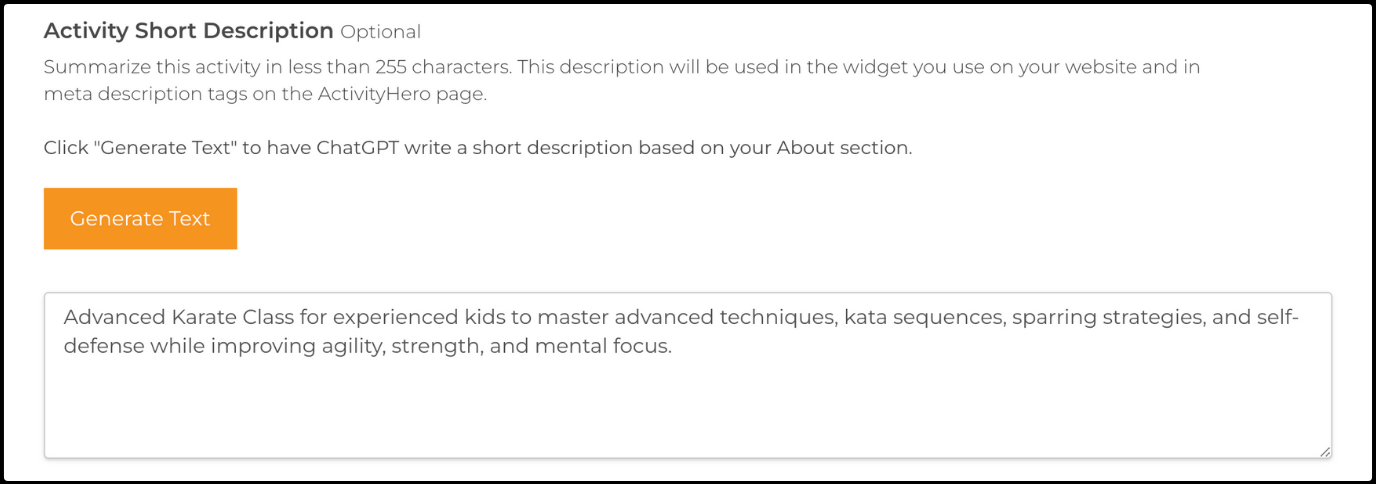
You can quickly generate a short description by using ChatGPT to summarize your activity details-click Generate Text. Alternatively, you can manually write a summary.
Tip: Keep the description under 255 characters. It is used in the widget on your website and help improve search engine visibility.
Prerequisites
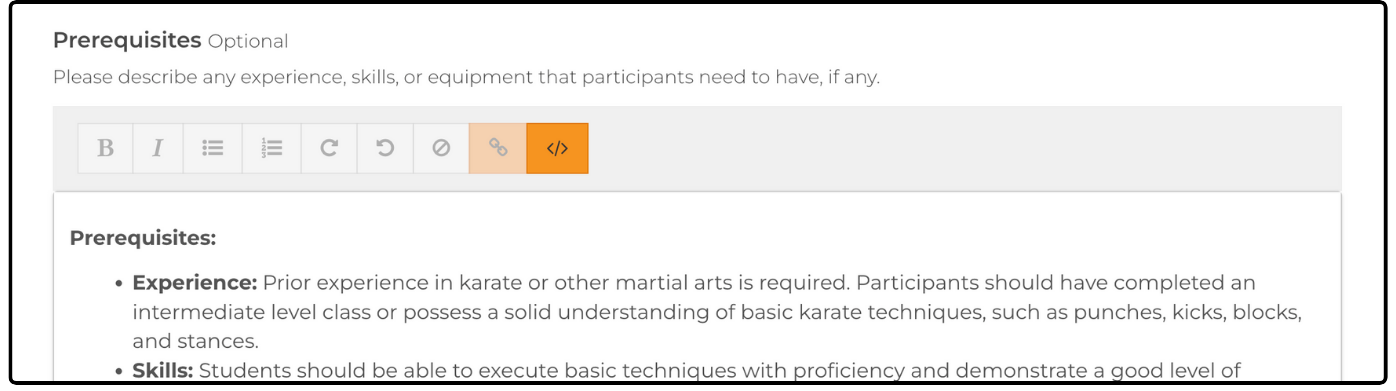
Use it to describe any experience, skills, or equipment participants need, if applicable. This information is displayed on the activity page, so families can review it before registering.
Itinerary
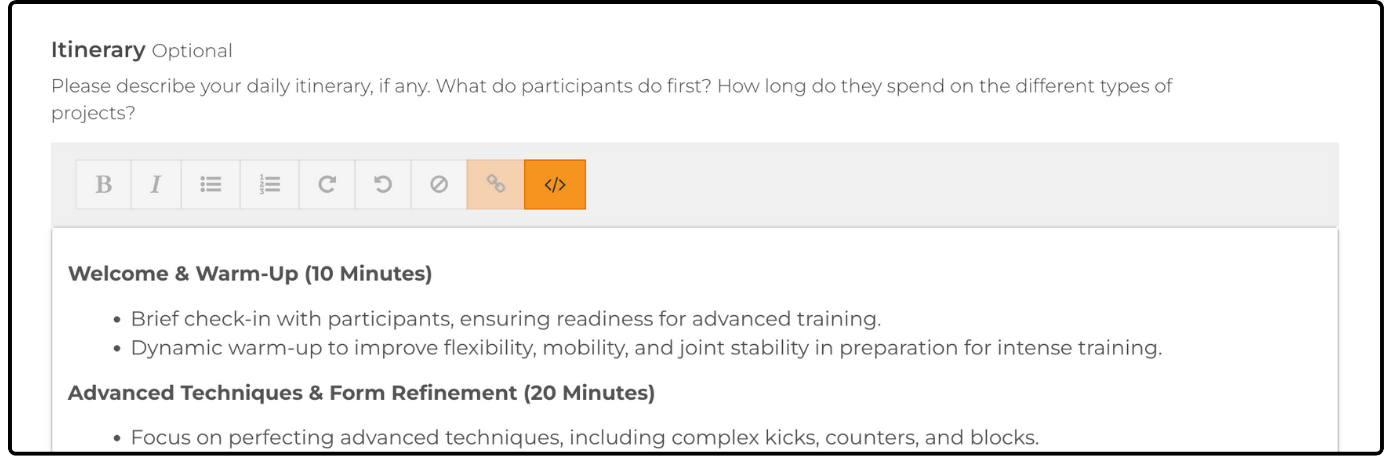
Use it to provide an example of your daily itinerary, if applicable. What do participants do first? How much time is spent on different projects?
Remember to Bring
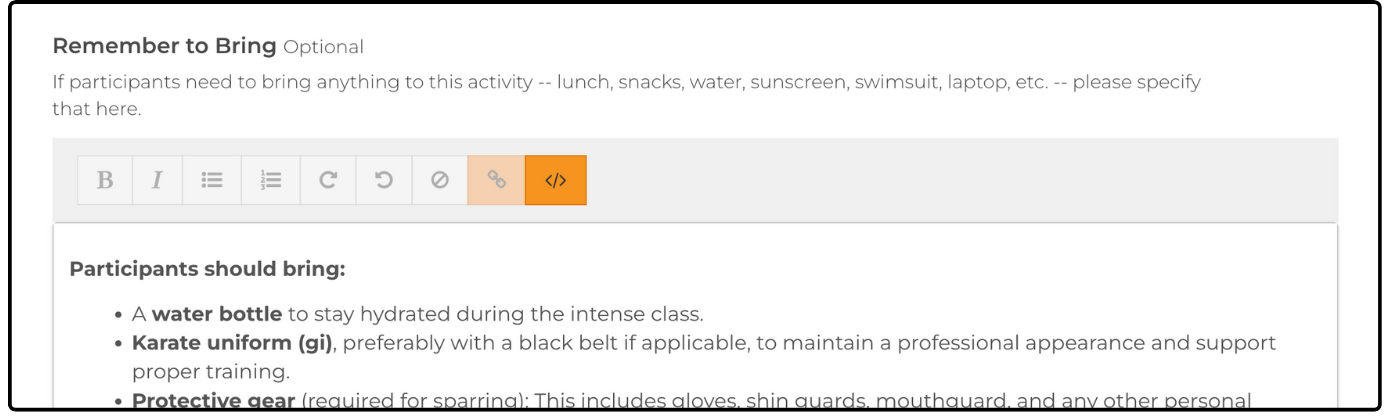
Use it to specify any items participants need to bring (e.g., lunch, snacks, water, sunscreen, swimsuit, laptop, etc.).
Registration Options
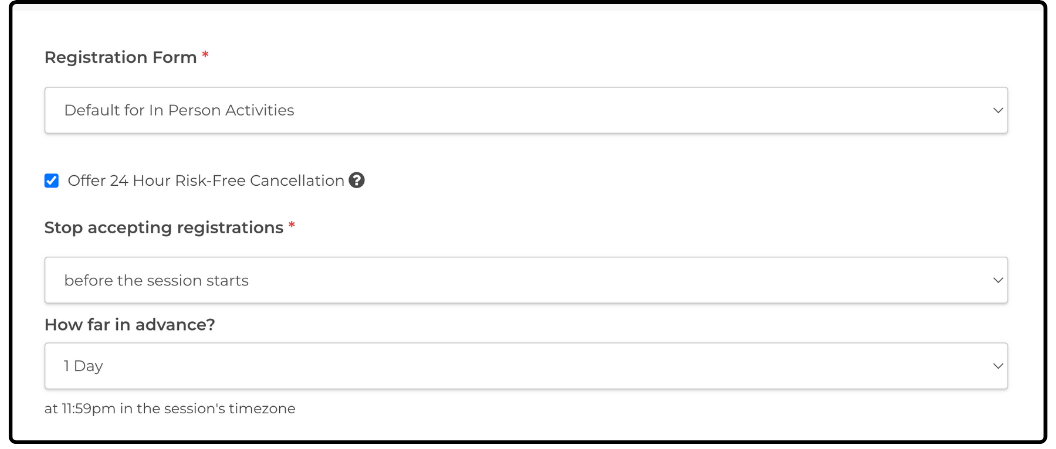
Registration Form - Select a registration form from the dropdown list. The default form is selected automatically if you have not created or updated any forms yet. For more details on customizing registration forms, check out our help article: How do I customize my Registration Forms?
Offer 24 Hour Risk-Free Cancellation - Enabling this feature allows buyers a 24-hour grace period to cancel their registration from their ActivityHero account. They receive a full refund and you are not charged any fees. Valid for sessions that start 14 days or more from registration date.
Stop accepting registrations - select when you want registrations to end from the options available in the dropdown menu.
- When the session starts
- When the session ends
- Before the session ends
- Before the session starts
Active Slug
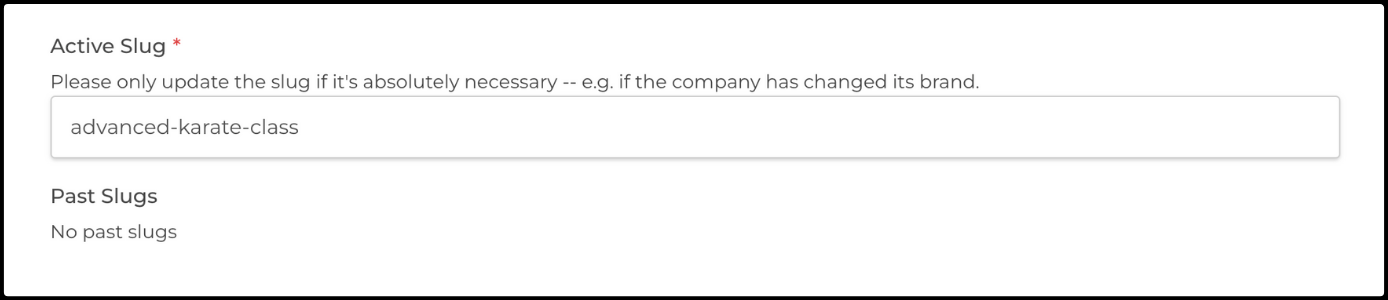
A slug is the final part of a URL. This option allows you to change the slug for this activity's link. Changing the slug may affect how families find your activity, so only update it if absolutely necessary (e.g., if the company rebrands).

Super Hero Private Activities

Super Hero customers have the option to select the privacy for their activities. If you want this activity to appear in the ActivityHero marketplace (search page, home page, your business listing page & ActivityHero newsletters), select Yes. Select No, if you do not want to sell this activity in the ActivityHero marketplace. You can point users to the activity page to get registrations for this activity.
Photos ↑
After you save your activity information, you go to the page to upload photos. At least one photo is required for your activity to be included in searches.
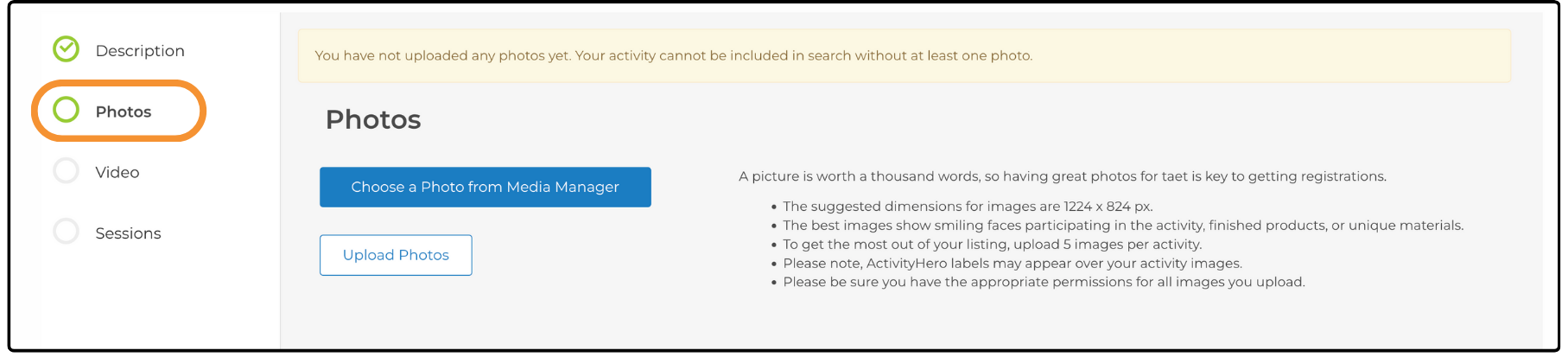
Click Upload Photos to start adding photos from your computer. Below are some tips for your photos.
- The suggested dimensions for images are 1224 x 824 px.
- The best images show smiling faces participating in the activity, finished products, or unique materials.
- To get the most out of your listing, upload five images per activity.
- ActivityHero labels may appear over your activity images.
- Ensure you have the appropriate permissions for all images you upload.
When you are done uploading photos, click Videos or Sessions in the left menu to continue.
Videos ↑
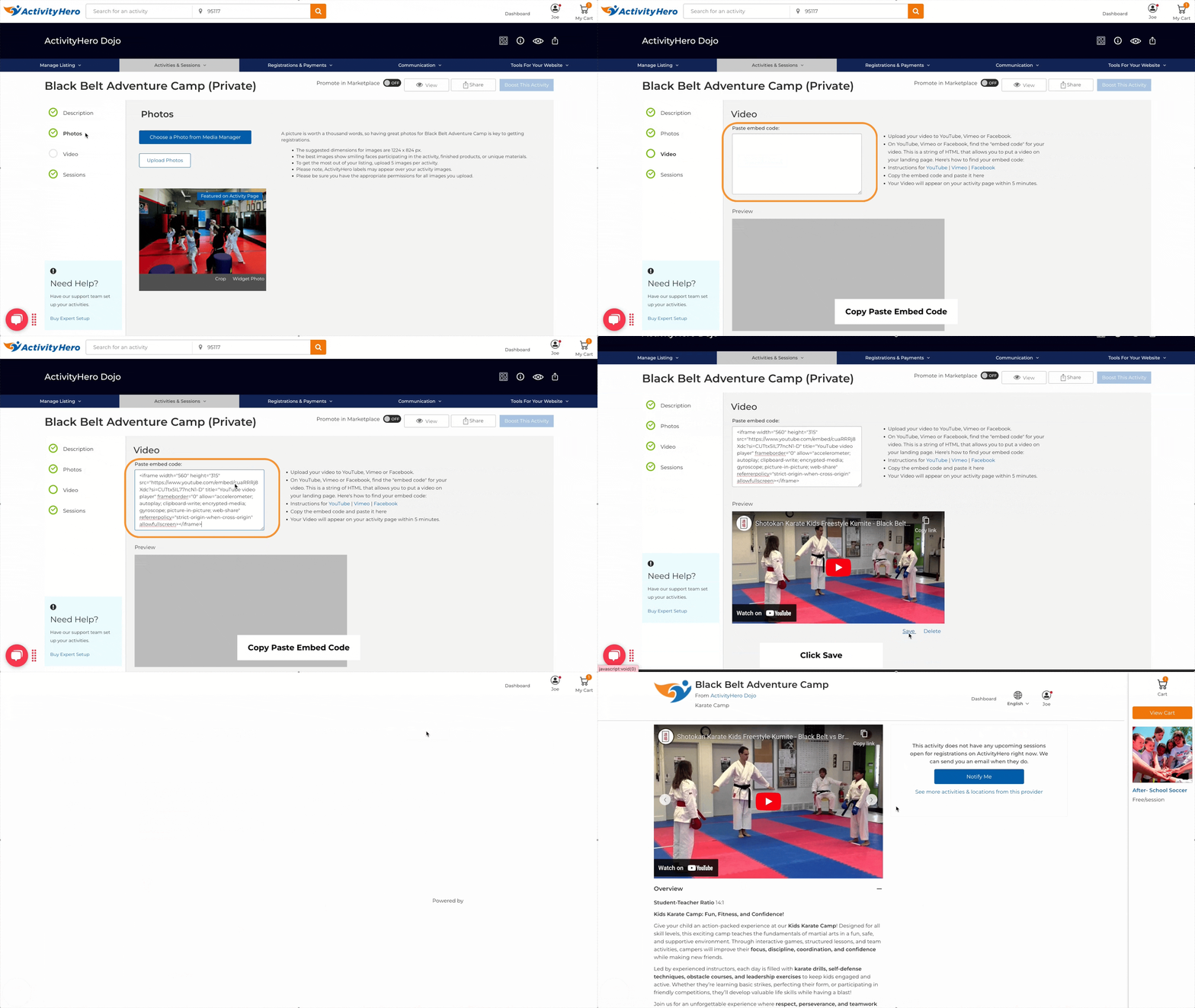
Videos are optional but they could be a good way for your activity to stand out. Below are the steps to have your videos display on ActivityHero. We also have a whole article explaining more about videos check it out here: How to Add Videos to Your ActivityHero Listing?
- Upload your video to YouTube, Vimeo or Facebook.
- On YouTube, Vimeo or Facebook, find the embed code for your video. This is a string of HTML that allows you to put a video on your landing page. Here is how to find your embed code:
- Copy the embed code and paste it into the box provided
- Your video appears on your activity page within five minutes.
Sessions ↑
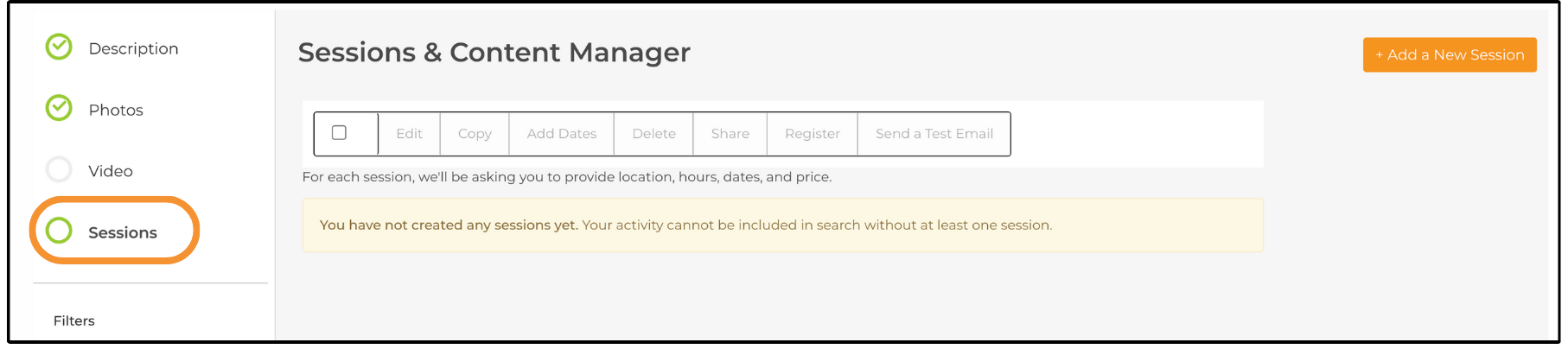
Sessions are the dates, days, and times associated with an activity. Click Sessions in the left menu to create your session schedule in ActivityHero. We have a whole article detailing the session creation process check it out here: How Do I Create a Session for an Activity?
Expert Setup ↑
Short on time? Have an expert from ActivityHero set up your listing to get you up and running quickly. Your listing is also optimized to maximize visibility and registrations. After you complete your payment, we ask you for basic information to set up your listing (up to five activities or 30 activity sessions). To add Expert Setup, navigate to Manage Your Plan, select Expert Setup, then click Confirm Your Changes in the top right corner.
Related Articles ↑
Was this article helpful?
That’s Great!
Thank you for your feedback
Sorry! We couldn't be helpful
Thank you for your feedback
Feedback sent
We appreciate your effort and will try to fix the article