ActivityHero lets you make edits to multiple sessions at the same time. Making quick updates simple using the bulk session edit feature.
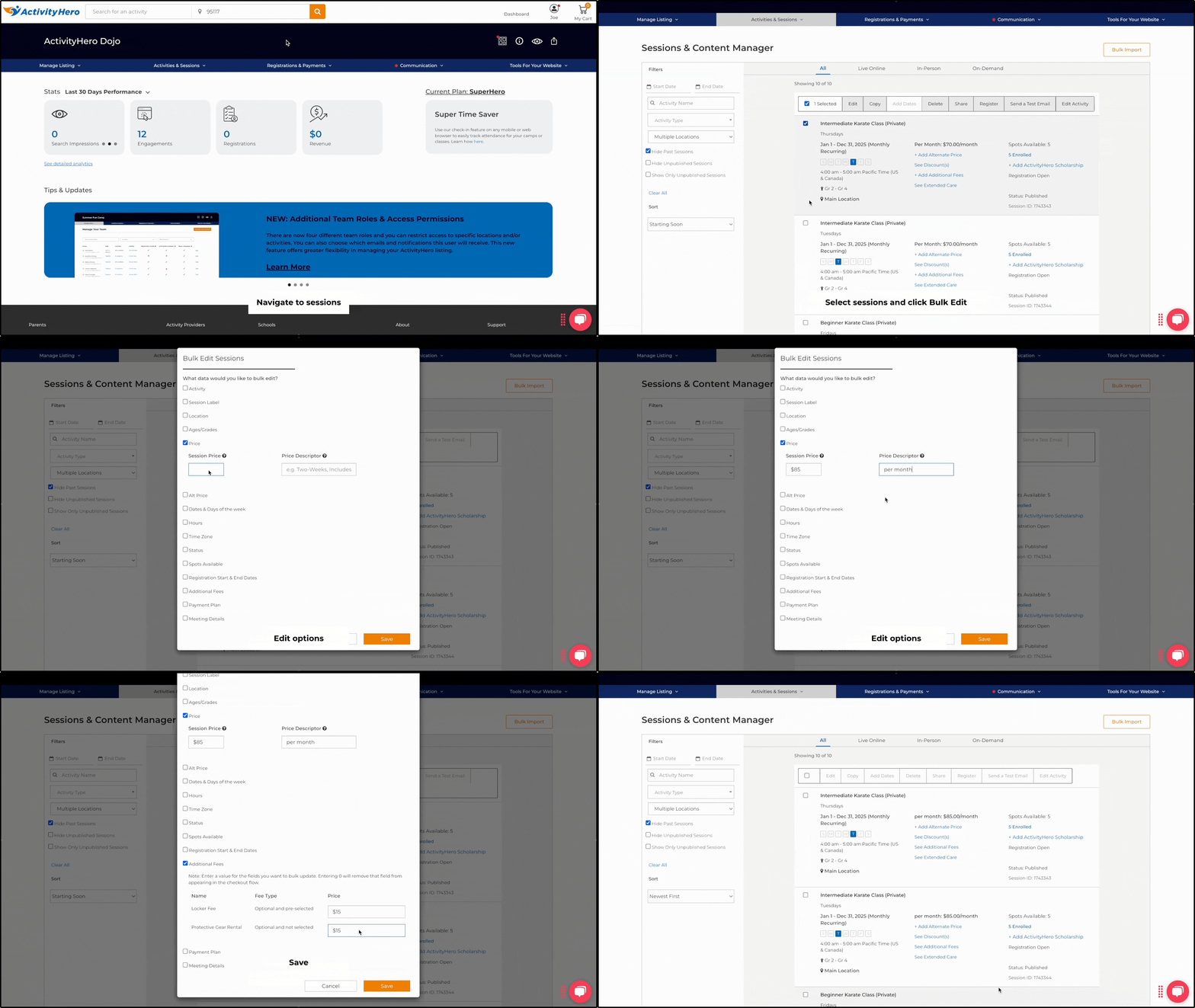
Bulk Edit
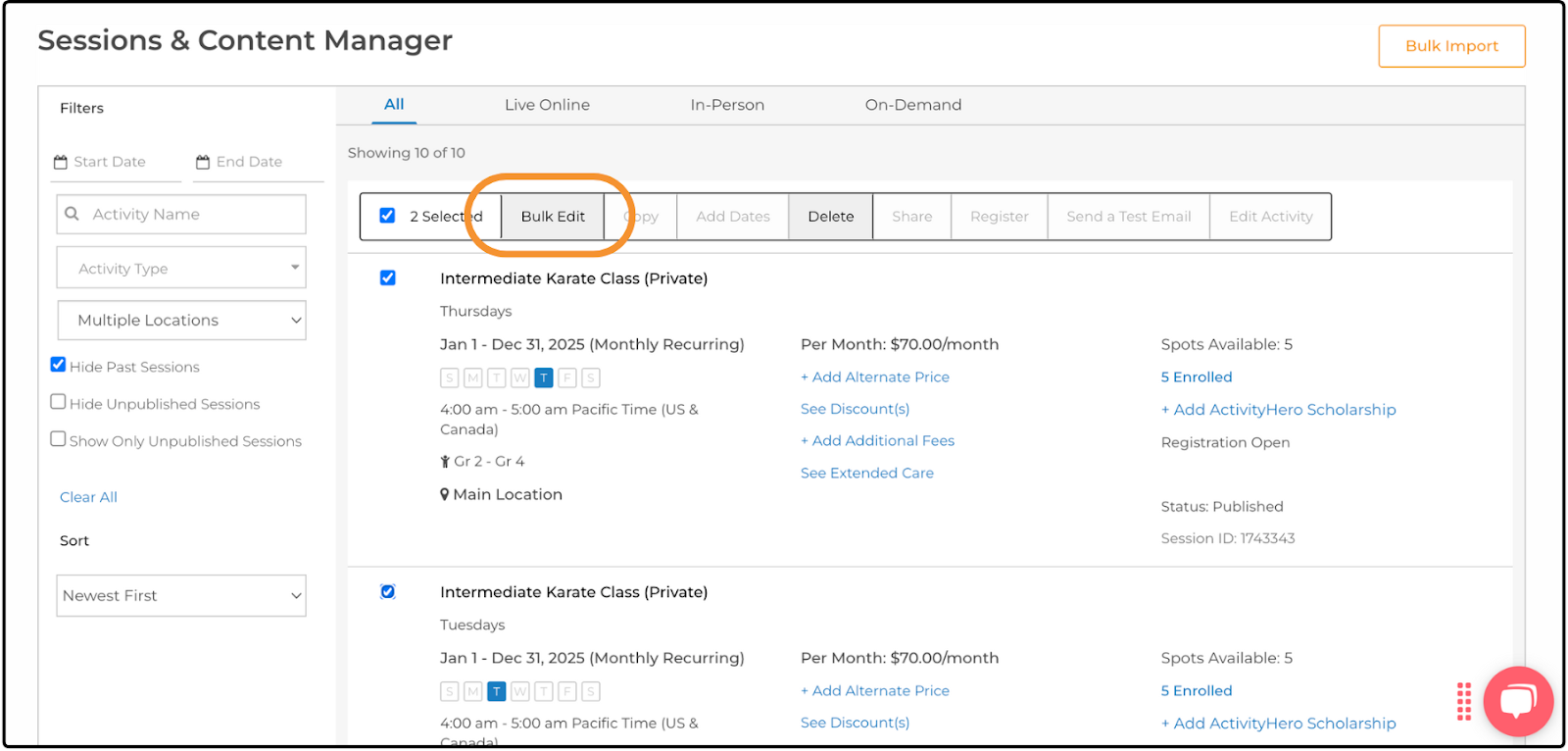
From your dashboard, go to your sessions in either the Activity Manager or the Sessions & Content Manager. You can select sessions using the checkboxes to the left of each one. Each session has a list of actions you can take at the top. If you select more than one session, the Bulk Edit option replaces the standard Edit option.
Bulk Editing ↑
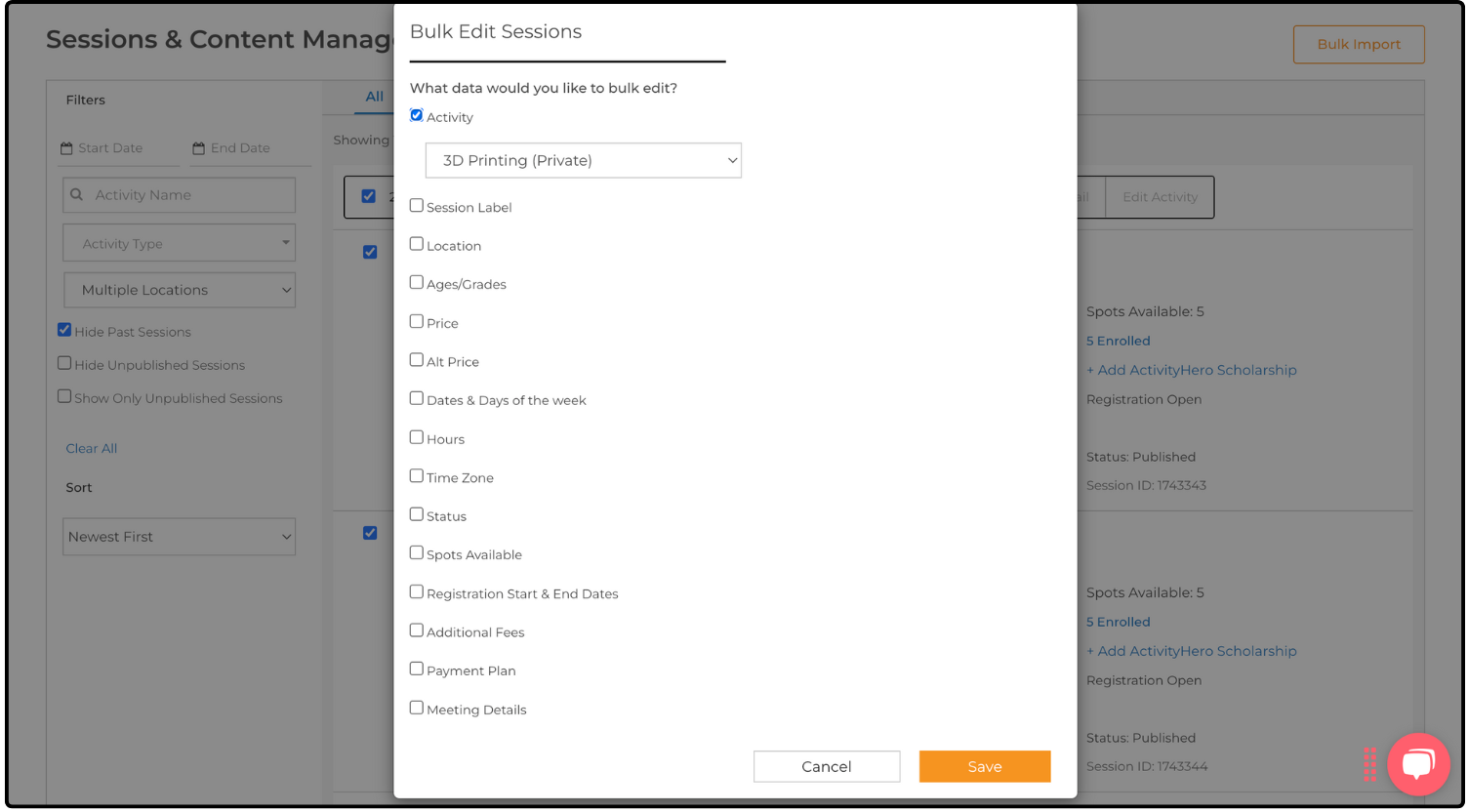
Bulk editing allows you to quickly update session options. Any changes you make apply to all selected sessions and replace any previous information for that option. For example, if you set the price to $300, all selected sessions are updated to display that amount. Below is a list of available edit options:
Activity - Select an activity from the dropdown menu to move all selected sessions to that activity.
Session Label - Change the session name for all selected sessions. Leaving this field blank removes session names from the selected sessions.
Location - Update the meeting location for all selected sessions.
Ages/Grades - Update the ages and grades for the sessions. This overrides any previous settings.
Price - Update the session price and descriptor. This overrides any previous price. Entering 0 displays the sessions as Free.
Alt Price - Similar to the standard price, updating the alternate price overrides the previously displayed amount.
Dates & Days of the Week - Update the start and end dates and select the days of the week the sessions meet.
Hours - Set the start and end times for the sessions.
Time Zone - Select a time zone from the dropdown to update the sessions' time zone.
Status - Quickly publish or unpublish sessions by changing their status.
Spots Available - Update the number of available spots. Entering 0 places the sessions on a waitlist.
Registration Start & End Dates - Update when registration begins and ends for all selected sessions.
Additional Fees - Add any pre-created fees by entering a price. Entering 0 removes that fee from the checkout flow. You cannot create new fees here. For more details, see our article: How Do I Charge Additional Fees?
Payment Plan - Select a previously created payment plan by checking the box. New plans cannot be created here. For more information, see our help article: How Do I Set Up a Payment Plan?
Meeting Details - Create a message that is sent to families in the registration confirmation email. This overrides any previous message. Leaving it blank and saving removes any previous meeting details.
Was this article helpful?
That’s Great!
Thank you for your feedback
Sorry! We couldn't be helpful
Thank you for your feedback
Feedback sent
We appreciate your effort and will try to fix the article