Sometimes families register at the last minute, so you can select how close to the start or end of a session you want to accept registrations. The registration deadline setting controls this.
How to View or Edit Your Registration Deadline
Stop Accepting Registrations Options
Bulk Edit
Default Registration Deadlines by Activity Type
How to View or Edit Your Registration Deadline
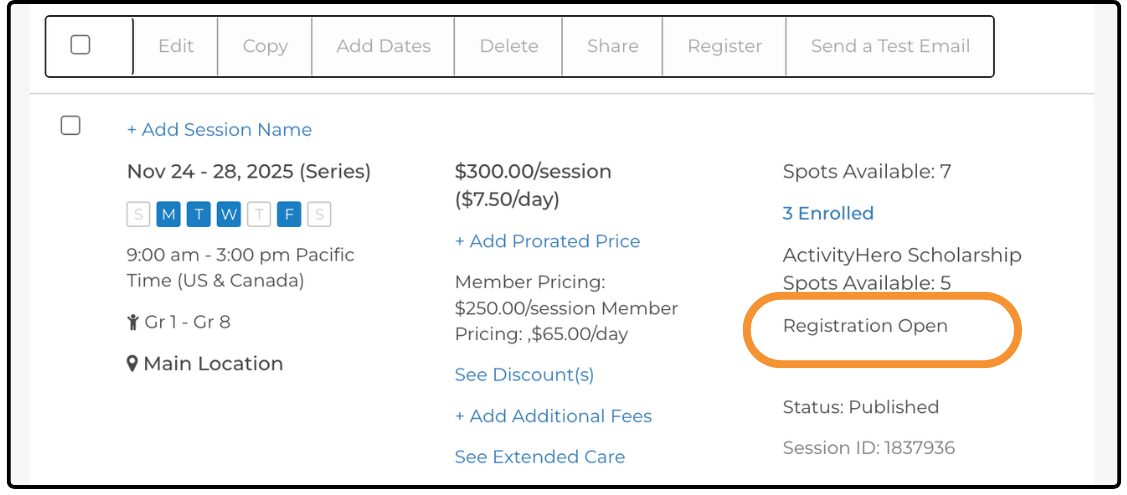
- From your dashboard, hover over Activities & Sessions and select Sessions & Content Manager.
- Find the session you want to update.
- Click Registration Open on the session.
- The registration options open, where you can update the setting.
Stop Accepting Registrations Options ↑
- When session starts - Registrations remain open until the session start time.
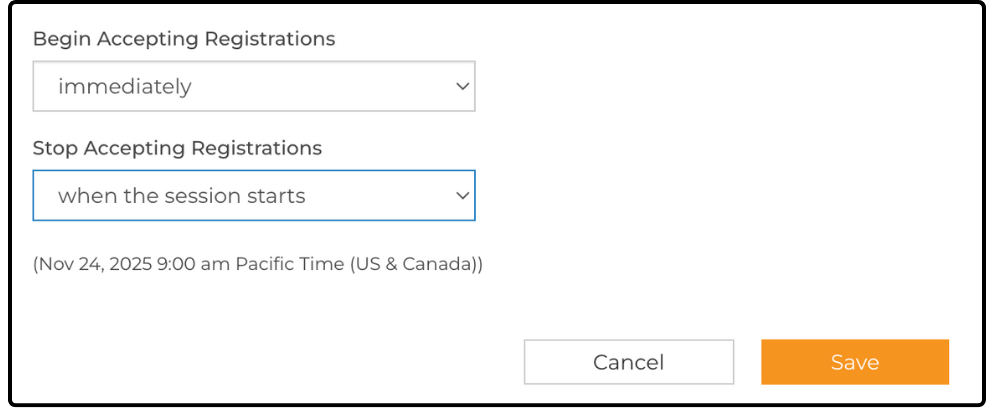
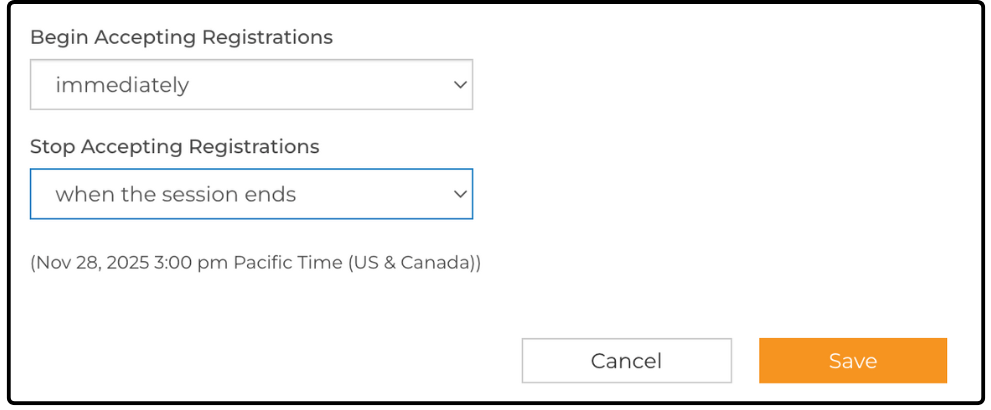
Example: If the session starts July 27 at 9:00am, registrations close on July 27 at 9:00am. - When session ends - Registrations remain open until the session end time on the end date.
- Number of days before session starts - Registrations close the specified number of days before the session start date at 11:59pm by default but you can set the time to whatever you would like.
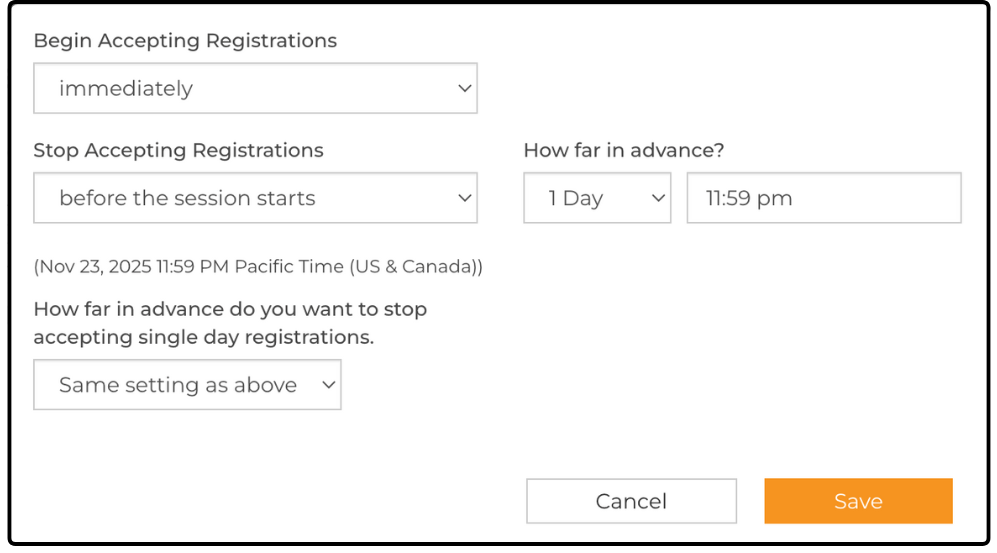
Example: If the session starts on Monday and this value is set to four days, registrations close on Thursday at 11:59pm. - Number of days before session ends - Registrations close the specified number of days before the session end date at 11:59pm by default but you can set the time to whatever you would like.
Example: If the session ends on Friday and this value is set to one day, registrations close on Thursday at 11:59pm. - At a specific date & time - Select an exact calendar date and time when registrations close.
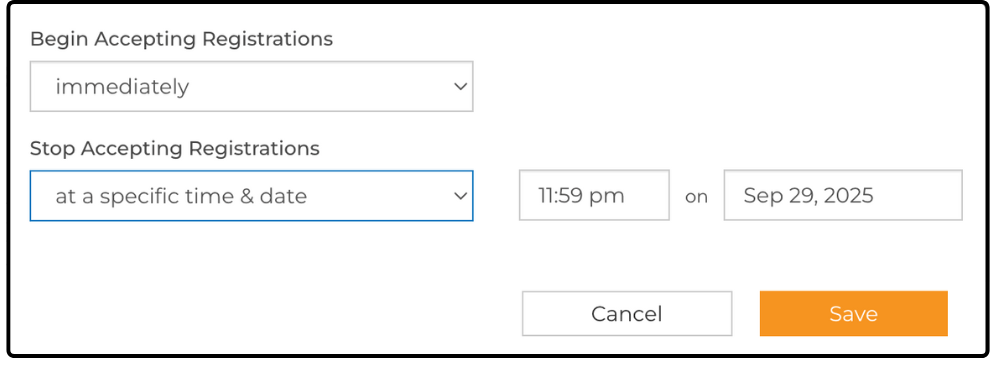
The date and time for the selected option appear in parentheses, so you always know exactly when registrations close based on your settings.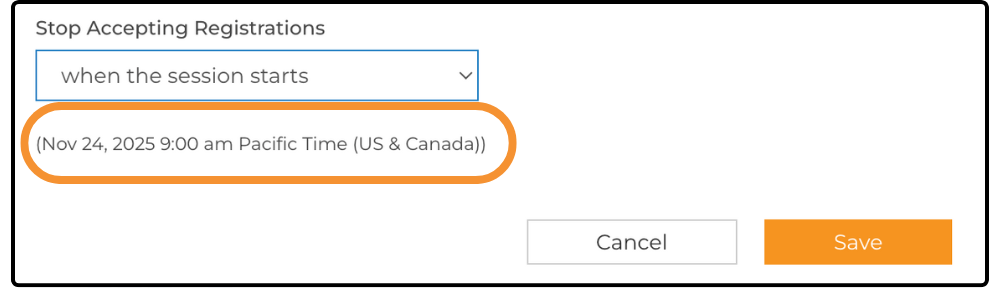
Single Day Options
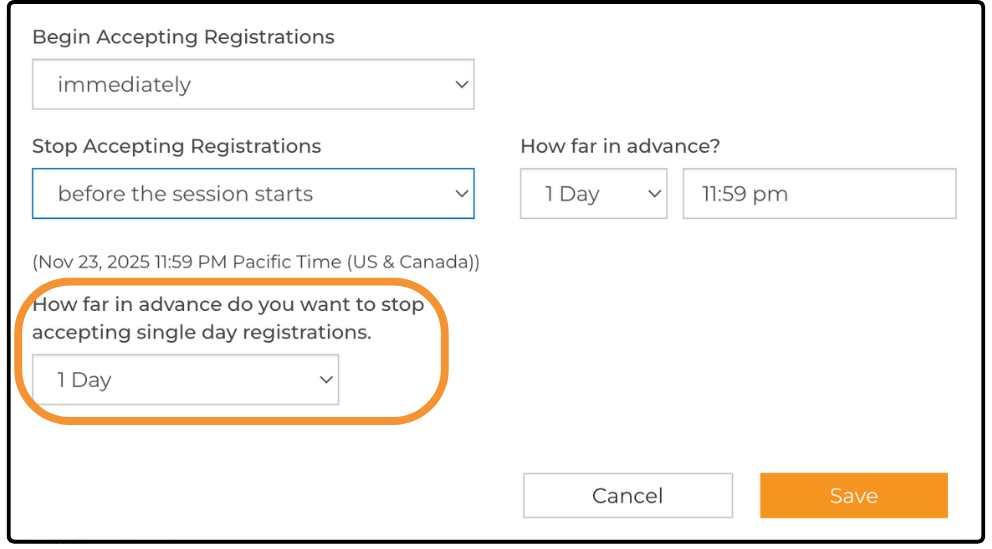
If you offer single-day registrations, you also see separate day and time selection options.
Bulk Edit ↑
If you want to update multiple sessions at once, you can use Bulk Edit:
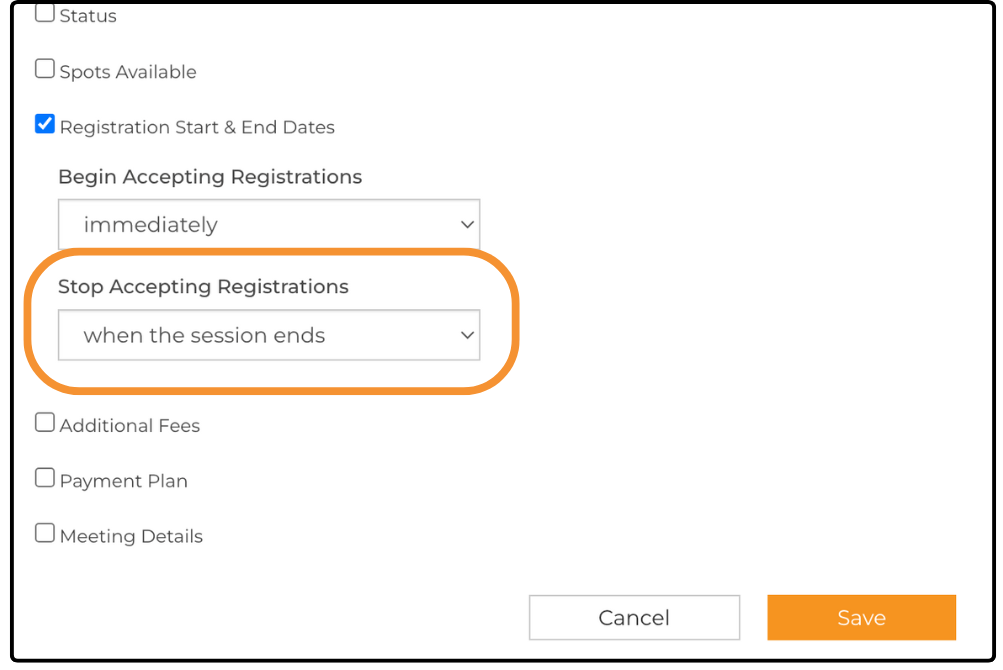
- Select multiple sessions.
- Click Bulk Edit.
- Select Registration Start & End Dates to apply the changes to all selected sessions.
For more information on Bulk Edit, check out our help article.
Default Registration Deadlines by Activity Type ↑
If you do not set a custom deadline, the system applies these defaults:
Activity Type |
Default Value for Stop Accepting Registrations |
| Online | One day before session starts |
| Camp | Four days before session starts |
| Class | Ten days before session ends |
| Event | When session starts |
| Birthday | Ten days before session ends |
Related Articles ↑
Was this article helpful?
That’s Great!
Thank you for your feedback
Sorry! We couldn't be helpful
Thank you for your feedback
Feedback sent
We appreciate your effort and will try to fix the article