Add your registration data to ActivityHero in bulk using import templates. Save time and streamline your setup process by uploading all your registrations in bulk with just a few simple steps.
Common Registration Validation Errors
Registration Data Fields
For an overview of importing in ActivityHero, including how locations, activities, sessions, and other data relate to each other, check out our help article How do I import data into ActivityHero?
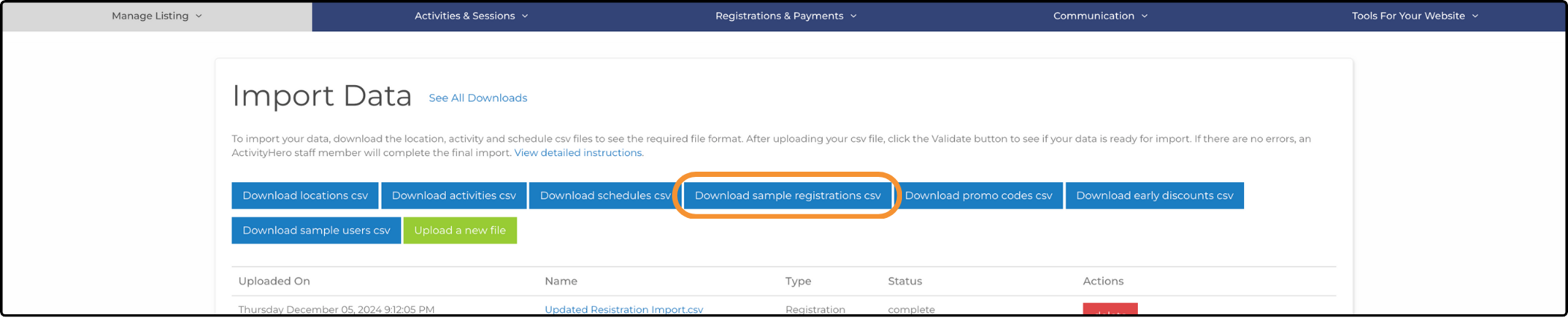
1. Download a sample registration template by clicking Download sample registrations csv. The downloaded file contains one line of sample data. Actual ActivityHero registration data is not downloaded.
2. Add your registration data into the CSV file.
- Sample Data - Remember to remove the first row of sample data once you have added some of your own data.
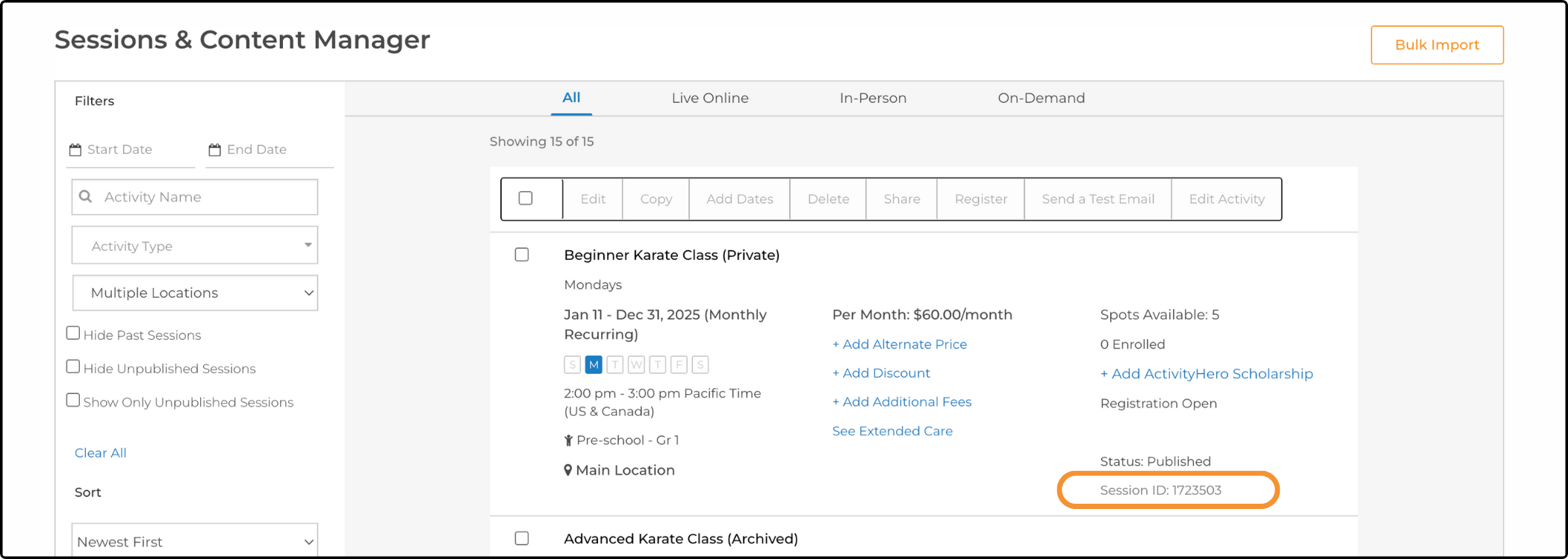
- Session ID - To associate the registrations to the correct session, the activity_schedule_id must be included. The activity_schedule_id is also known as the Session ID and can be found on your session by navigating to Sessions & Content Manager > Session: Session ID.
- Spot Count - enter enough spots to cover the number of registrations you are importing. Each imported registration reduces the spot count by one, and once it reaches zero spots, the remaining registrations are Waitlisted.
- Custom Questions - If your registration forms require custom questions, they need to be added to the registration upload template. Create a new column at the end of the template. For the column heading, copy/paste the custom question name. This must be exactly as it is displayed in your registration forms to prevent validation errors. For example, if the custom question is named Student ID, the heading must be Student ID. For more information about Custom Questions and Registration forms, check out our help article.
3. Upload your CSV file by clicking Upload a new file. Select the Registration file type.
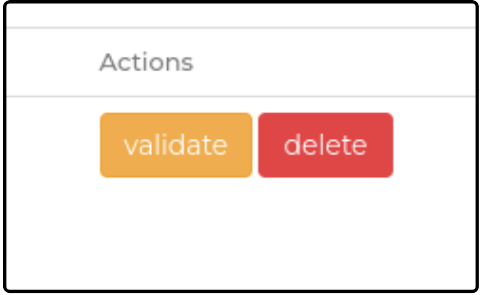
4. After uploading your CSV file, click validate to see if your data is ready for import.
5. If there are errors, Validation Failed is displayed. Click View Report to inspect the reason for the failure. Correct any errors, and then repeat step 3. For tips on frequent validation errors, check out the section below.
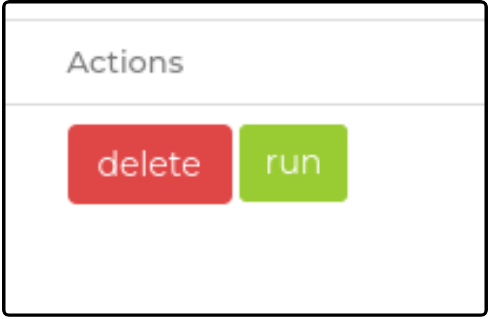
6. When the file is validated successfully, the green run option is available. Select it to begin importing your information. The import can take a few minutes to complete.
Common Registration Validation Errors
Below is a list of common validation errors and how you can address them:
Missing Data - One of the most frequent issues when importing new registrations is missing data in required fields. To avoid this, make sure to carefully check your template for all necessary fields before exporting it as a CSV.
Required Registration Form Data - In addition to general required fields, any data marked as required on your registration form must also be included in the registration import template. This includes any Custom Questions set as required.
Additionally, the column header for each required custom question must match exactly as it appears in your custom questions. For more information on registration forms and custom questions, check out our help article.
Registration Data Fields ↑
* required fields
** required if the user has not registered on ActivityHero before
- * activity_schedule_id or external_schedule_id - At least one is required
- ** user_email
- ** first_name
- ** last_name
- ** user_zip
- * amount (type the amount paid; if it was free, type 0)
- * enrollment_status (Enrolled, Cancelled, Pending, Wait Listed)
- * participant_first_name
- * participant_middle_name
- * participant_last_name
- participant_dob (required if your session is for specific ages)
- participant_grade (required if your session is for specific grades)
- participant_school_name
- participant_allergies
- participant_medical_condition
- * parent1_first_name
- * parent1_last_name
- parent1_cell
- * parent1_email
- parent1_street_address
- parent1_city
- parent1_state
- parent1_zip
- parent1_country
- parent2_first_name
- parent2_last_name
- parent2_cell
- parent2_email
- parent2_street_address
- parent2_city
- parent2_state
- parent2_zip
- parent2_country
- authorized1_name (adult who is authorized to pick up or sign in/out the participant)
- authorized1_cell
- authorized1_relation
- authorized2_name
- authorized2_cell
- authorized2_relation
- Additional authorized adults can be added as authorized3_name, authorized3_cell, authorized3_relation, and so on.
- emergency1_name (emergency contact)
- emergency1_cell
- emergency1_relation (e.g., mother, father, aunt)
- emergency2_name
- emergency2_cell
- emergency2_relation
- hospital_name
- physician_name
- physician_phone
- insurance_company
- sibling_request (Names of siblings who are also attending)
- special_request
- alt_price_type (blank for session price, session_alt_price for alternate price, session_alt2_price if Tiered Pricing is enabled)
- subscribed (default is "FALSE". Set to "TRUE" if the user should receive ActivityHero email newsletters. Providers need to first import users before they can be subscribed to provider marketing emails.)
If you have questions or problems, submit a support request.
Related Articles ↑
Was this article helpful?
That’s Great!
Thank you for your feedback
Sorry! We couldn't be helpful
Thank you for your feedback
Feedback sent
We appreciate your effort and will try to fix the article