If your school district connects to ActivityHero through an SIS system, you can use a student’s ID to automatically fill in their information for a session.
Overview ↑
Navigate to Student Data > Demographics
Place a brief description of the New page here.
Manually add by Student ID
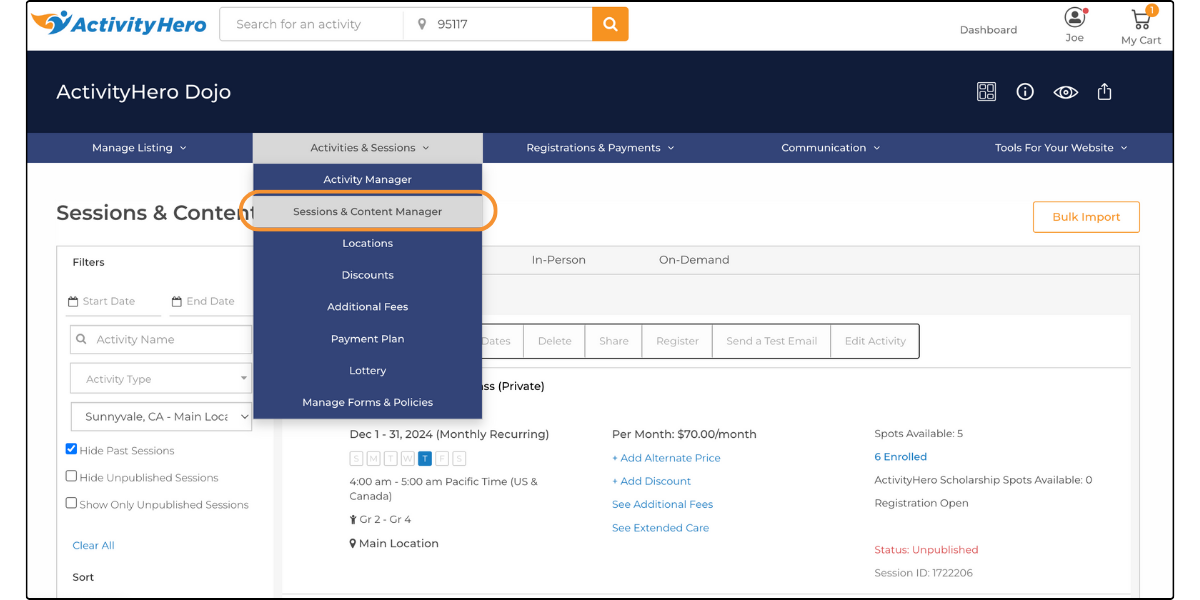
1. Navigate to Activities & Session > Sessions & Content Manager.
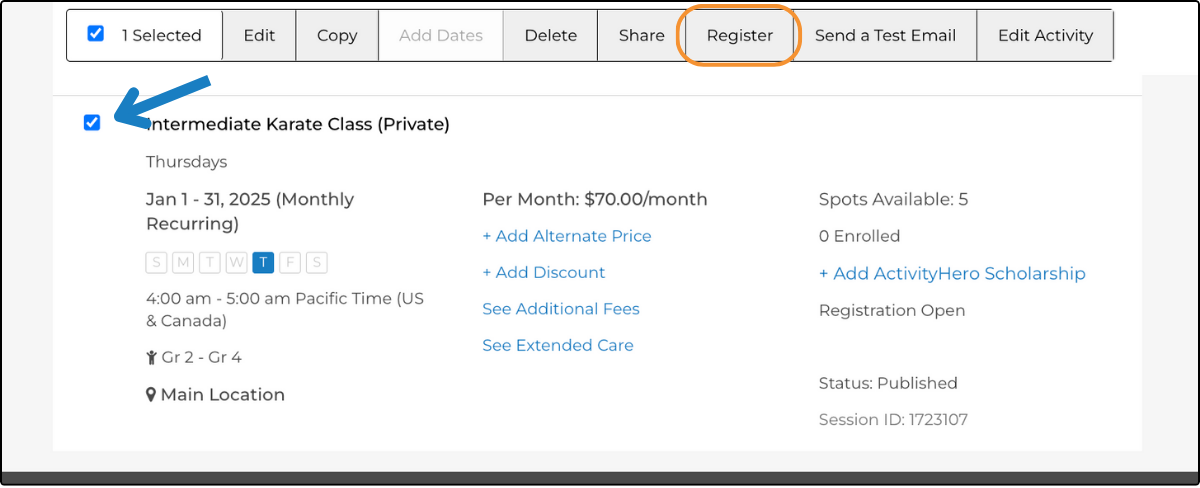
2. Select the check box on the session, then click the "Register" button near the top of the screen.
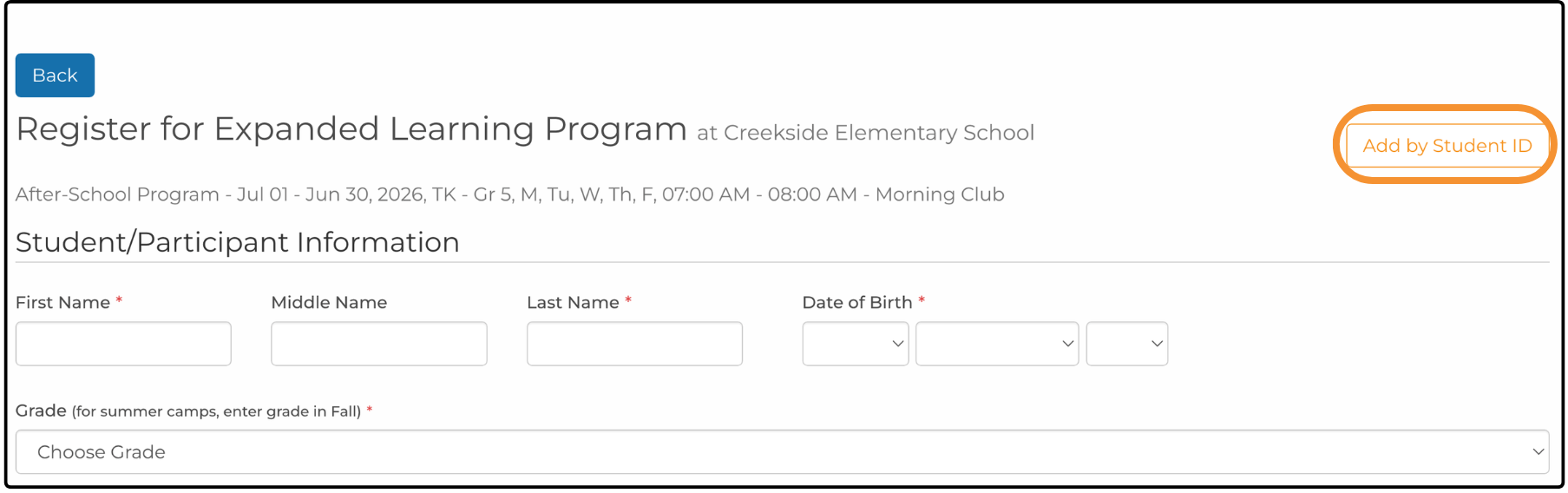
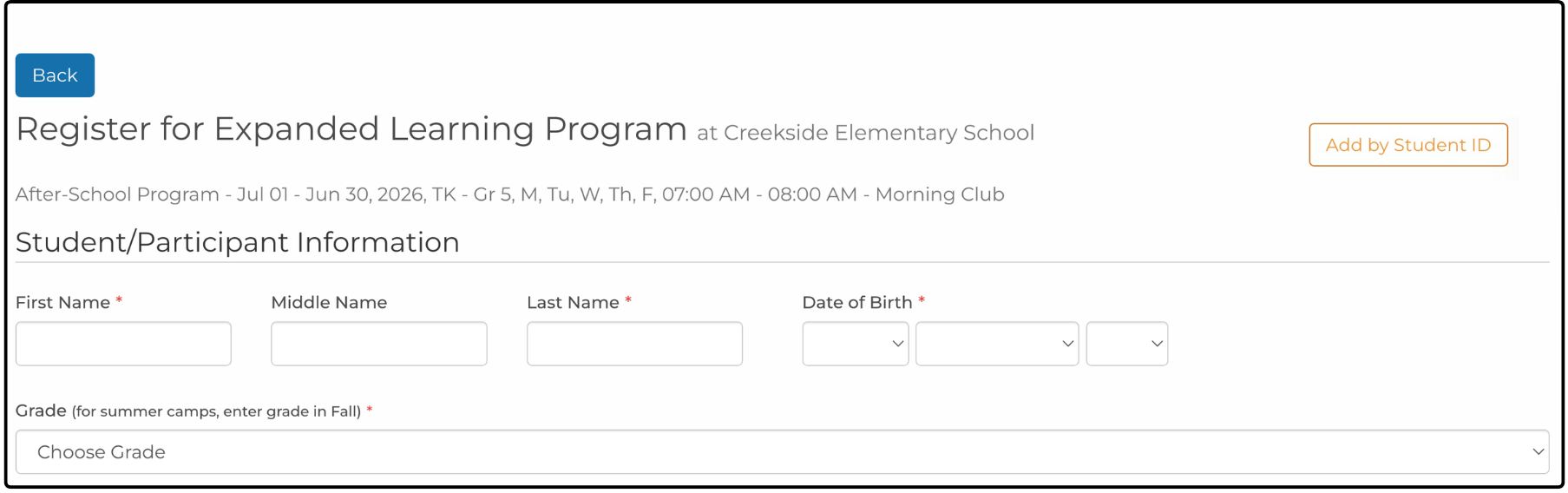
3. From the Registration page you can manually enter the student information, but click the Add by Student ID button to continue.
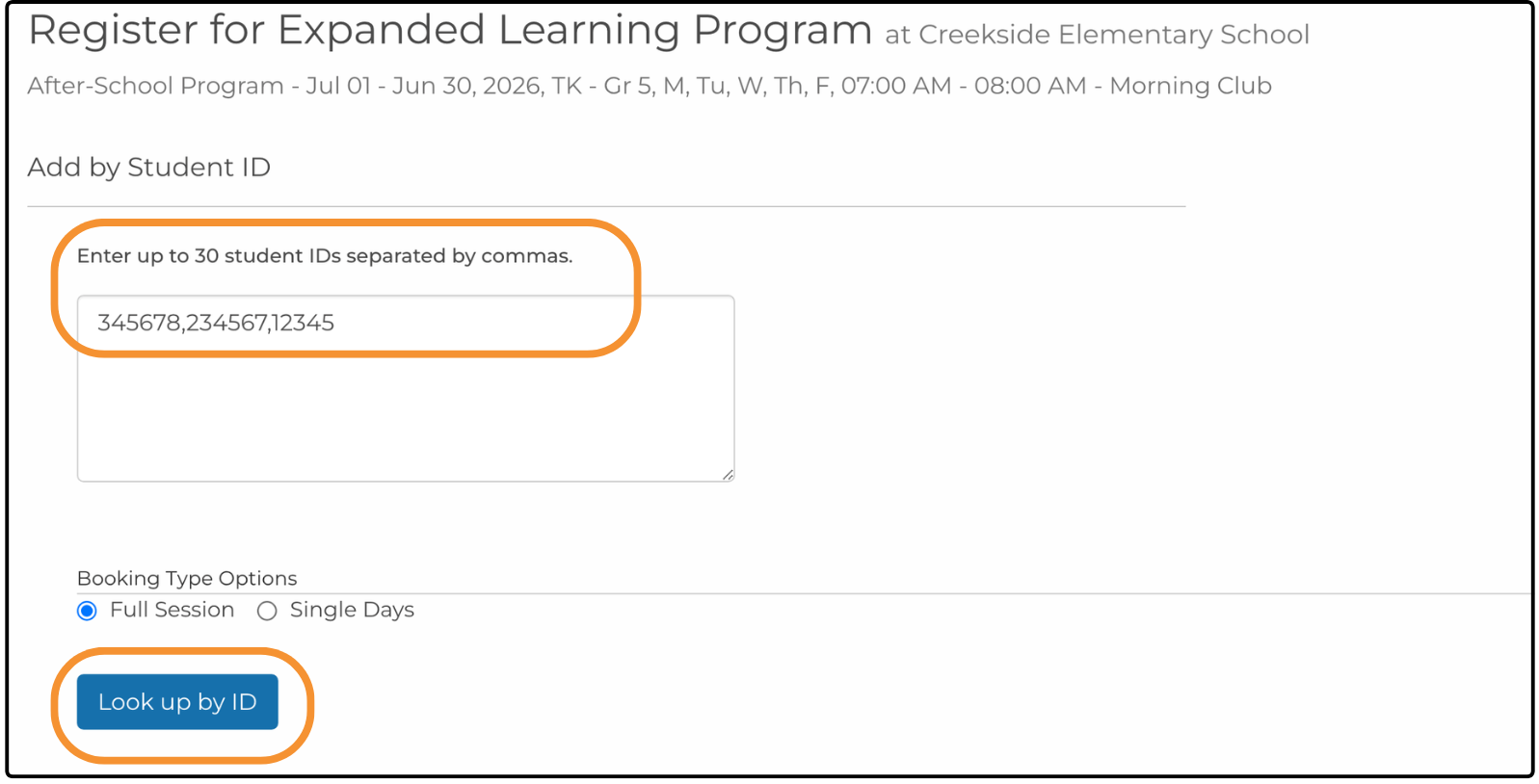
4. Enter the student ID or add multiple student IDs separated by commas. Then click Look up by ID.
5. Select the students from the list by checking the box next to their name or select all by clicking the checkbox at the top. Then click, Register Selected.
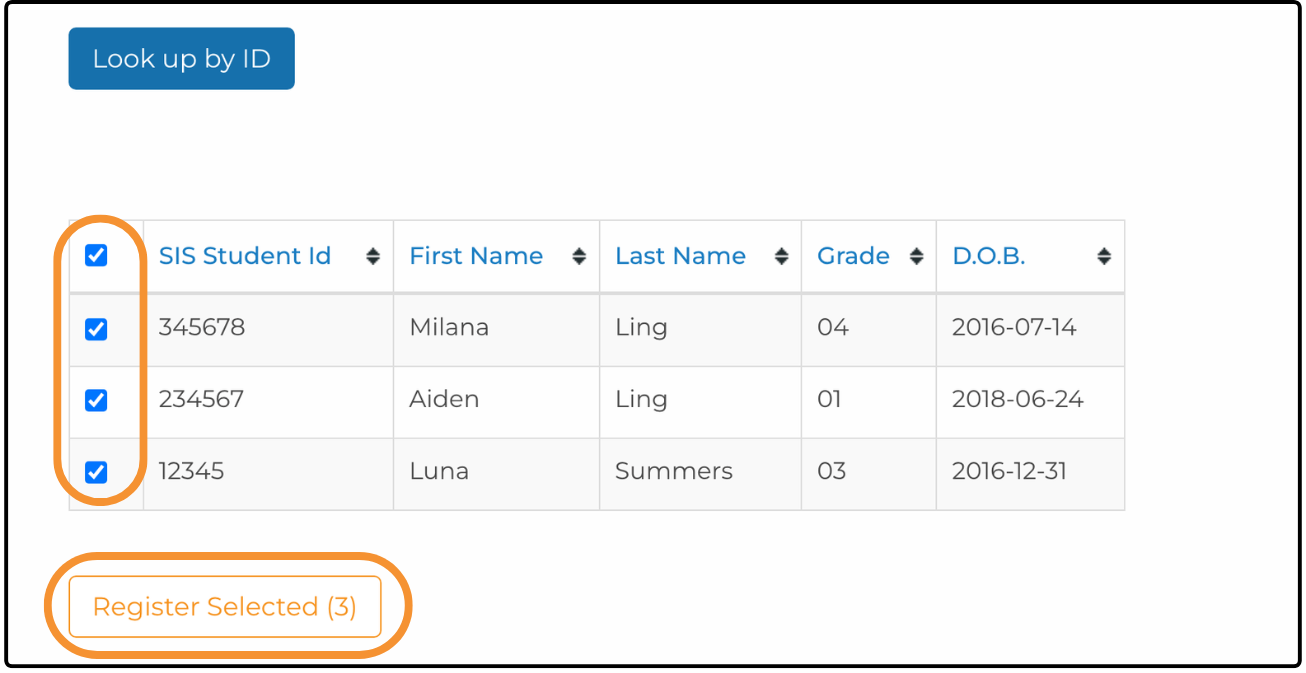
6. Review the Bulk Registrations by Student ID report to confirm the student has been added. If you get an error, you can try registering the student by filling out the standard registration form instead of by Student ID. See further instructions.
Was this article helpful?
That’s Great!
Thank you for your feedback
Sorry! We couldn't be helpful
Thank you for your feedback
Feedback sent
We appreciate your effort and will try to fix the article