Prepare your Activities, Sessions, Locations and more for easy upload into ActivityHero.
The Data in ActivityHero
Data Order
Getting Started
Preparing Locations
Preparing Activities
Preparing Sessions
Importing New Data
Importing to Update Data
This article describes how to import location, activity, or schedule information. Refer to this article to import registrations into ActivityHero.
The Data in ActivityHero
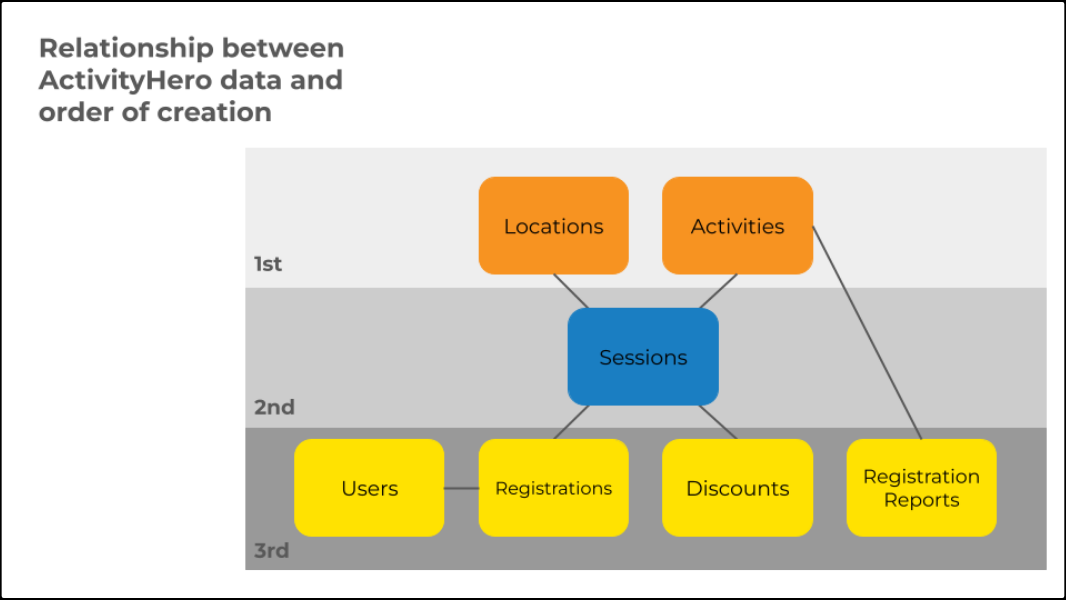 ActivityHero organizes your offerings into Activities that families can discover on our marketplace or directly on your page. These Activities represent summer camps, classes, events, or other programs your families participate in. Sessions define the schedules for your activities, including details such as dates, times, and days. Each session takes place at a specific Location, whether at your business, a park, or online. Together, Activities, Sessions, and Locations form the foundation of how information is presented to families and that leads to Users, Registrations, and Registration Forms.
Activities without Sessions are just descriptions; they do not give families the details they need to join. Sessions without a Location are schedules without a meeting spot. And Sessions without an Activity are just a calendar and price with no clue what it is for. You need all three, Activities, Locations, and Sessions, to give families the full picture of what your business offers.
Data Order ↑
The way data connects is crucial and affects when it should be added. When creating Activities, Locations, and Sessions through the ActivityHero dashboard, the system ensures they are added in the correct sequence. However, when importing via templates, you need to follow the proper order manually.
Start by importing Locations and Activities. These are independent, so the order does not matter, but they must come before Sessions. Once Locations and Activities are created, you can import Sessions for those Activities.
After Sessions are added, you can import Users, Registrations, and Discounts at any time. Registration Reports cannot be imported, but they are connected to your Activities. By following this sequence, you establish a solid data foundation, ensuring all connected pieces integrate smoothly.
Getting Started ↑
You can create new Locations, Activities, and Sessions directly through your ActivityHero Dashboard, or you can import this information in batches. Importing allows you to use templated spreadsheets to add multiple entries at once. There are templates for Locations, Activities, Sessions, Registrations, Discounts, and Users. Each template contains different information, some of it required and some optional. To make things easier, we have prepared a single downloadable file containing sample templates for all types of imports in ActivityHero.

Preparing Locations ↑
To prepare the template to import your locations, have the details for each place you provide sessions ready. Below are some helpful tips on what to keep in mind when preparing your locations import template.
- The location name, address, city, state, and zip code are all required.
- If the session is online, there is no need to add address, city, state or zip code.
- State should be a two-letter abbreviation, such as CA or TX.
For more details on importing locations, or for a complete list of data fields, see our help article.
Preparing Activities ↑
To prepare the template to import your activities, have the details for each of your offerings like name, description, and itinerary ready. Below are some helpful tips on what to keep in mind when preparing your activities import template.
- Name, type, description, and registration form name are all required.
- The types are Camp, Class or Workshop, Event, or Birthday Party. Type details can be found in your ActivityHero Dashboard.
- The registration form name should be the name of the registration form in your Forms & Policies.
For more details on importing activities, or for a complete list of data fields, see our help article.
Preparing Sessions ↑
To prepare the template to import your sessions, have the details for each of your schedules like dates, time, days of the week, and pricing ready. Below are some helpful tips on what to keep in mind when preparing your sessions import template.
- Location name, Activity name, session type, start date, end date, start time, end time, days of the week, minimum age in years, maximum age in years, price, price type, status, number of openings, and time zone are all required information.
- If the activity is online, type Online for the location_name.
- Session types are series, single_day, or monthly.
- Days of the week values are: sun,mon,tue,wed,thur,fri,sat
- Price type is always per_session.
- It is best to set Status to Published. If you do not want this session displayed on ActivityHero yet, set it to Unpublished.
- If you want to record an external schedule ID, it should be a unique session number from your system.
For more details on importing sessions, or for a complete list of data fields, see our help article.
Importing New Data ↑
Using the tips above, you can quickly import new data in bulk using templated spreadsheets, saving time by uploading multiple entries at once. For step-by-step instructions, refer to the help articles on importing Locations, Activities, Sessions, Registrations, Discounts, and Users.
Importing to Update Data ↑
After your initial imports, you might need to update data in bulk. Download your current information in a formatted template, make the necessary changes, and re-import the file to apply the updates. For step-by-step instructions, refer to the help articles on importing Sessions, Registrations, Discounts, and Users.
If you have questions or problems, submit a support request.
Related Articles ↑
Was this article helpful?
That’s Great!
Thank you for your feedback
Sorry! We couldn't be helpful
Thank you for your feedback
Feedback sent
We appreciate your effort and will try to fix the article