Add multiple activities to ActivityHero using import templates. Save time and streamline your setup process by uploading all your activities in bulk with just a few simple steps.
Import New Activities
Common Activity Validation Errors
Creating New Activities
Activity Data Fields
Expert Setup
For an overview of importing in ActivityHero, and how locations, activities, sessions, and other data relate to each other, see our help article How do I import data into ActivityHero?
Import New Activities
1. Download the sample templates from the link below, and read the instructions on how to use the spreadsheet.

- Name, type, description, and registration form name are all required.
- Leave the activity_id blank. ActivityHero automatically creates an activity_id after upload.
- The activity name should be unique. If the activity_name matches an existing activity in ActivityHero, that activity is updated instead of a new one being created.
- Categories help families find your activities. View a list of categories in our help article.
3. Upload your CSV file by clicking Upload a new file. Select the Activity file type.
4. After uploading your CSV file, click Validate to check whether your data is ready for import.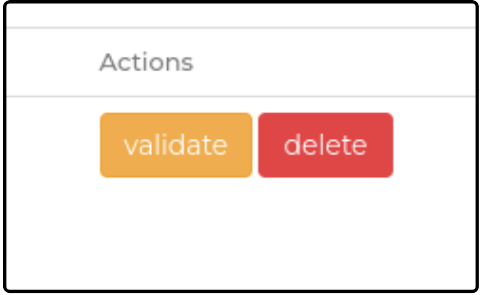
5. If there are errors, Validation Failed is displayed. Click View Report to inspect the reason for the failure. Correct any errors, and then repeat step 3. For tips on frequent validation errors, see the section below.
6. When the file is validated successfully, the green Run option becomes available. Click Run to begin importing your information. This can take a few minutes, and changes might not be displayed in the marketplace right away.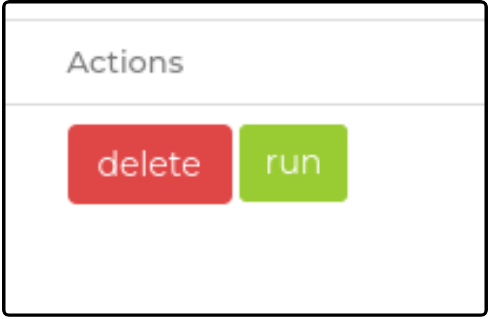
Common Activity Validation Errors ↑
Below is a list of common validation errors and how you might address them:
Creating New Activities ↑
A common issue when importing new activities is the inclusion of special characters in the activity_name. Ensure that no special characters are present. Additionally, make sure the activity_type is properly capitalized (Class, Camp, Birthday Party, Event, Online, or On-Demand).
Activity Data Fields ↑
Data fields (* required fields)
- activity_id
- activity_name *
- activity_type (Class, Camp, Birthday Party, Event, Online, or On-Demand) * - Type details can be found in your ActivityHero Dashboard.
- activity_description * (can use HTML tags such as <br> or <strong>)
- activity_categories (comma-separated list of Categories) *
- activity_photos (comma-separated list of URLs) - Only include new URLs in the activity_photos column. Duplication can occur if existing photo URLs are imported.
- registration_ends (when the session ends, when the session starts, before the session starts, before the session ends)
- reg_cutoff_days (number of days before the session start date to stop accepting registrations)
- student_teacher_ratio
- registration_form_name * - The registration form name should be the name of the registration form in your Forms & Policies.
- prerequisites
- itinerary
- remember_to_bring
- private (true, false)
- deprecated (true, false): using TRUE marks an activity as Not Used
Expert Setup ↑
Short on time? Have an expert from ActivityHero set up your listing to get you up and running quickly. Your listing is also optimized to maximize visibility and registrations. After you complete your payment, we ask you for basic information to set up your listing (up to five activities or 30 activity sessions). To add Expert Setup, navigate to Manage Your Plan, select the Expert Setup checkbox, then click Confirm Your Changes in the top right corner.
If you have questions or problems, submit a support request.
Related Articles ↑
Was this article helpful?
That’s Great!
Thank you for your feedback
Sorry! We couldn't be helpful
Thank you for your feedback
Feedback sent
We appreciate your effort and will try to fix the article