Additional Fees fields can be used to charge families for registration fees, lunches, t-shirts, field trip fees, or anything else in addition to the session fee. These fees can be mandatory or optional.
Creating an Additional Fee
Creating a Fee on a Session
Adding an Additional Fee to a New Session
Adding Additional Fees to an Existing Session
Family View of Fees
Creating an Additional Fee
When a provider needs to charge for anything in addition to the basic camp or class cost, they can use Additional Fee fields.
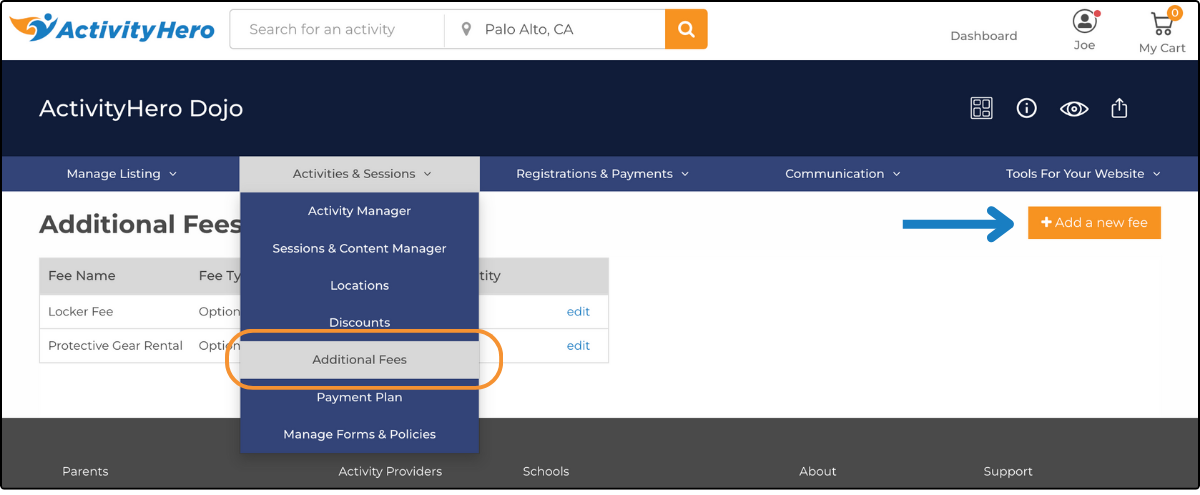
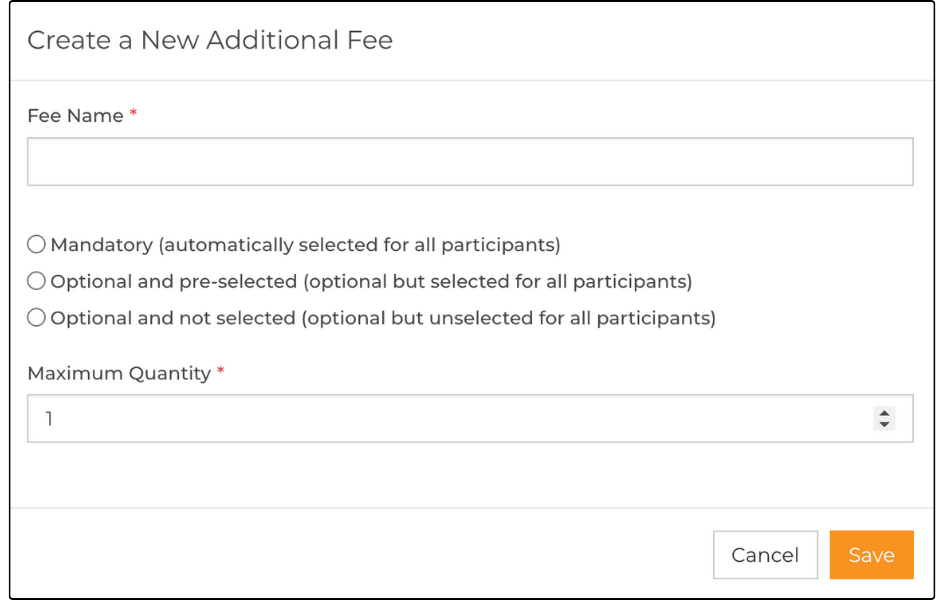
- Fee Name: This is the name the families see for the fee. It should be descriptive enough to briefly explain the fee.
- Mandatory or Optional: Only one can be selected, and each has a description of how the fee is applied.
- Maximum Quantity: This sets a limit to how many times the fee can be added. For example, if you wanted to limit one T-shirt per participant, you would set the Maximum Quantity to 1, but if you wanted to allow for purchasing of enough shirts for the week, you could set the Maximum Quantity to 5.
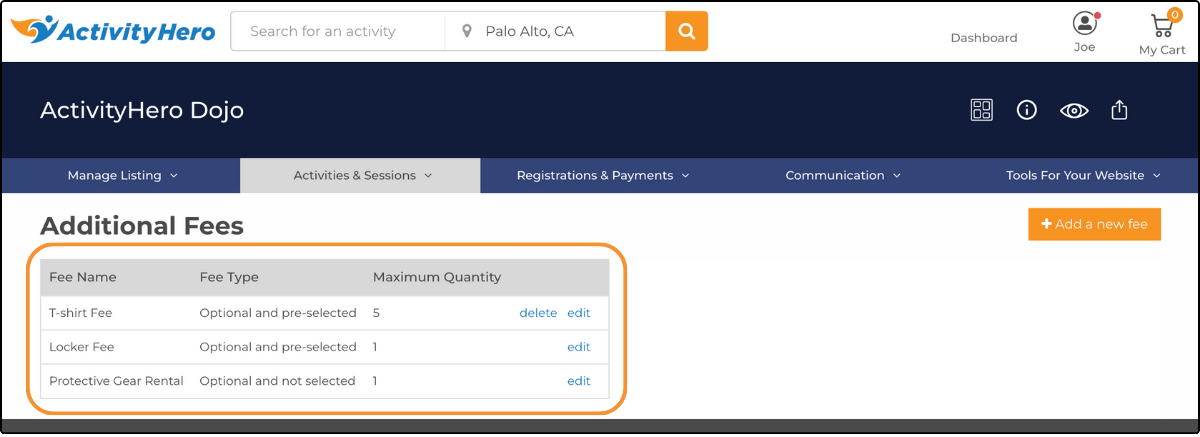
Once you have clicked Save, the list of fees is displayed. The list is ordered with the most recently created fee at the top and the oldest fee at the bottom. If the fee is edited or updated, it moves to the top of the list and is displayed in that order in the shopping cart.
Creating a Fee on a Session ↑
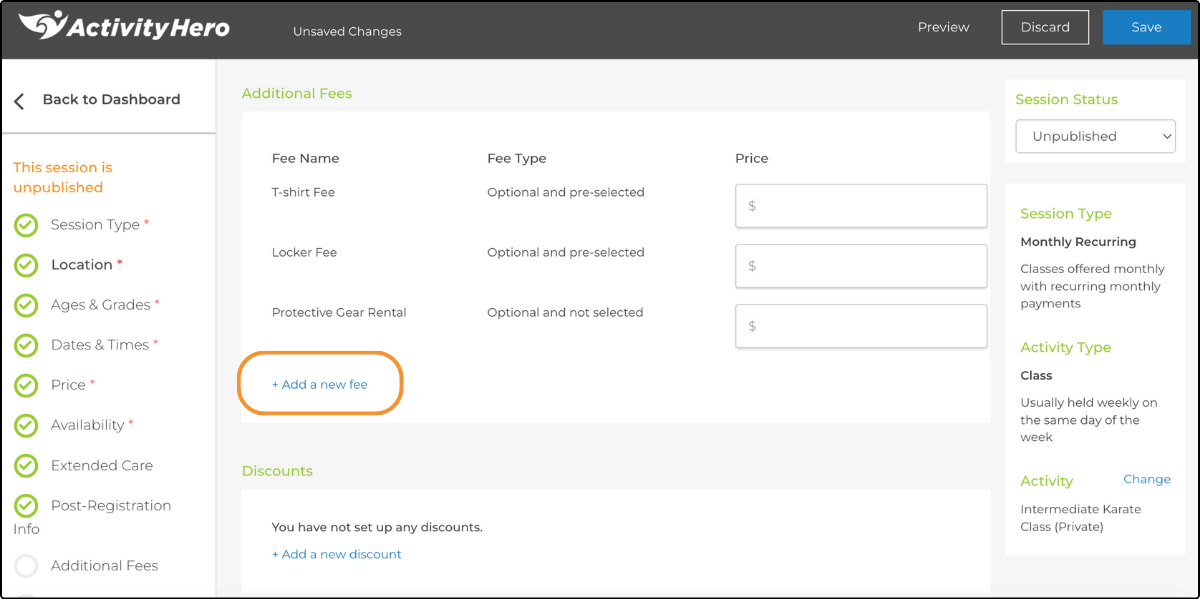
You can also create new additional fees while you are creating your sessions. In the Additional Fees section, click + Add a new fee. Then type the Fee Name, select Mandatory or Optional, and set a Maximum Quantity as described above.
Adding an Additional Fee to a New Session ↑
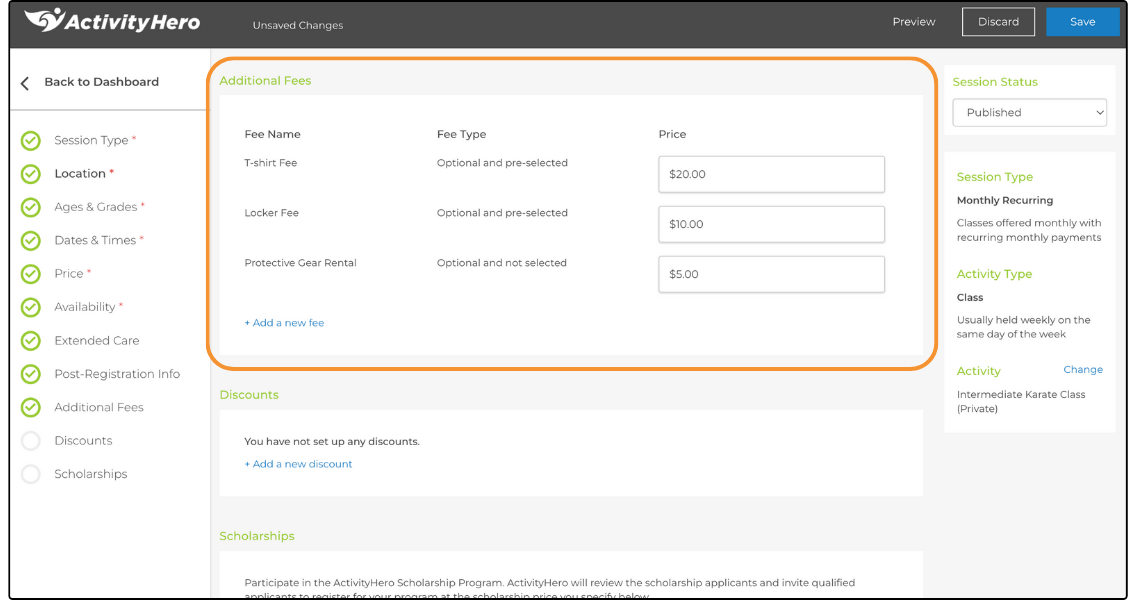
While you are creating your new session, the Additional Fees section displays all of the fees you have created. These are ordered with the most recently added fee at the top. Type a dollar value for the fee and it is displayed on the session and offered to the customer during the checkout process.
Adding Additional Fees to an Existing Session ↑
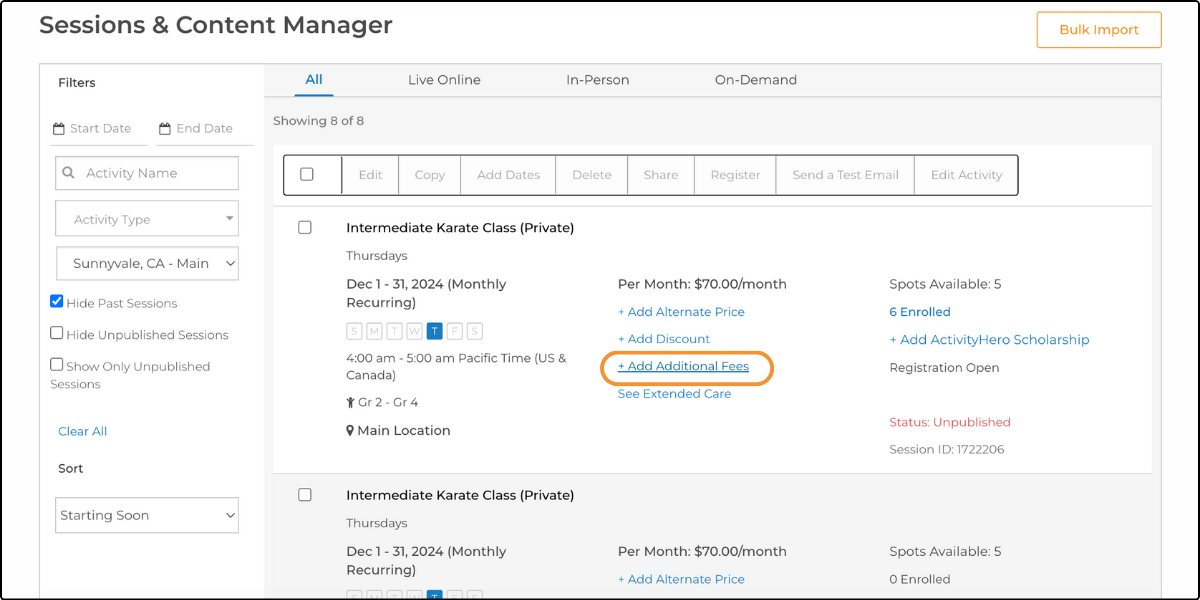
You can add an additional fee to an individual session by clicking + Add Additional Fees on the session. Type a value for the fee, and it is displayed on the session, as in the example above.
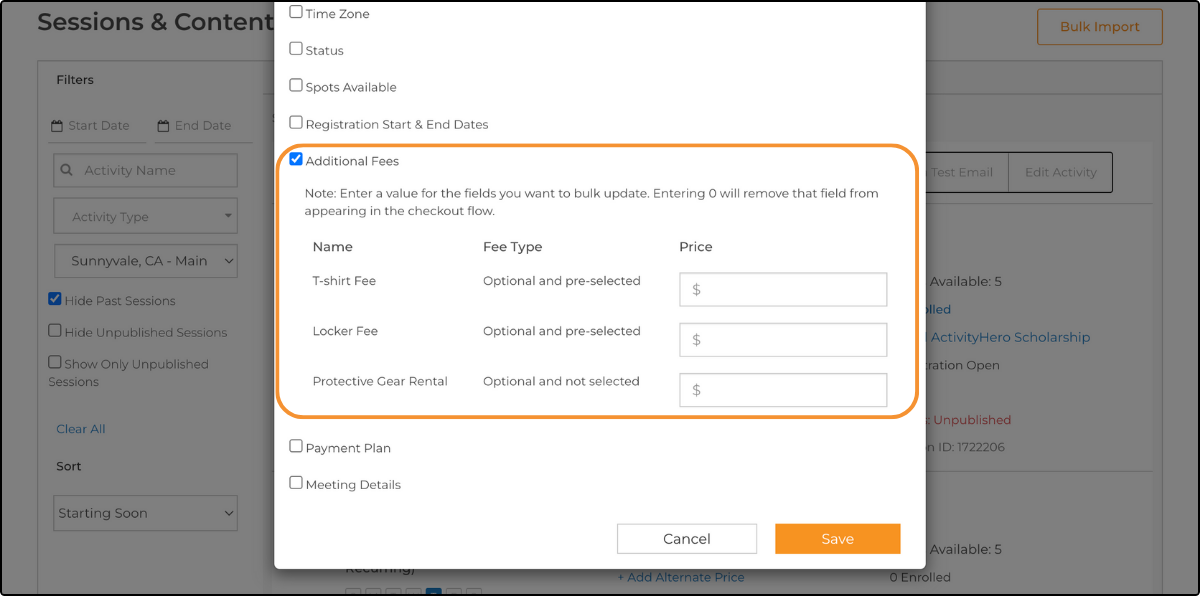
You can also add additional fees to multiple sessions by using the bulk edit feature. On the Sessions & Content Manager page, select all the sessions you want to edit by clicking the check box on each session. Then click Bulk Edit and scroll down to the Additional Fees section. Select the Additional Fees check box and type the values for the fees you want to add, as explained above.
Family View of Fees ↑
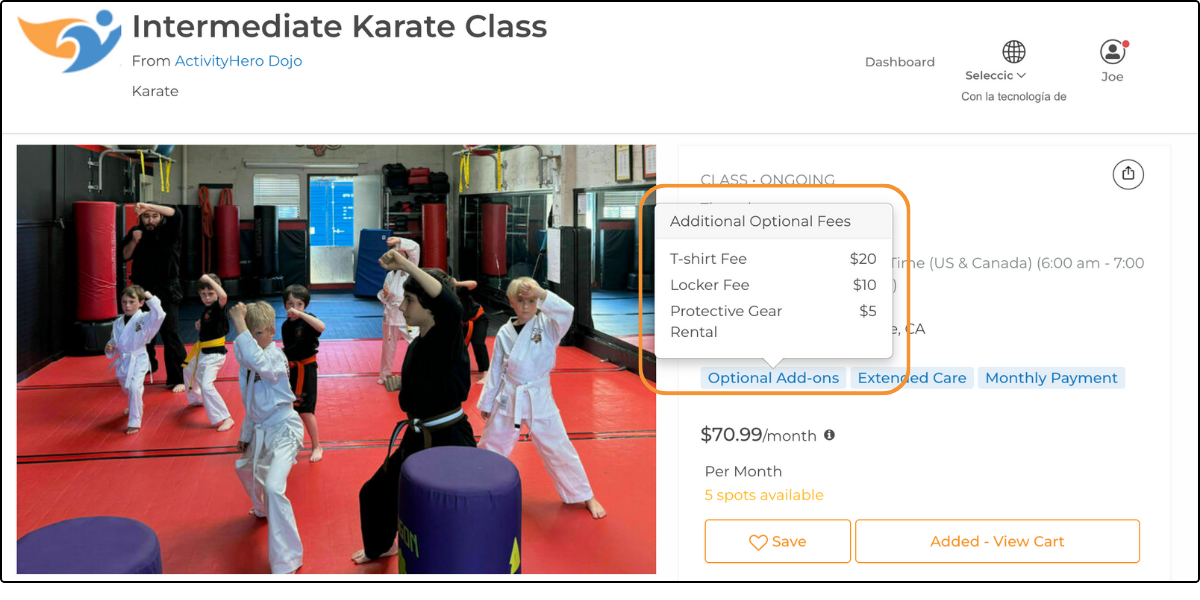
When previewing the activity, the family can hover over Optional Add-ons to display the additional fee.
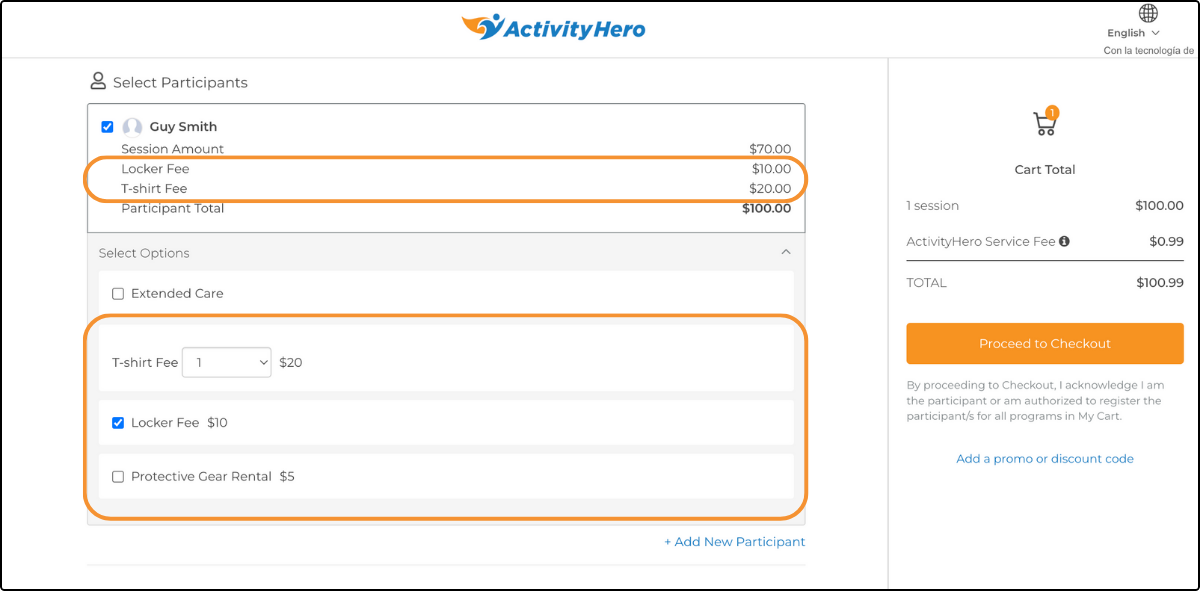
When they view their cart, they see the fees added as items in the total price. They can also select and clear optional fees and adjust the quantity of fees in the cart before checkout.
Was this article helpful?
That’s Great!
Thank you for your feedback
Sorry! We couldn't be helpful
Thank you for your feedback
Feedback sent
We appreciate your effort and will try to fix the article