Early bird discounts and other discounts are a great way to get more registrations. You can easily make these discounts available on ActivityHero.
Create a Discount
Assigning the Discount
Early Registration Discount Details
Sibling Discount Details
Multiple Session Discount Details
Promo Code Discount Details
Other Discount Details
More Advice on Discounts
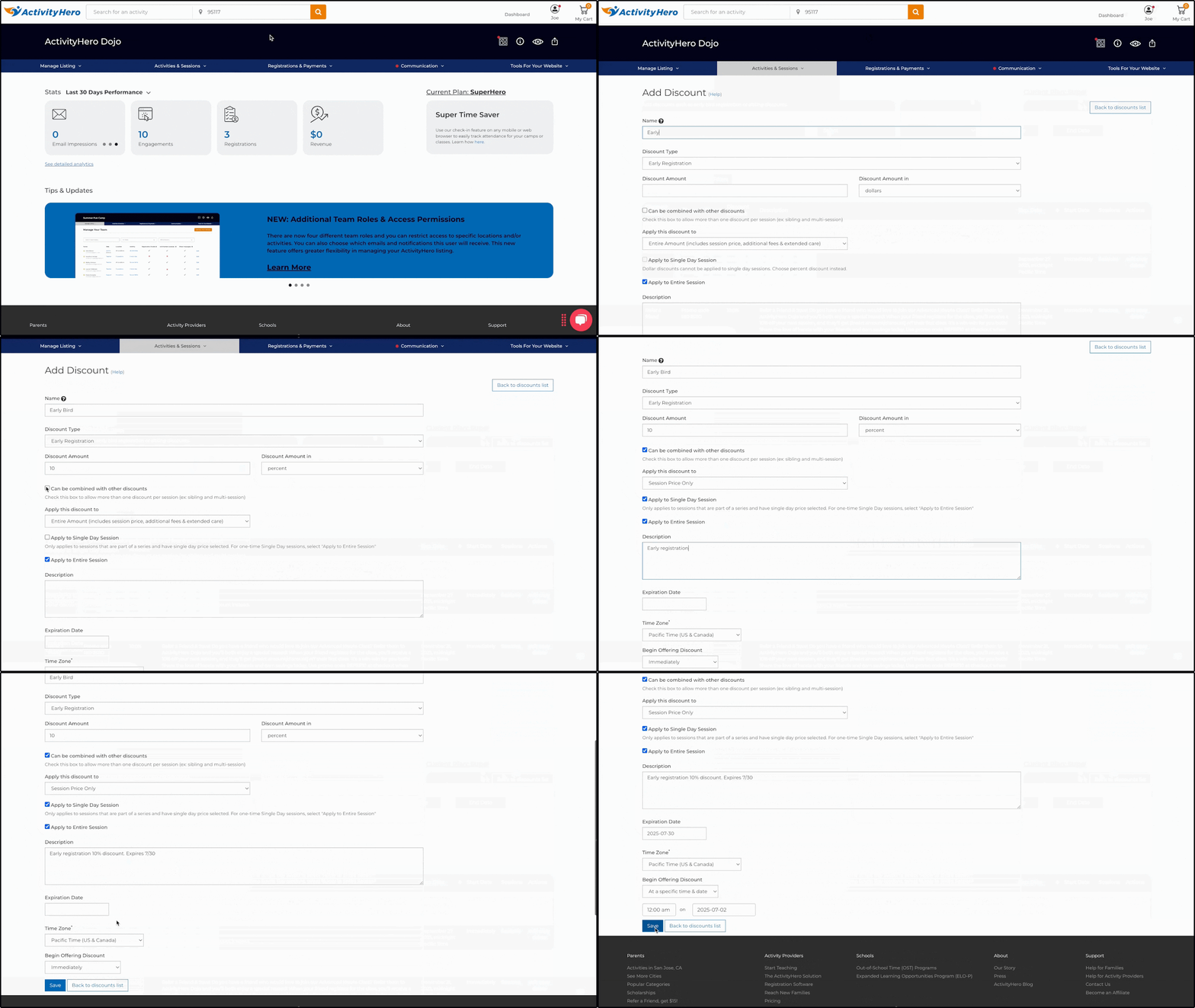
Create a Discount
- From your Dashboard, hover over Activities & Sessions and click Discounts.
- Click + Add a New Discount.
- Name your discount.
- Select a Discount Type.
See the sections below for more information about each type:- Early Registration Discount
- Sibling Discount
- Multiple Session Discount
- Promo Code Discount (not displayed on your ActivityHero page)
- Other Discount (not automatically applied)
- Type the discount amount, and specify whether it is in dollars or a percentage.
- Select whether this discount can be combined with other discounts.
Note: Both discounts must have this box checked for them to be combined on the same purchase. - Select how the discount is applied:
- Entire Amount - Applies to the session price, additional fees, and extended care.
- Session Price Only - Applies only to the session's base price.
- Extended Care Only - Applies only to extended care.
- Session & Extended Care Price - Excludes additional fees.
- Select how the discount applies:
- Check Apply to Single Day Session
- Check Apply to Entire Session
- Add a description (visible to the purchaser for certain discount types):
- For Sibling, Multi-Session, and Other discounts, this is the only explanation the user sees. Include details like whether the first session is full price and if the discount can be combined.
- For Early Registration and Promo Code discounts, the description is internal-only (not shown to users).
- Set an expiration date and select the appropriate time zone (required).
- Select when the discount should begin:
- Use the default Immediately, or
- Select a future date/time to schedule it.
- Click Save.
Assigning the Discount ↑
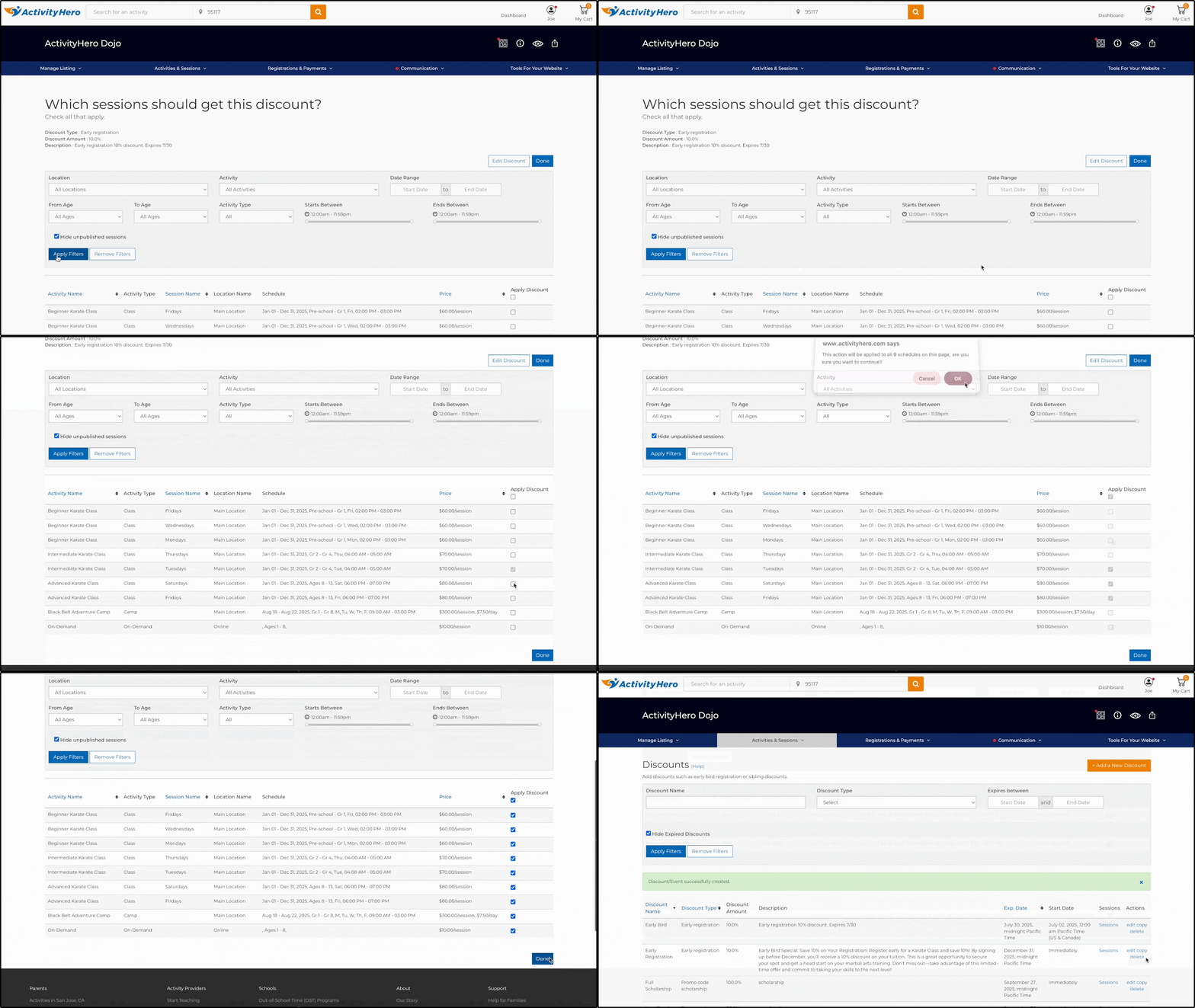
After creating your discount, you can select which sessions it applies to. Use the search filters at the top to easily narrow down sessions by location, activity, date, and other criteria.
To apply the discount to all sessions, check the box at the top of the Apply Discount column.
Once assigned, your discount appears on your listing.
Early Registration Discount Details ↑
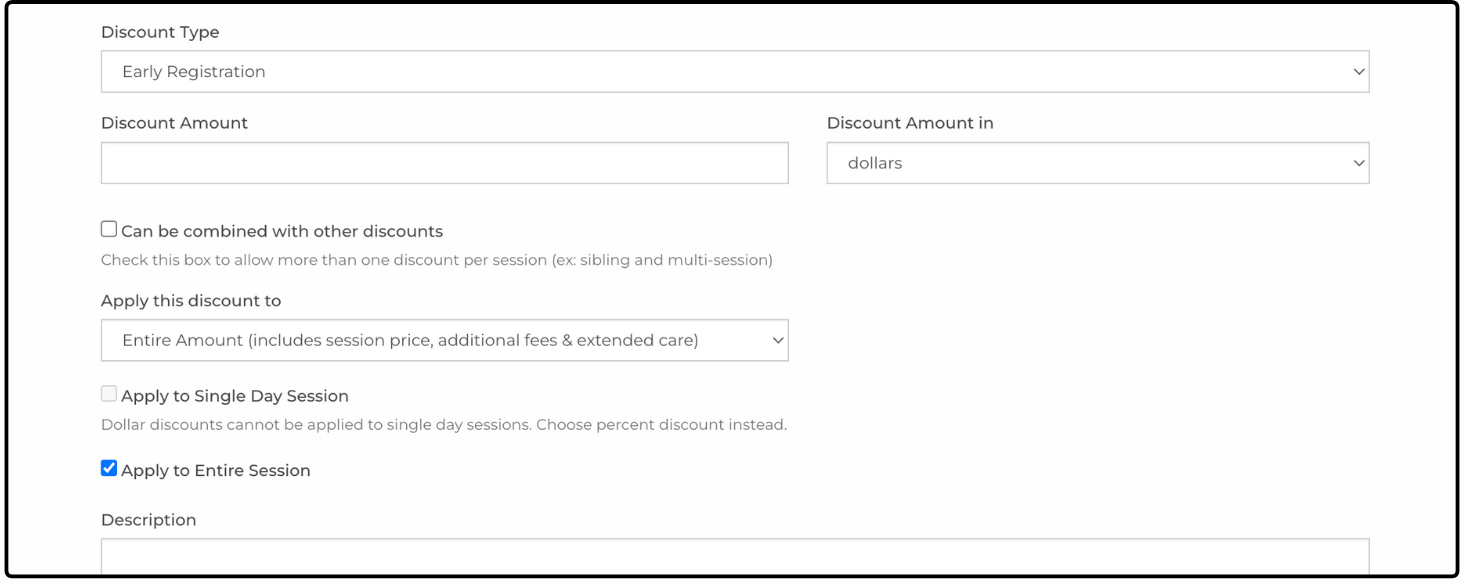
This discount is automatically applied to registrations completed before the expiration date (midnight Pacific Time).
It appears on your listing as a strikeout price. The description field is for internal use only and is not visible to users.
Sibling Discount Details ↑
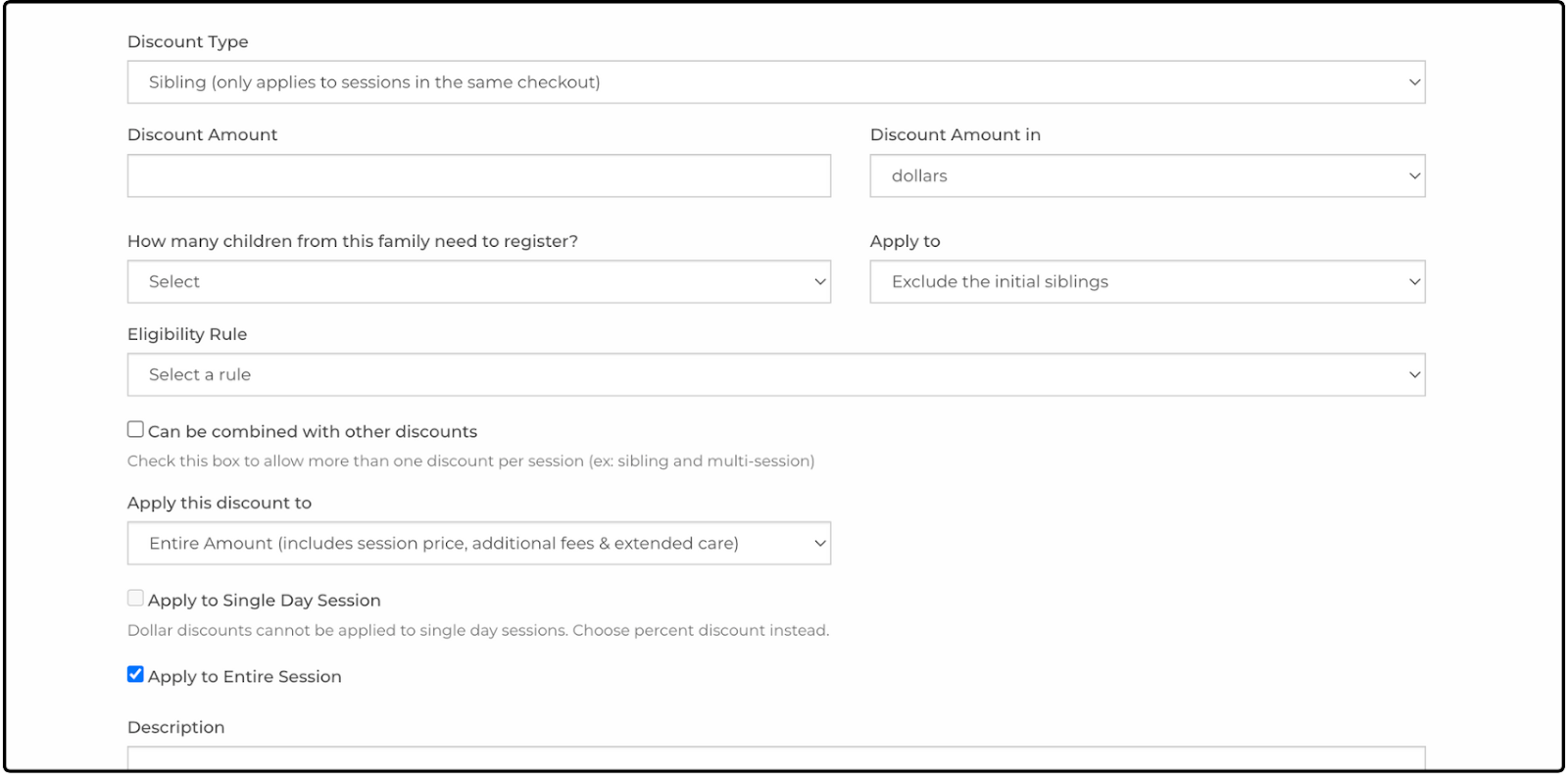
The sibling discount is automatically applied when multiple family members are registered through the same ActivityHero account, provided the sessions meet the eligibility criteria.
Sibling discount options:
How many children from this family need to register?
Set the minimum number of family members required to qualify (e.g., two or more).
Apply To
Select how the discount should be applied:
- Exclude the initial sibling - Only siblings registered after the first child receive the discount. Example: "$20 off each additional family member."
- Apply to all siblings - All family members receive the discount. Example: "Each registered family member gets $20 off."
Eligibility rule:
You can decide whether the siblings need to register for the same session, same day, same week, etc.
Description:
Provide a clear explanation of the discount for parents. This description appears in your listing.
Multiple Session Discount Details ↑
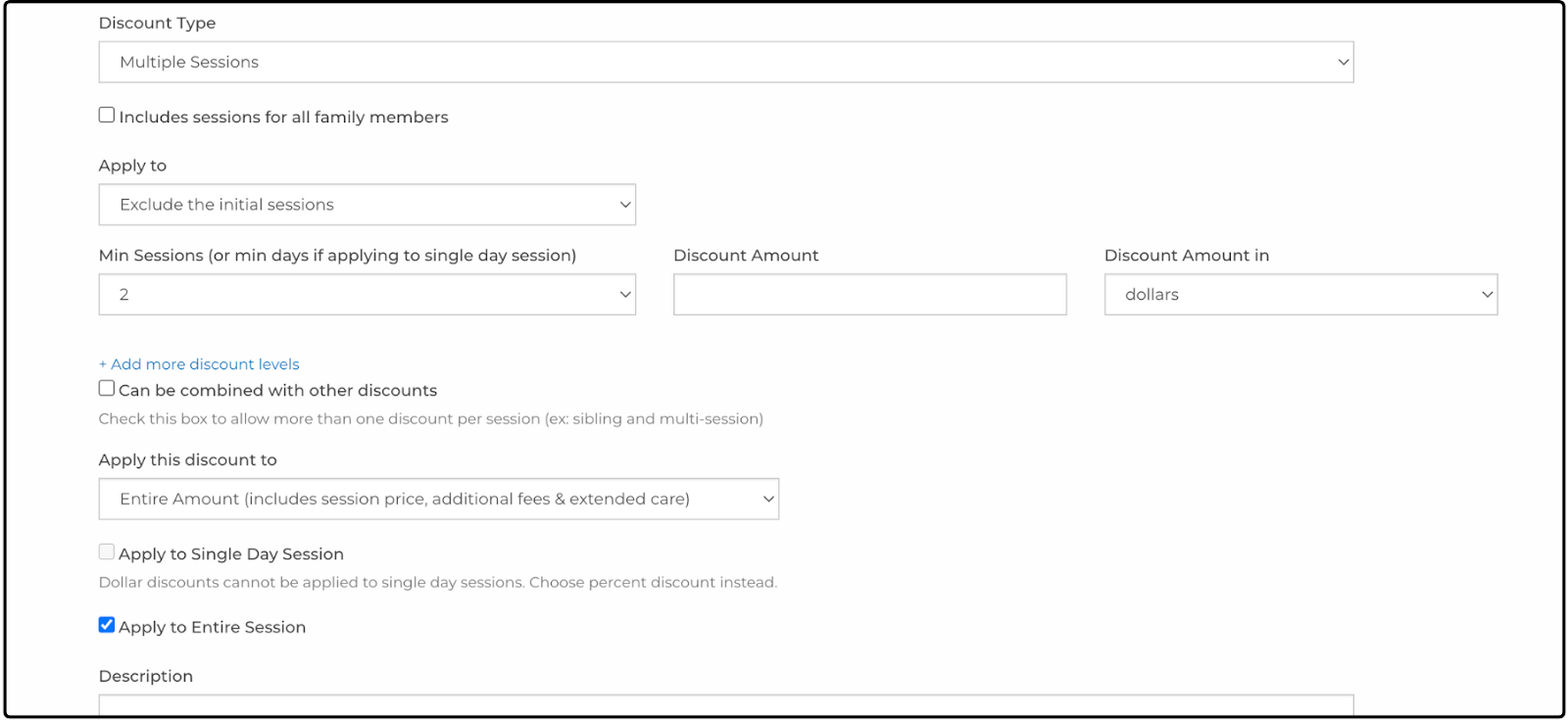
This discount is based on the number of sessions a participant is registered for with your business. If the participant registers for the minimum required number of sessions, and the discount's expiration date has not passed, the discount is automatically applied, even to previously registered sessions that meet the criteria.
Multiple session discount options:
Apply To:
Select how the discount is applied:
- Exclude the initial session - Only sessions after the first receive the discount. Example: "$20 off each additional session."
- Apply to all sessions - All sessions receive the discount. Example: "$20 off each camp session you register for."
Tip: If you want the discount to apply only to specific activities or a specific season, create a separate discount for each.
Minimum Number of Sessions (Min Sessions):
Set how many sessions a child must register for to trigger the discount.
Add more discount levels:
Offer greater discounts as more sessions are registered. Example: $10 off for two sessions, $20 off for three or more sessions. To stop the discount after a certain number of sessions, set the discount amount to $0 for that level.
Expiration date:
This field is required. Select a date based on your programming schedule. For example, for a seasonal discount, set the expiration at the end of the season, like early June for Spring, and for a calendar year discount, use a December expiration.
Important: Create a new multiple session discount for each season or year. Extending the expiration date on an old discount can unintentionally apply it to past sessions. For example, changing a 2025 discount's expiration to December 2026 could apply the discount to sessions from both years.
Promo Code Discount Details ↑
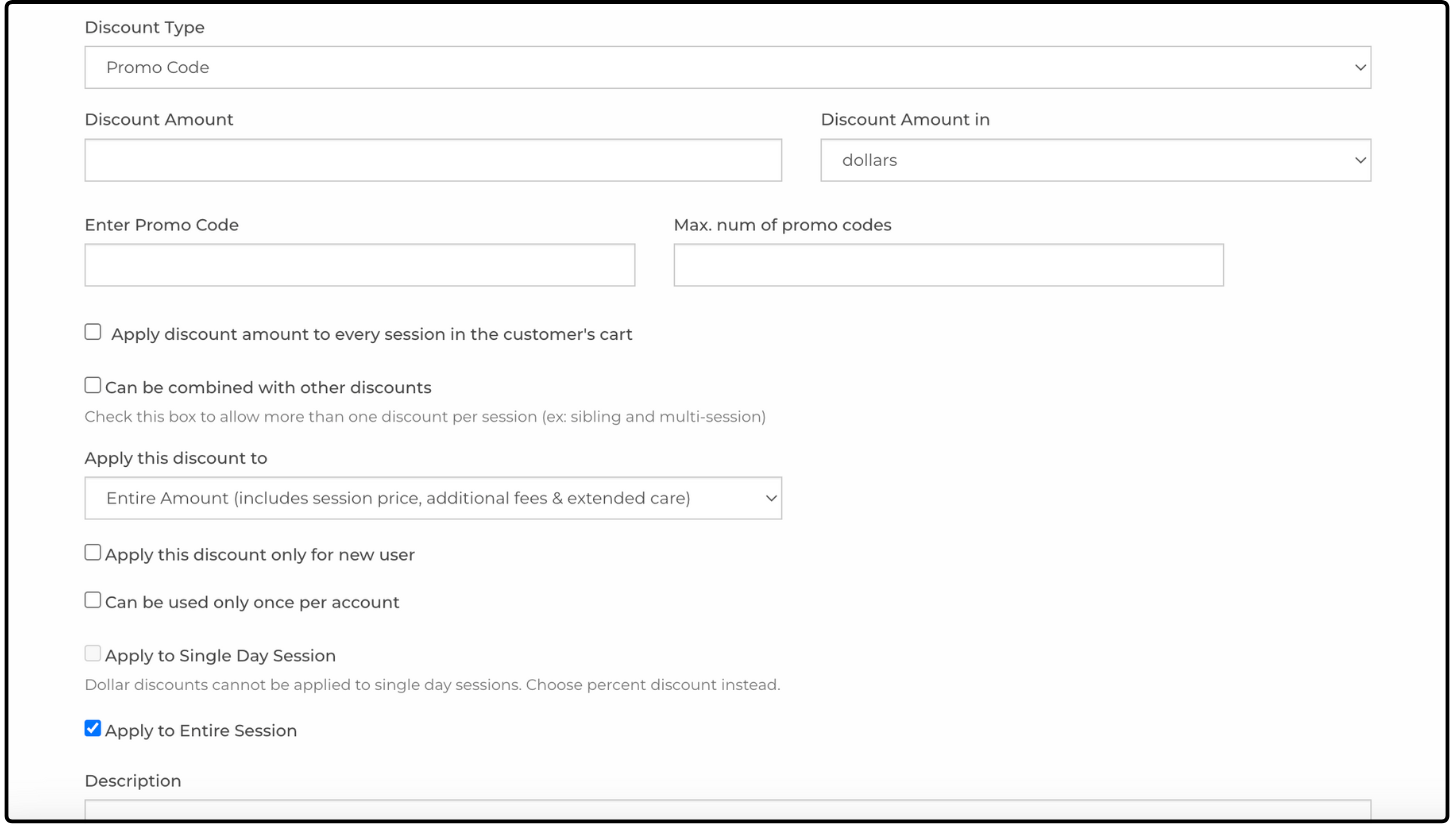
Promo codes are not displayed to purchasers on your ActivityHero listing. They are ideal for private discounts, such as those for returning families, auction prizes, or tracking purchases from flyers and other offline advertising. You can also set a maximum number of uses for each promo code.
When creating a promo code, you can select whether it applies once per order at checkout, or to every session in the customer's cart.
If you are offering a percentage-based discount, you can also set how many sessions the discount applies to. For example:
- A 50% off scholarship code that applies to up to two sessions-type 2 in the field.
- A free week of camp for a school auction-set the maximum number of sessions to 1.
To limit the promo code to new users only, check Apply this discount only for new user.
During checkout, the user can type the promo code. If the code is valid and all conditions are met, the discount is automatically applied.
Other Discount Details ↑
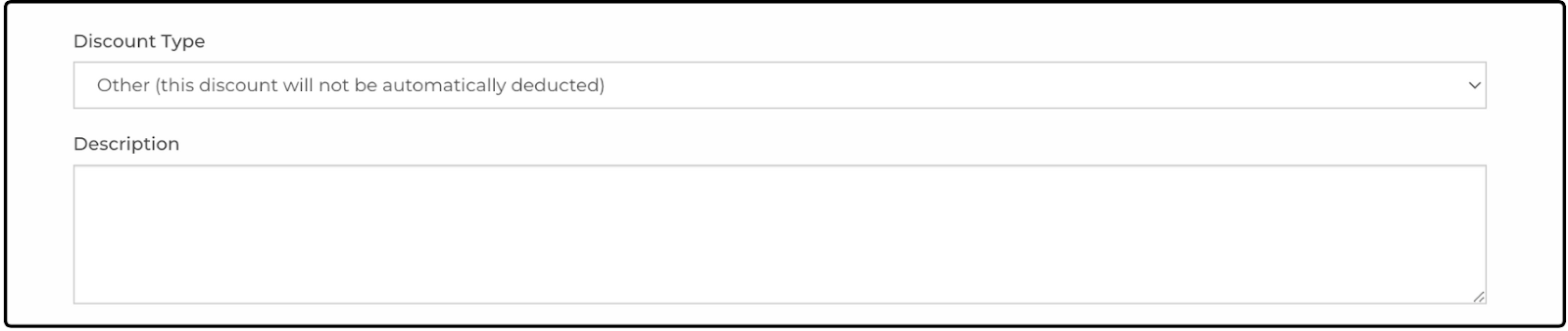
The Other discount is not automatically applied by the ActivityHero system. These discounts are displayed on the session listing but must be applied manually.
For example, if you offer a referral discount as an incentive for referring a friend, you determine whether the participant qualifies and then issue a refund for the discount amount if applicable.
More Advice on Discounts ↑
See our blog article for information about the average discount amount at different times of the year. We also share strategies for early registrations discounts and rewarding your best customers.
Was this article helpful?
That’s Great!
Thank you for your feedback
Sorry! We couldn't be helpful
Thank you for your feedback
Feedback sent
We appreciate your effort and will try to fix the article