You can charge students by the month when you create the session as Monthly Recurring. You are asked for the start and end dates for a monthly recurring class, and families can enroll any time within those dates. You can make the end date up to two years after the start date.
This option can be used for online or in-person sessions.
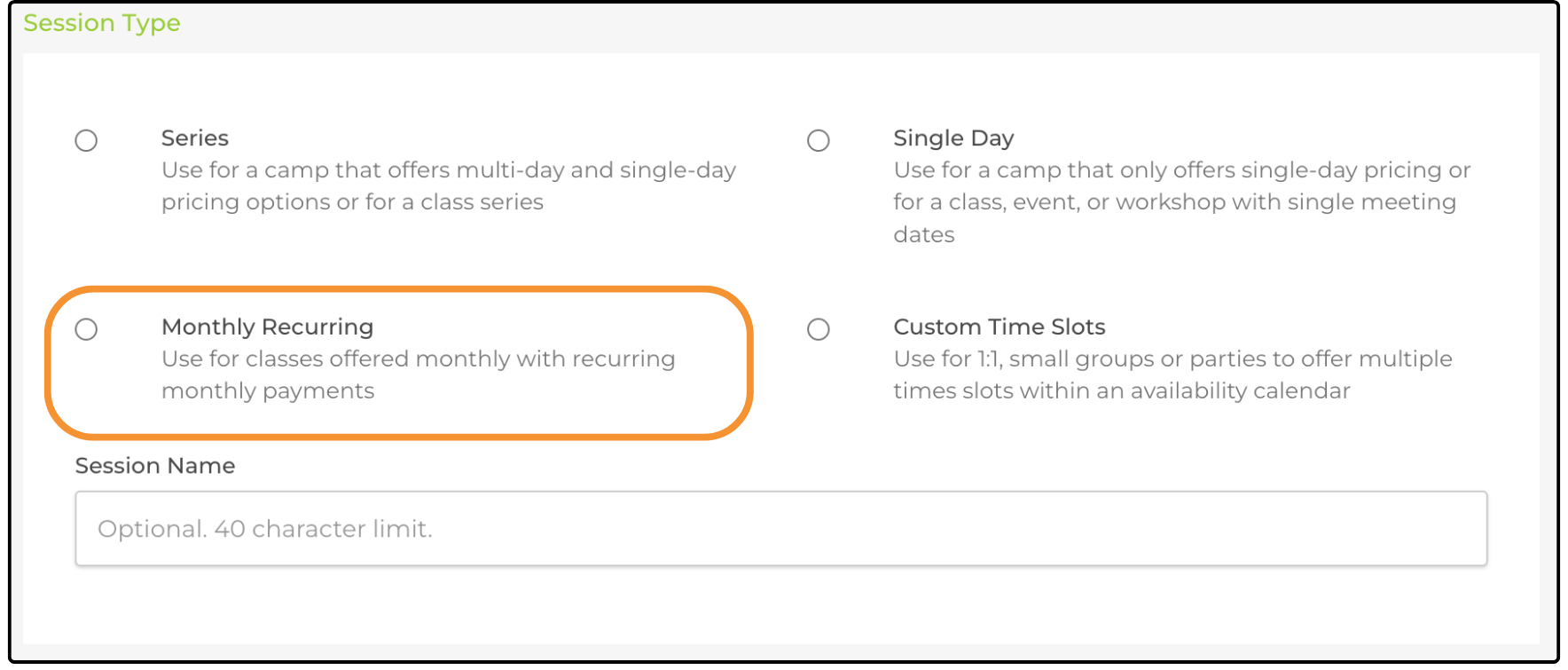
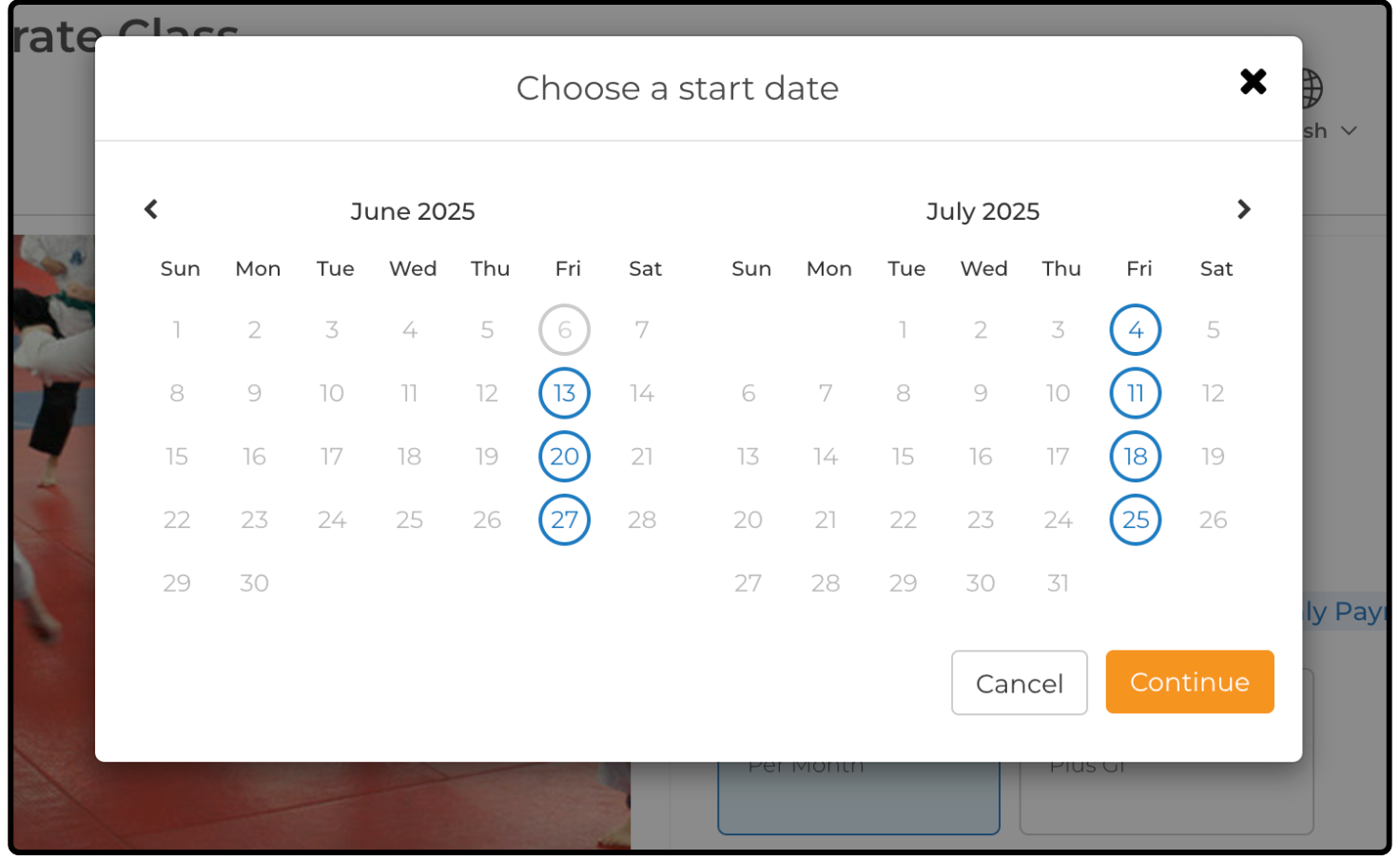
This option lets families select a start date when they register. They are charged each month on the start date they selected. The end date is the session end date, as long as the student remains enrolled.
The family's payment method (credit card or bank account) is charged every month.
Setting a custom price
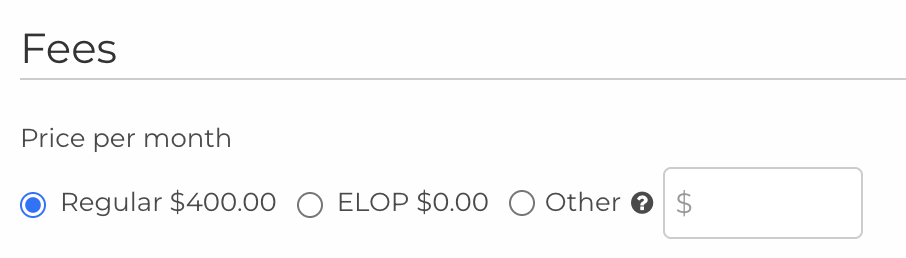
Your district's configuration can include price tiers such as paid or free prices. A custom price can be entered into the Other price field when you Edit the registration. This price is what will be charged each month.
Additional discounts such as sibling or multi-session discounts will not be applied to the Other price.
Editing an individual monthly payment
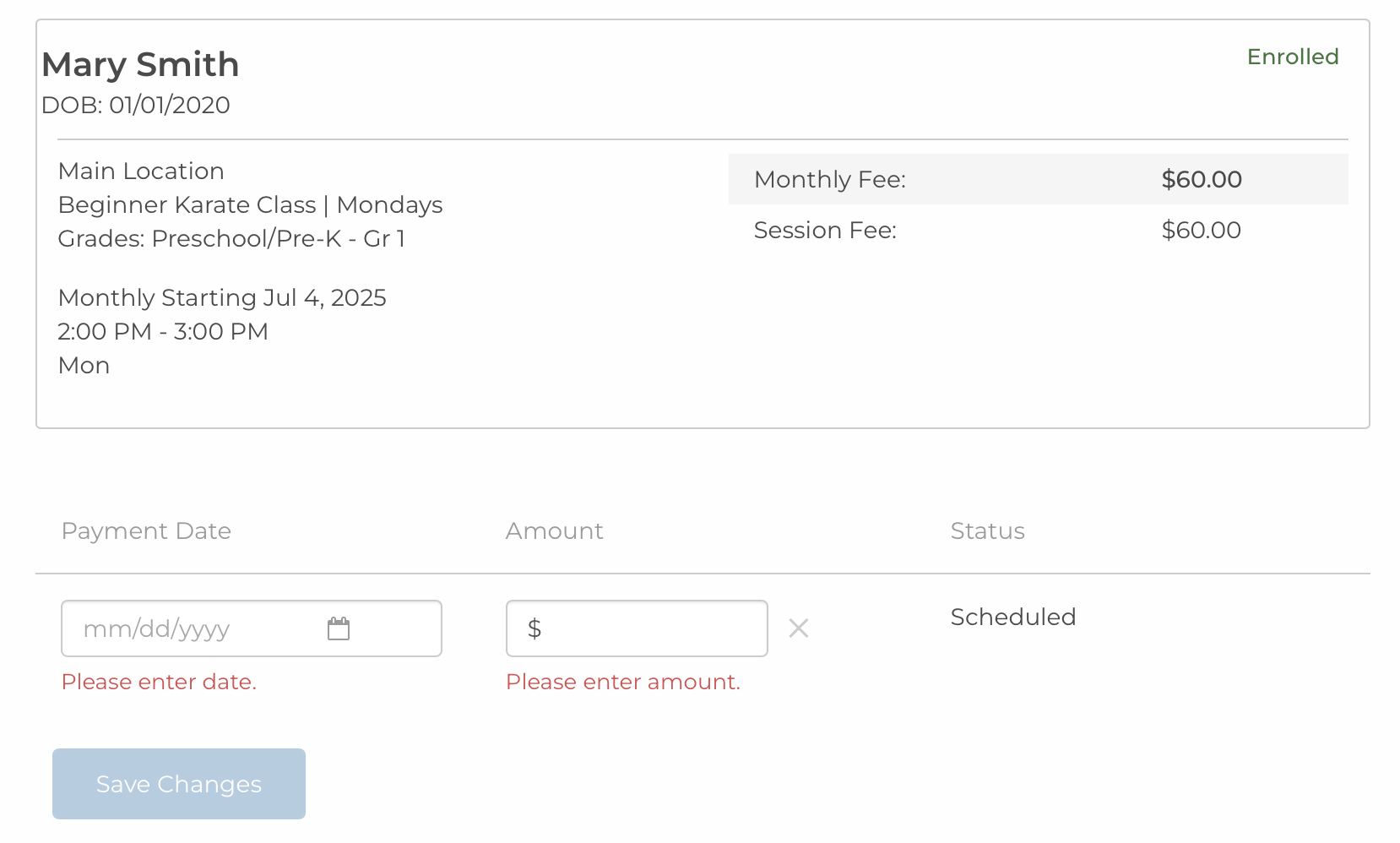
You can view or edit a payment date or amount by clicking the 'Monthly Payment' link in the Registration Report.
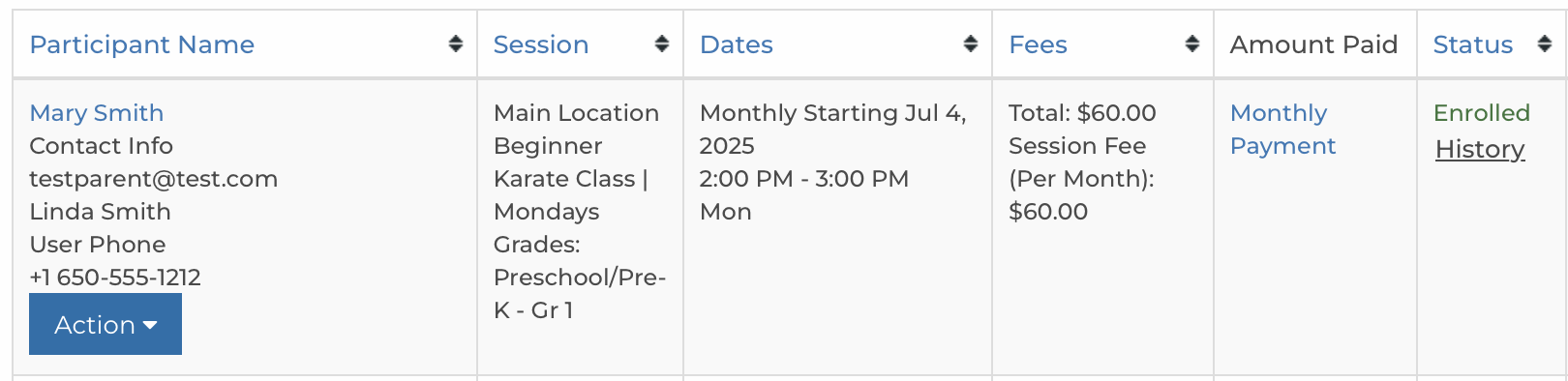
On the Monthly Payment screen, you can edit the date or amount due. On the date specified, the system will automatically charge the payment method for the amount due. Note that if you change the price, the next month's price will go back to the monthly price stored in the registration. To permanently change the monthly price, edit the registration and save the desired price.
Failed payments
If the family does not have a stored payment method or the payment fails for another reason, the Status will show as Failed. An email is sent to the family if payment fails letting them know that they should add a new payment method. The system will retry for seven days. If the payment is not successful after seven days, the registration will be set to Paused status.
Recording check payments
To record a check or offline payment, choose Action > Manage Payments in the Registration Report. Then choose to 'Record a payment you received directly'.
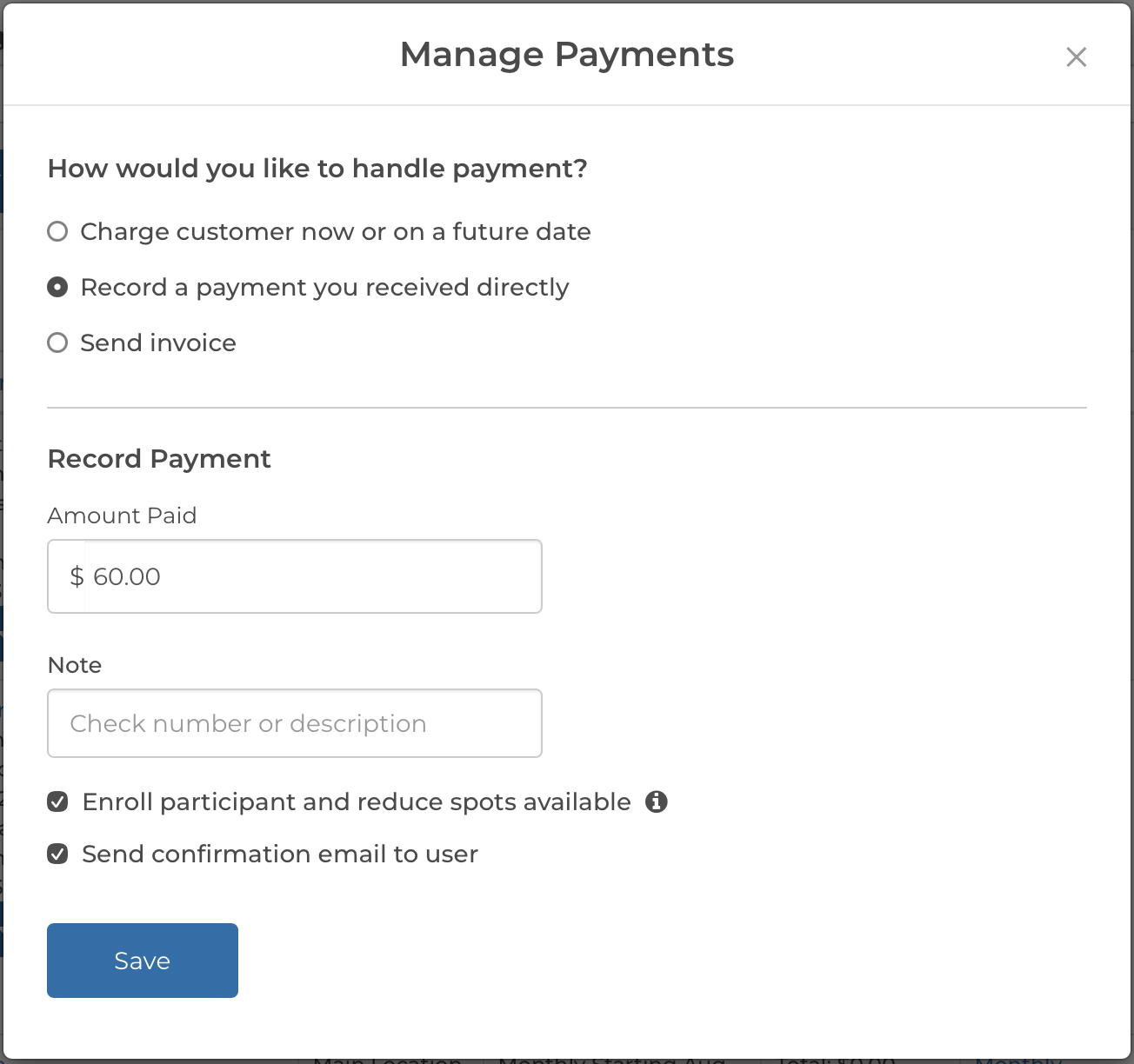
The amount paid defaults to the remaining balance for the registration, but you can update it. The Note field can be used to record the check number or other description.
If you expect the family to pay by check every month, the automated monthly payment should be deleted to prevent automated notifications that remind the family to add their credit card or bank account each month.
Deleting monthly payments
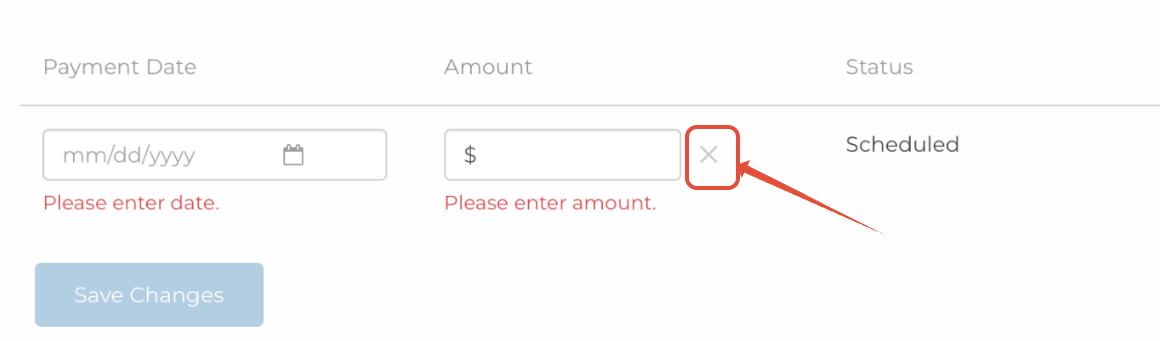
To stop all future auto-payments by credit card or bank account, edit the monthly payment and click the X to the right of the amount field.
Cancelling monthly payments
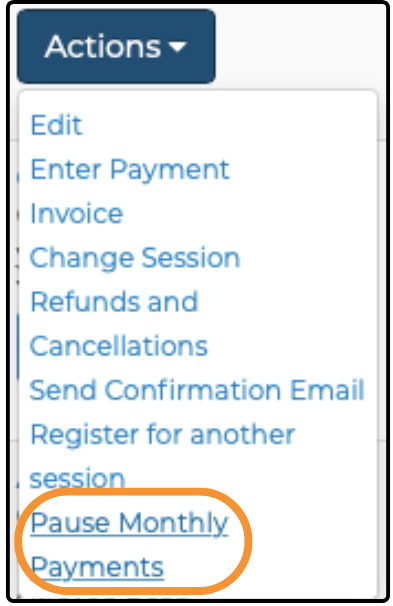
You can cancel or pause the monthly enrollment on your Registrations page.
Was this article helpful?
That’s Great!
Thank you for your feedback
Sorry! We couldn't be helpful
Thank you for your feedback
Feedback sent
We appreciate your effort and will try to fix the article