Method 1: Set Remaining Spots to 0
Method 2: Unpublish a Session
Method 3: Set Registration Status to Closed
On ActivityHero, you can easily close registration for specific sessions. The sessions are still visible, but instead of an option to register, families see an option to Join the Waitlist.
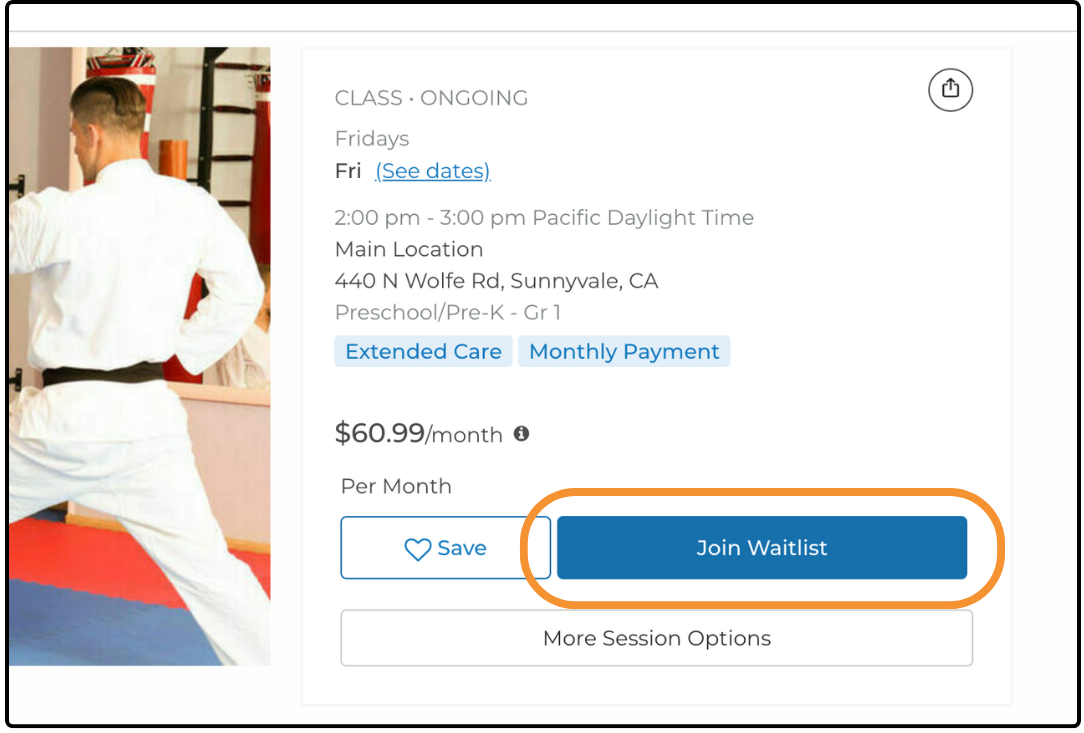
There are three methods to close registration for a session:
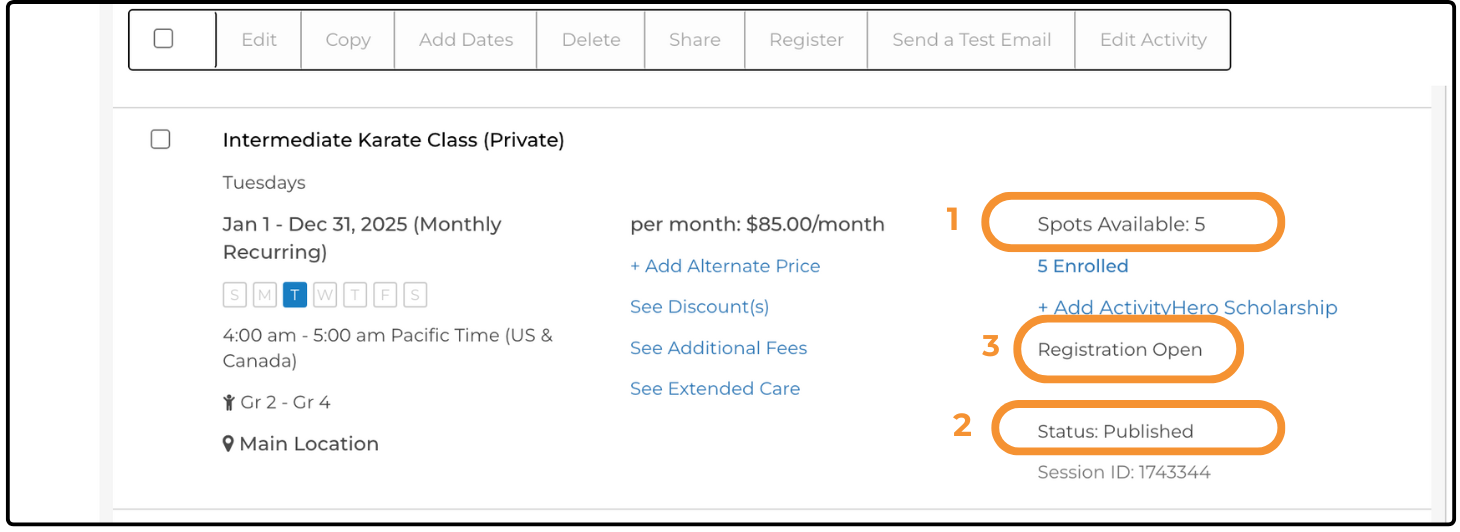
Method 1: Set Remaining Spots to 0
- From your dashboard, hover over Activities & Sessions and click Sessions & Content Manager.
- Find the session you want to update.
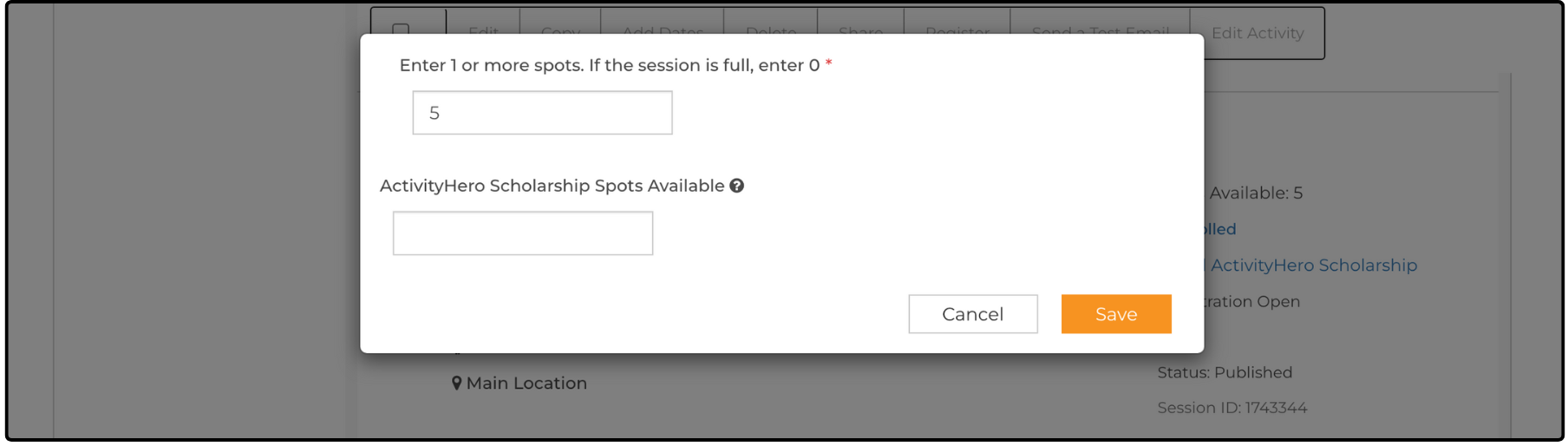
- Click Spots Available.
- Type 0 in the edit box and click Save.
Tips:
- When spots are set to 0, parents see an option to Join the Waitlist, giving you the chance to follow up or offer additional sessions.
- To mark multiple sessions as full, bulk edit by checking the boxes next to the sessions you want to edit, then click Bulk Edit at the top to update them all at once. For more information on bulk editing, see our help article.
Method 2: Unpublish a Session ↑
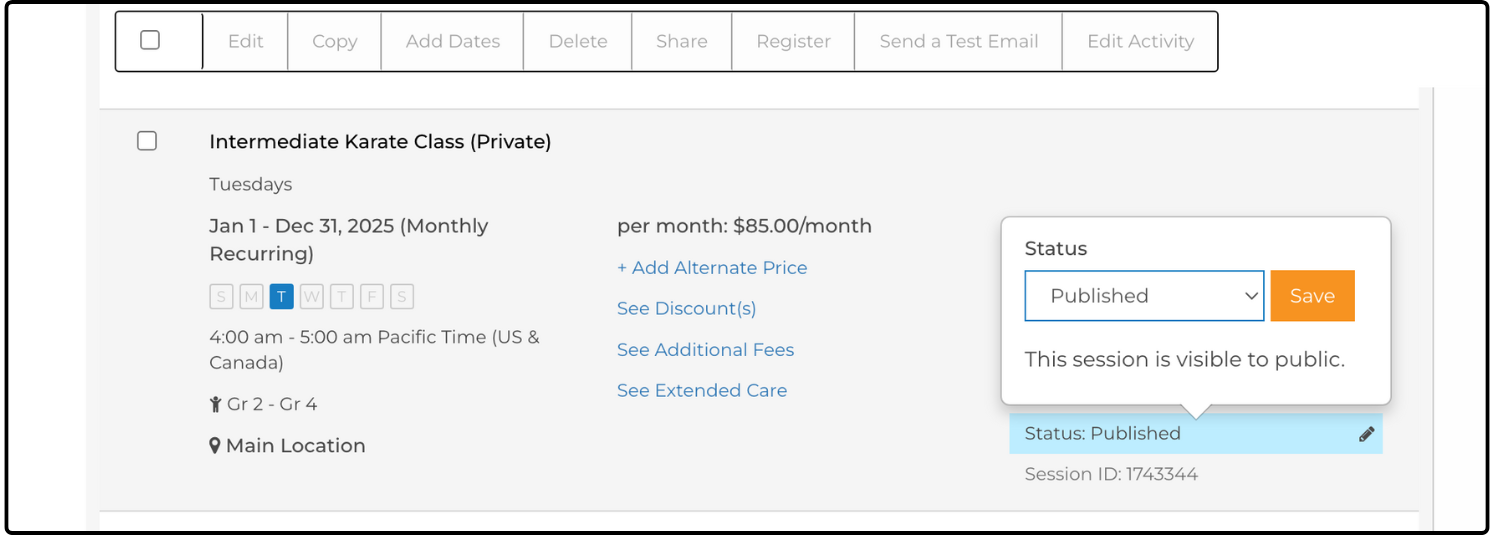
If you want to remove a session from ActivityHero search results (or from your widget), you can set its status to Unpublished. This option is typically used if the session has been canceled entirely.
Tip: Also set the number of spots to 67
68 to ensure no one can register using a direct link.
Steps:
- From your dashboard, hover over Activities & Sessions and click Sessions & Content Manager.
- Find the session you want to change.
- Click Status: Published.
- Select Unpublished and click Save to confirm.
Method 3: Set Registration Status to Closed ↑
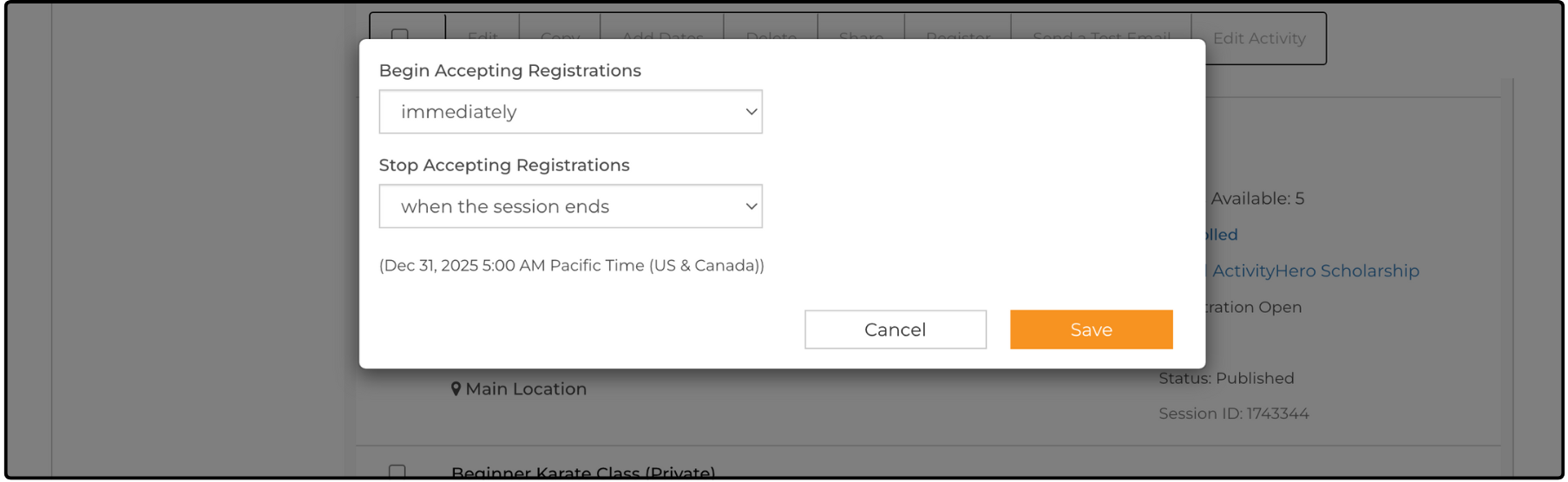
This option lets you stop accepting registrations for a session while still keeping it visible to families.
Steps:
- From your dashboard, hover over Activities & Sessions and click Sessions & Content Manager.
- Find the session you want to change.
- Click Registration Open.
- In the pop-up window, adjust the Stop Accepting Registrations setting. You can select a specific date and time, or set it to close at the start or end of the session, and then click Save.
Related Articles ↑
Was this article helpful?
That’s Great!
Thank you for your feedback
Sorry! We couldn't be helpful
Thank you for your feedback
Feedback sent
We appreciate your effort and will try to fix the article