TABLE OF CONTENTS
- Introduction to Kiosk Mode with QR Code
- What you need to get started
- Videos
- How to get your staff QR code
- How to set up the device for families
- How families use their QR code
- Checking in, checking out, and signing
- How to exit Scan Mode
- Important usage notes
- Troubleshooting
Introduction to Kiosk Mode with QR Code
Check in and check out usually happens on a staff member's device, which can lead to a long line when only one staff member is available. Leaving that device unattended is not a good alternative, because parents — or anyone standing nearby — could see private information about other families on the roster.
Kiosk Mode with QR Code solves both problems. A device is placed in Scan Mode, where the roster, the menus, and the rest of the dashboard are hidden. A parent or guardian holds up the QR code from their own ActivityHero account, and only their own children appear on screen, ready to be checked in, checked out, or signed for. It works much like self-checkout at a grocery store: one staff member can supervise several devices, and families keep moving even when one parent needs extra time.
Kiosk Mode works the same way whether your district uses check in/check out or digital signatures. The only difference is what families see on the participant list:
| Your district uses… | The screen is titled… | The action button reads… |
|---|---|---|
| Check in/check out | Check-In & Check-Out | Check In / Check Out |
| Digital signatures | E-Signature | Add Signature |
Everything else in this article — setup, filters, scanning, and exiting — is identical for both.
Kiosk Mode with QR Code is available only on the web version of ActivityHero. It is not part of the ActivityHero Go mobile app for Districts.
What you need to get started
- Your staff QR code. Scanning a staff QR code is the only way out of Scan Mode.
- A device with a camera for parents to use — a tablet or Chromebook works well.
- Kiosk Mode with QR Code turned on for your district. This is a district-level setting. If it is off, the Scan Mode button does not appear on the Check In & Check Out page. Contact your district administrator to have it enabled.
- Camera permission allowed in the browser. The first time you scan, the browser asks for camera access — choose Allow while visiting site.
How to get your staff QR code
- Sign in to your ActivityHero staff account, on either your phone or your computer.
- Click your Profile icon at the top of the page, then click View QR Code.
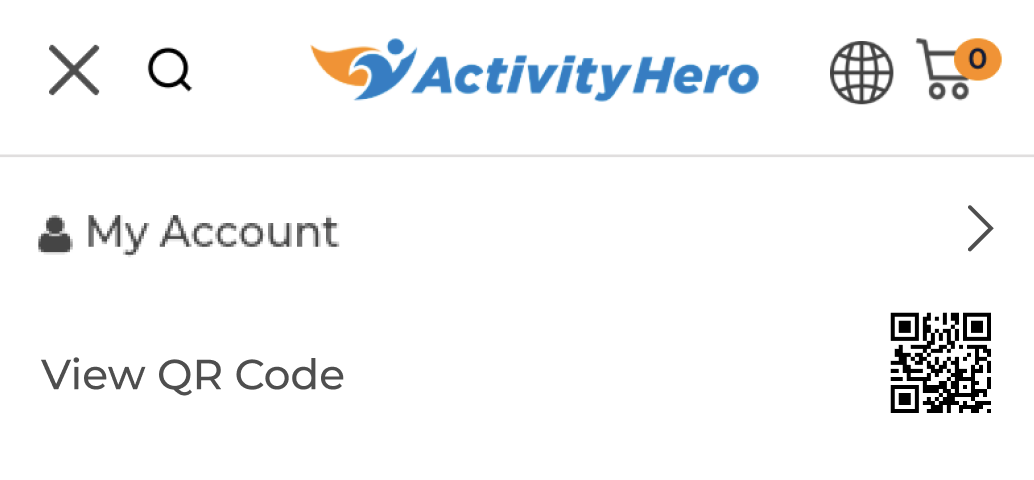
- Save the code somewhere you can get to it without the kiosk device:
- On a phone: take a screenshot and save it to your Favorites album.
- On a computer: print it and keep it somewhere safe, such as with your work badge.
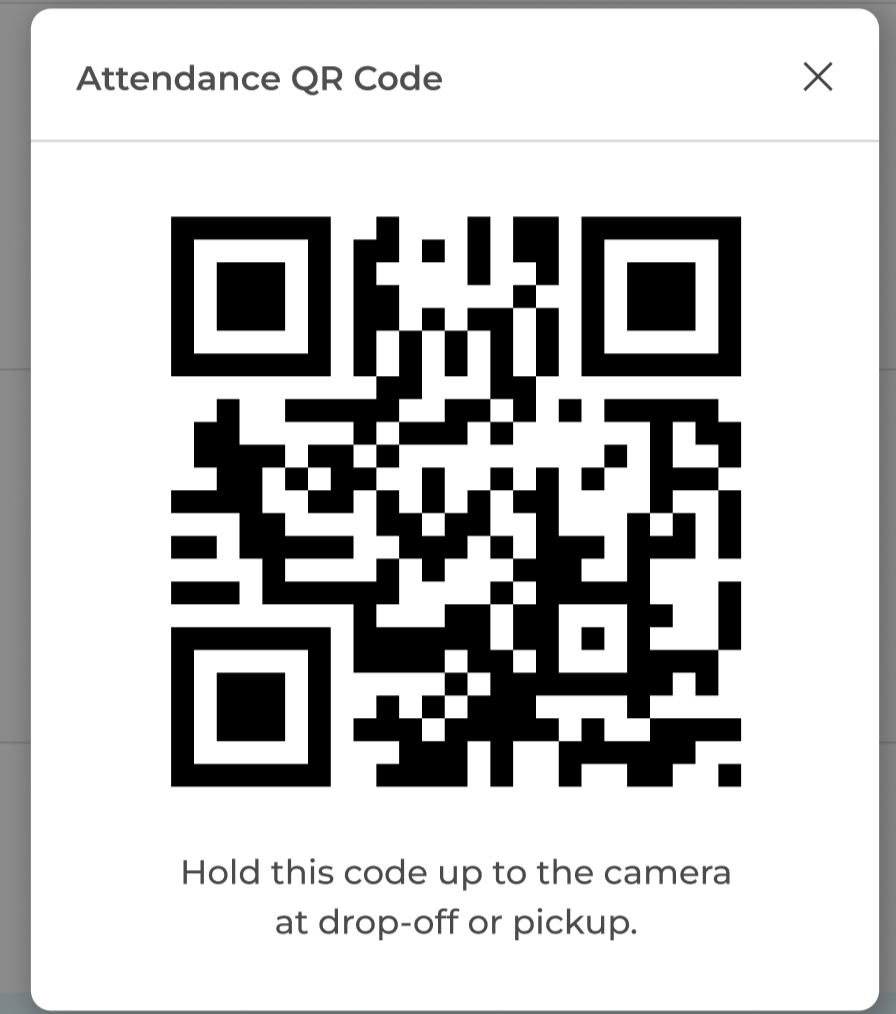
Keep your staff QR code off the kiosk device itself. If the only copy lives on the device that is scanning, you will not be able to display it to its own camera.
Any staff member's QR code can exit Scan Mode. It does not have to belong to the person currently signed in on the device.
How to set up the device for families
- Sign in to ActivityHero on the device you want families to use as a kiosk — any tablet or Chromebook with a camera.
- Go to the Check In & Check Out page.
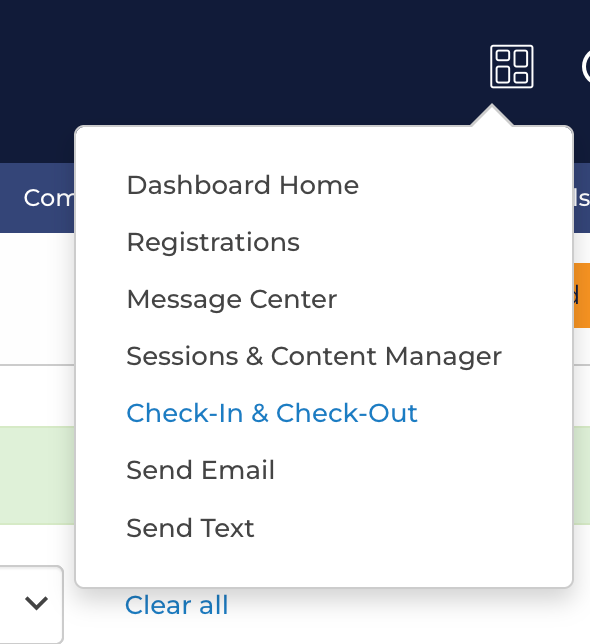
- Set your filters to match exactly what you want families doing at this device.
- Click Show Filters and set Location, Activity, Session, and any Group or Time Slot filters your district uses.
- Confirm the participant list shows the roster you expect before you go any further.
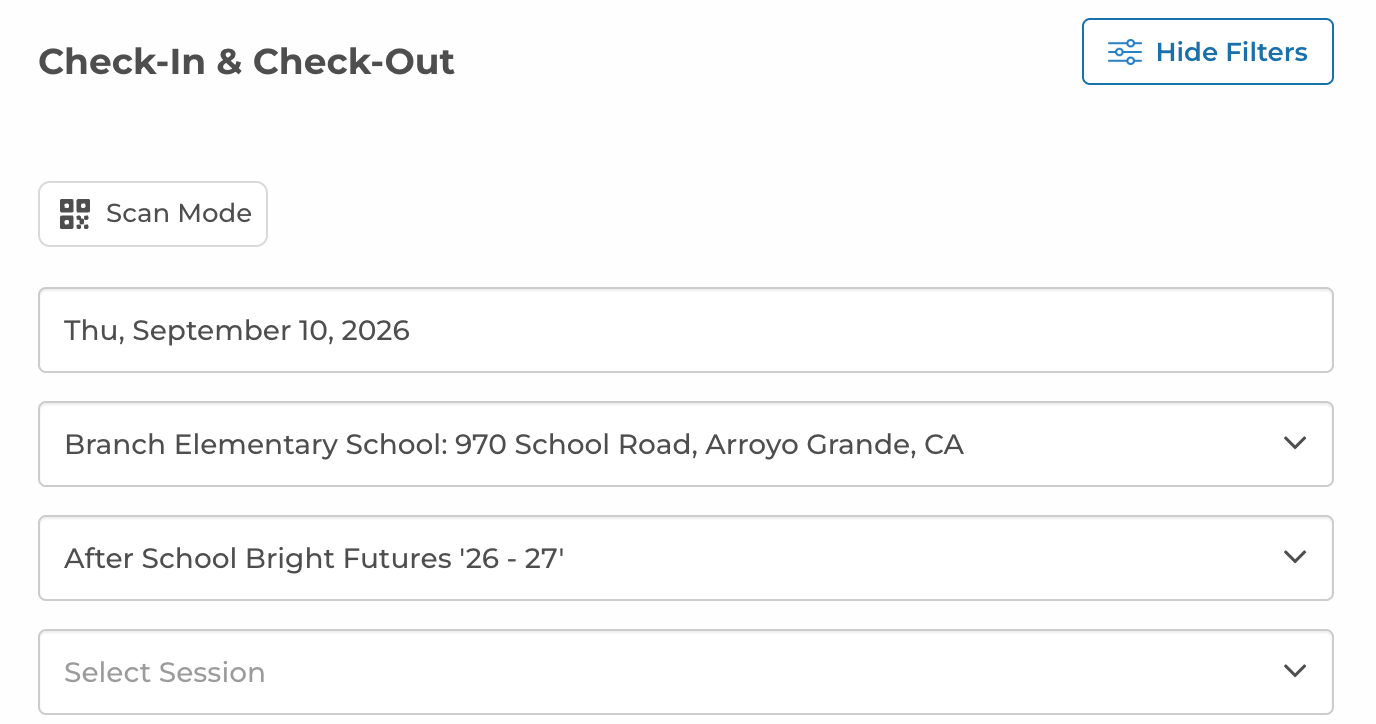
Keep the filters as narrow as the situation allows. At a single pickup door, filtering to that Location — and to the Session, if several run at once — means a scan returns only the children who should be released there. Filters that are too narrow are the most common cause of "No Participants Found."
- Click Scan Mode.
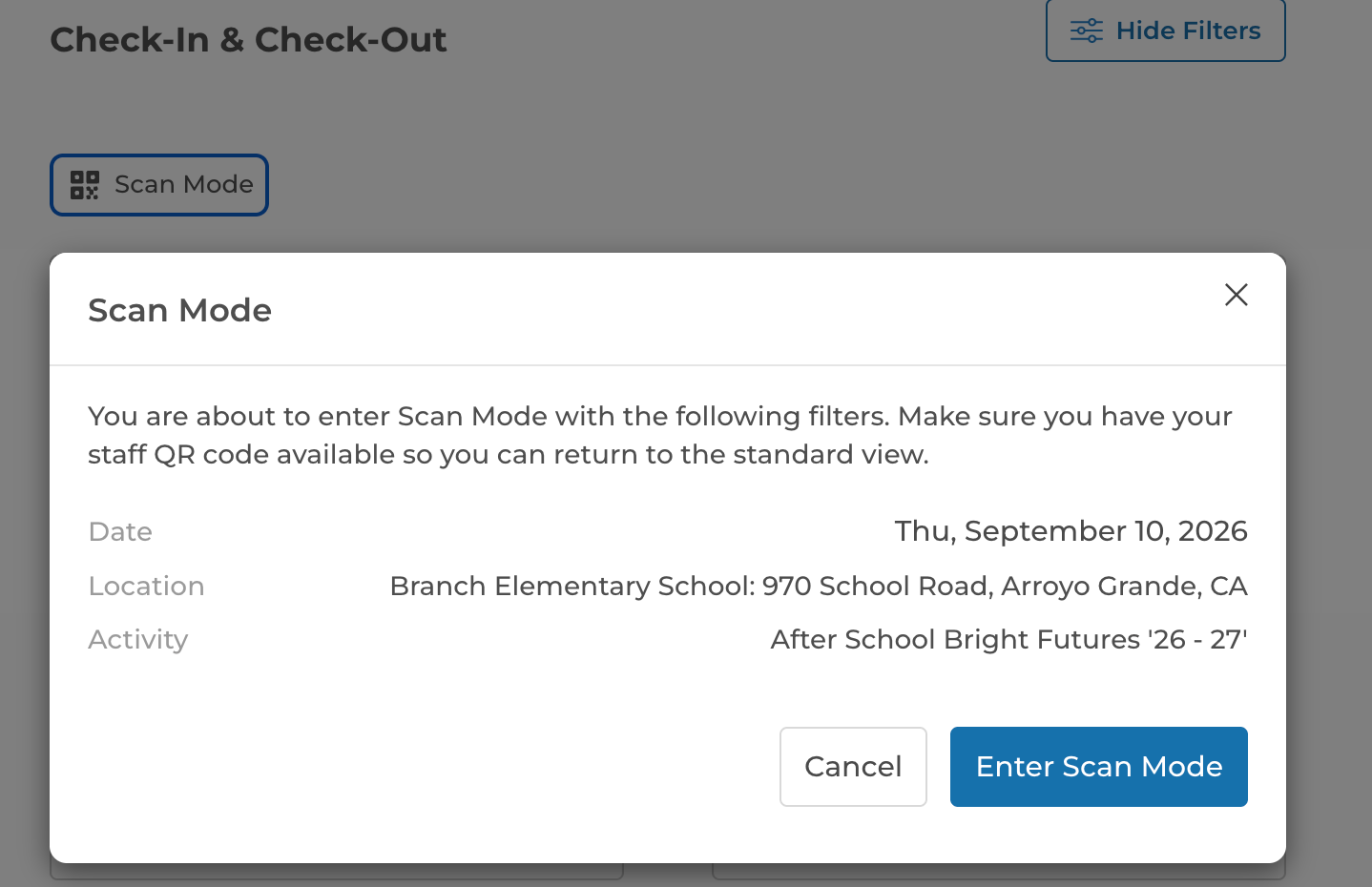
- A confirmation window lists the filters you are about to carry in — Date, Location, Activity, and Session. If no filter for Activity or Session are selected, then they will not appear on this screen. Check the filters, then click Enter Scan Mode. Click Cancel if you need to fix a filter first.
Make sure you have your staff QR code on hand before you click Enter Scan Mode. Without a staff QR code, you cannot get back to Standard Mode and the roster.
- The device is now on the Kiosk Mode home screen, which is what your families will see.
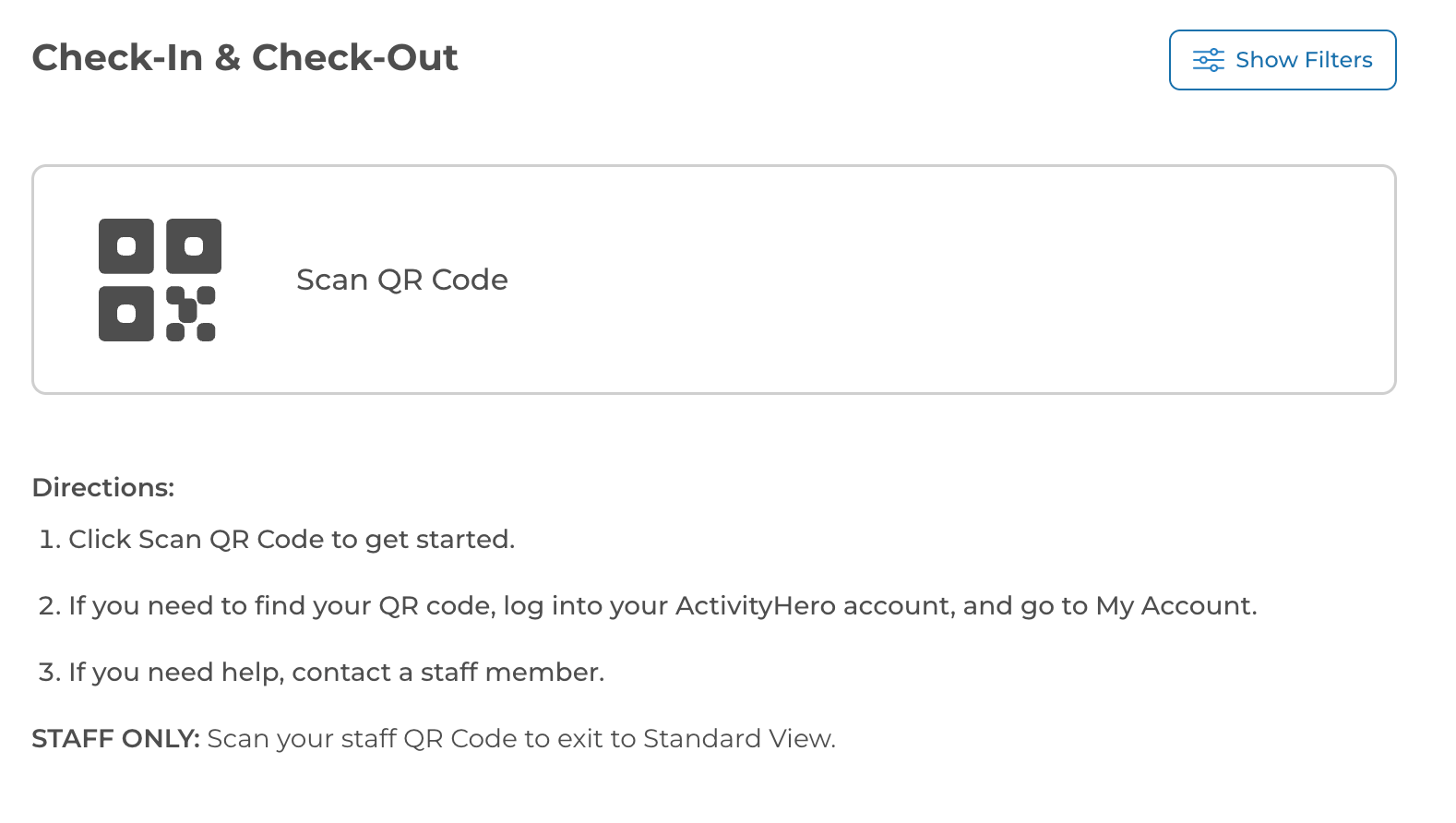
The home screen shows the site name, a Show Filters link so you can confirm at a glance that the device is set for the right door and session, the Scan QR Code button, short instructions for families, and the Exit Scan Mode link in the top right corner.
Highly recommended: leave one device in regular staff mode. It gives you a way to help parents and authorized pickups who do not know how to use QR codes, and to handle any other special situation.
How families use their QR code
Parents and guardians get their QR code exactly the way staff do: sign in to their ActivityHero account and go to View QR Code. On a phone, this is in the top left corner.
- Clicking the QR code row shows the whole code.
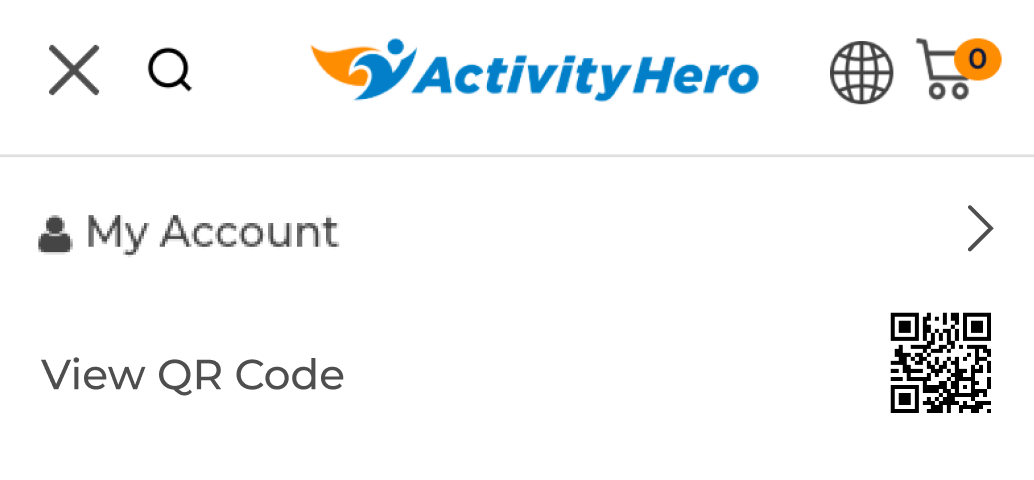
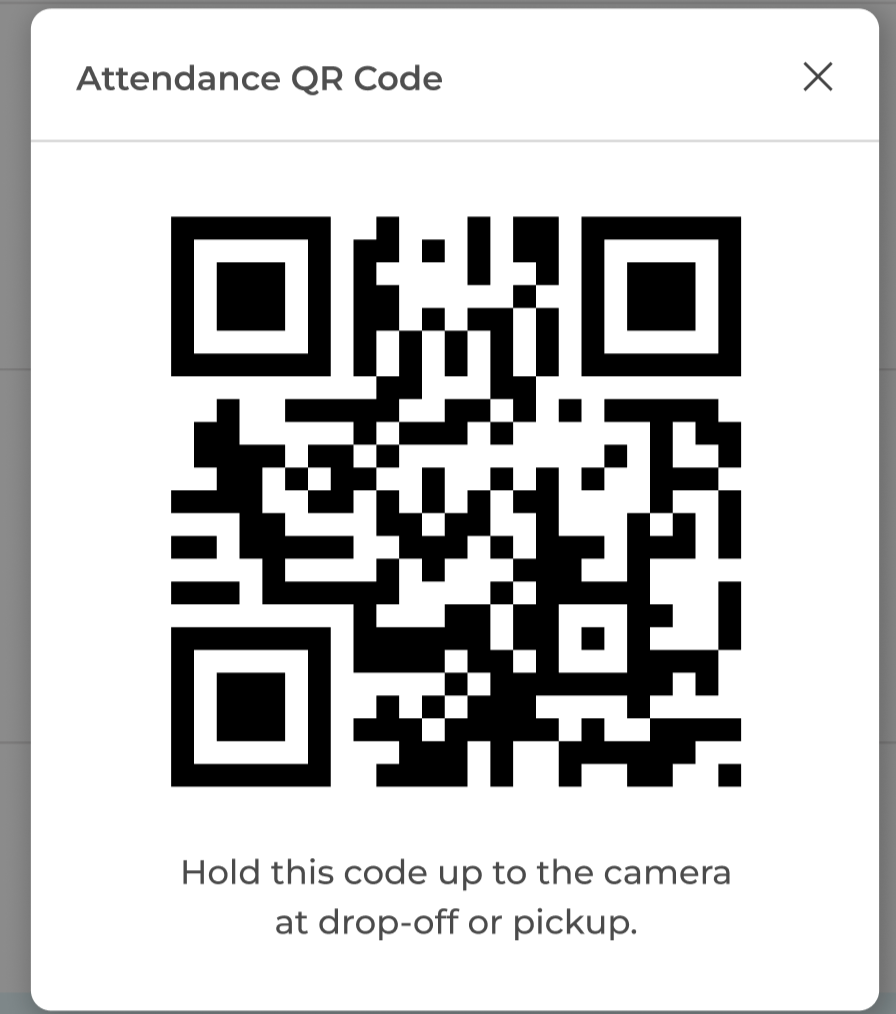
- They can scan it right away, or — recommended — take a screenshot and favorite it.
- The same code works for all of their registrations until they choose to reset it in My Account.
- Each parent or guardian whose account is linked to the student can pull up that student's registration with their own code.
If your district requires a Pick Up PIN
Some districts add a second check: after a successful scan, the parent is asked for their 4-digit Pick Up PIN. This prevents a QR code on its own — for example, a screenshot forwarded to someone else — from being enough to release a child.
- The parent enters the PIN and taps Submit.
- If Incorrect PIN appears, they can simply re-enter it. The scan is still valid, so there is no need to rescan.
- A parent's Pick Up PIN is listed on their My Account page.
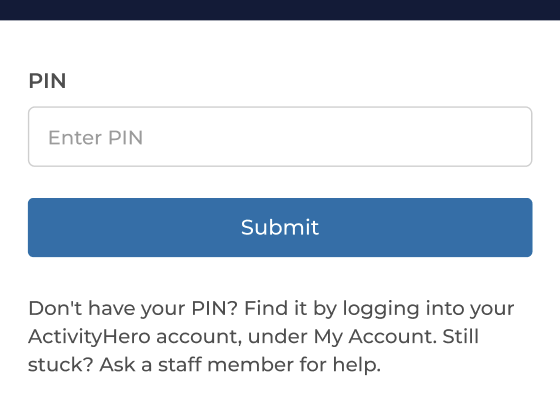
If your district does not use this setting, the participant list appears right after the scan and no PIN is requested.
Checking in, checking out, and signing
- The parent taps Scan QR Code and holds their code inside the bracketed frame. The code is read automatically — there is no button to press.
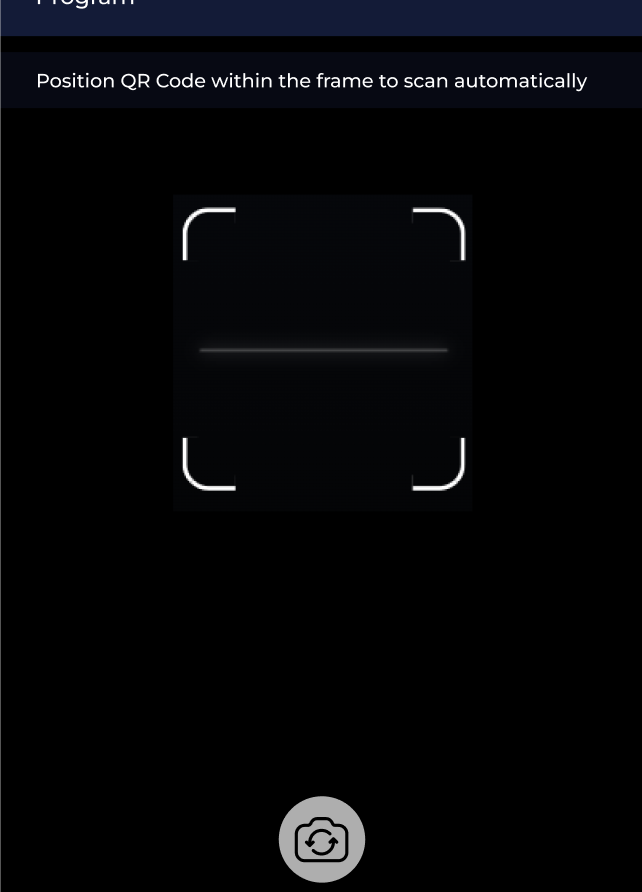
Glare makes a code harder to scan. If a screen or printout is not reading, have the parent tilt it away from overhead lights or move out of direct sun.
- When the code is valid, every registration that meets the filter criteria appears. If there are siblings, they are all pre-selected, so the parent only has to tap Check Out (or Check In, or Add Signature) once.
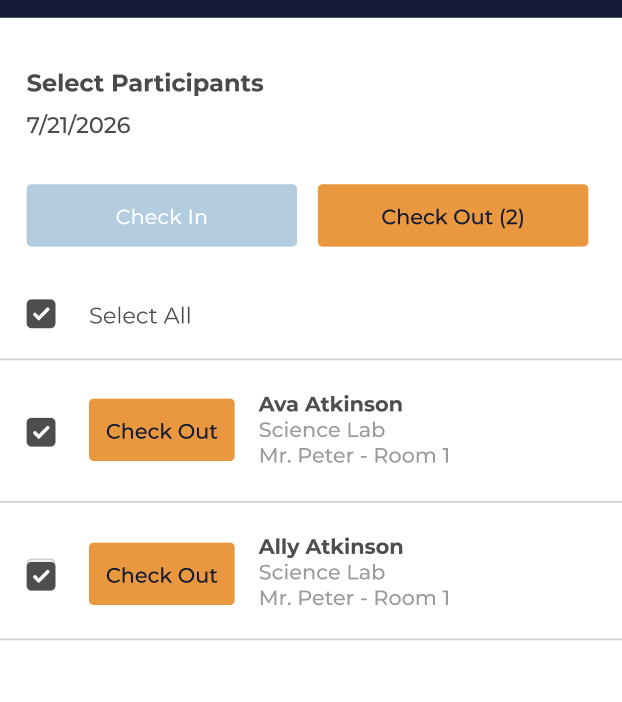
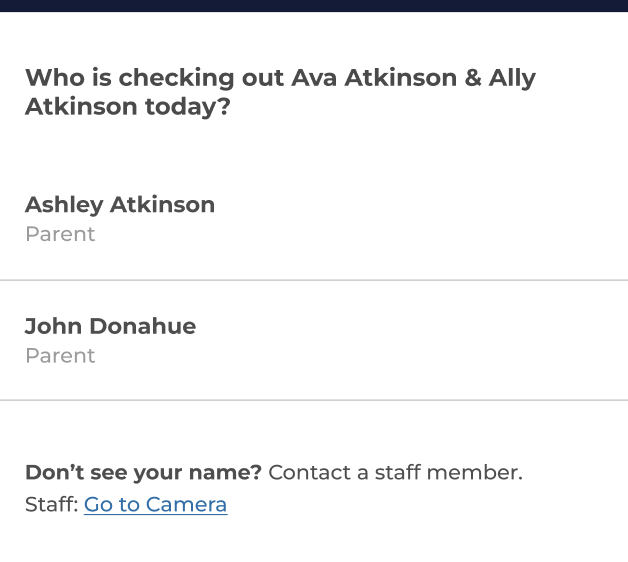
- The parent proceeds as usual: choosing the authorized pickup person, capturing the signature, and answering any pre-checkout questions your district uses. A single signature and form signs out all of the selected siblings.
- A Success! screen confirms the action and lists the participants by name, then returns to the home screen on its own for the next family.
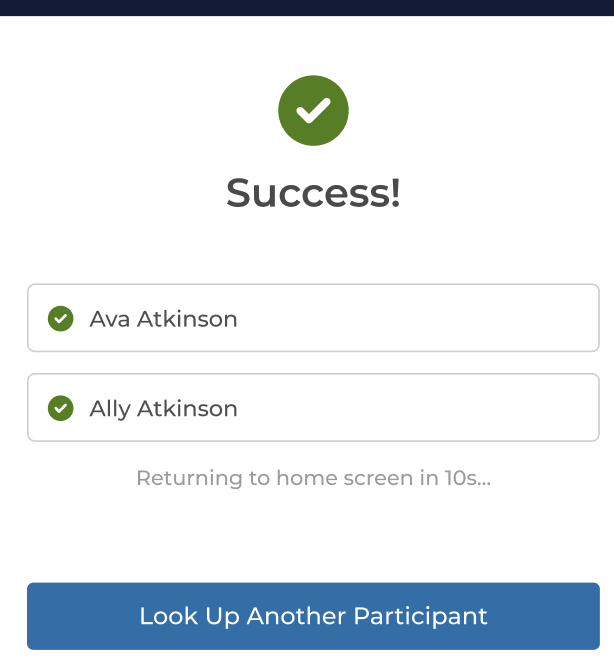
If the family is carpooling, they can press the button on the Success screen to go back to the home screen immediately and look up another participant with that participant's QR code. They would need to get that code from the other participant's parents.
How to exit Scan Mode
Use this when the filters were set too narrowly, when a parent has a question that needs the full roster, or at the end of the day.
- Click Exit Scan Mode in the top right corner of the home screen.
- Confirm at the Staff Only prompt to open the camera.
- Hold your staff QR code up to the camera.
- A successful scan takes you straight back to the regular Check In & Check Out screen, with your filters still in place.
You can scan a staff QR code any time the camera is open — including while a parent is in the middle of scanning at the big "Scan QR Code" button. You do not have to wait for them to finish or start over from the Exit Scan Mode link.
Remember: any staff member's QR code works, not just the account signed in on the device. There is no password or PIN override, and a parent's QR code never exits the device.
Important usage notes
- Staff members who are also parents must use their parent account to check in or check out their own children.
- Staff accounts should not be used to register children.
- Parents cannot add themselves as authorized pickups while using Kiosk Mode. If they are not already on the list, they must speak to a staff member.
- Families who do not appear in the system should contact a staff member for assistance.
- The camera runs only when a scan is started, which helps preserve battery life on kiosk devices.
- Make sure camera permission is enabled the first time you use a device. You may be asked to Allow while visiting site.
Troubleshooting
Can't find registration
If someone uses the wrong QR code, or a registration is missing because of the filter settings — for example, the device was accidentally set to a different site — the parent sees a No Participants Found message.
Check the filters listed at the top of the screen. If they are wrong, exit Scan Mode, correct the filters on the Check In & Check Out page, and enter Scan Mode again.
Need to exit Scan (parent) mode
See How to exit Scan Mode. Scan any staff QR code at any open camera.
Need to reset a QR code
A parent may need a new code — for example, after sharing it with a short-term authorized pickup contact, or after losing their printout. They can reset it themselves by going to My Account.
Resetting immediately invalidates the previous code. A parent who resets and then shows an older saved screenshot will be told the code has expired — have them pull up the current code from their account.
Other messages
| What you see | What it means | What to do |
|---|---|---|
| Invalid QR Code | The code is not an ActivityHero QR code, or it could not be read. | Confirm the parent is showing the QR code from their ActivityHero account, and check for glare, a dim screen, or a shaky hand. |
| This QR Code is now expired. | The code was replaced when the account holder reset it. | Have the parent open View QR Code and show the current code. |
| Incorrect PIN | The Pick Up PIN does not match the account. | Have them re-enter it — the scan is still valid. The PIN is on their My Account page. |
| Camera access is required. | The browser is blocking the camera. | Allow camera access for ActivityHero in the browser settings, reload the page, and enter Scan Mode again. |
| The camera turned off on its own | The camera stops after a short period of inactivity to save battery. | Tap Scan QR Code on the home screen to start it again. |
| Scanning a staff QR code does not exit | The account scanned is not a staff member at this site. | Use the QR code of a staff account with access to this site. A parent's code cannot exit Kiosk Mode. |
Was this article helpful?
That’s Great!
Thank you for your feedback
Sorry! We couldn't be helpful
Thank you for your feedback
Feedback sent
We appreciate your effort and will try to fix the article