Offline Mode for attendance lets you record and log attendance accurately, even with little or no internet connection.
| Note: This feature requires activation by the Support team |
How It Works
Enable Offline Mode
Currently Unavailable in Offline Mode
Tracking Attendance
How It Works
ActivityHero normally connects directly to the internet, so check-ins and check-outs are automatically recorded in real time. Offline Mode allows you to record attendance even when you do not have an internet connection. While offline, ActivityHero stores attendance information locally on your device.
Once your device reconnects to a stable internet connection, ActivityHero automatically detects it and syncs all check-in and check-out data.
Connection Status
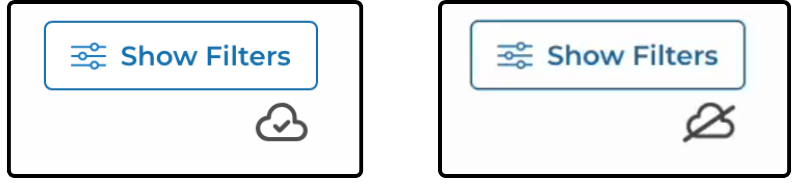
The cloud icon shows your connection status to ActivityHero:
- A cloud with a check mark means your device is connected and syncing information.
- A cloud with a line through it means your device is offline, and attendance data is being stored locally until the next sync.
Storage and Syncing
Because ActivityHero stores some information on your device, it is important to stay near an internet connection for a few minutes after enabling Offline Mode. This ensures that features like authorized check-ins and check-outs are ready for offline use.
Offline Mode stores attendance information on your device for the current day. To ensure that your data stays accurate and up to date, ActivityHero only allows you to load one day of attendance at a time while offline. Connecting to the internet daily allows your device to sync the latest information and prevents outdated data from being used.
While your device is in Offline Mode, new registration data does not sync to the Check-In & Check-Out page. For example, if a new participant is added to ActivityHero from another connected device, an offline device does not display that new participant until it reconnects and syncs.
Enable Offline Mode ↑
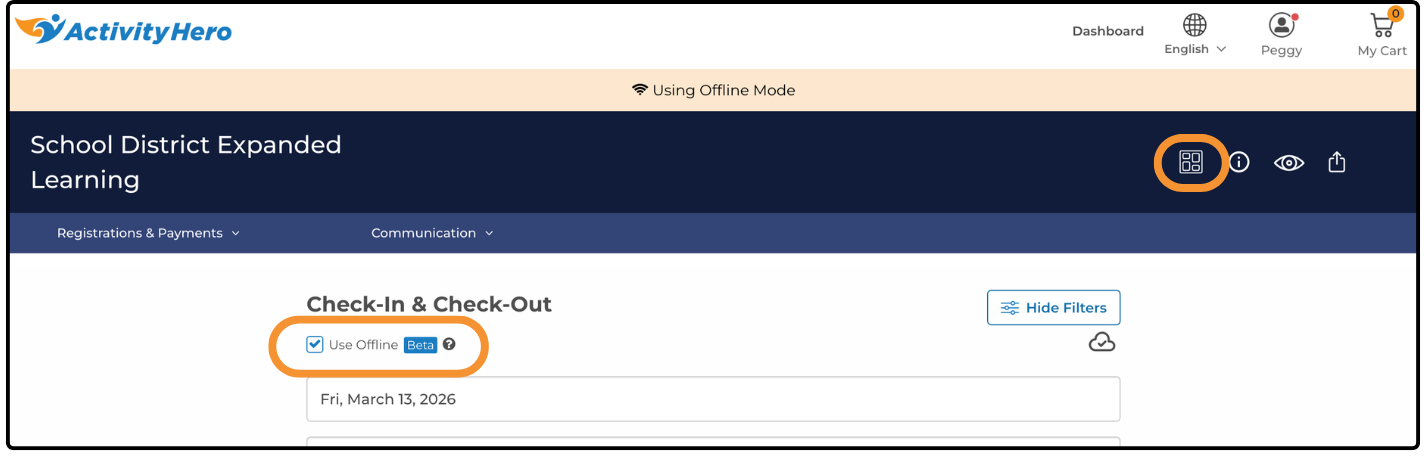
To enable Offline Mode on your device:
- From your dashboard, click the Dashboard icon at the top.
- Select Check-In & Check-Out.
- At the top of the page, select the checkbox next to Use Offline.
- Save the data for the date and location by clicking Confirm.
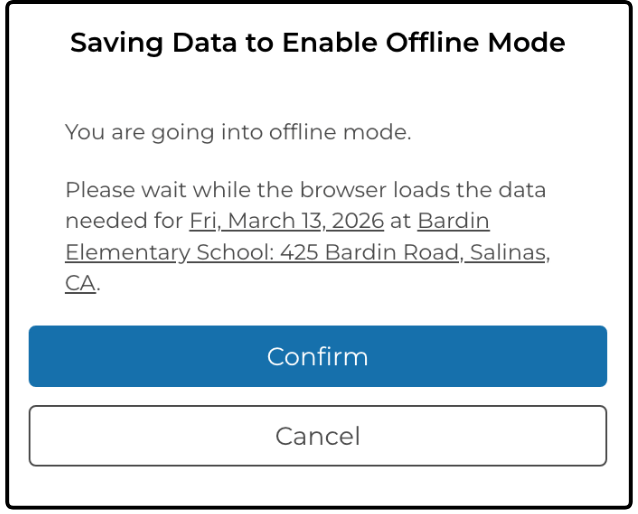
Once enabled, a Using Offline Mode banner is displayed at the top of your page.
Currently Unavailable in Offline Mode ↑
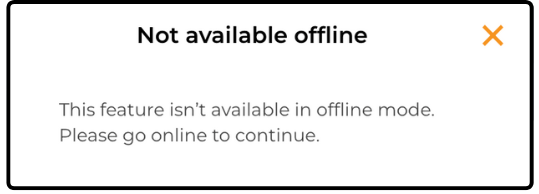
The following features are not available while using Offline Mode:
- Changing dates
- Changing locations
- Navigating to other pages without internet connectivity
- Adding authorized pick-ups
Tracking Attendance ↑
The steps to filter the participant list and record check-ins or check-outs are the same whether your device is online or offline. For detailed instructions, visit our help article: How Do I Track Attendance in ActivityHero?
Related Articles ↑
Was this article helpful?
That’s Great!
Thank you for your feedback
Sorry! We couldn't be helpful
Thank you for your feedback
Feedback sent
We appreciate your effort and will try to fix the article