ActivityHero makes attendance tracking easy, no matter what device you are using. You can view participant information, mark attendance, and review attendance reports, all in one place.
Check-In & Check-Out
Attendance Reports
Check-In & Check-Out
Accessing the Feature
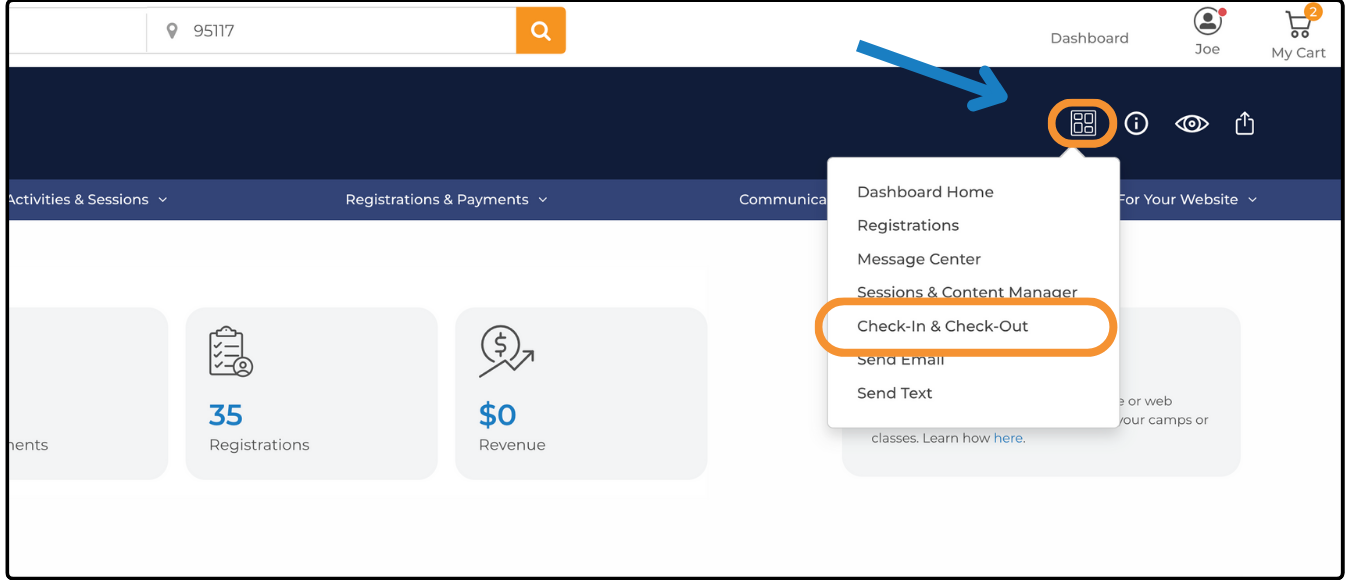
- Navigate to your Dashboard.
- Click the dashboard menu in the top right.
- Select Check-In & Check-Out from the list.
Filtering Participants
At the top of the page, there is a search bar and filters. These tools help you quickly find the participants you are looking for.
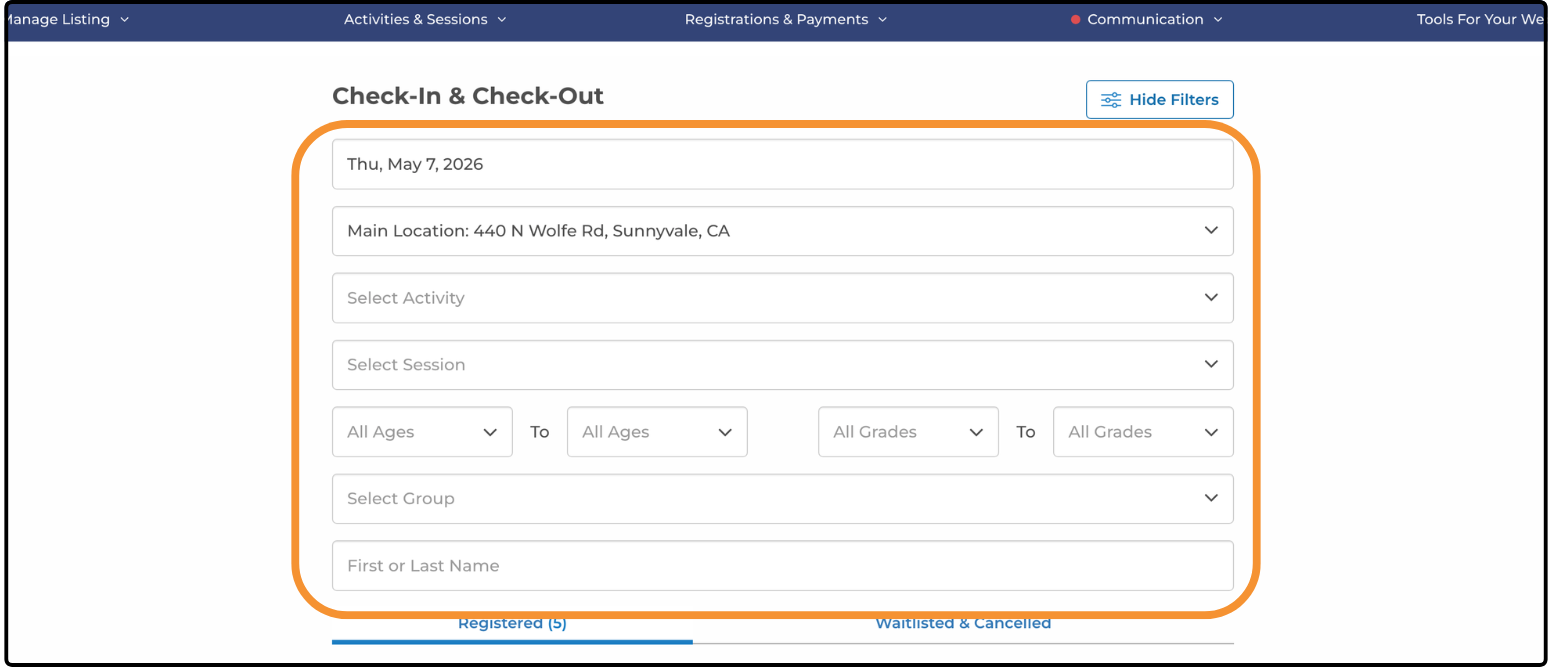
Filters: Narrow down by location, activity, session, group, or date. Updating one filter refines the options available in the other filters. Ensure you have selected the correct date before marking attendance.

Searching: Use the search bar to find participants by name. Results update dynamically as you type, so typing just a few letters should find the participant you are looking for.

Sorting: The list is sorted by first name by default. Use the Sort By dropdown menu to change the sorting and view the list by last name.
Participant Information
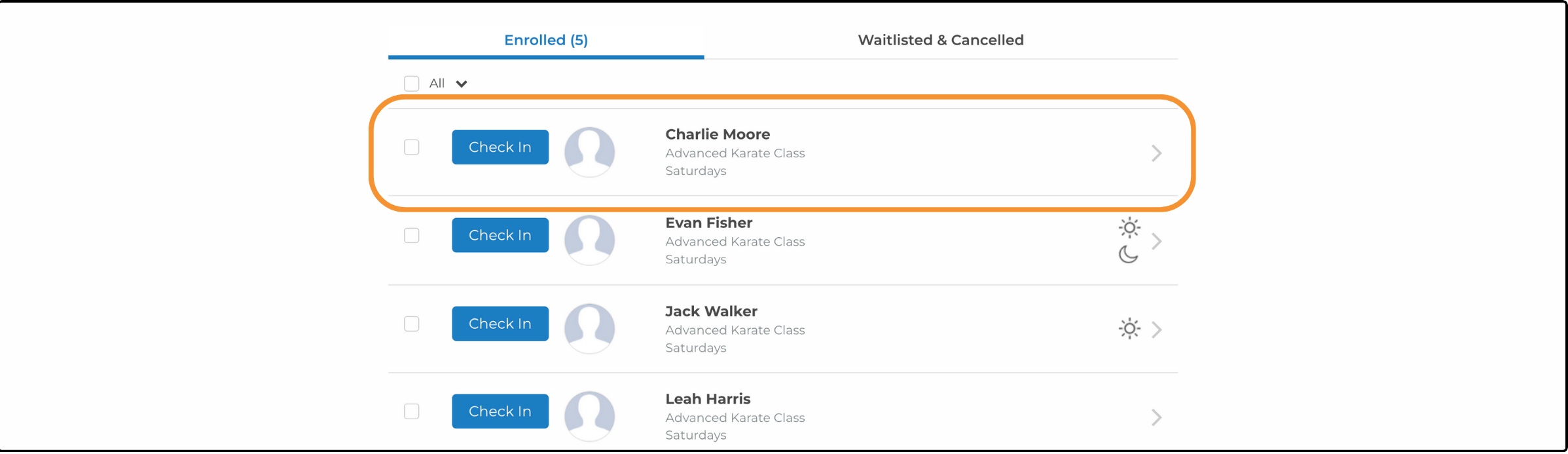
From the list you can see basic information for each participant, such as their name, the activity they are registered for, and the session name.
Icons
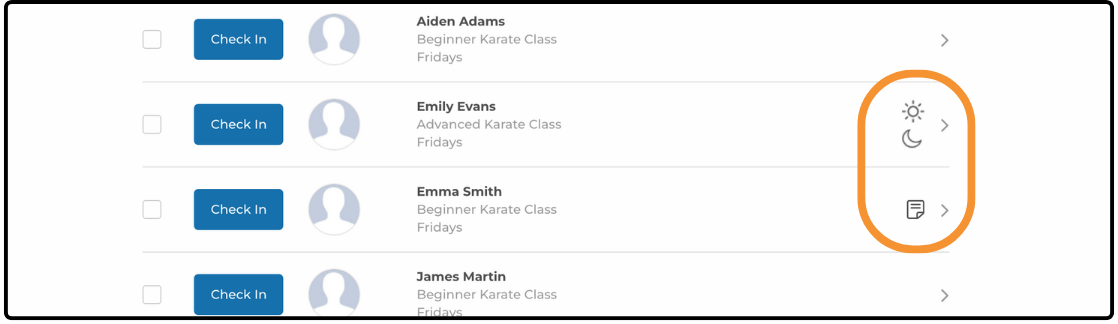
The icons on participant information give you quick details at a glance.
- Sun icon: shows early extended care
- Moon icon: shows after extended care
- Note icon: shows that there are notes in the participant's internal notes field. Tap the icon to open the participant information and view the notes.
Participant Details
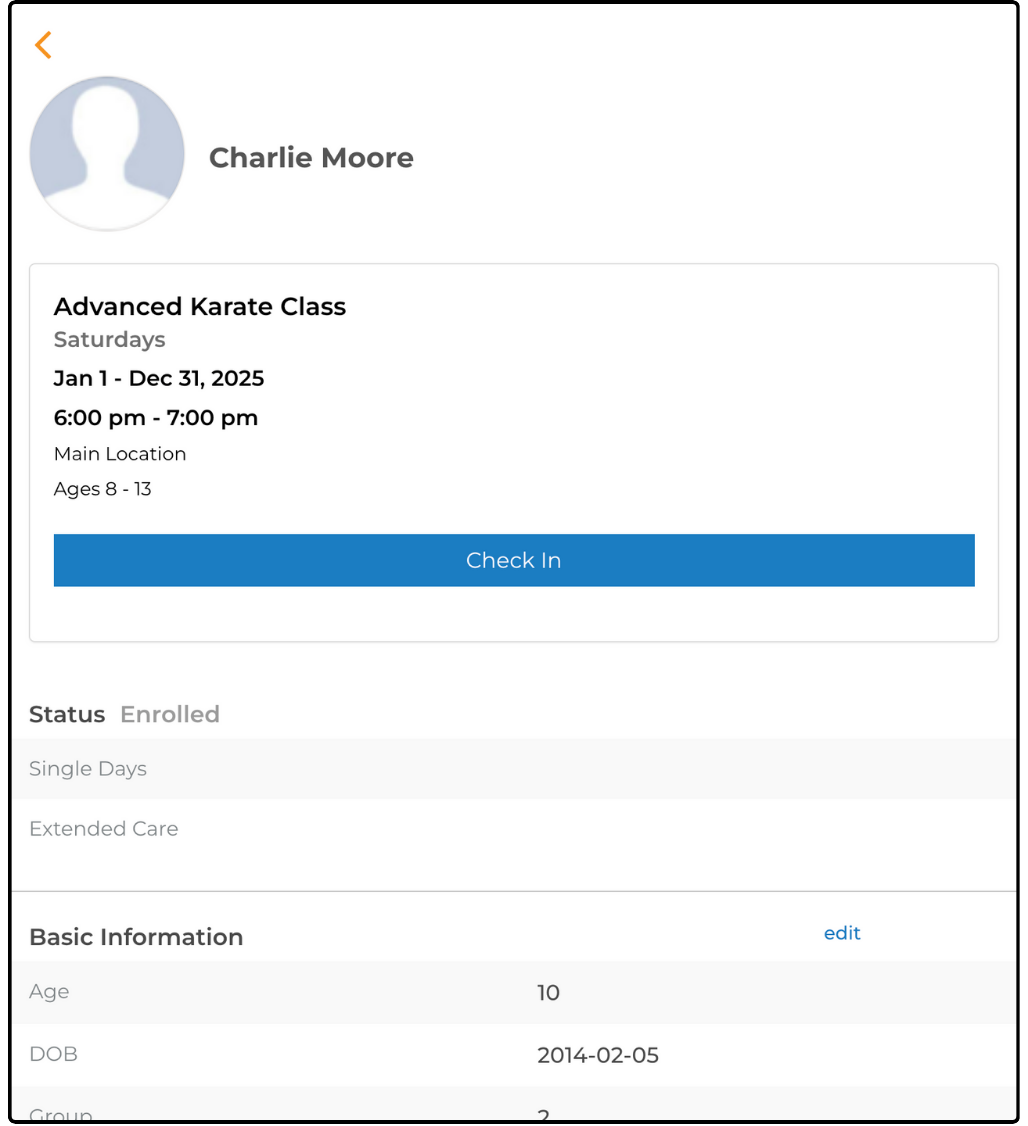
Click a participant to view all of their available information:
- Status
- Basic Information
- Health Information
- Dental
- Contact
- Sibling
- Session Attending
- Medical Contact
- Emergency Contact
- Organization Information - Custom Questions
- Waivers Status
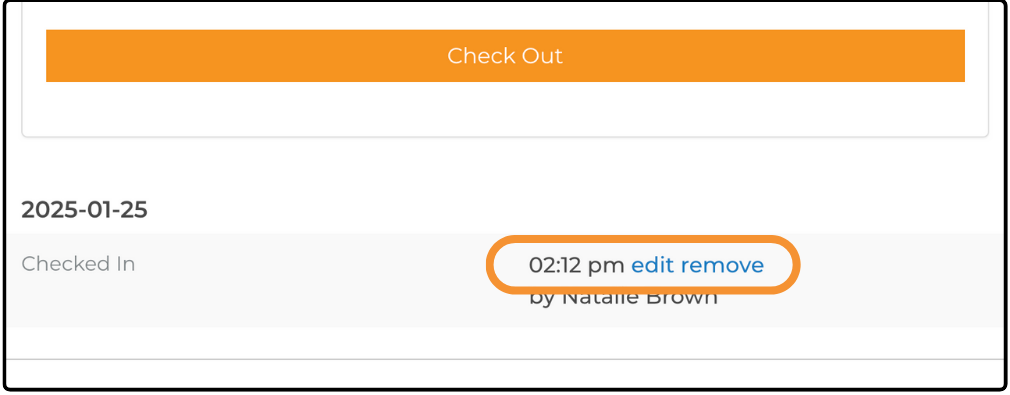
If you need to make any corrections, edit the time recorded or remove the marked attendance from the participant details.
Marking Attendance
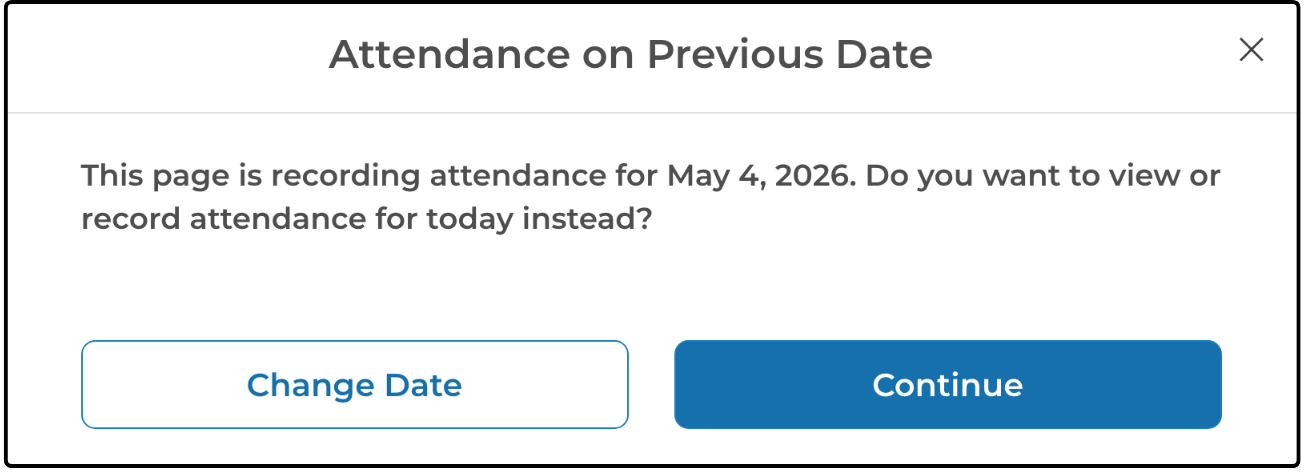
This tool allows you to mark attendance for a single day at a time. Ensure the correct date is selected before marking attendance. You can mark attendance for past or current sessions, but not for future ones. If you try to mark attendance on a day other than the current day, ActivityHero displays a confirmation message. This prevents accidental marking of attendance on the wrong day.
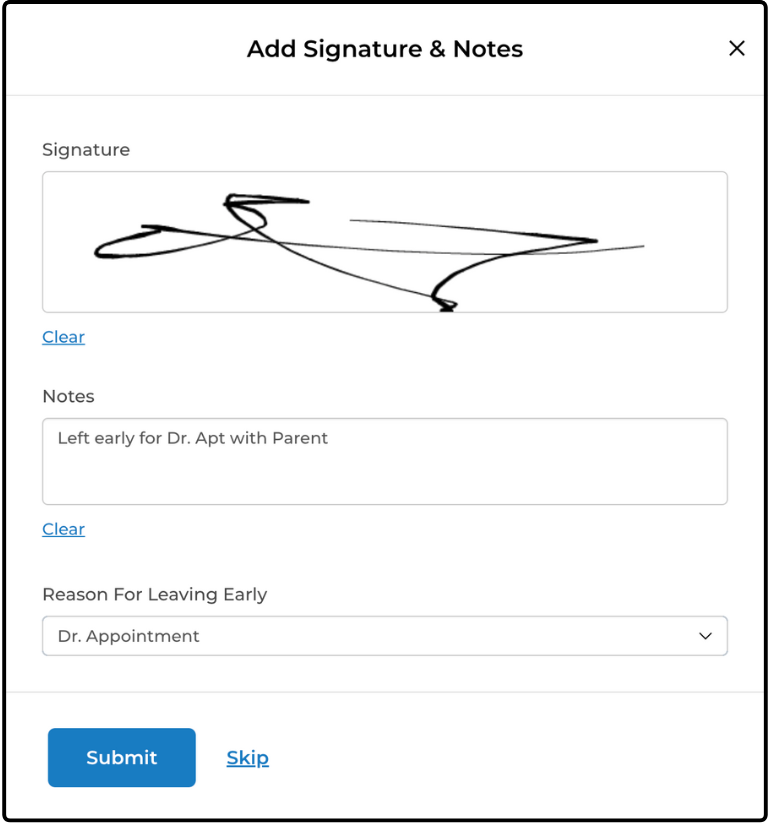
You can mark attendance by clicking Check In on the participant list or directly from the participant's information page.
For in-person sessions, if you have included pickup authorizations in your registration forms, you are prompted to select a staff or family member during check-in. Simply click the participant's name to record who checked them in and the exact check-in time.
Note: If you prefer not to include pickup authorizations in your registration forms but still want to select a staff or family member at check-in, contact our support team-we can remove the requirement for you.
Signature
If a signature is required for check-in, click Add Signature or Notes. The authorized person can sign directly on the device being used, and their signature is saved along with the check-in details.
If pickup authorizations were not included in your registration form, the signature step is skipped-clicking Check In simply records the time.
Notes
Use the Notes field to add details during check-in or check-out. This can be helpful for recording late arrivals or early pick-ups, or for noting special circumstances or updates.
Custom Questions
You can create custom registration or custom attendance questions that appear during registration or signature/attendance collection. These are useful for gathering information from parents, documenting common attendance notes, or adding internal codes for your records.
Custom Registration questions can be assigned to individual registration forms.
Custom Attendance questions appear for all activities by the same provider. Attendance questions can be made required on checkout.
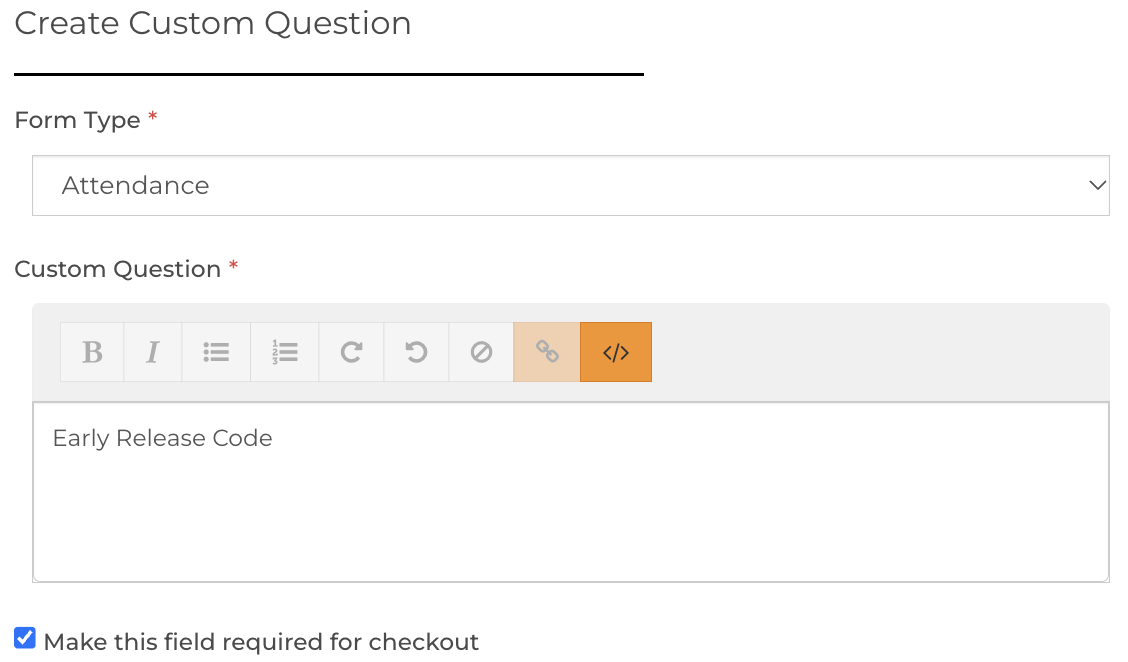
You can learn how to create new custom questions from our help article: How Do I Customize My Registration Forms?
Group Attendance
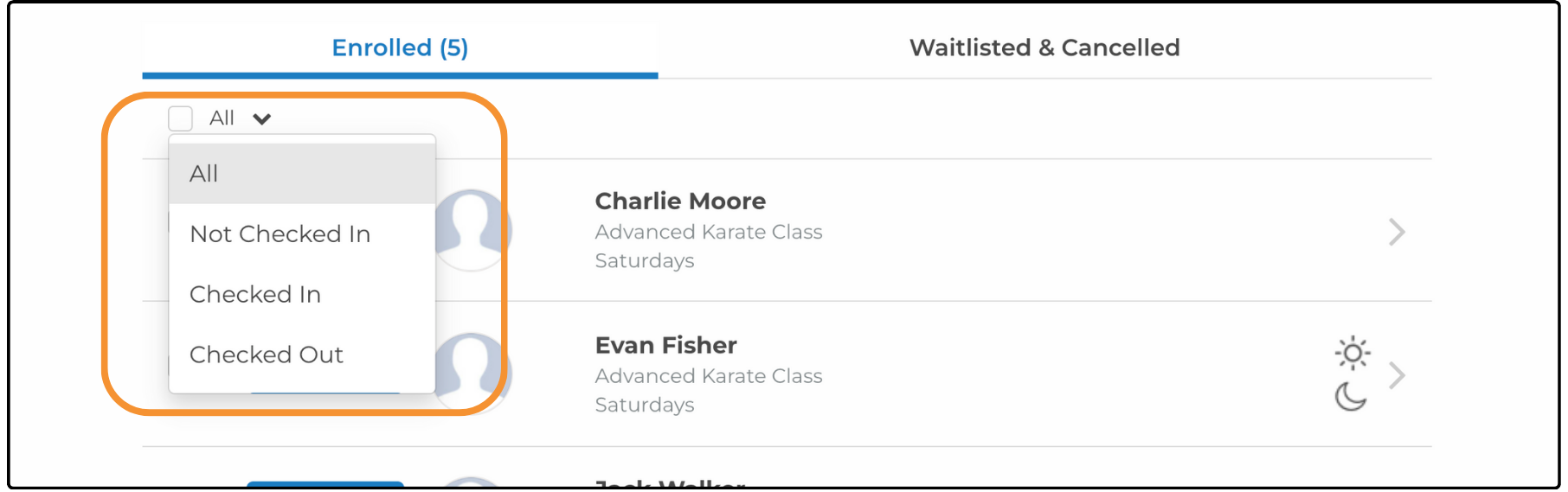
To quickly mark attendance or view who has not been checked in yet, use the dropdown menu at the top of the list. This lets you view participants who are not checked in, those who are checked in, those who are checked out, or select All to switch back to viewing your full list.
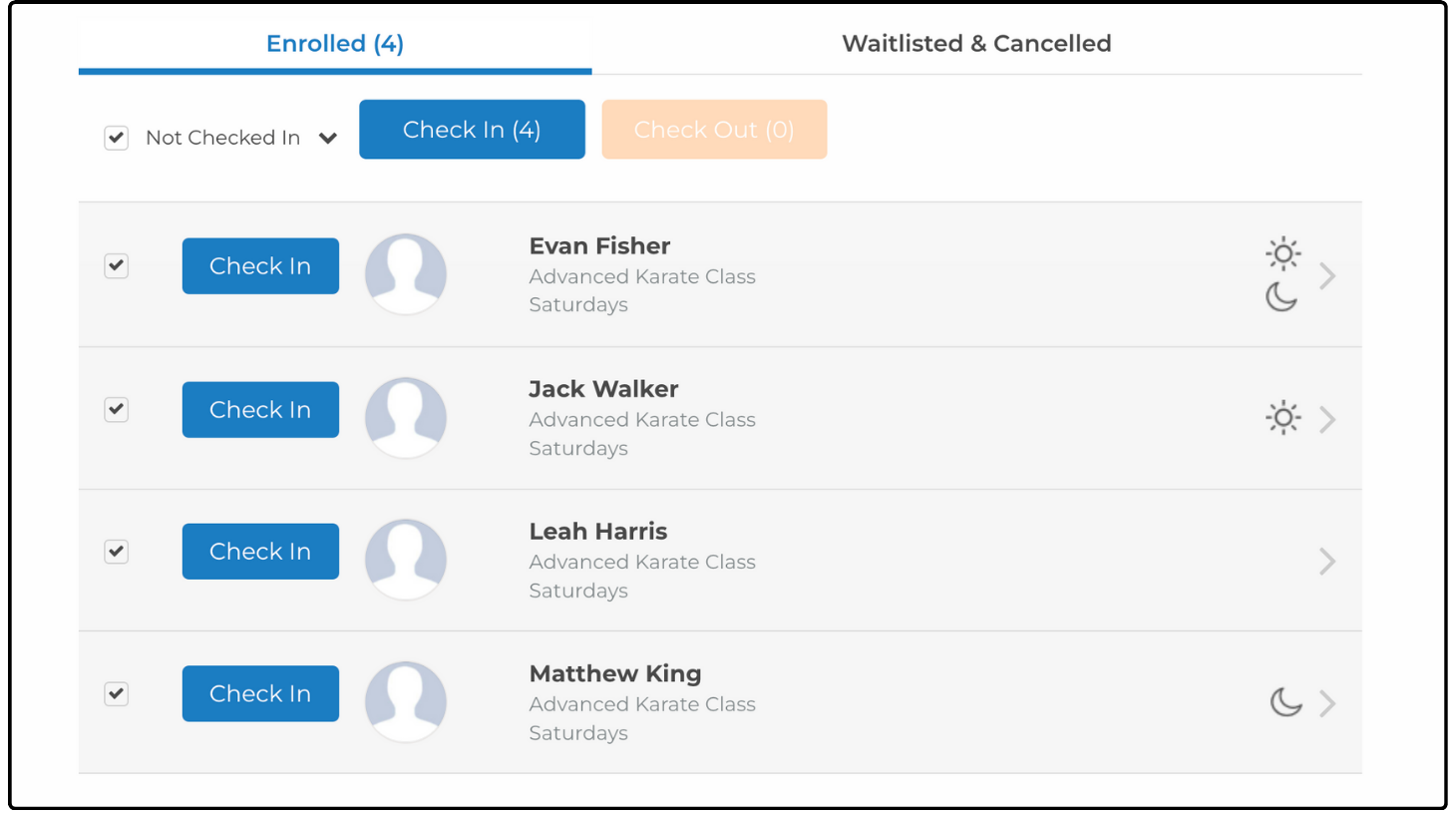
If you need to mark attendance for multiple participants at once, select the checkbox at the top to select everyone, or select individual checkboxes next to their names, then click Check In or Check Out. A number is displayed to let you know how many participants are marked.
After clicking, a window is displayed that lets you update the time attendance was recorded.
Attendance Reports ↑
Daily Digital Attendance Report
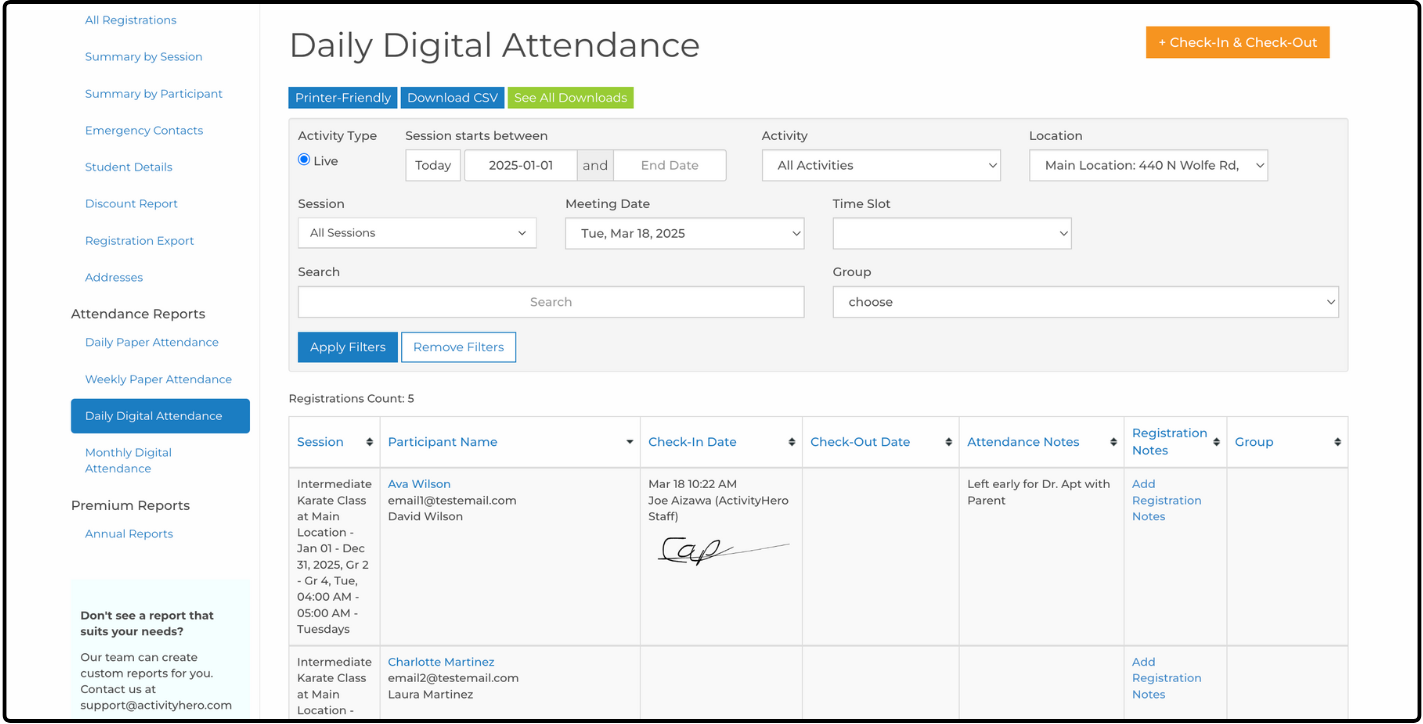
ActivityHero provides helpful reports to review your attendance data like the Daily Digital Attendance Report. This report shows the participant attendance history of a single day. To find it, navigate to Registrations & Payments > Registration Reports. Then in the left-hand menu there is a category for Attendance Reports.
You can use filters to find specific data. The report includes session details, participant information, attendance activity signatures and timestamps, groups, attendance notes from check-in and out, and a registration notes column for additional details.
Filters work similarly to the filters in the Check-In & Check-Out tool. If a single session is selected, then the session information is displayed at the top of the list. If multiple sessions are selected, then a Session column is added and the session information for each participant is displayed.
Note: Pay special attention to the Meeting Date filter so you are reviewing the data for the date you expect.
Monthly Digital Attendance Report
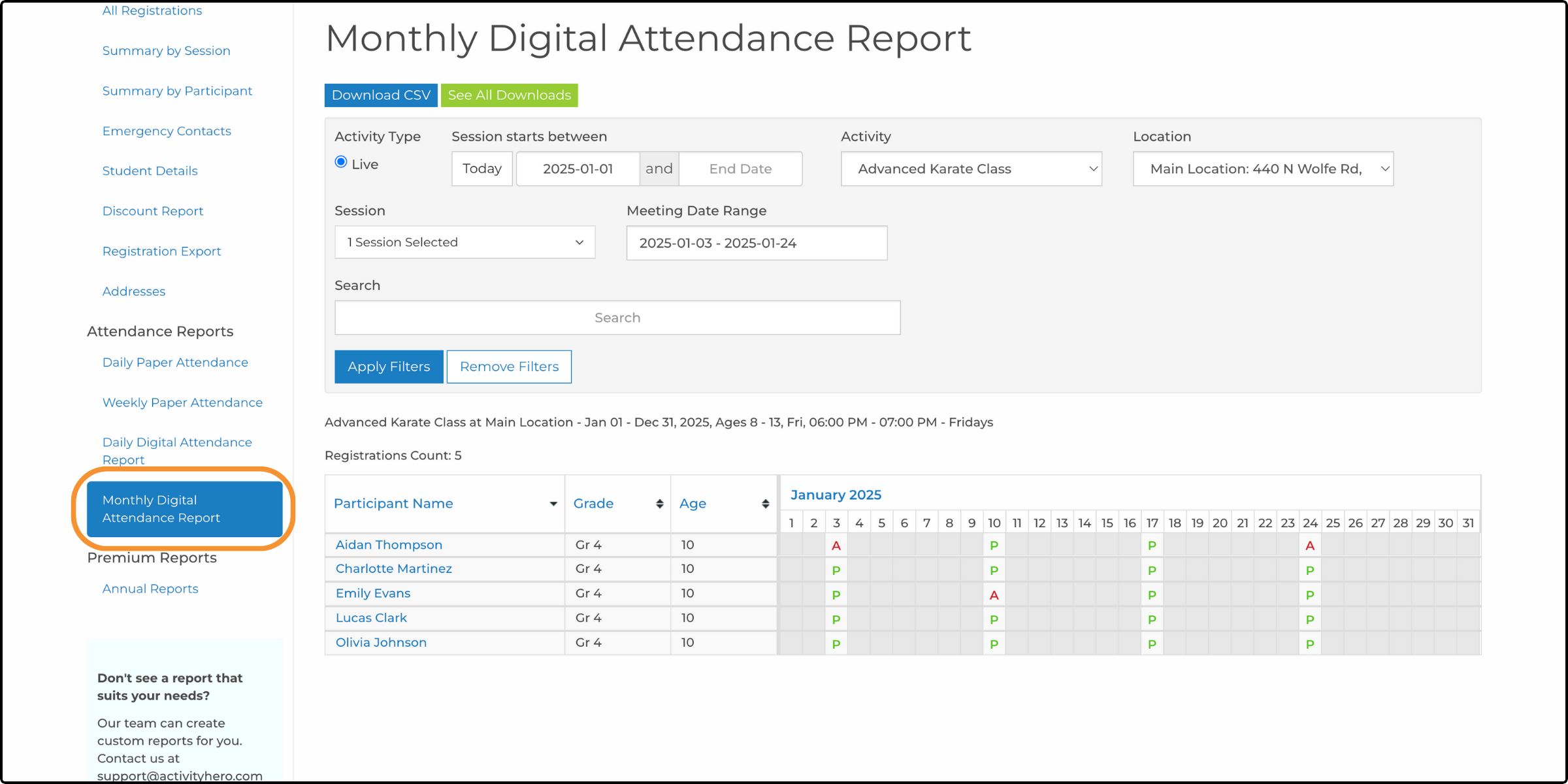
The Monthly Digital Attendance Report gives you an overview of attendance for a selected date range. Like in other reports, selecting the filters narrows down the data that you see. The filters work similarly to the Daily Digital Attendance report.
Note: Pay close attention to the Meeting Date Range filter to ensure you are viewing the dates you expect.
The report shows participant information and marked attendance for each date: displaying a "P" for present, an "A" for absent, and gray squares for days the session did not meet.
Related Articles ↑
Was this article helpful?
That’s Great!
Thank you for your feedback
Sorry! We couldn't be helpful
Thank you for your feedback
Feedback sent
We appreciate your effort and will try to fix the article