Step 1: Add a Signature Question
Step 2: Choose When the Signature Is Required
Step 3: Collecting Signatures at Check-In and Check-Out
Step 4: Editing Past Attendance Records
How the Signature Question Is Set Up Automatically
Overview
Signature is a custom question on the Attendance form in ActivityHero. Providers can add a Signature question and decide whether it is required at check-in, at check-out, or both.
This article explains how to add and configure the Signature question, what staff will see on the check-in and check-out screen, how editing past records works, and how existing accounts were set up automatically.
This guidance is intended for provider administrators, school and district staff who manage attendance settings, and site staff who check students in and out.
Step 1: Add a Signature Question
Each provider can have one Signature question on its Attendance form. Most accounts already have one. If yours does not, you can add:
- In the provider dashboard, go to Forms & Policies and open the Custom Questions tab.
- Click to add a new custom question.
- Set Form Type to Attendance.
- Set Field Type to Signature. The Options and Default Value fields are hidden because they do not apply.
- Choose the required settings (see Step 2) and click Save.
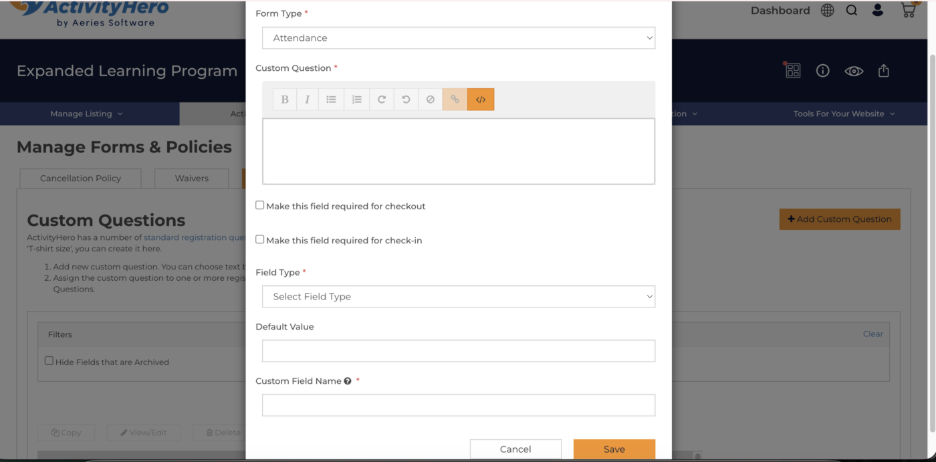
Adding an Attendance custom question, with the two required checkboxes.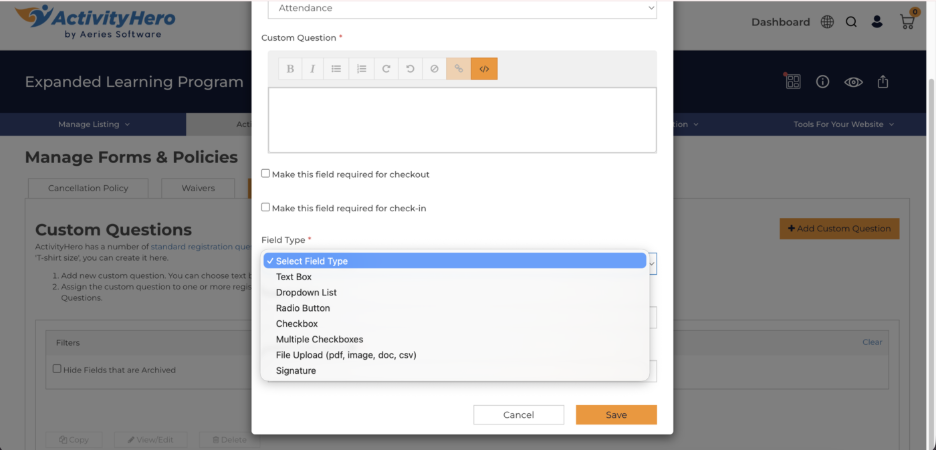
Signature is listed under Field Type when Form Type is Attendance.
The question now appears in your Custom Questions list with Field Type "Signature."
NOTE: Signature is only available on the Attendance form. If you switch Form Type to Registration, the Field Type resets because Signature cannot be used on registration forms. You also cannot add a second Signature question — the save will show an error if one already exists.
Step 2: Choose When the Signature Is Required
Every Attendance question, including Signature, has two separate checkboxes:
- Make this field required for check-in: Staff must complete this question when checking a student in.
- Make this field required for check-out: Staff must complete this question when checking a student out.
You can check one, both, or neither. Each setting is saved on its own, so turning one on does not change the other. Leave both unchecked to keep the signature optional.
NOTE: Changes to these settings apply right away. The next check-in or check-out will follow the new settings.
Step 3: Collecting Signatures at Check-In and Check-Out
When a student is checked in or out, the Add Signature window shows the Signature question and any other Attendance questions. What staff see depends on your settings:
- Signature required: The window opens automatically. The signature is marked with a red asterisk, and staff cannot submit until the signature pad is signed.
- Signature optional: The signature pad is shown without an asterisk. Staff can sign, or click Skip to continue without a signature (not available in Scan Mode).
- No Signature question: No signature pad appears in the window.
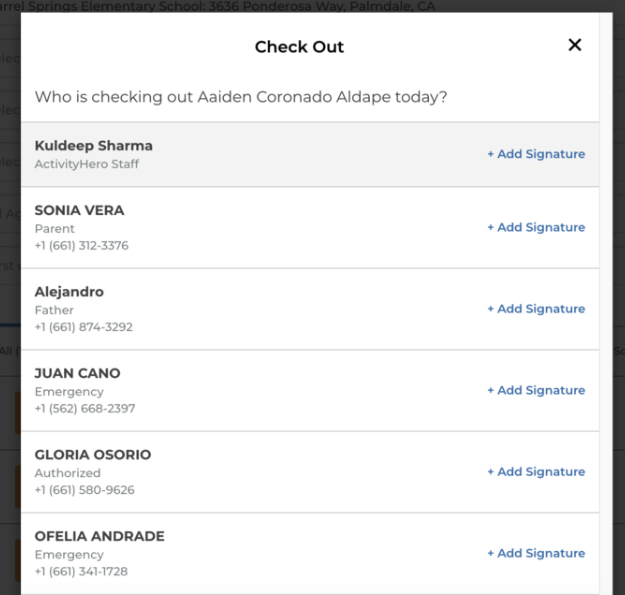
Choosing who is checking the student out. Each person has an + Add Signature link.
If any Attendance question is required for check-in, the window now opens automatically at check-in too. Before, it only opened automatically at check-out.
In Scan Mode, the signature is always required at both check-in and check-out, and there is no Skip button. This applies even if the Signature question is not marked as required.
If a required question is left blank, staff will see "Please complete all required fields" and cannot submit until it is filled in.
NOTE: If your account is set to skip the authorization step at check-in or check-out, that action finishes right away without the window, no matter which questions are marked as required.
Step 4: Editing Past Attendance Records
Staff can still edit past check-in and check-out records. The required-field rules work like this:
- Clearing an existing answer: If a required question (or the Signature) already has an answer and staff clear it, the save is blocked with "Please complete all required fields."
- Records that were never answered: If an older record never had an answer for a required question, staff can still edit other details, such as the time, without being forced to fill it in.
This prevents staff from removing signatures that were collected, while still letting them fix older records made before a question was required.
Providers Using E-Signatures
If your account requires E-Signatures, the Signature question is locked so you always stay compliant:
- Both 'Make this field required for check-in' and 'Make this field required for check-out' are checked and cannot be changed. A note under the checkboxes explains why.
- The Signature question cannot be archived or deleted.
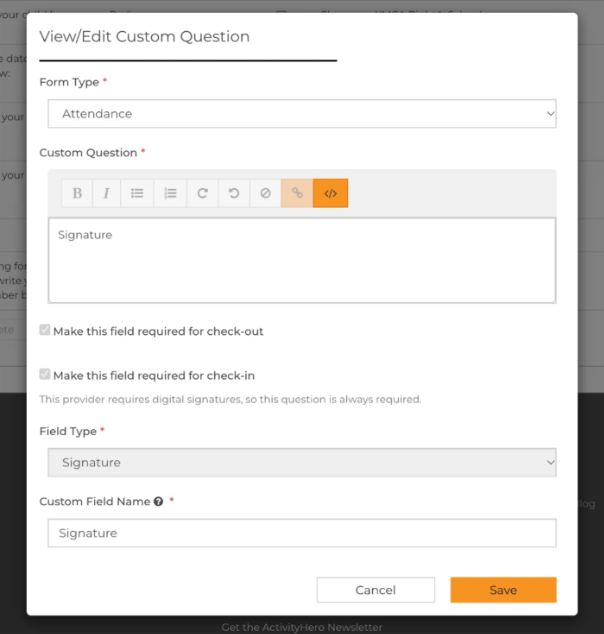
The Signature question for a E-Signature provider. Both required settings are checked and locked.
How the Signature Question Is Set Up Automatically
Every account gets a Signature question on its Attendance form automatically, so most providers do not need to add one themselves.
New Accounts
- When a new account is created, a Signature question named "Signature" is added to its Attendance form automatically.
- Both 'Make this field required for check-in' and 'Make this field required for check-out' start unchecked, unless E-Signature is turned on for the account (see below).
- School accounts start the same way. Creating an account as a school, or changing an existing account to a school, does not make the signature required.
- If E-Signature is turned on for the account, either when it is created or later, the Signature question is automatically set to required for check-in and check-out and locked. If the account does not have a Signature question at that point, one is added.
- If the account uses Scan Mode, the signature is always required at check-in and check-out, even though the checkboxes start unchecked.
- Otherwise, an administrator can change the required settings at any time in Custom Questions.
Existing Accounts
Accounts that existed before this update were given a Signature question as follows:
- School accounts — the Signature question is set as required for check-out.
- Accounts that already required another Attendance question at checkout — the Signature question is also set as required for check-out.
- All other accounts — the Signature question is optional.
Key Takeaways
- Signature is now a custom question on the Attendance form, and each provider can have one.
- Any Attendance question can be required at check-in, at check-out, or both, using two separate checkboxes.
- Required signatures cannot be skipped. Optional signatures show a Skip button, except in Scan Mode, where the signature is always required.
- When editing past records, staff are only blocked if they clear an answer that already existed.
- Accounts that use E-Signatures keep the signature locked as required, and it cannot be archived or deleted.
Was this article helpful?
That’s Great!
Thank you for your feedback
Sorry! We couldn't be helpful
Thank you for your feedback
Feedback sent
We appreciate your effort and will try to fix the article