The ActivityHero Go App is a standalone version of ActivityHero's Check-In & Check-Out (or E-Signature) feature. It looks and works the same as the dashboard version, with one key addition: you can use it offline.
Click here to learn more about tracking attendance with Check-In & Check-out.
Click here to learn more about using E-Signature.
TABLE OF CONTENTS
How To Proceed Once You're Offline
Once Your Connection Is Restored
Getting Started
- Download ActivityHero Go on the Apple or Google Play Store.
- Open the app and sign-in with your ActivityHero credentials.
- Once logged in, the view will be the same as the web / browser version of this feature.
Taking Attendance Offline
ActivityHero Go can be used without an internet connection, so you can keep taking attendance at locations with weak or no signal.
TIP: If you know you will have weak or no signal later in the day, open the app ahead of time while connected so it can sync. We recommend connecting the device once a day so it has up-to-date information.
Offline Indicators:
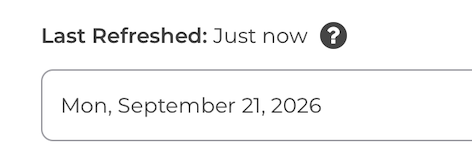
- Last refreshed: Shown above the filters at the top left of the screen. It tells you the last time the page received registration information from the server.
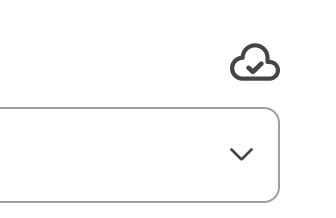
- Cloud icon with check mark: Shown above the filters at the top right of the screen. The check mark means everything is saved to the cloud and all changes made on this device have been sent.
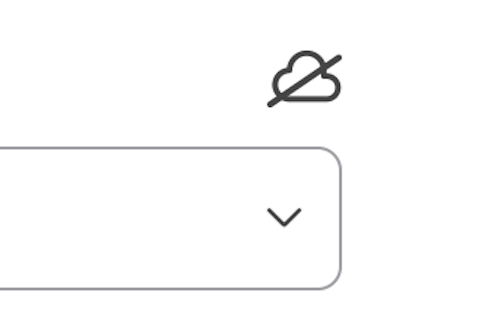
- Cloud icon with line through it: You've lost connectivity and and made changes. The changes are saved on the device and will sync once connection is restored.
- Offline banner: Shown above the participant section. It means the device currently has no connection.

How To Proceed Once You're Offline:
- Continue taking attendance as usual.
- Any changes to attendance are stored on the device and automatically upload once the connection is restored.
- The last refreshed time will continue to update so you know how long it's been since the app lost connection.
Once Your Connection Is Restored:
- The changes will upload automatically.
- The offline banner will disappear.
- The last refreshed time will update and the cloud icon will show a check mark again.
FAQs
Who is able to use the ActivityHero Go app?
This app is for staff members, NOT parents.
Does the app work the same as the web version of Check-In & Check-Out (or E-Signature)?
Yes! The key difference is that you can continue taking attendance when you have a weak connection or none at all.
What if staff members on multiple devices make changes to the same student at the same time?
If all devices are online: Whoever’s action reaches the server first is recorded. In practice, that’s whoever tapped first.
If all devices are offline: Whoever’s device reconnects first is recorded, even if the other staff member actually tapped earlier.
If at least one of the devices is online: The online staff member’s action is recorded right away.
Was this article helpful?
That’s Great!
Thank you for your feedback
Sorry! We couldn't be helpful
Thank you for your feedback
Feedback sent
We appreciate your effort and will try to fix the article