Table of Contents
Overview
Get the Required Registration Data
Complete the Import Template
Import Template Fields
Import the File
Overview
Navigate to Manage Listing > Import
Use the Attendance import template file to add check-in and check-out records for multiple students at once, instead of entering attendance one student at a time. The template requires several ID values that come from a Registrations report download, so complete that step first.
| Note: If you need to import attendance for past time periods that do not have registrations in ActivityHero, contact the Support team to import historical attendance. |
Get the Required Registration Data ↑
In order to record the attendance data for the correct students, you will need to first get information from the Registration Report.
- Navigate to Reports > Registrations for All Students.
- Use the filters (Activity Type, Session, Location, Activity, Meeting Date, and so on) to narrow the list to the students for whom you want to enter attendance.
- Click Apply Filters.
- Click Download All Registrations CSV.
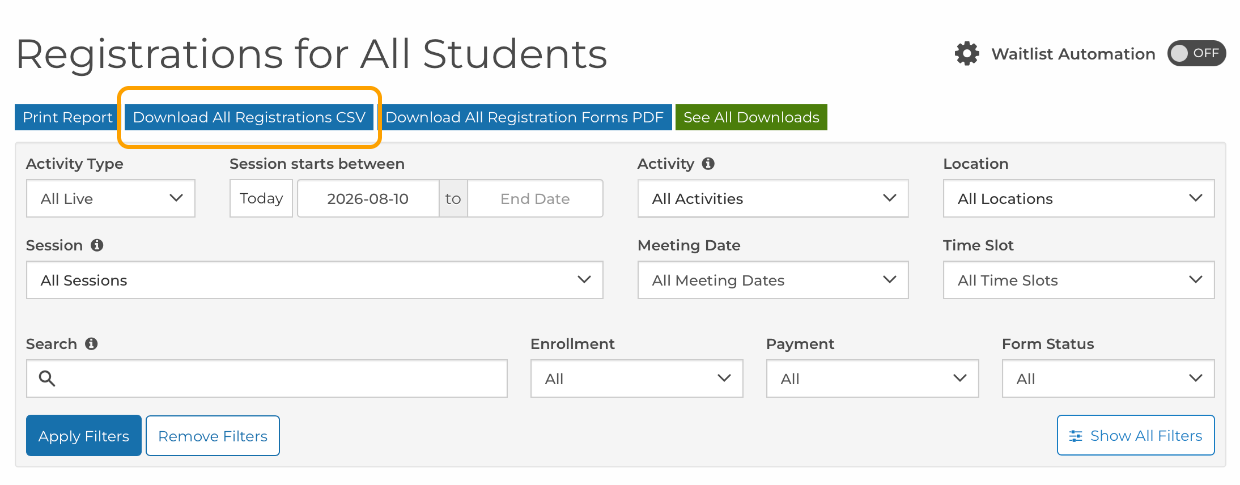
Open the downloaded file and copy the registration_id, activity_schedule_id, activity_id, provider_location_id, and child_name values for each student into the matching rows of the attendance import template.
Complete the Import Template ↑
Download the Attendance Import Template file and add one row per attendance event, for example a check-in row and a separate check-out row for the same student and date.
- Enter a value in every required (yellow) column: meeting_date, attendance, attendance_time, signer_name, self_check_in, updated_by, registration_id, activity_schedule_id, activity_id, and provider_location_id.
- Leave the optional columns (deleted_at, signature, attendance_notes) blank unless they apply.
- Do not rename any column headers. They must be identical to the names above in order to import correctly, including capitalization.

Columns A-F are ready for import.

Columns J-N are ready for import (child_name is not required for import, but may be useful for you to prepare the file).
| Note: You may find it easier to prepare a file that has check-in time and check-out time as two separate columns. This results in one row per student per meeting_date. If you choose to prepare the initial file this way, before importing the file, fill in the value "check-in" for the attendance column on all rows. Note the last row number. Then make a copy of all the rows and replace the attendance value as "check-out" for all the newly pasted rows. |
Import Template Fields ↑
| Column | Field | Required | Description |
|---|---|---|---|
| A | meeting_date | Yes | Date of the attendance record. |
| B | attendance | Yes | This must be check-in or check-out (lower case). |
| C | attendance_time | Yes | Time of the attendance event, for example 3:00 PM. |
| D | signer_name | Yes | Name of the person signing the student in or out. |
| E | self_check_in | Yes | Indicates whether the student self-checked in. TRUE, FALSE |
| F | updated_by | Yes | Name or ID of the staff member entering the record. |
| G | deleted_at | No | Leave blank; used only when removing a record. |
| H | signature | No | Digital signature data, if applicable. |
| I | attendance_notes | No | Free-text notes about the attendance record. |
| J | registration_id | Yes | Registration ID from the Registrations report. This is unique for each student. |
| K | activity_schedule_id | Yes | Activity schedule ID from the Registrations report; identifies the session. |
| L | activity_id | Yes | Activity ID from the Registrations report. |
| M | provider_location_id | Yes | Provider location ID from the Registrations report; identifies the site. |
| N | child_name | No | Student's name, for readability only; not used to match the record. |
Import the File ↑
- Navigate to Manage Listing > Import.
- Upload the completed attendance file.
- Click Validate.
- Review the validation results and correct any flagged rows before finalizing.
Was this article helpful?
That’s Great!
Thank you for your feedback
Sorry! We couldn't be helpful
Thank you for your feedback
Feedback sent
We appreciate your effort and will try to fix the article