ActivityHero allows you to customize how you group participants by giving you the flexibility to create your own groups.
Create a Group
Filter by Group
Create a Group
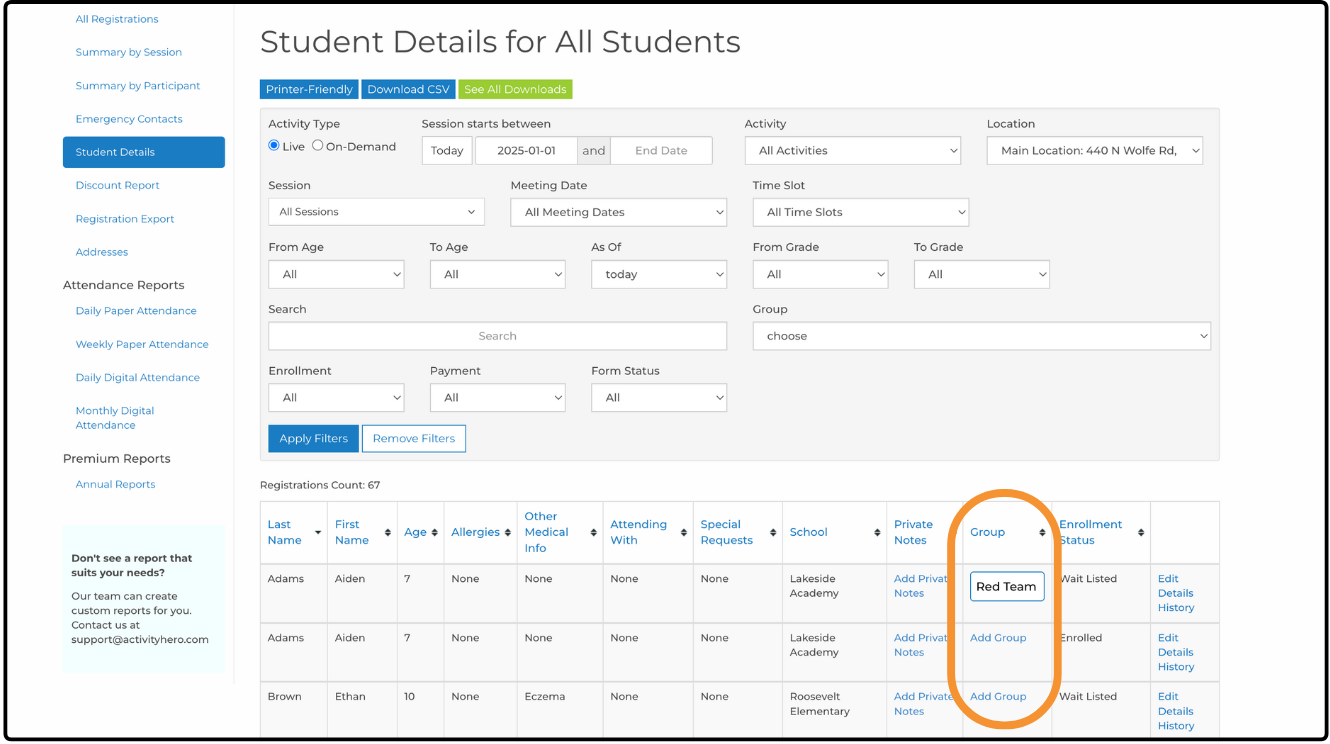
You can manage groups within the Student Details report, which provides a breakdown of participant information such as allergies, medical notes, special requests, private notes, and more. It also allows you to create and assign custom groups.
To access the report:
- From your dashboard, hover over Registrations & Payments and click Registration Reports.
- In the left-hand menu, click Student Details.
To add a participant to a group:
- Find the participant in the report and click Add Group.
- Type a group name. This field is flexible - you can use letters, numbers, or words (e.g., Group A, Group 2, Red Team).
Once groups are assigned, you can use filters in reports and features like Check-In to view and manage participants by group.
Filter by Group ↑
Reports
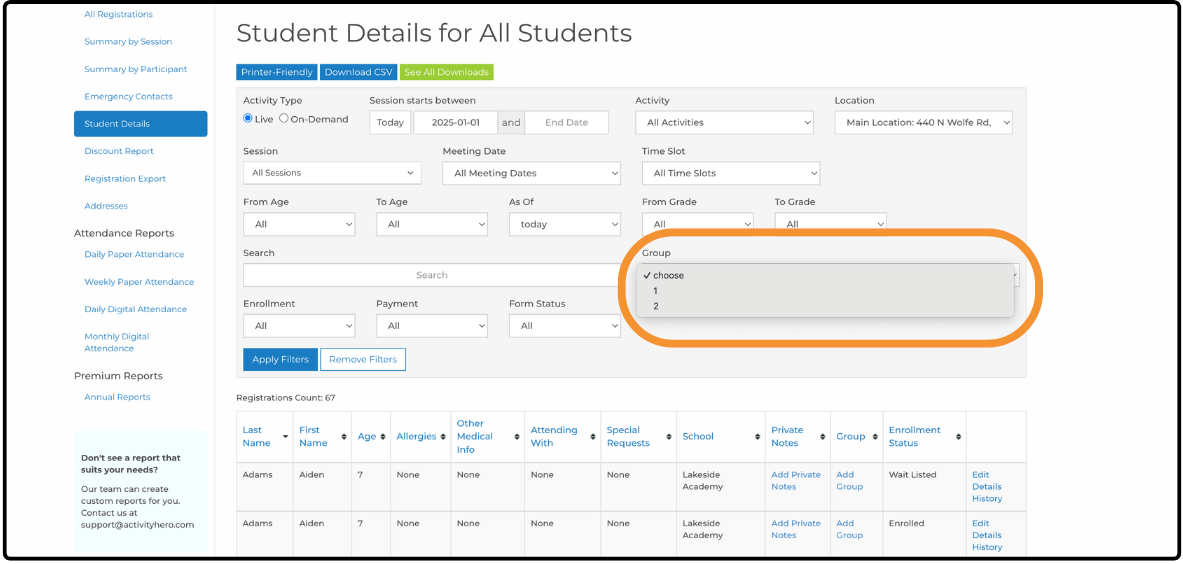
To filter a report by group:
- Locate the Group filter and click it to open the dropdown menu.
- Select the group you want from the list.
- Click Apply Filters to display only the participants in the selected group.
Check-In Feature
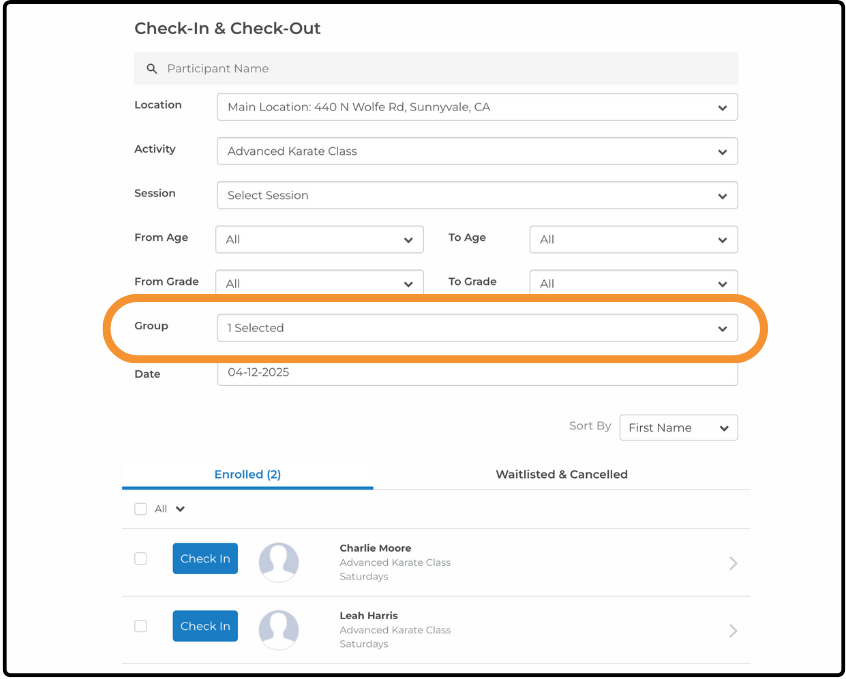
To filter the check-in list by group:
- Click the Group filter to open the filter window.
- Select one or more groups from the list.
- Click Apply to close the window and filter the participant list by the selected group(s).
For more information about the Check-In feature, check out our help article: How Do I Track Attendance in ActivityHero?
Related Articles ↑
Was this article helpful?
That’s Great!
Thank you for your feedback
Sorry! We couldn't be helpful
Thank you for your feedback
Feedback sent
We appreciate your effort and will try to fix the article