ActivityHero offers powerful reporting tools to help you manage and understand all of your listing activity and data. These reports provide insights into attendance, participant details, payment information, and more.
Filters and Sorting
Downloads
Registration Reports
Waitlist
Payment Reports
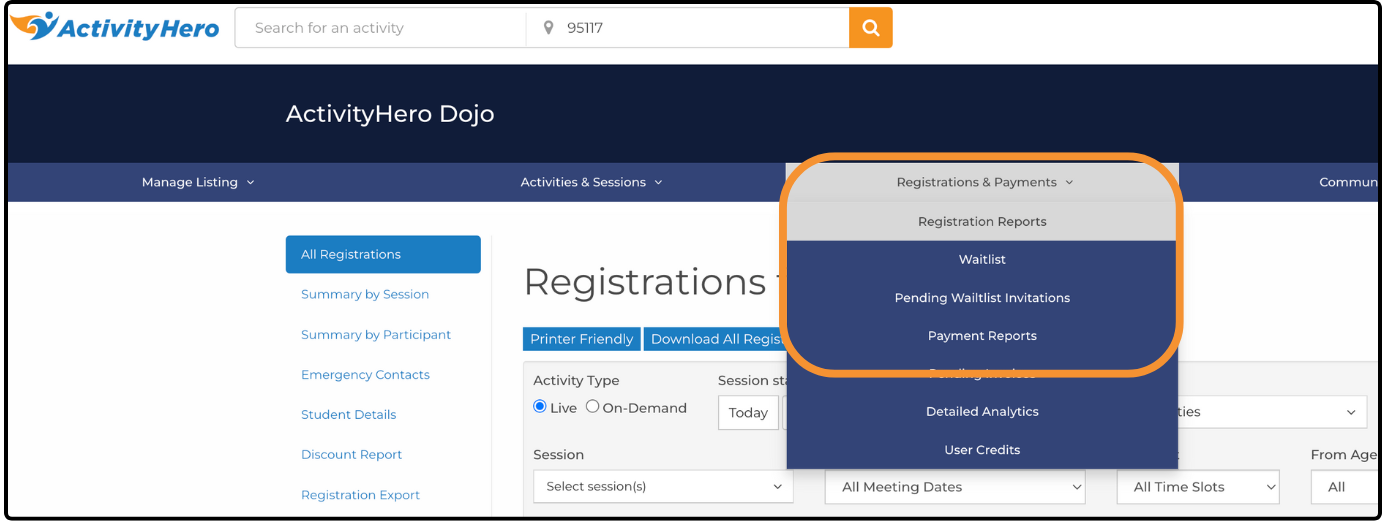
To access key reports-such as Registration Reports, Waitlists, and Payment Reports-hover over Registrations & Payments in the navigation menu. Each report serves a unique purpose and helps you quickly find the information you need.
Filters and Sorting
ActivityHero's reports include flexible filters and sorting options to help you narrow down data and focus on what matters most.
Filters
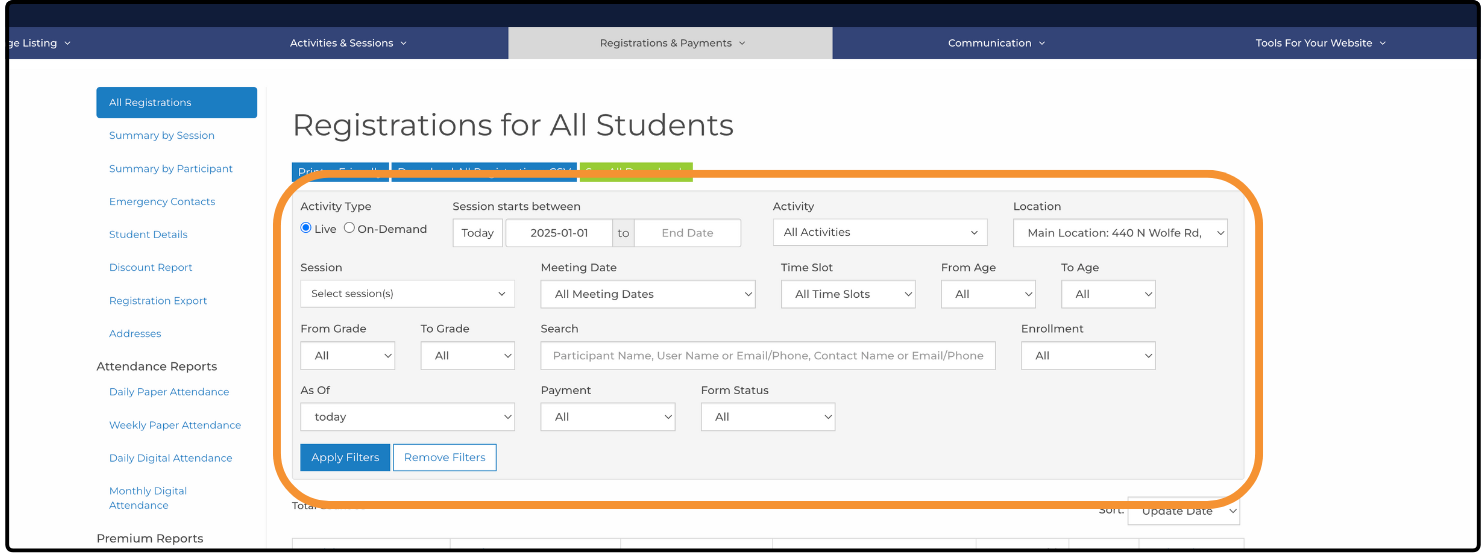
Located near the top of most reports, filters let you refine the data displayed. Common filters include:
- Activity & Session - Focus on specific activities or sessions.
- Location - View data for a particular location.
- Age - Filter participants by age group.
- Grade - Narrow results to participants in a specific grade.
- Date - View data for a specific date or date range. Use the dropdown menu or calendar tool to select your dates.
- Search - Search by first name, last name, or email address to find specific participants.
After setting your filters, click Apply Filters to update the report. Note: Filters are sticky-they remain active across reports that use similar filters. To clear them, click Remove Filters.
Sorting
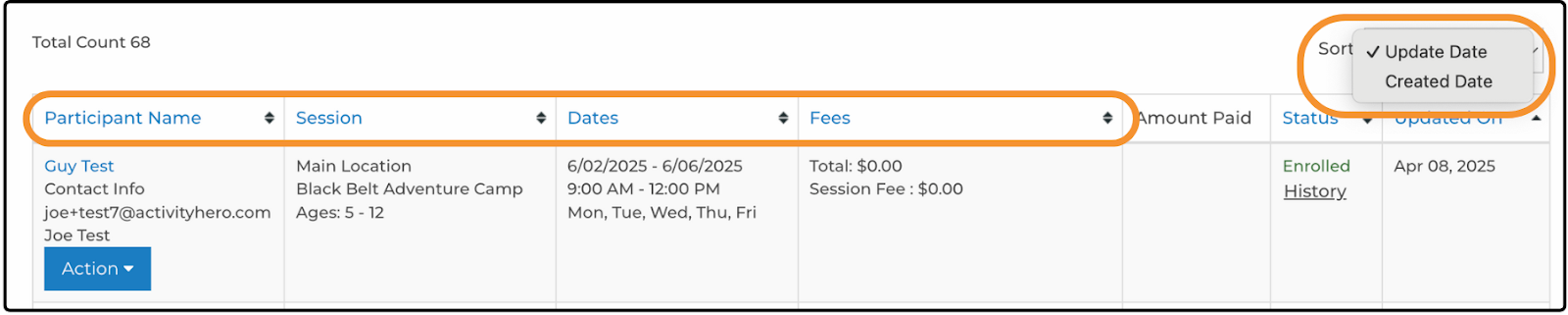
Most reports allow you to sort data in ascending or descending order. If the report includes a sort dropdown menu, you can use it to select a sorting method. You can also click column headers that have arrow icons to toggle the sorting order. Click once to sort in ascending order, and click again to switch to descending.
Downloads ↑
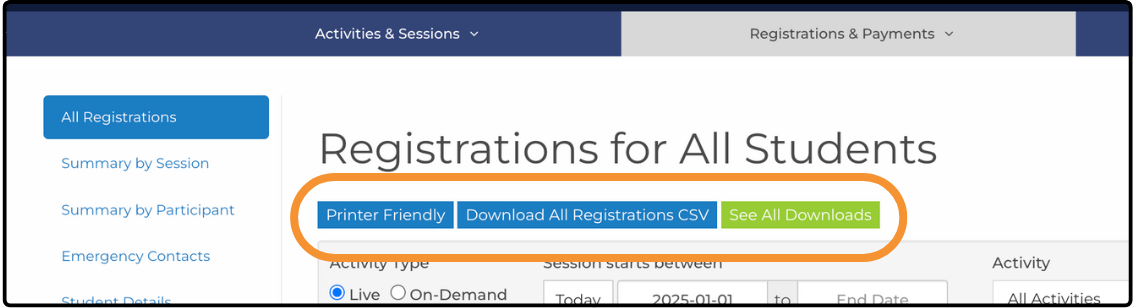
At the top of most reports you can find options to download your information. The options below help you take the data you need from ActivityHero to share or use in other business situations.
Printer Friendly - This downloads the information formatted for printing. The data is displayed in a page format that is convenient for taking the data offline.
Download CSV - This downloads the data in a digital format. The CSV file is a general file format that can be uploaded to other applications that you can use to create graphs or formulas to get more insight into the data.
See All Downloads - When downloads contain a large amount of data, they can take some time to prepare. The Downloads page shows all of the files you have requested. While a file is being prepared, you see a Pending status. Once the file is ready, a Download link appears. Clicking the link downloads the file. Downloads can take a few minutes to generate, so refresh the page to check if your file is ready. You only see the downloads you requested. Files requested by other users with access to reports do not appear.
Registration Reports ↑
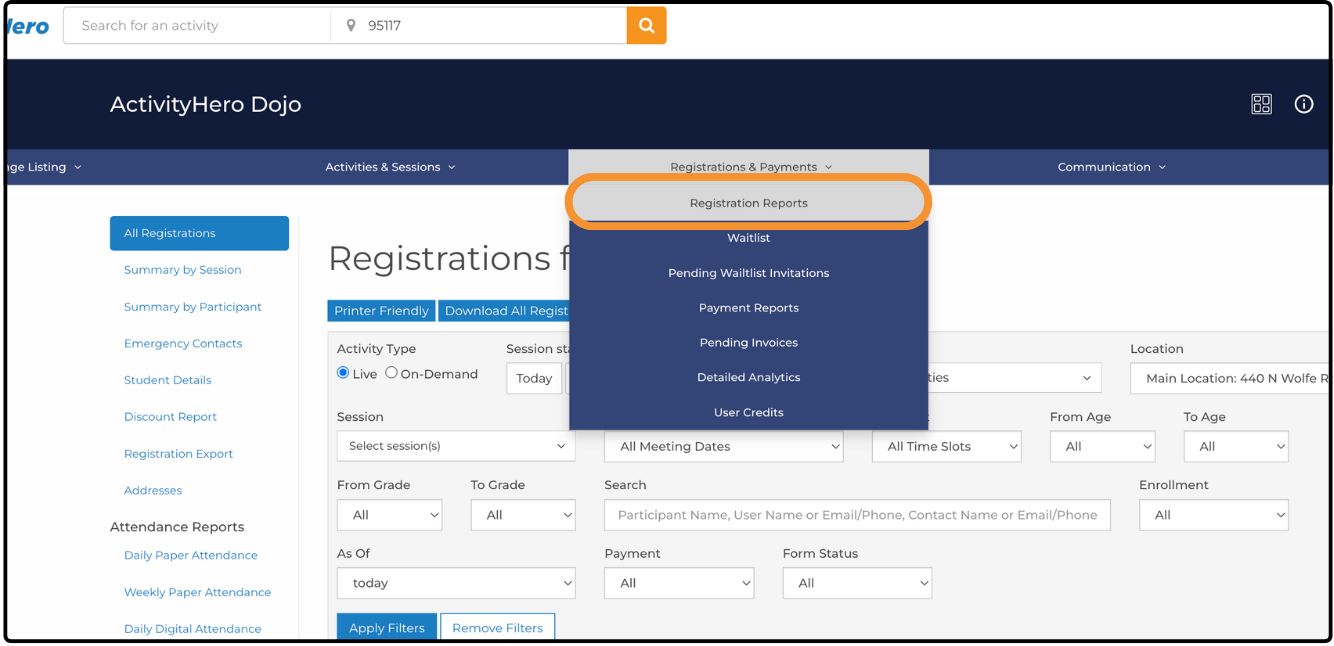
The Registration Reports page is your central hub for accessing standard, custom, and premium reports. From here, you can view all participant data, including detailed reports on attendance, discounts, and other in-depth metrics. For more information, check out our help article: What are the Registration Reports?
Waitlist ↑
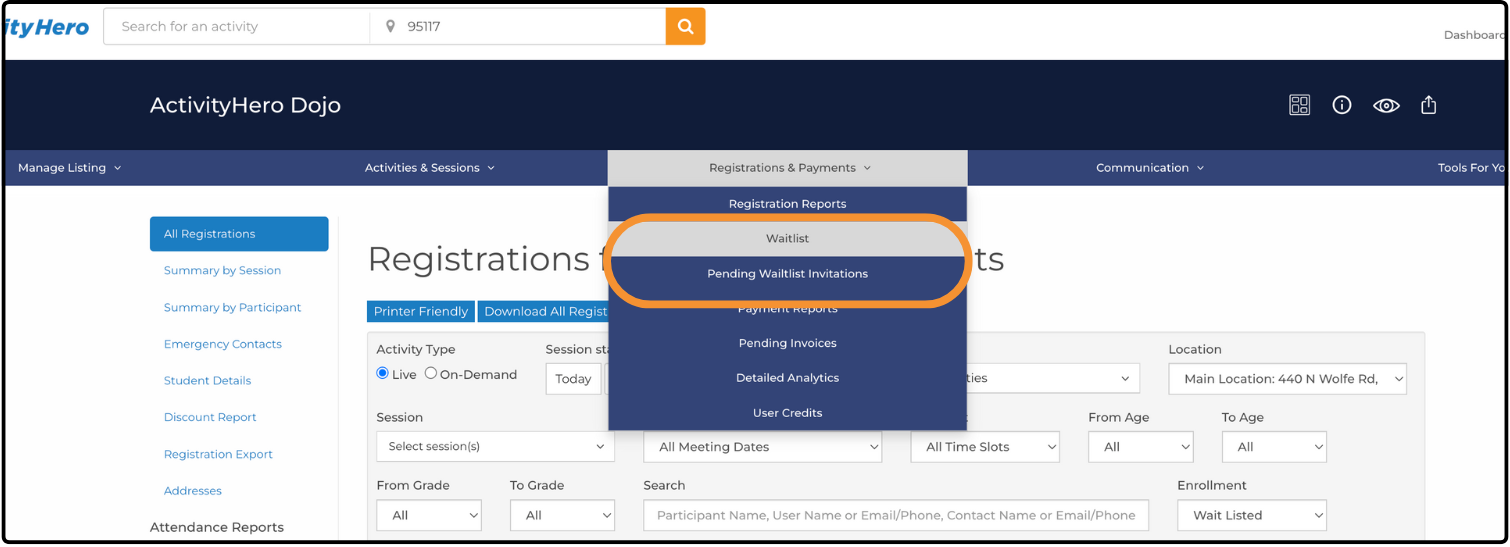
Similar to the Registration Reports, the Waitlist Report is pre-filtered to show only your waitlisted registrations. To access it, hover over Registrations & Payments and click Waitlist. Likewise, the Pending Waitlist Invitations report is also pre-filtered. Select Pending Waitlist Invitations from the Registrations & Payments menu to view the current status of your waitlist invitations. If you are looking for instructions on using the waitlist, check out our help article: How do I invite someone off the waitlist?
Payment Reports ↑
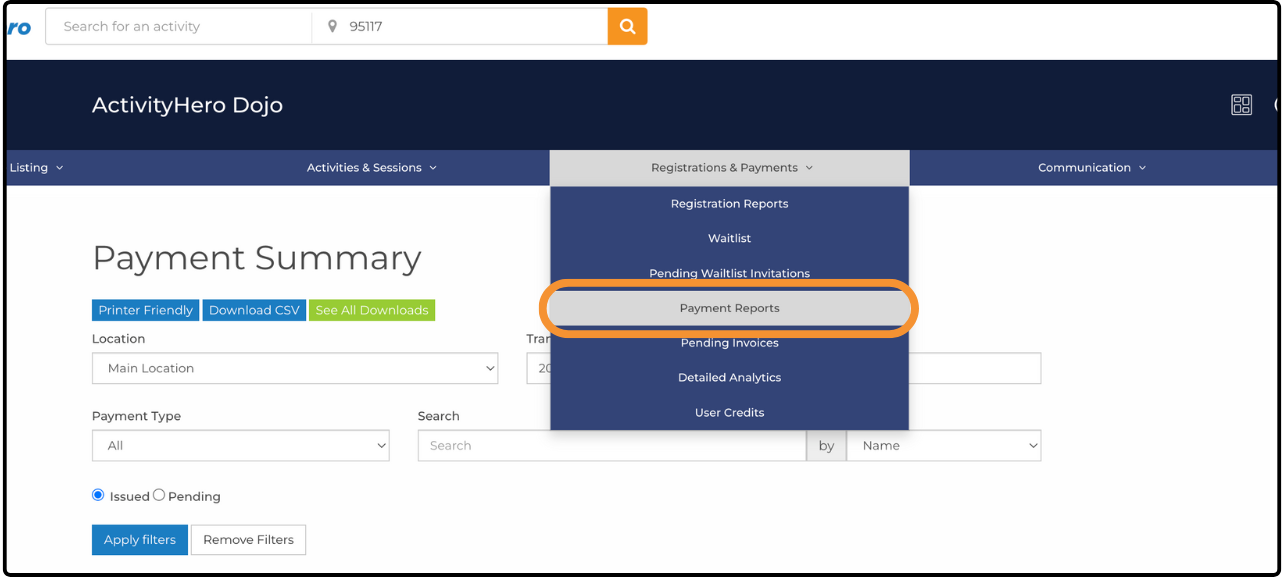
The Payment Summary Report provides a comprehensive overview of all payment information, including downloadable data. To access it, hover over Registrations & Payments and click Payment Reports. It includes details such as transaction amounts, payments received through ActivityHero, any associated fees, and participant information. For more information, check out our article on Payment Reports.
Related Articles ↑
Was this article helpful?
That’s Great!
Thank you for your feedback
Sorry! We couldn't be helpful
Thank you for your feedback
Feedback sent
We appreciate your effort and will try to fix the article