How Class Days Are Added to a Registration
Setting a Participant Start Date
How Check-In Status Appears on the Check-In & Check-Out Page
Check-In Status When Class Days Are Added Later
Bulk Check-In and Bulk Signatures
Past Class Days on Attendance Reports
Overview
In ActivityHero, each registration has a list of class days: the session dates the student is booked for. The Check-In & Check-Out page and the Daily Digital Attendance report use these class days to decide which students appear on a date, and whether each student shows as checked in, checked out, or not checked in.
This article explains which class days are added to a registration, how a participant start date limits them, how check-in status is shown, and what happens to check-in status and past days when a registration's class days change.
This guidance is intended for provider administrators, school and district staff who manage registrations and attendance, and site staff who check students in and out.
How Class Days Are Added to a Registration
Class days are added when a student registers. They are added again whenever the registration's days are rebuilt, for example when you edit the student's class days, change the registration's session, invite the student off the waitlist, change the student's time slots, or edit the session's dates.
Which dates are added depends on the registration:
- A participant start date is set: Class days start on the participant start date. No class days are added before it (see Setting a Participant Start Date).
- No participant start date: Class days start on the day the registration was created. A new registration in a session that has already started does not get the days before it was made.
- The student is moved to a different session: Class days in the new session start today. The past days belong to the old session.
- The session's dates are edited: New session dates are added to existing registrations only for today and future days. Students who were invited off the waitlist or moved from another session do not get days from before they joined.
NOTE: Each class day appears only once per student. Editing a student's class days or the session's dates more than once does not list the student twice on the same day.
Setting a Participant Start Date
When you invite a student off the waitlist, you can limit them to attending only from a chosen date:
- Go to Registrations & Payments, open All Registrations, and set Enrollment to Wait Listed.
- In the student's row, click Invite Participant to Register. The Invite Participant to Register window opens.
- Click Select Participant Start Date and choose the date.
- Check Restrict participant to attending only on or after this date.
- Fill in the expiration details and click Invite.
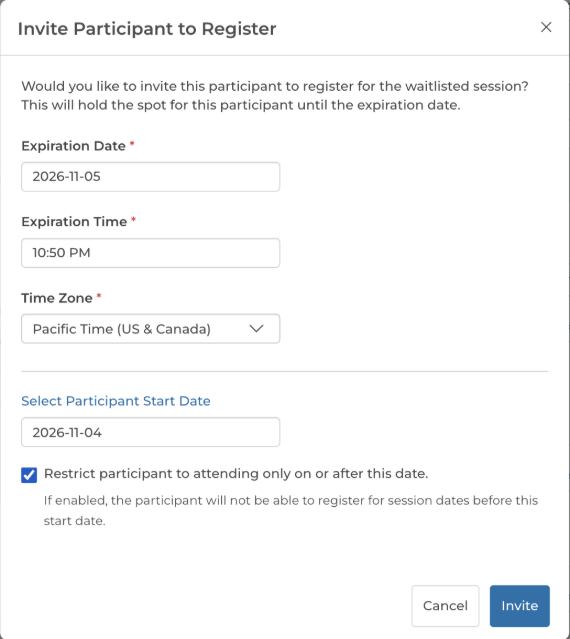
The Invite Participant to Register window with a participant start date and the restriction checked.
The student only gets class days on or after the participant start date. This applies every time their class days are rebuilt later, for example after you edit their class days or the session's dates.
NOTE: The date is saved as the participant start date only when the restriction box is checked. If it is left unchecked, class days start on the day the registration was created.
How Check-In Status Appears on the Check-In & Check-Out Page
On the Check-In & Check-Out page, the All dropdown above the student list filters students by their latest check-in record for the selected day:
- All: Every student registered for that day.
- Not Checked In: The student has no check-in for that day.
- Checked In: The student is checked in and has not been checked out yet.
- Checked Out: The student has been checked out.
For providers that collect signatures only, the dropdown shows Signed and Not Signed instead. A student appears under Signed once a signature is collected, and under Not Signed until then.
A student appears in only one of these filters on any day.
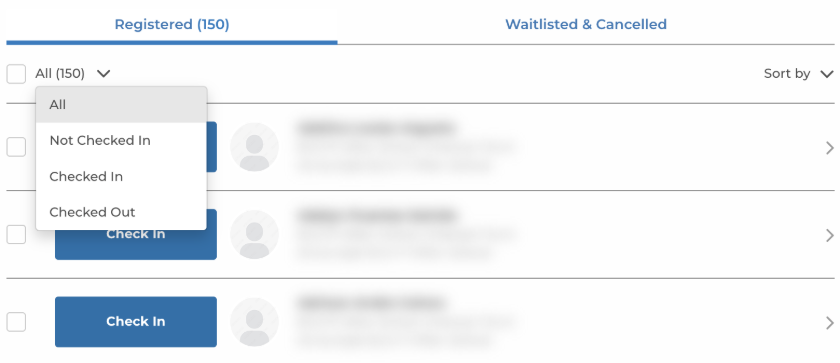
The filter dropdown on the Check In / Check Out page.
NOTE: If you delete a student's check-in or check-out, the student moves back to the right filter. For example, they return to Not Checked In if no records remain for that day.
Check-In Status When Class Days Are Added Later
A class day can be added to a registration after the student has already been checked in, checked out, or signed on that day. When that happens, ActivityHero uses the records already saved for that day, so the student appears in the right filter. For example:
- You add class days to a student's registration, or extend the session's dates, after the student has been checked in.
- A waitlisted student is checked in and then enrolled from the waitlist. This applies to providers that allow check-in for students who aren't enrolled.
- You change a student's time slots in a custom (time slot) session after they have been checked in.
- You import attendance from a file for past dates, including students with a registered date.
- A check-in record is edited and moved to a different date. Both the old date and the new date show the correct status.
Bulk Check-In and Bulk Signatures
Bulk check-in updates every selected student, in both regular (series) sessions and custom (time slot) sessions. All checked-in students move to the Checked In filter. Collecting signatures in bulk works the same way: every signed student moves to the Signed filter.
Past Class Days on Attendance Reports
When a registration's class days are removed and added again (for example, after you edit the student's class days or reassign them to the same session), the days are added back from the participant start date or the day the registration was created, as described in How Class Days Are Added to a Registration.
Past days come back with their check-in status, so the student still appears on the Daily Digital Attendance report and the Check In / Check Out page for those days.
- If a registration with past check-ins is cancelled, those past days still show the student on the Daily Digital Attendance report.
- Moving a student to a different session only adds the new session's days from today onward.
Key Takeaways
- Class days start on the participant start date when one is set. Otherwise, they start on the day the registration was created.
- Students moved to a different session get class days in the new session from today onward.
- Editing a session's dates only adds today's and future days to existing registrations.
- If a class day is added after a check-in, the student still shows the correct check-in status for that day.
- Bulk check-in updates every student, in both series and custom (time slot) sessions.
- A student appears in only one Check In / Check Out filter per day, and each class day appears only once per student.
- Past class days with check-ins stay on the Daily Digital Attendance report, even after a registration's days are rebuilt or the registration is cancelled.
Was this article helpful?
That’s Great!
Thank you for your feedback
Sorry! We couldn't be helpful
Thank you for your feedback
Feedback sent
We appreciate your effort and will try to fix the article