You can see which registrations are included in each payout by going to the Payment Report. Navigate to Registrations & Payments > Payment Report.
The report filters let you control what data is displayed in the report.

The Transaction Date is when funds were received from your customer or refunded to your customer.
The Payout Date is when a deposit or debit was made to your bank account. This can be two to four days before the date displayed in your bank statement. Select this option if you want to match payout amounts with Stripe reports or your bank statement.
Regardless of the date type, the top of the report shows a Summary by Payout Date. This is a list of the deposits or withdrawals you should see in your bank account. 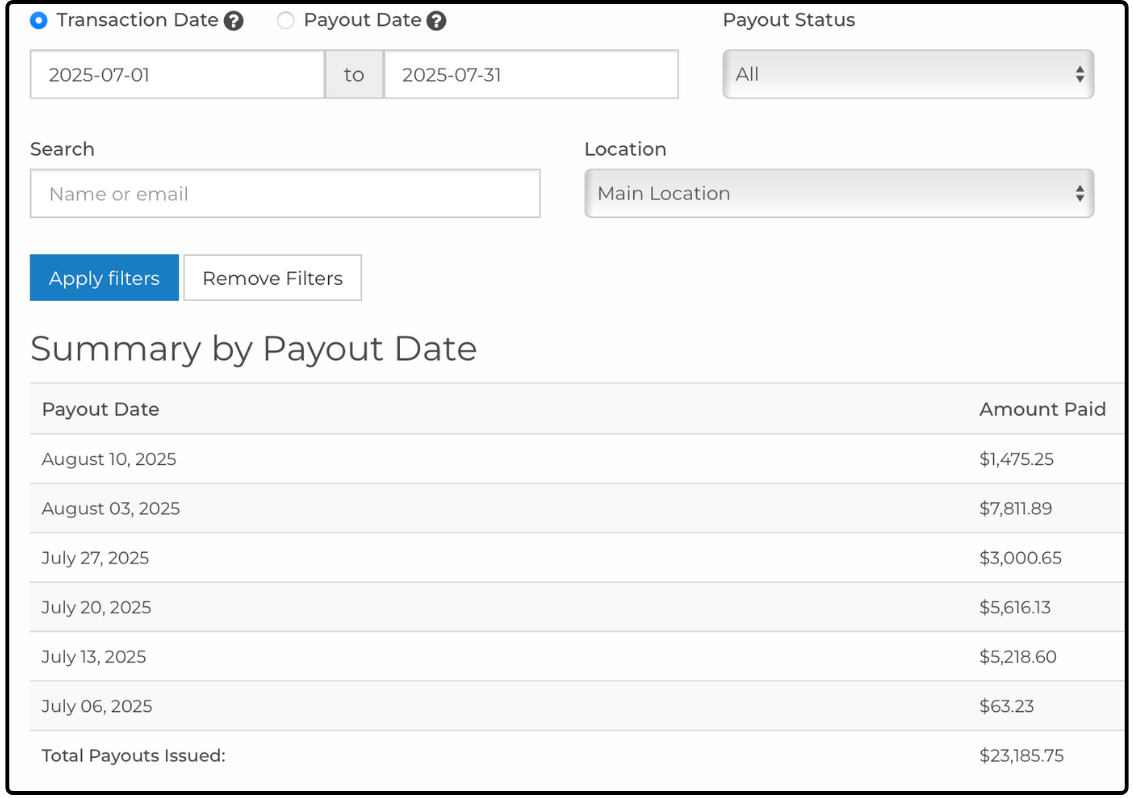
In this example, the report is showing all transactions made in July, and the Summary by Payout Date shows that some of these transactions were paid in August.
If there are transactions that have not been paid yet, you see the total payouts pending below the summary.

Below the Summary by Payout Date, you see the list of all the transactions, which are the registration payments and refunds.

The value in Payout Date tells you which registrations were included in each payout to your bank. If Payout Date is blank, the transaction has not been paid yet.
Notes:
1. Use the Start Date and End Date filters to find the transaction information you need. Payout information is based on the Initiate Date from Stripe. If you do not see the transactions you are expecting, try setting the Start Date to one or two days before the payout date you are reviewing.
2. If you are viewing the report by Transaction Date, the Summary by Payout Date might not match the Stripe Payouts report if the date range does not align with Stripe's payout date range. For example, the ActivityHero report above shows $1,475.25 to be paid out on August 10. This includes only part of the transactions that were actually paid out by Stripe on August 11 because the end date for the ActivityHero report was July 31.
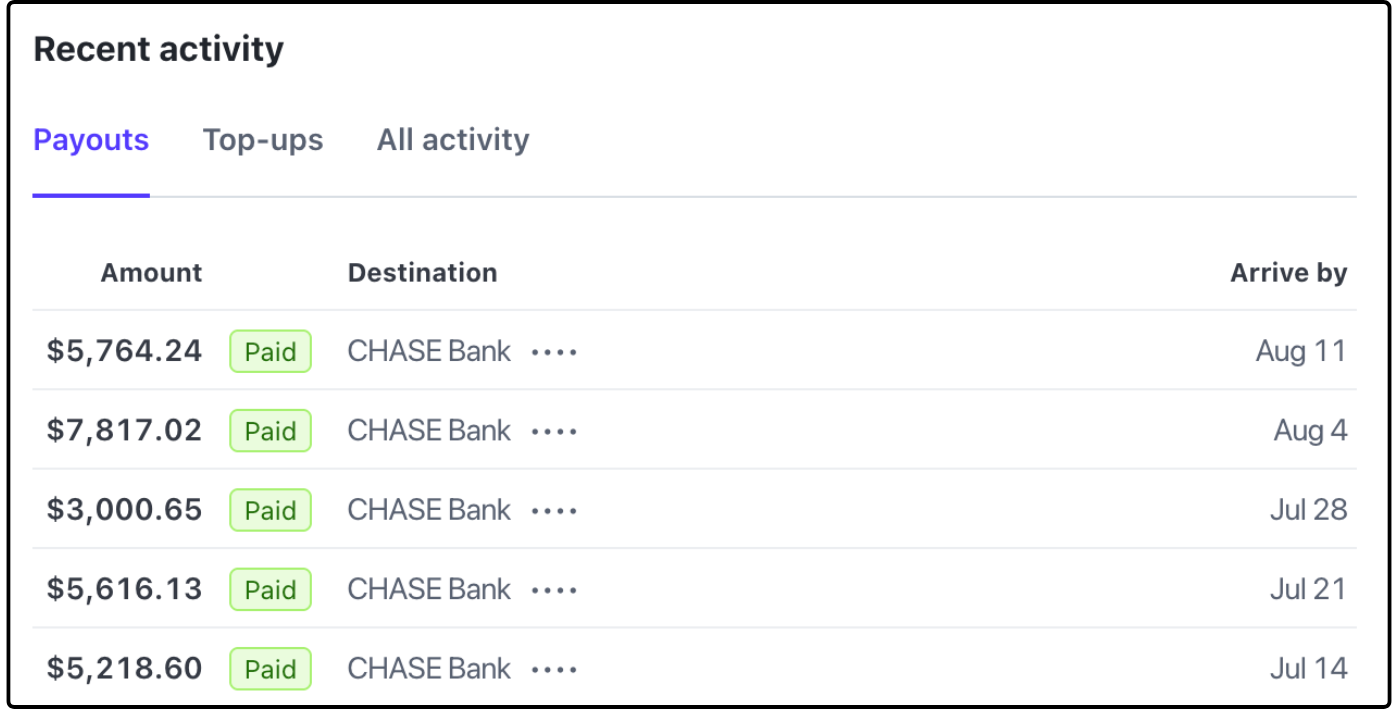
If you want to match payout amounts with Stripe or your bank statement, select the Payout Date option at the top of the report.
3. The Payment Report only includes payouts made through Stripe, starting August 6, 2024. Transactions earlier than August 6, 2024, do not have payout date information in this report. If you select a date range that is earlier than August 6, 2024, the Summary by Payout Date section is blank and shows a total of $0 payouts issued. This only means that Stripe did not issue any payouts, and you were issued payments by WePay or another method.

You can verify that the transactions in ActivityHero match what is recorded in Stripe by following these steps.
1. Log in to your Stripe account. Navigate to Balance in the left-hand menu. You then see your Payment Balance and Transactions.
2. In the Transactions section, if the tab is set to All, you see the detailed list of the payments and refunds.
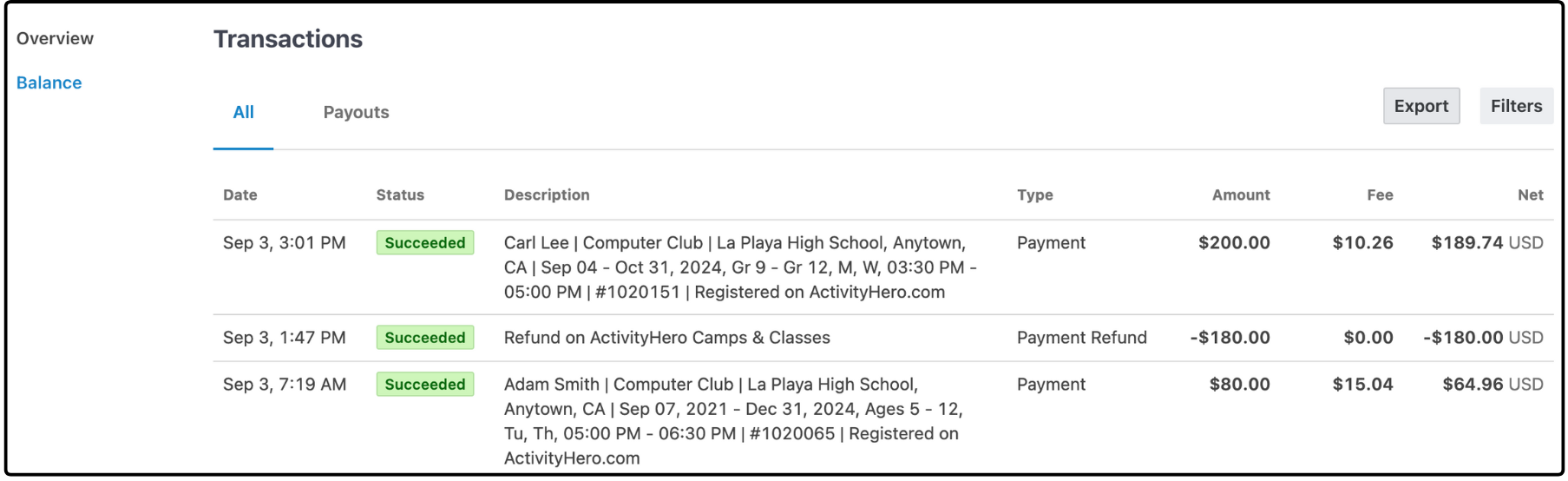
3. To download the transactions, click Export. You can select the date range of the export. If you want the full description to be in the export, select All Columns, or select Customize columns and include the Description, Transfer, and Transfer Date columns.
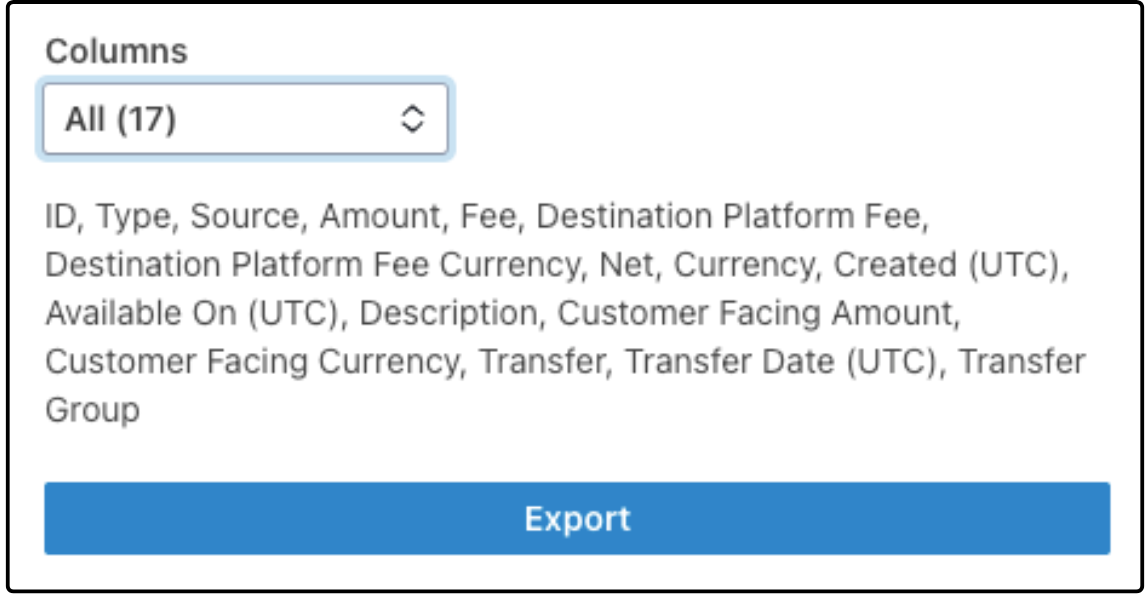
4. To match the registrations with the deposits, open the downloaded file. The Transfer column has a long number starting with po_. If you sort or filter the report by the unique Transfer values, you see which registrations and refunds are part of the payout. Note that the payout has the description STRIPE PAYOUT and is a negative number, indicating that it has been withdrawn from your Stripe account and transferred to your bank account.

Was this article helpful?
That’s Great!
Thank you for your feedback
Sorry! We couldn't be helpful
Thank you for your feedback
Feedback sent
We appreciate your effort and will try to fix the article