Responding to Direct Messages
Sending Direct Messages
Responding to Direct Messages
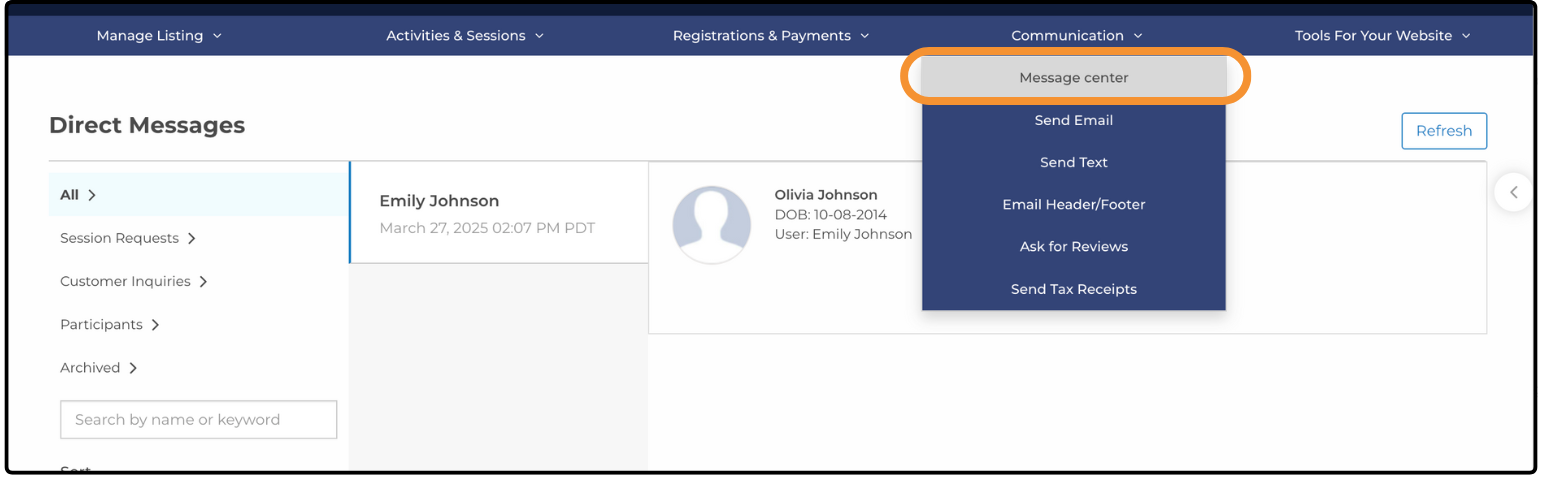
Families can send you direct messages through ActivityHero. When a new message is waiting, a red notification dot is displayed on your Dashboard icon and the Communication tab.
When you open your Direct Messages, a page is displayed where you can view and respond to messages.
If you are not in your ActivityHero Dashboard at the time a message is sent, you receive an email notification for each message.
Sending Direct Messages ↑
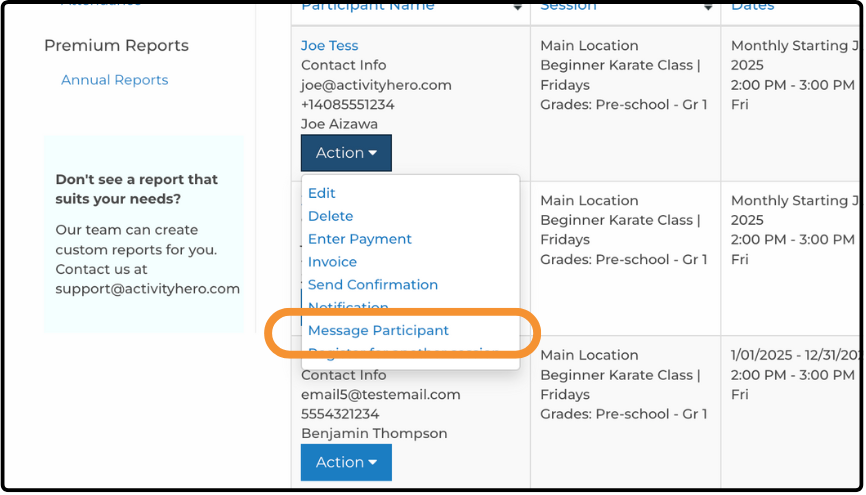
To quickly send a message to a single participant:
- In your Dashboard, navigate to Registrations & Payments > Registration Reports.
- Use the search bar to find the participant by name.
- Once you have located the participant, click the Actions dropdown.
- Select Message Participant to send your message.
Was this article helpful?
That’s Great!
Thank you for your feedback
Sorry! We couldn't be helpful
Thank you for your feedback
Feedback sent
We appreciate your effort and will try to fix the article