Entering a cash or check payment
Charge a credit card on the family's behalf
There may be times when a family authorizes you to take payment on their behalf. You can enter a manual payment for them noting receipt of cash or check, or you can enter credit card information from them to charge.
Note: To send an invoice to the participant instead, see this article.Entering a cash or check payment
If the registration has been paid by check, cash or other payment method that is not through ActivityHero, you can enter the amount paid into ActivityHero for record-keeping.
- Navigate to Registration Reports and find the participant you want to enter payment for.
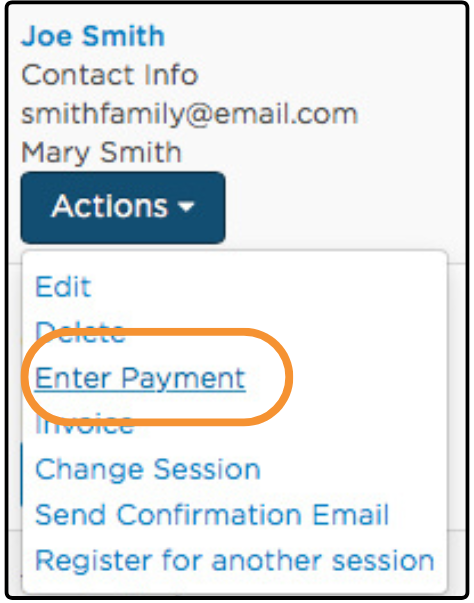
- Click the Action menu and select Enter Payment.
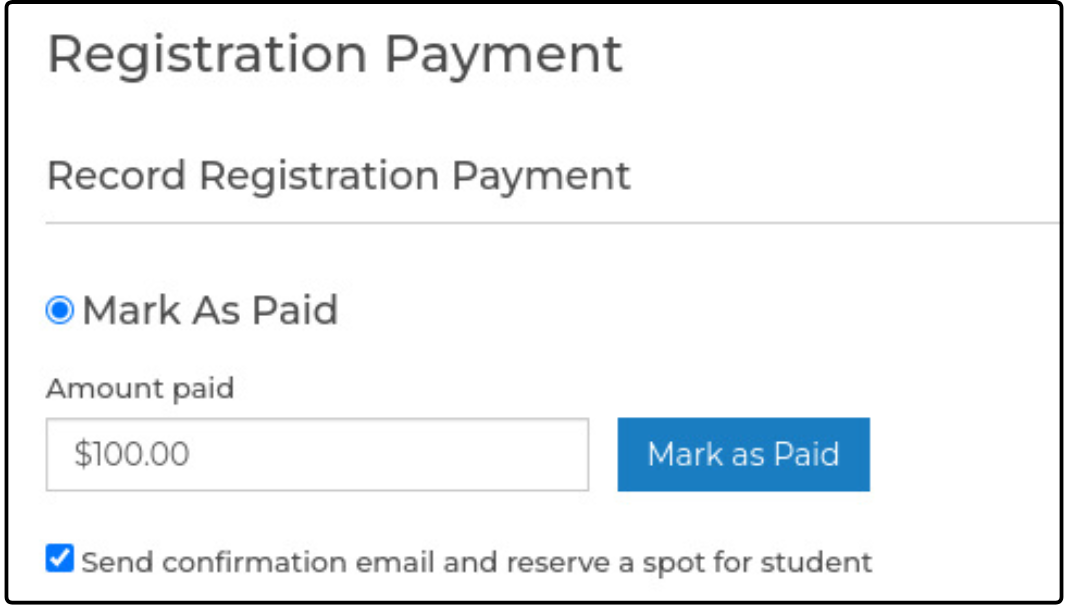
3. Type the amount paid or received by you, then click Mark as Paid.
By default, ActivityHero automatically sends a confirmation email listing the amount paid and reserves a spot for the participant by deducting one from your available spots. If you do not want to send an automated email or deduct a spot, uncheck this option. You should uncheck this box if the participant's status is already Enrolled, such as when you are recording payment for extended care or an add-on fee.
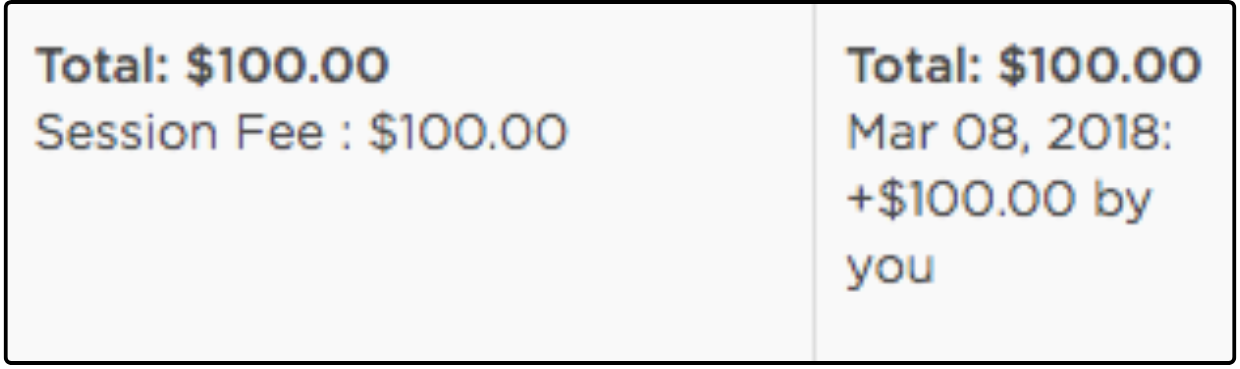
4. The amount you entered now appears in the Registration Report with the note that the amount was received by you.
Tip: If you did not receive any payment but want to change the enrollment status from Pending to Enrolled, you can enter $0 as the amount paid.
Charge a credit card on the family's behalf ↑
If a family authorizes you to charge their credit card, you can enter their card information and process the payment yourself.
- Navigate to Registration Reports and find the participant you want to enter payment for.
- Click the Action menu and select Enter Payment.
- Select Charge Credit Card
By default, you are prompted to charge any outstanding amount due for the selected registration. Select Enter custom amount to charge more or less than the default amount. - Type and confirm the customer's credit card information. Select Store for future transactions to save the card information. If you need to charge this customer again, the card information is saved and does not need to be re-entered.
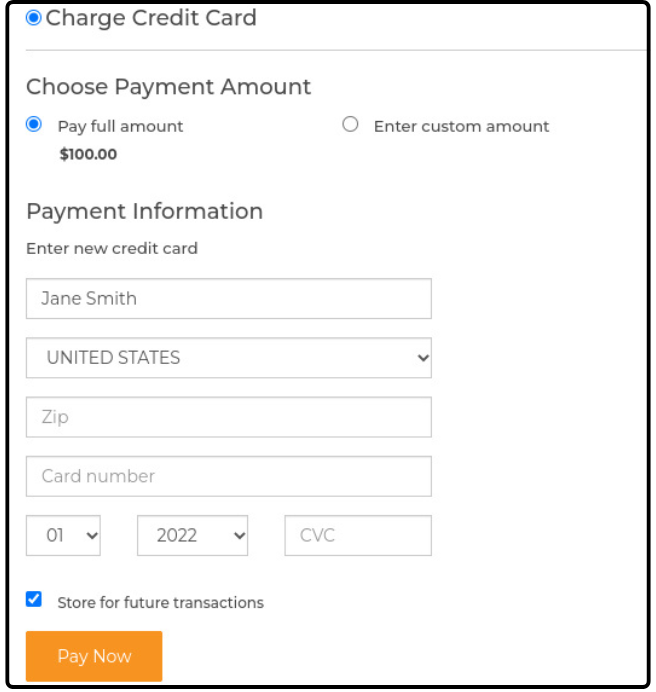
- Click Pay Now.
- ActivityHero automatically sends an email receipt to the participant.
Was this article helpful?
That’s Great!
Thank you for your feedback
Sorry! We couldn't be helpful
Thank you for your feedback
Feedback sent
We appreciate your effort and will try to fix the article