ActivityHero makes it easy to manage your customer payments by recording payments made directly to you, sending invoices, or charging their credit card directly.
Accessing Payment Management
- Navigate to your Dashboard, then Registrations & Payments > Registration Reports.
- Locate the participant you want to manage.
- Under the participant's name, click Action.
- Select Manage Payments.
From here, the options to charge a customer, record a payment, or invoice a customer are displayed.
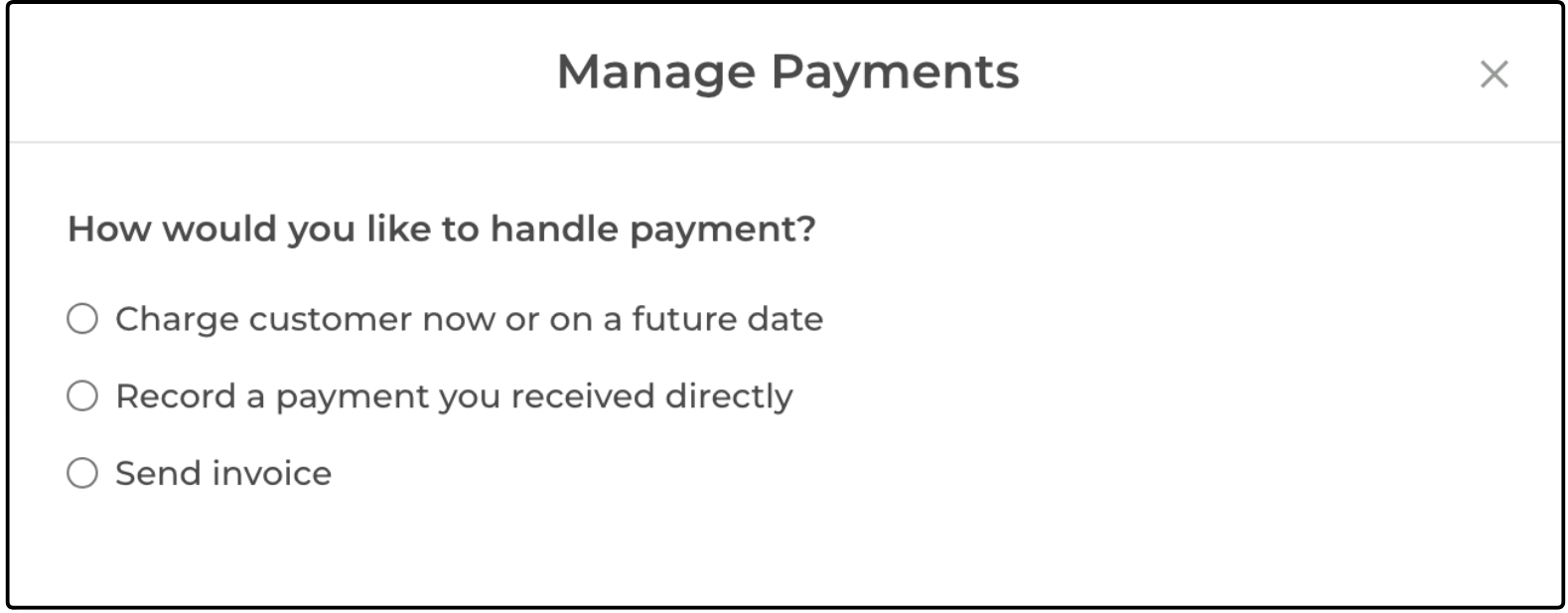
Charge a Customer Now or on a Future Date
There may be times when a family authorizes you to make a payment on their behalf. In these cases, you can either process the payment using a credit card saved in their ActivityHero account or type new credit card information provided by them. Because this process automatically charges the customer's payment method, confirm that they understand the charge is processed immediately. This helps prevent confusion and potential issues with payment processing.
For families who do not have a credit card saved to their ActivityHero account, type and confirm the customer's credit card information.
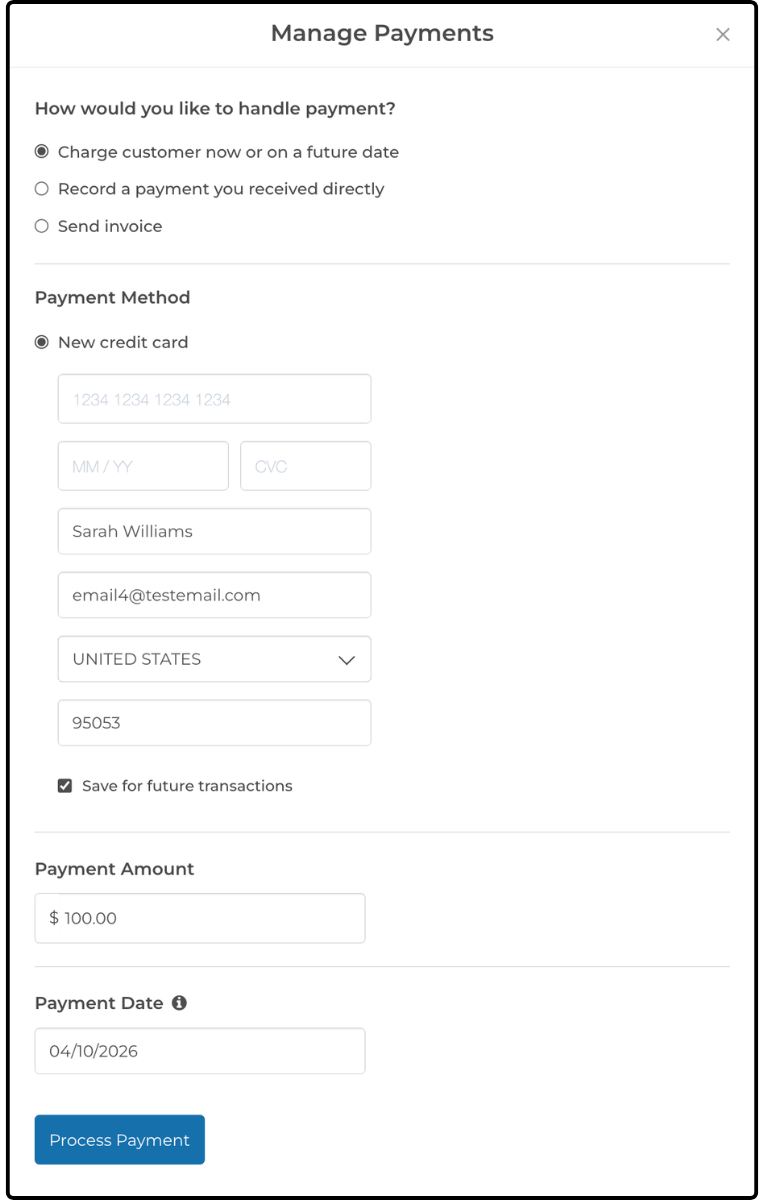
Select Save for future transactions to save the card information. If you need to charge this customer again, the card information is saved and does not need to be typed again.
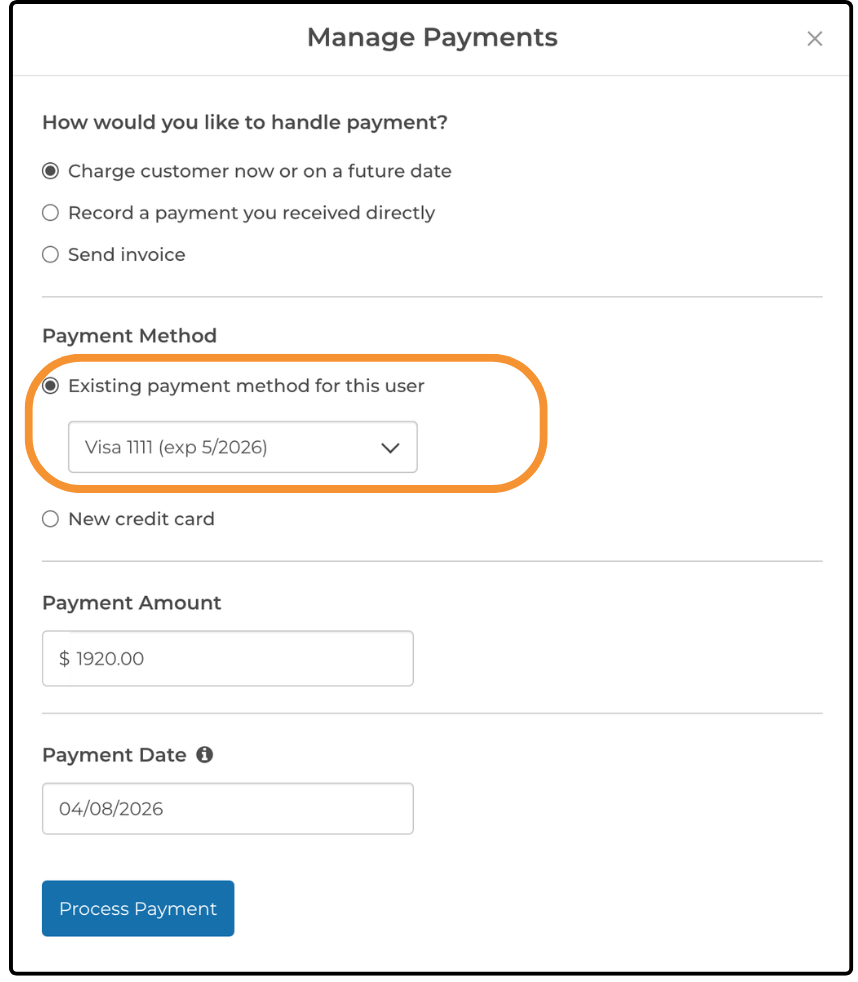
If the family has a credit card on file, select Existing payment method for this user. If they have multiple payment options, select one from the drop-down menu.
Payment Amount
By default, the payment amount is set to any outstanding amount due for the selected registration. You can update the amount if needed.
Payment Date
By default, the payment date is the current date, and the payment method is charged automatically. By setting the payment date in the future, you can schedule the payment, and the payment method is charged on that date.
Process Payment
Click Process Payment at the bottom after you have selected the payment method, reviewed the payment amount, and set the payment date.
Record a Payment You Received Directly
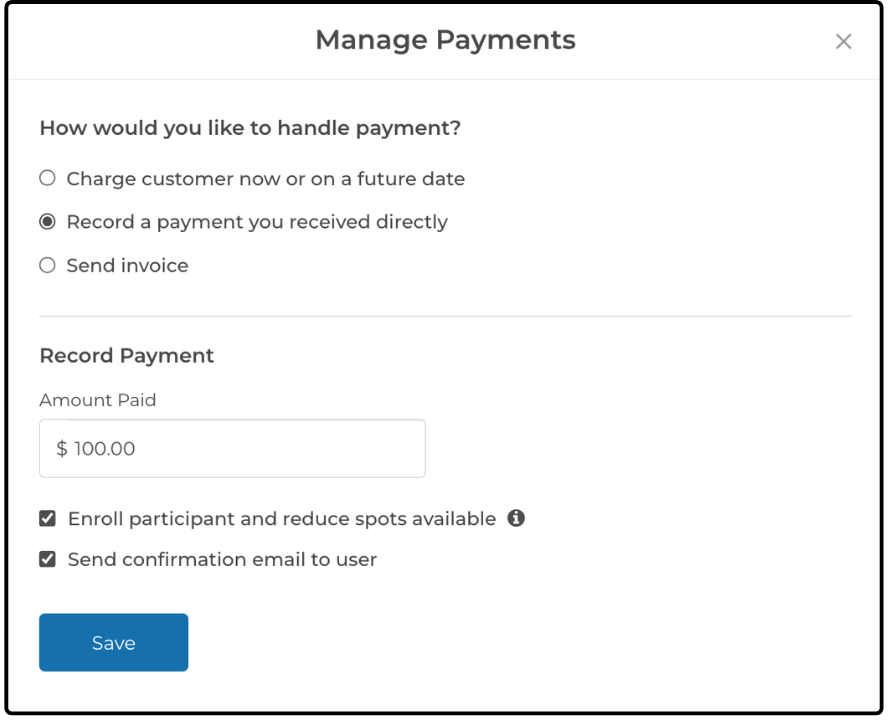
If the registration has been paid by check, cash, or other payment method that is not through ActivityHero, you can enter the amount paid into ActivityHero for record-keeping.
The amount paid defaults to the remaining balance for the registration, but you can update it.
Enroll Participant and Reduce Spots Available
Keep this selected if you want to change the enrollment status of the registration to Enrolled and reduce the number of spots for the session. To keep the current status of the registrations (Pending, Waitlisted, etc.) and the current number of spots available, clear the checkbox.
Send Confirmation Email to User
Keep this selected if you want to automatically send a notification that the payment has been recorded. Clear the checkbox to keep the recorded payment as an internal transaction and not send an email to the user.
Send Invoice
You can send an invoice to a family to collect full payment, make an additional payment for extended care, or invite them off the waitlist.
Select Send invoice. When the parent pays the invoice, their child is marked as Enrolled (if the status was previously Pending or Waitlisted) and takes a spot in the session. You and the parent receive a confirmation email.
Was this article helpful?
That’s Great!
Thank you for your feedback
Sorry! We couldn't be helpful
Thank you for your feedback
Feedback sent
We appreciate your effort and will try to fix the article