ActivityHero gives you the tools to send an invoice to a customer for any amount.
To Send an Invoice
To Delete an Invoice
To Resend an Invoice
To Resend an Expired Invoice
Note: Families cannot register for additional sessions if they already have current, unpaid invoices for your activities.
To Send an Invoice
1. Navigate to your Dashboard, then Registrations & Payments > Registration Reports.
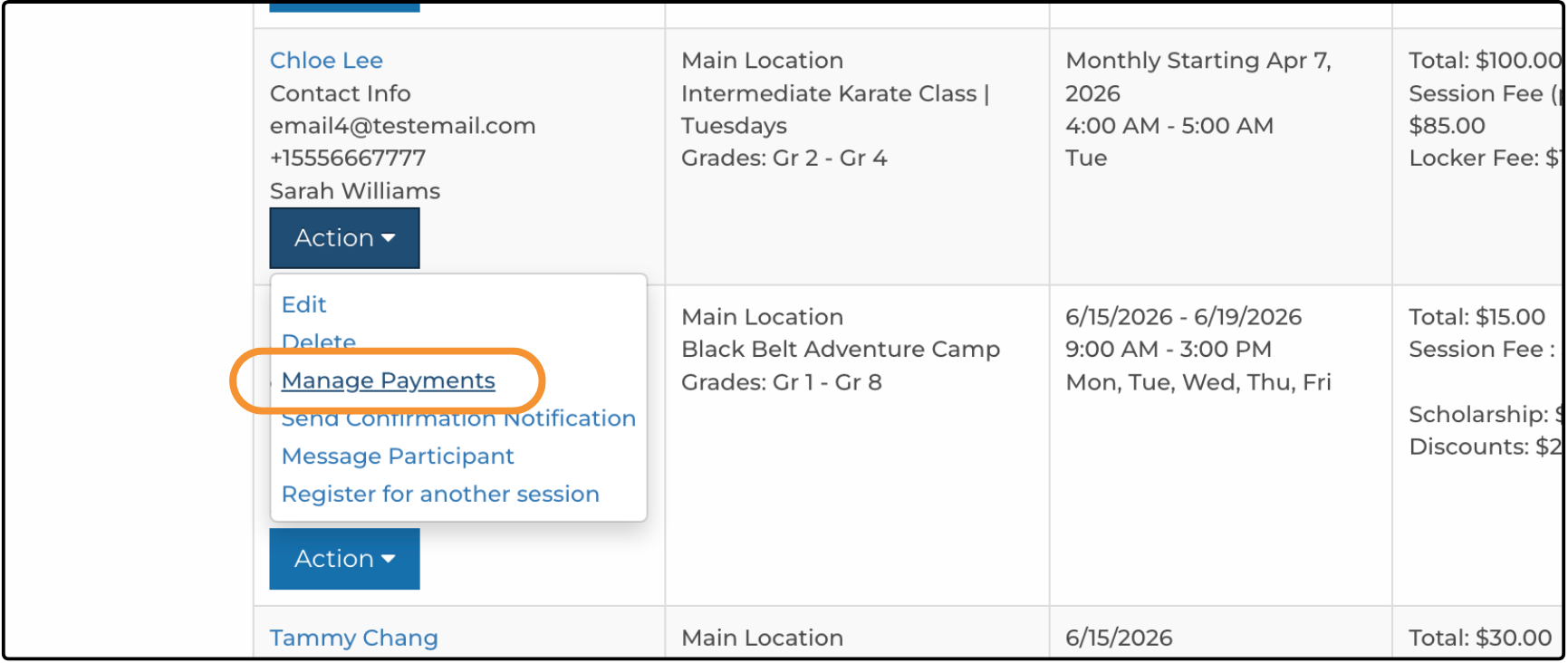
2. Locate the participant you want to manage. Under the participant's name, click Action.
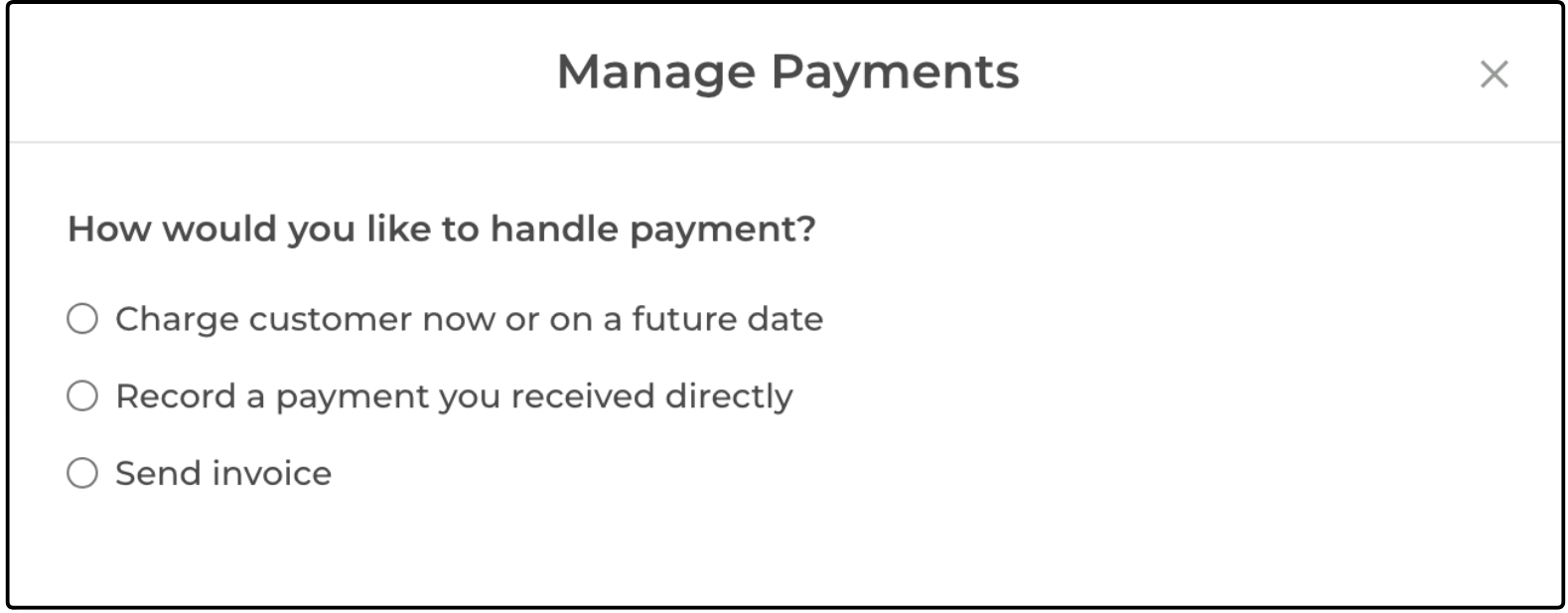
3. Select Manage Payments, then select Send invoice.
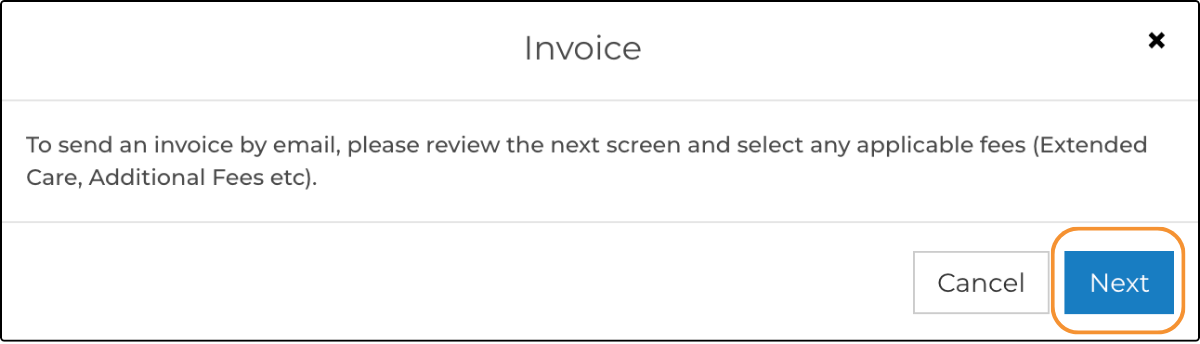
4. Click Next in the Invoice instructions window.
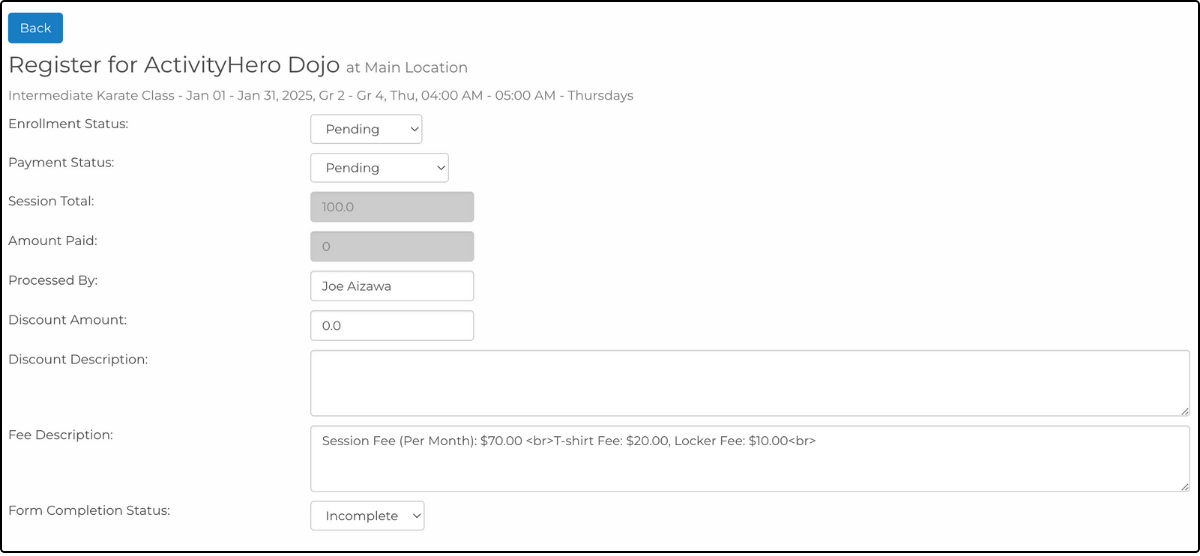
5. Make any registration updates or type any applicable discounts, then click Next.
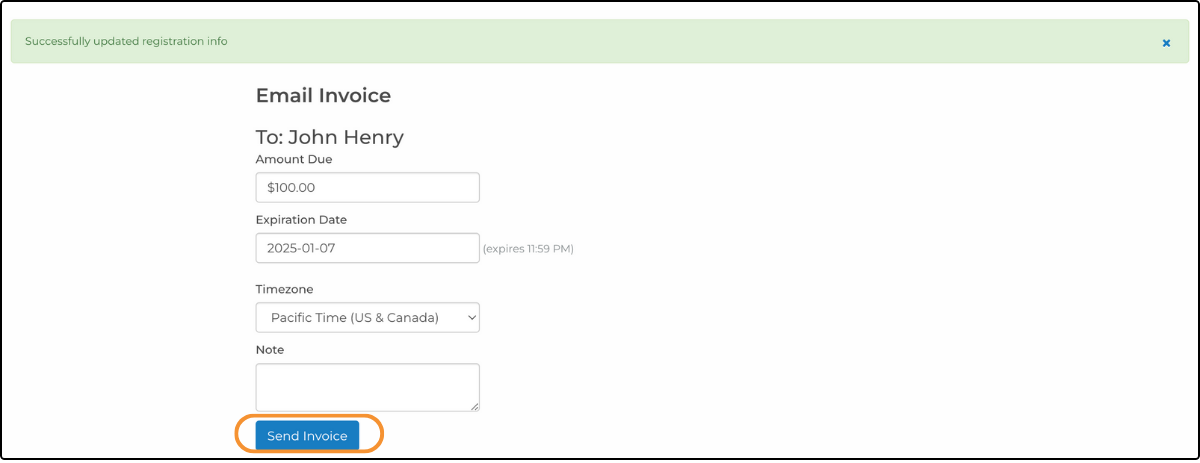
6. On the final page, the total amount due, an invoice expiration date, and the option to type a note are displayed. You can edit any of these fields before sending the invoice. Click Send Invoice when finished.
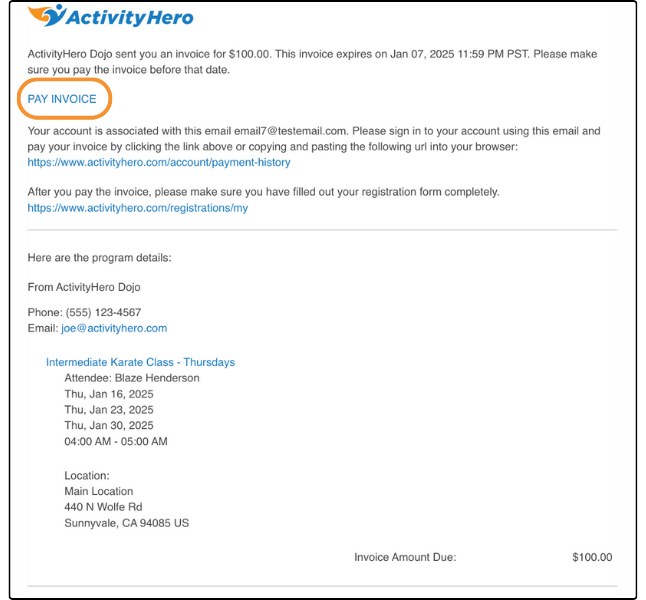
The customer receives an email that includes your Note (if any). They can pay by credit card after clicking Pay Invoice. The email subject is: Important update about your registration at <Provider Name>.
To Delete an Invoice ↑
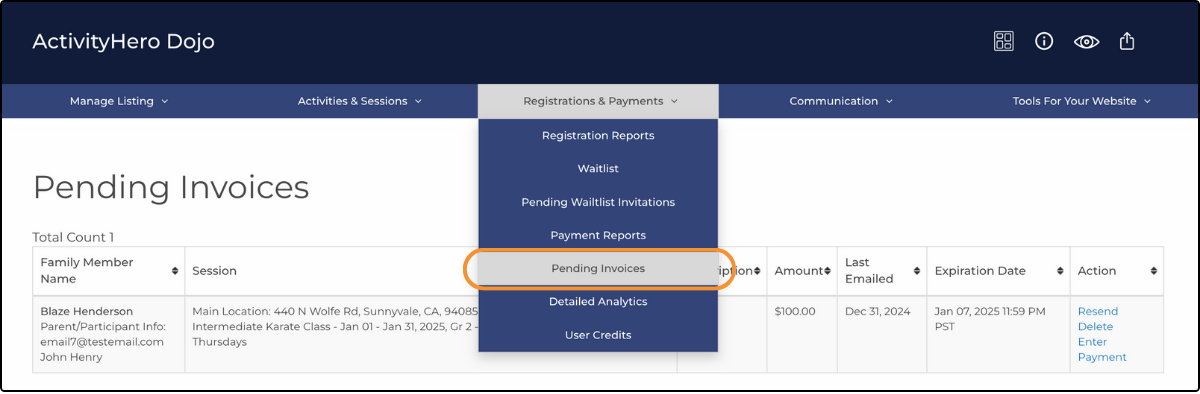
1. Navigate to your Dashboard, then Registrations & Payments > Pending Invoices.

2. Find the invoice you want to delete, then click Delete.
3. Click OK in the popup window that appears to confirm.
To Resend an Invoice ↑

1. Navigate to your Dashboard, then Registrations & Payments > Pending Invoices.
2. Find the invoice you want to resend and click Resend.
3. Click OK in the popup window that appears to confirm.
To Resend an Expired Invoice ↑

If the invoice has expired, when you click Resend, a popup is displayed that says: "This invoice has expired. Do you want to extend the expiration date for this invoice?" Click OK.
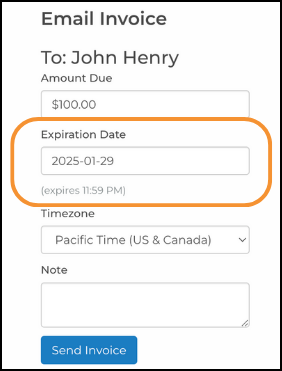
On the Email Invoice page displayed above, set the new expiration date and send the invoice again. Click Send Invoice to send another email to the user with the new invoice expiration date.
Was this article helpful?
That’s Great!
Thank you for your feedback
Sorry! We couldn't be helpful
Thank you for your feedback
Feedback sent
We appreciate your effort and will try to fix the article