Add multiple sessions in bulk to ActivityHero using import templates. Save time and streamline your setup process by uploading all your sessions in bulk with just a few simple steps.
Import New Sessions
Update Existing Sessions
Common Session Validation Errors
Creating New Sessions
Updating Sessions
Session Data Fields
Expert Setup
For an overview of importing in ActivityHero, and how locations, activities, sessions, and other data relate to each other, see our help article How do I import data into ActivityHero?
Import New Sessions
1. Download the sample templates from the link below, and read the instructions on how to use the spreadsheet.
2. Edit the sessions template, making sure all required fields are complete.
- Location name, activity name, session type, start date, end date, start time, end time, days of the week, minimum age in years, maximum age in years, price, price type, status, number of openings, and time zone are all required.
- Leave the activity_schedule_id blank. ActivityHero automatically creates an activity_schedule_id after upload.
3. Upload your CSV file by clicking Upload a new file. Select the Schedule file type.
4. After uploading your CSV file, click Validate to check whether your data is ready for import.
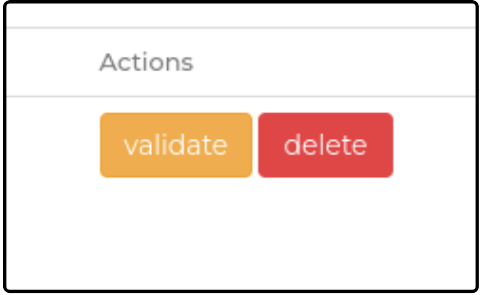
5. If there are errors, Validation Failed is displayed. Click View Report to inspect the reason for the failure. Correct any errors, and then repeat step 3. For tips on frequent validation errors, see the section below.
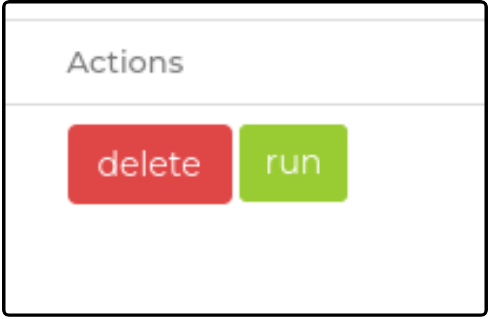
6. When the file is validated successfully, the green Run option becomes available. Click Run to begin importing your information. This can take a few minutes, and changes might not be displayed in the marketplace right away.
Update Existing Sessions ↑
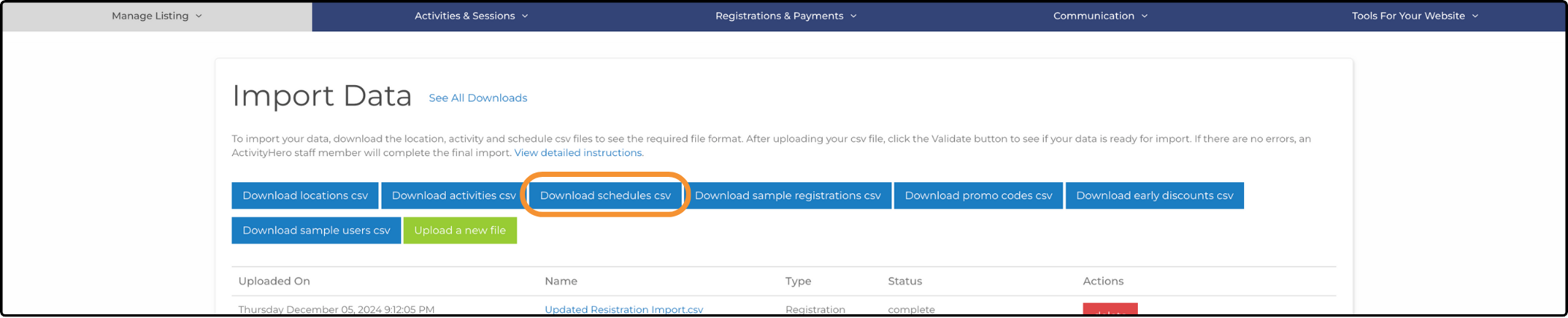
1. Download sessions by clicking Download schedules csv. The downloaded file contains your current sessions in ActivityHero.
2. Edit the CSV file using the tips below.
- Find the session you would like to update and make your updates to the information for that session.
- Make sure that activity_schedule_id is unchanged.
- If the activity_schedule_id is changed and does not match an existing session ID in ActivityHero, a new session is created.
3. Upload your CSV file by clicking Upload a new file. Select the Schedule file type.
4. After uploading your CSV file, click Validate to check whether your data is ready for import.
5. If there are errors, Validation Failed is displayed. Click View Report to inspect the reason for the failure. Correct any errors, and then repeat step 3. For tips on frequent validation errors, see the section below.
6. When the file is validated successfully, the green Run option becomes available. Click Run to begin importing your information. This can take a few minutes, and changes might not be displayed in the marketplace right away.
Common Session Validation Errors ↑
Below is a list of common validation errors and how you might address them:
Creating New Sessions ↑
Some of the most common errors when uploading new sessions include:
- Missing required fields, such as Session Type and Price Type.
- Days of the Week not in the correct format. Use a comma-separated list (e.g., mon, tue, wed, thur, fri, sat, sun).
- Grade values for Preschool/Pre-K, TK, and Kindergarten are a common issue. (e.g., -2 = Preschool/Pre-K, -1 = TK, 0 = Kindergarten, 1 = 1st, etc.)
- Dates not reflecting the correct day of the week, with the Start and End dates not matching the days in the Days of the Week column.
- Activity_Name column not matching the correct name due to extra spaces or special characters.
- Incorrect formatting for dates, times, and ages.
- Incorrect timezone format.
Updating Sessions ↑
- Location Changes: You cannot change the location if there are existing registrations, as this causes an error.
- Missing Activity Schedule ID: You must include the activity_schedule_id (session ID) to update an existing session. Otherwise, a new session is created instead.
- Location and Activity IDs: Remove the provider_location_id and activity_id columns near the end of the sheet. You can use location_name and activity_name for reference instead.
- Meeting Details Issues: Meeting details can encounter upload issues due to special characters or HTML formatting. If you are not updating meeting details, delete this column. If you need to edit meeting details, use the bulk editing feature in your Sessions & Content Manager.
Session Data Fields ↑
Data fields (* required fields)
- activity_schedule_id
- location_name * - If the activity is online, type Online for the location_name.
- activity_name *
- session_name - It is used to include additional information about this session that is not covered in other fields, such as a weekly camp theme.
- start_date * (MM/DD/YYYY)
- end_date *
- exclude_meeting_dates (remove dates from session calendar)
- start_time (HH:MM AM/PM) *
- end_time (HH:MM AM/PM) *
- min_age_in_months
- min_age_in_years *
- max_age_in_months
- max_age_in_years *
- price * - always per_session.
- price_type (per class, per session, per month, per hour, per day, per week, per year, per season) *
- days_of_week (comma-separated list of mon, tue, wed, thur, fri, sat, sun) *
- Min_grade - Type the grades if you want the participant to be a specific grade at the time of the session (or in the fall for a summer session). Otherwise, leave this blank.
- Max_grade - Type the grades if you want the participant to be a specific grade at the time of the session (or in the fall for a summer session). Otherwise, leave this blank.
- price_label - can be used for notes like "2 week camp" or "Includes materials". If you have different prices for members and non-members, you can use the price label and alt_price field.
- alt_price - used if you have alternate price options such as member/non-member prices.
- alt_price_label
- extended_care_am_time - For camps only: if you offer morning extended care, type the start time.
- extended_care_pm_time - For camps only: if you offer afternoon extended care, type the end time.
- extended_care_am_price (AM price per session)
- extended_care_pm_price (PM price per session)
- extended_care_overall_price (price per session)
- extended_care_overnight_price (overnight price per session)
- status (Published or Unpublished) * - It is best to set Status to Published. If you do not want this session displayed on ActivityHero yet, set it to Unpublished.
- num_of_openings *
(number of spots available) - external_schedule_id - If you want to record an external schedule ID, it should be a unique session number from your system.
- teacher_name
- room_num (Room number)
- flexible_schedule
- extended_care_am_per_day_price (AM price per day)
- extended_care_pm_per_day_price (PM price per day)
- extended_care_per_day_price (price per day)
- extended_care_per_hour_price (price per hour)
- registration_start_date (MM/DD/YYYY) - To start registrations on a specific date, type the date as MM/DD/YYYY. Leave blank if you want to accept registrations immediately.
- registration_start_time (HH:MM AM/PM)
- registration_start_timezone - Hawaii-Aleutian Time, Alaska Standard Time, Pacific Time (US & Canada), Mountain Time (US & Canada), Central Time (US & Canada), Eastern Time (US & Canada), Greenwich Mean Time, Atlantic Time, British Summer Time, Central European Summer Time, Western European Summer Time, Atlantic Standard Time, Nepal Time, Eastern European Time, Eastern African Time, Pakistan Lahore Time, India Standard Time, Bangladesh Standard Time, China Taiwan Time, Japan Standard Time, Australia Central Time, Australia Eastern Time, Solomon Standard Time, New Zealand Standard Time, Argentina Standard Time, Brazil Eastern Time, Central African Time, Hawaii Standard Time
- registration_ends (type one of the values below)
- when the session starts
- when the session ends
- before the session starts (type the number of days in the registration_cutoff_days field)
- before the session ends (type the number of days in the registration_cutoff_days field)
- at a specific time & date (type the date and time in the registration_cutoff_date field)
- registration_cutoff_days (a number between 1 and 10) - Used if registration_ends is set to either before the session starts or before the session ends. Registrations end at 11:59 PM X days before.
- registration_cutoff_date (MM/DD/YYYY HH:MM AM/PM) - This is used only if the registration_ends value is at a specific date and time.
- external_schedule_id - If you want to record an external schedule ID, it should be a unique session number from your system.
- allow_proration (true or false) - Type TRUE if the family can register for a partial session and the price is prorated evenly.
- single_day_price - can be used for notes like "Includes materials". If you have different prices for members and non-members, you can use the price label and alt_price field.
- single_day_alt_price
- num_of_scholarship_spots - If you want to offer spots for scholarship students who have verified their financial need with ActivityHero, type the number of spots here.
- lowest_scholarship_price - Type the lowest price that a scholarship student can pay for this session.
- meeting_url - For online classes and camps: this is sent in the registration confirmation email.
- meeting_details - This is additional information sent in the registration confirmation email. You can include materials or other reminders.
- session_type (single_day, series, or monthly) * - Supported only when creating a session.
- payment_plan_names - If you have payment plans set up in ActivityHero, you can type the names here.
- additional_session_fee_name
(the column name is the additional provider fee name, and the rows can contain the respective schedule fee value.)
Expert Setup ↑
Short on time? Have an expert from ActivityHero set up your listing to get you up and running quickly. Your listing is also optimized to maximize visibility and registrations. After you complete your payment, we ask you for basic information to set up your listing (up to five activities or 30 activity sessions). To add Expert Setup, navigate to Manage Your Plan, select the Expert Setup checkbox, then click Confirm Your Changes in the top right corner.
If you have questions or problems, submit a support request.
Related Articles ↑
Was this article helpful?
That’s Great!
Thank you for your feedback
Sorry! We couldn't be helpful
Thank you for your feedback
Feedback sent
We appreciate your effort and will try to fix the article