ActivityHero makes it easy to collect parent signatures during registration, providing secure and documented confirmation. Managing signatures is streamlined and safe.
Registration and Policy E-Signature
Custom Field E-Signature
Signing a Form With E-Signatures
For more details on using e-signatures, check out the Electronic Record and Signature Disclosure.
Registration and Policy E-Signature
To require a signature for confirming policies, waivers, or the registration form, enable the Require E-Signature option in the Registration Form settings.
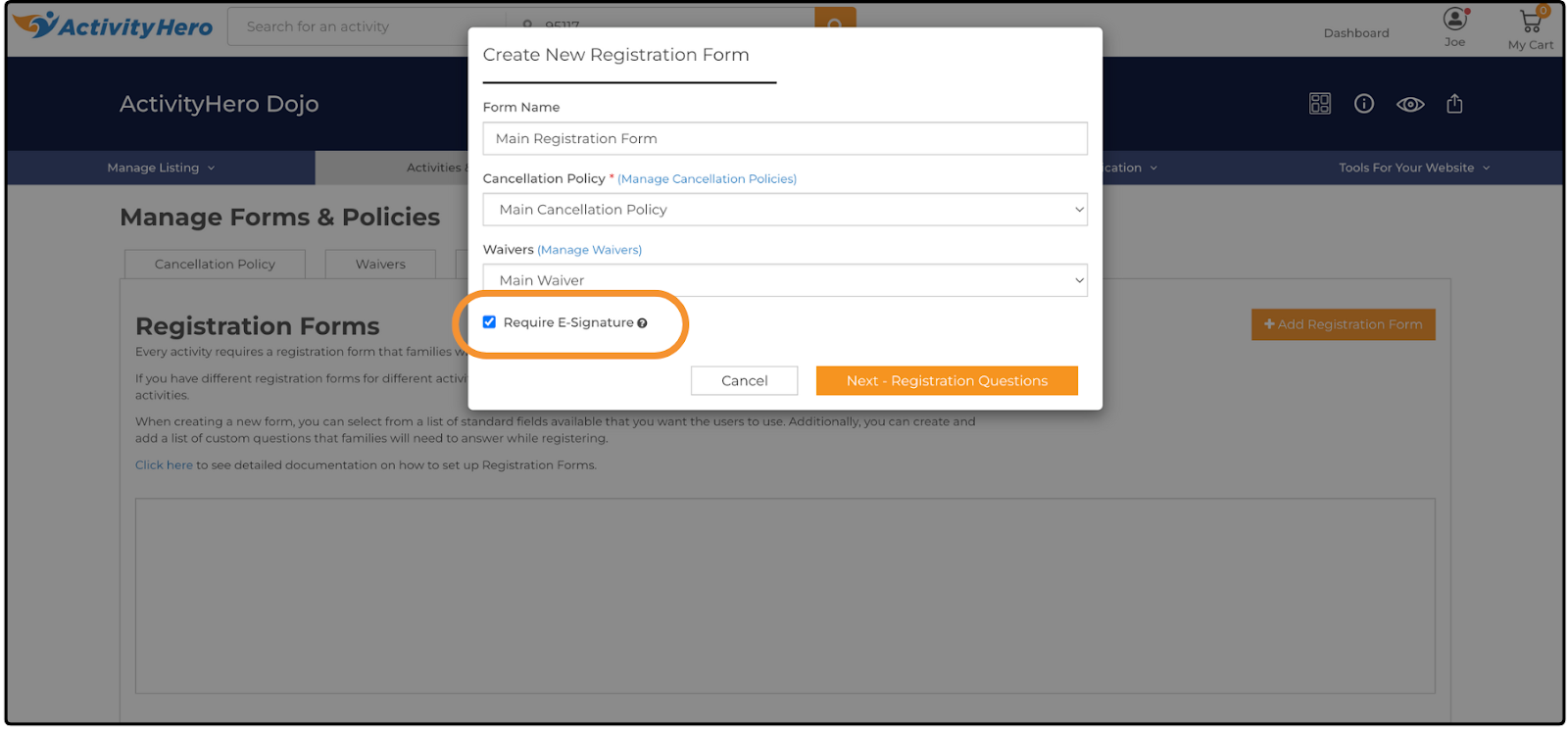
To enable e-signatures on your registration forms:
- From your dashboard, hover over Activities & Sessions and click Manage Forms & Policies.
- Select the Registration Forms tab.
- Either edit an existing registration form or create a new one.
- In the window that is displayed, select the checkbox labeled Require E-Signature.
- Complete and save the form as usual.
For more information on customizing registration forms, see our help article.
Custom Field E-Signature ↑
To require a signature for custom questions, enable the Require E-Signature option in the Registration Form settings.
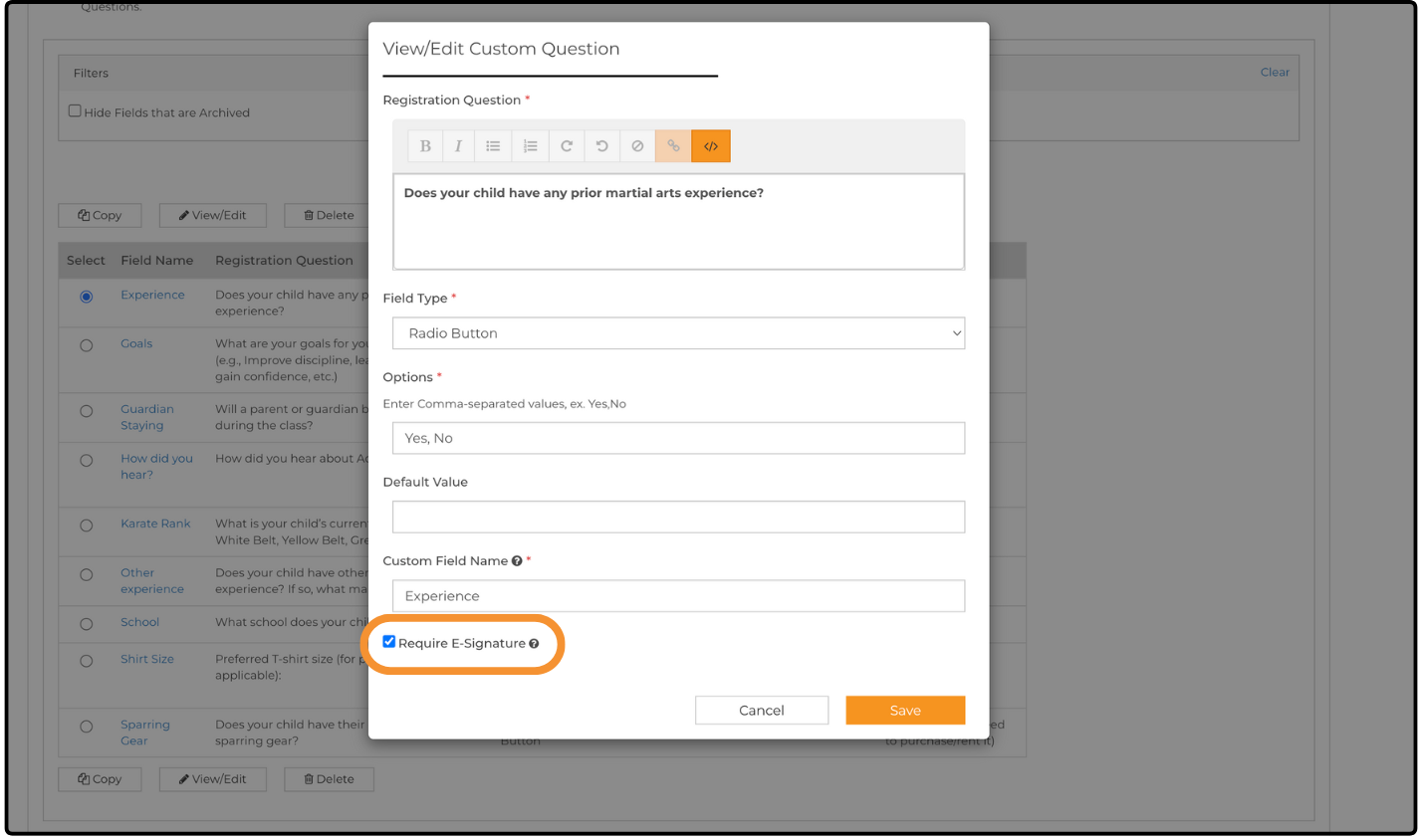
To enable e-signatures on your custom questions:
- From your dashboard, hover over Activities & Sessions and click Manage Forms & Policies.
- Select the Custom Questions tab.
- Either edit an existing question or create a new one.
- In the window that is displayed, select the checkbox labeled Require E-Signature.
- Complete and save the question.
For more information on customizing registration forms, see our help article.
Signing a Form With E-Signatures ↑
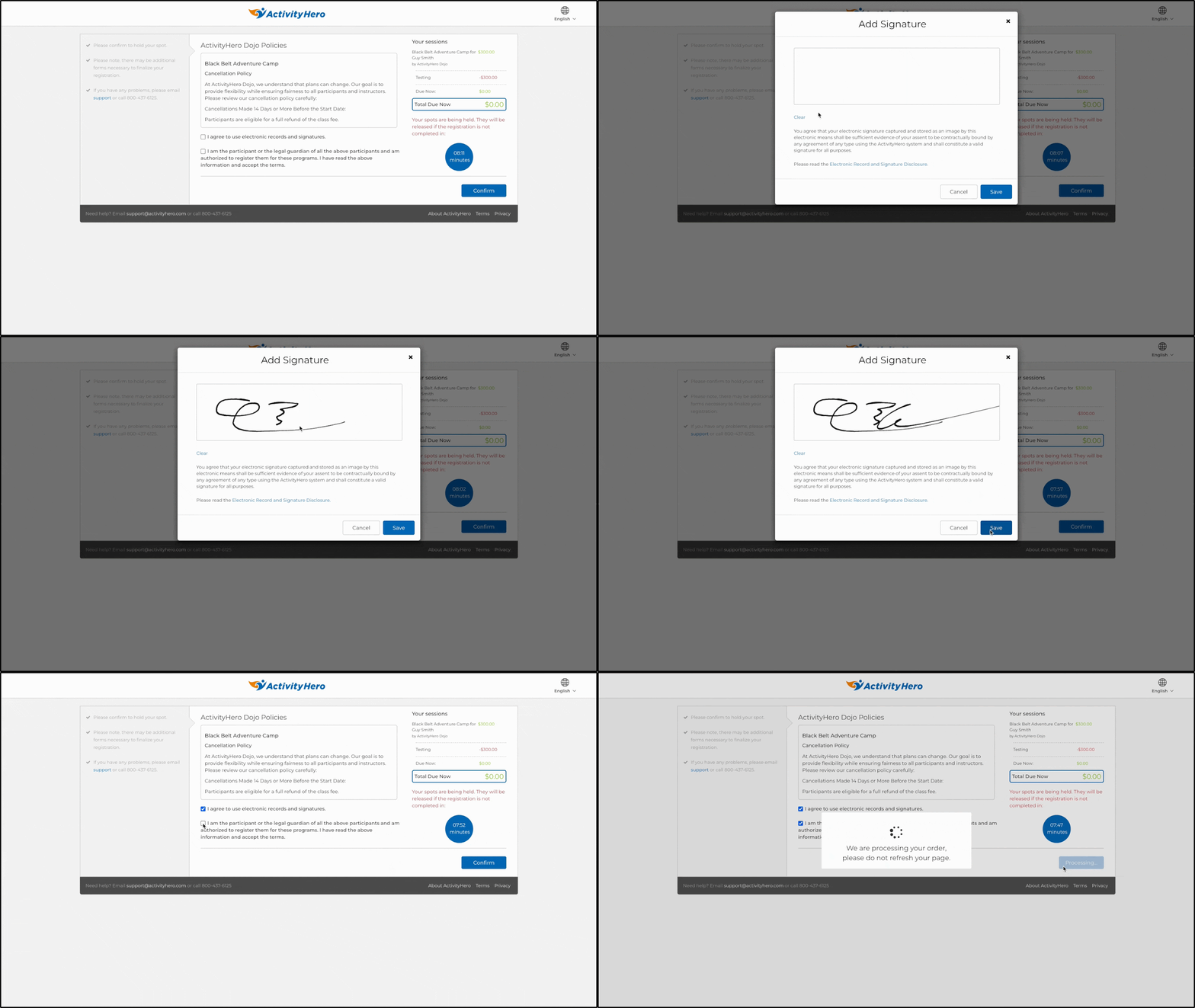
When a family registers for an activity, they are prompted with a checkbox to agree to the use of e-signatures. Once they select the checkbox, the Add Signature window is displayed, allowing them to sign and save their signature.
After signing, they can complete the registration process and continue as normal.
Related Articles ↑
Was this article helpful?
That’s Great!
Thank you for your feedback
Sorry! We couldn't be helpful
Thank you for your feedback
Feedback sent
We appreciate your effort and will try to fix the article