Step 1: Add Custom Grade Help Text to a Registration Form
Where Families See the Grade Help Text
Where Staff See the Grade Help Text
Overview
The Grade Help Text is a short line shown next to the Grade question that helps families know which grade to choose. Many activities are only open to certain grades, but families do not always know which grade to enter. For example, for a summer camp, should they enter the grade their child just finished, or the grade they will start in the fall?
Providers can write their own Grade help text on each registration form. That text is shown everywhere the Grade question appears, both on the family side (cart, checkout, editing a participant) and on the provider side (editing a registration, registering on behalf of a parent, and previewing the form). If a provider does not set any custom text, ActivityHero shows a clear default message instead.
This guidance is intended for providers, program coordinators, and district staff who build and manage registration forms in ActivityHero.
Step 1: Add Custom Grade Help Text to a Registration Form
The Grade help text is set per registration form, so each form can have its own wording.
- Log in to your ActivityHero provider dashboard.
- Go to Activities & Sessions > Manage Forms & Policies > Registration Forms and open the form you want to update (or click Add Registration Form to create a new one). The View/Edit Registration Form window opens.
- In the Standard Registration Questions list, make sure the Attendee’s Grade question is checked so it is shown on the form.
- Click Help Text (pencil icon) next to the Grade question.
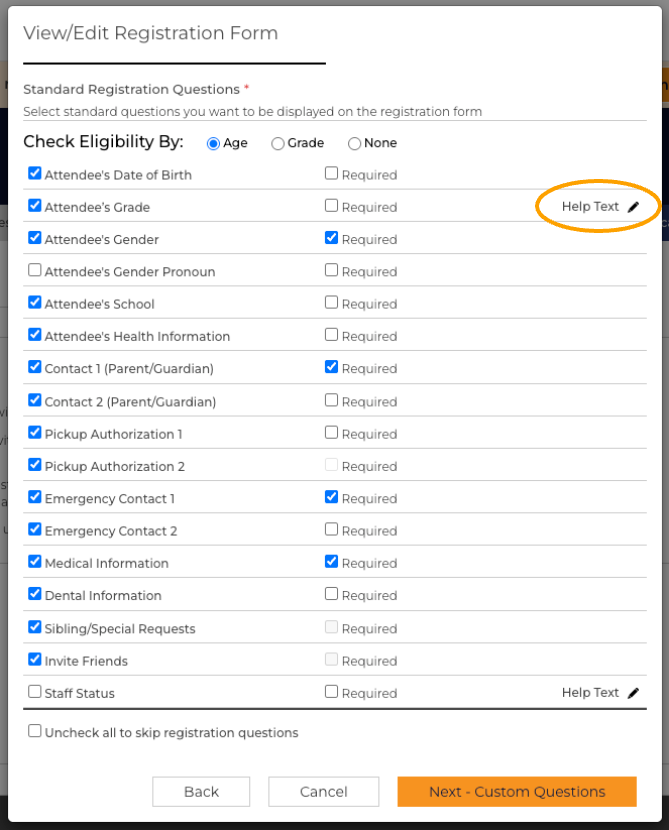
- In the box that appears, type the text that explains which grade families should enter, for example: “Enter the grade your child will be in this fall.”
- Click Save in the help text box, then finish the form steps and save the registration form.
Your new help text takes effect right away on every activity that uses this form.
NOTE: To go back to the default wording, open the Help Text box again, clear the text, and save. ActivityHero will then show “Participant's Grade at the time of the program”.
Step 2: Preview Your Form
Use the form preview to check how the Grade question will look to families before you share the activity.
- On the last step of the form editor, click Save & Preview. You can also preview any existing form from the Registration Forms list.
- Go to the School & Health step. The Grade question shows the title Grade with your help text directly underneath.
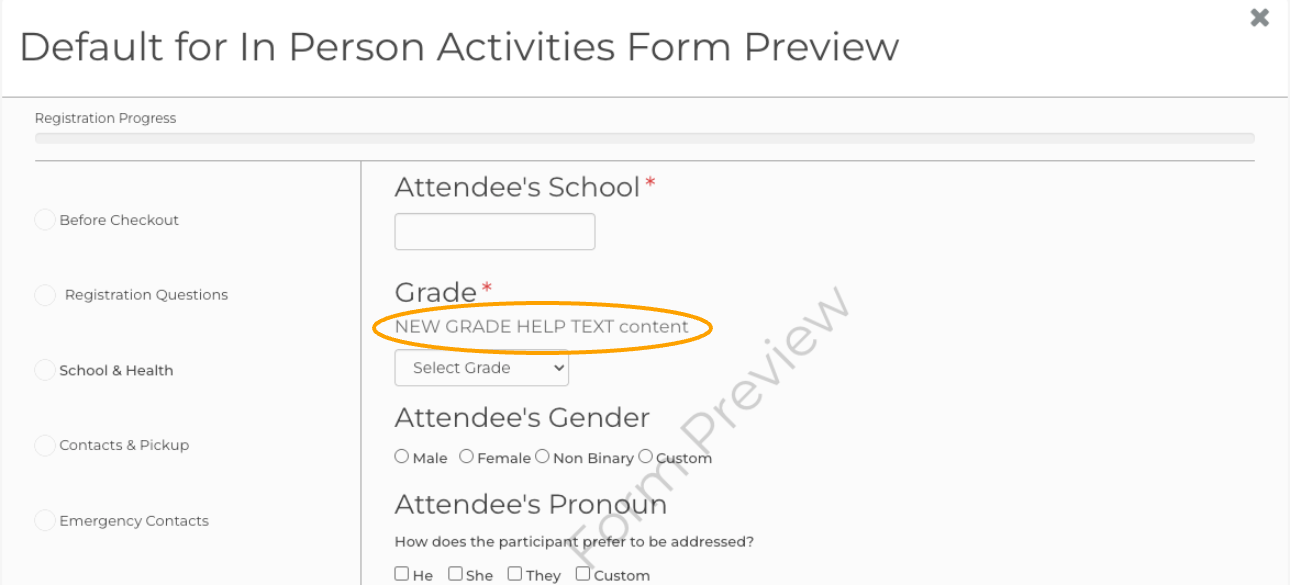 Form preview with custom help text (“NEW GRADE HELP TEXT content”) shown below the Grade title.
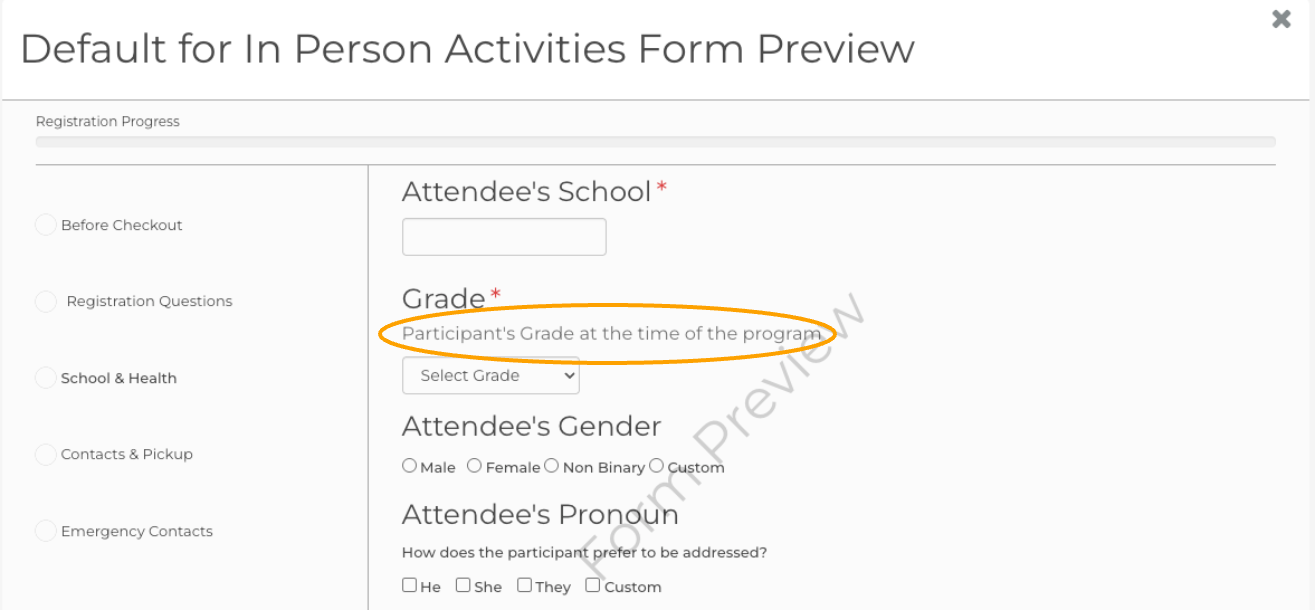 Form preview with no custom text. The default help text is shown.
Where Families See the Grade Help Text
Once set, the help text appears at each point where a parent enters or edits a participant’s grade.
- Adding a new participant from the cart. When a parent clicks “+ Add New Participant” in their cart, the help text is shown as the label above the grade dropdown.
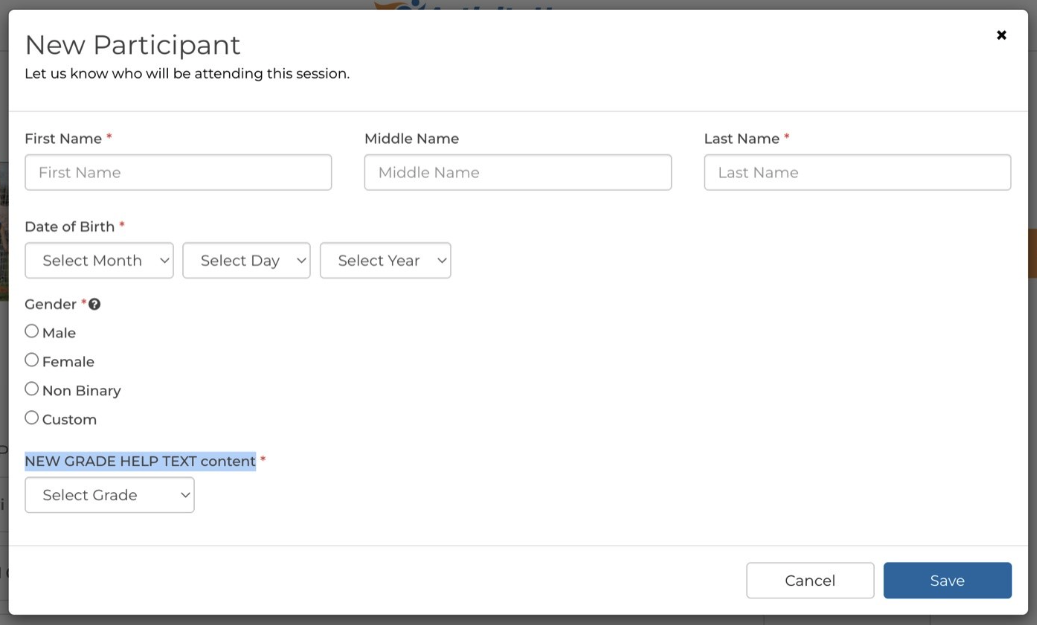 New Participant window in the cart with custom help text.
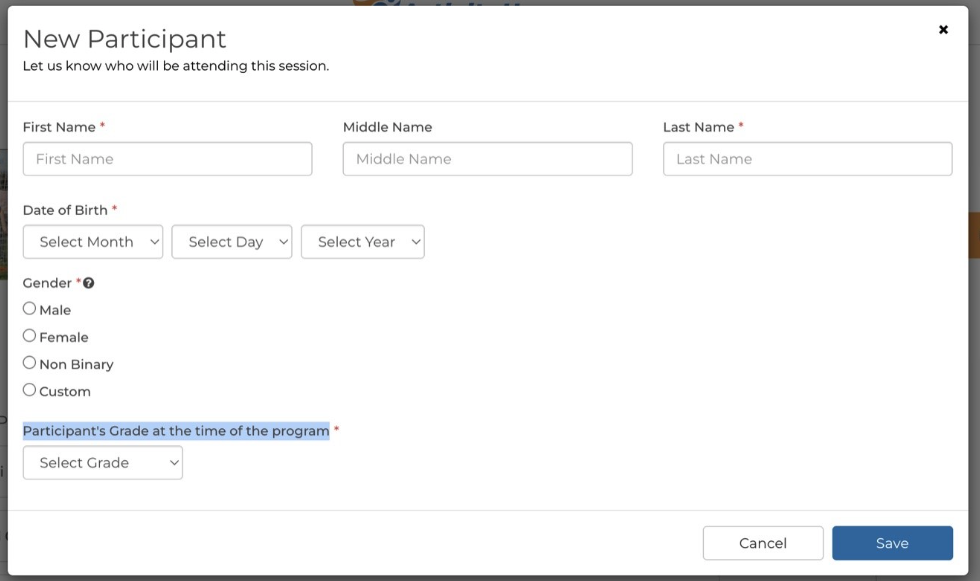 New Participant window in the cart with default help text.
 - Editing a participant from the cart. When a parent edits an existing participant in the cart (or on a waitlisted registration), the same help text is used.
- Completing registration forms after checkout. On the School & Health step of the registration forms, the question is titled “[Child’s name]’s Grade”. When no custom text is set, the default help text appears underneath, same as on the preview.
- Contacting the provider to enroll. If the activity uses the “Contact Provider” flow, the Grade field in that window also shows the help text under the Grade label.
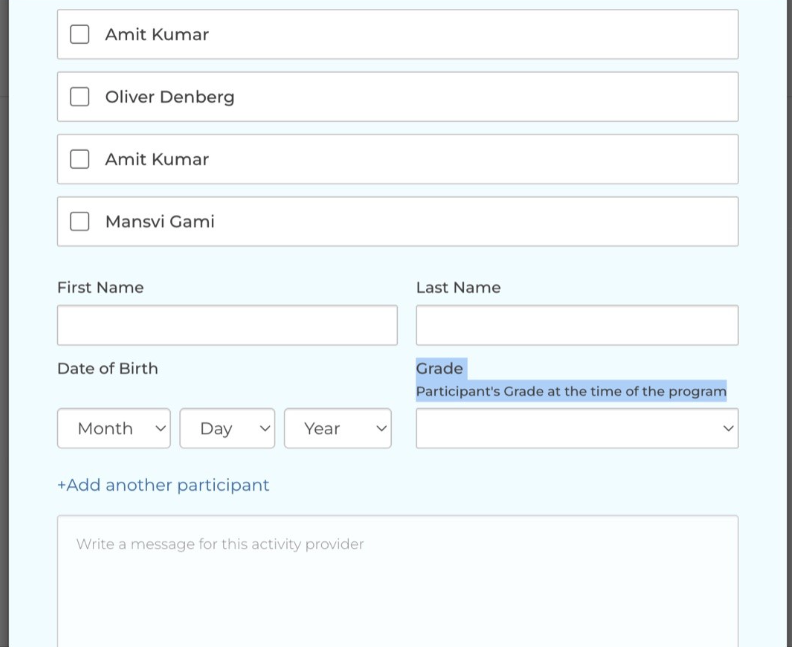 Contact Provider window — help text shown under the Grade label.
Where Staff See the Grade Help Text
Provider staff see the same wording when they enter or change grade information on a family’s behalf, so families and staff are always working from the same instructions.
- Registering on behalf of a parent. On the “Register for Parent” page, the help text is shown next to the Grade label in the Student/Participant Information section.
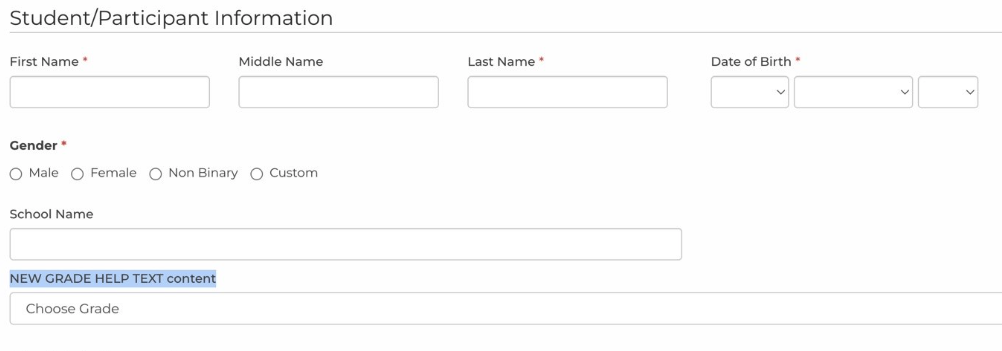 Register for parent with custom help text.
 - Editing an existing registration. When staff open a booked registration to update the attendee details, the Grade field uses the same help text.
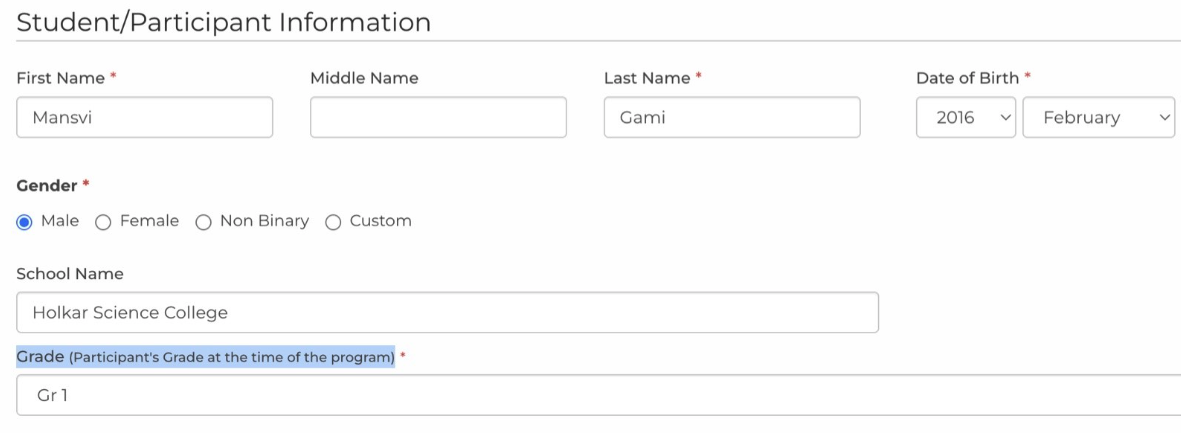 Edit registration page with default help text.
NOTE: The help text wording is the same everywhere, but its position follows each page’s existing layout. On some pages it appears under a “Grade” title, on some it appears in brackets next to “Grade”, and in the cart windows it is used as the field label itself.
Default Grade Help Text
If no custom Grade help text is set on the registration form, ActivityHero shows the same default everywhere: “Participant's Grade at the time of the program”.
Key Takeaways
- Grade help text is set per registration form, from the Help Text link next to the Grade question.
- Custom help text appears on every page where the Grade question is asked — cart, checkout forms, Contact Provider, Register for Parent, Edit Registration, and the form preview.
- When no custom text is set, all pages show the same default: “Participant's Grade at the time of the program”.
- Changes to the help text take effect right away for all activities that use the form.
- Use the form preview to check how the Grade question will look before sharing your activity.
Related Articles
Was this article helpful?
That’s Great!
Thank you for your feedback
Sorry! We couldn't be helpful
Thank you for your feedback
Feedback sent
We appreciate your effort and will try to fix the article