Step 1: Set the Start Date on an Existing Registration
Step 2: Set the Start Date When Registering a Participant
Step 3: Set the Start Date Through Import
How It Works for Each Session Type
Changing Sessions for a Registration
Who Can Set the Participant Start Date
Overview
The Participant Start Date lets you choose the first day a participant attends a session. The participant is booked on meeting days from that date onward. If the session has proration turned on, the price is prorated from that date (see How the Price Is Calculated). If proration is off, or the session is monthly, the price does not change.
The date can be in the past. This is useful when a participant joined a session late and you need to record attendance for days that have already happened, or when a participant joins partway through a session.
This article explains where to set the Participant Start Date, how it changes the booked days and the price, how it works for each session type, and what happens with waitlisted participants and session changes. This guidance is intended for provider administrators and staff who manage registrations.
Step 1: Set the Start Date on an Existing Registration
- Open the Registrations report and find the participant.
- Click Edit to open the registration.
- Enter a date in the Participant Start Date field.
- If the new date changes the price, a note appears under the field before you save. It reads “Note: The new price is $[amount] more than the previous price. You can issue an invoice for this amount to the user.” or “Note: The new price is $[amount] less than the previous price. You can issue a refund for this amount to the user.” The amount is the new price compared with what the parent has already paid. If the price does not change, or nothing has been paid yet, no note is shown.
- Click Update Info.
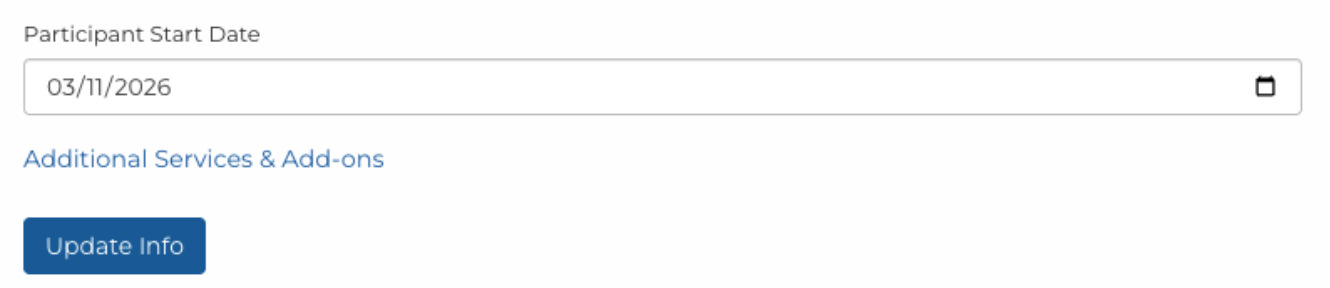 The Participant Start Date field on the Edit Registration page.
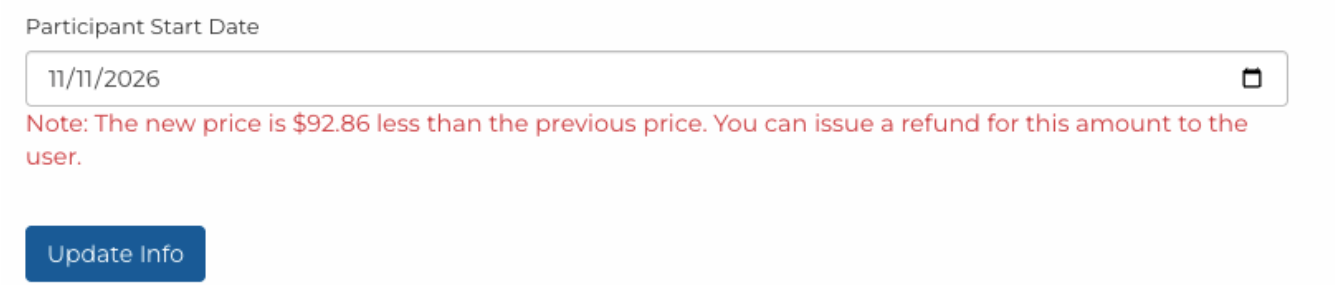
The price difference note shown before saving.
NOTE: The price difference note appears only when the registration has a recorded payment. It compares the new price with the amount actually paid, not with Amount Due. If no payment has been recorded, no note is shown, even if Payment Status is set to Completed. No note is shown for monthly sessions, because their price does not change.
When you save, the participant’s meeting days are updated:
- Moving the date earlier: The missing meeting days are added, including days that are already in the past. Staff can then check the participant in and out for those days.
- Moving the date later: Meeting days before the new date are removed.
- Clearing the date: Days from today up to the old start date are added back. Days that are already booked, including past days, stay booked.
For an Enrolled registration, spots are updated too. A spot is taken on each added day and given back on each removed day.
The date cannot be moved past a day that already has attendance. If the participant was checked in on a day that would be removed, you see “Participant Start Date can’t be after [date] because this registration has attendance on that date.” and nothing is saved.
NOTE: The date must be between the first meeting date and the last meeting date of the session.
Dates outside this range are greyed out in the date picker. If you enter one anyway, you see “Participant Start Date can’t be before the first meeting date ([date]).” or “Participant Start Date can’t be after the last meeting date ([date]).” and nothing is saved. The same rule applies on Register for Parent, Add by Student ID, and import.

The error shown when a removed day already has attendance.
Step 2: Set the Start Date When Registering a Participant
Register for Parent:
- Click Register for Parent and fill in the participant and session details as usual.
- Enter a date in the Participant Start Date field.
- Complete the registration.
The participant is booked on meeting days from that date onward. If the session has proration turned on, the price is prorated from that date. If you leave the field blank, the registration works as before.
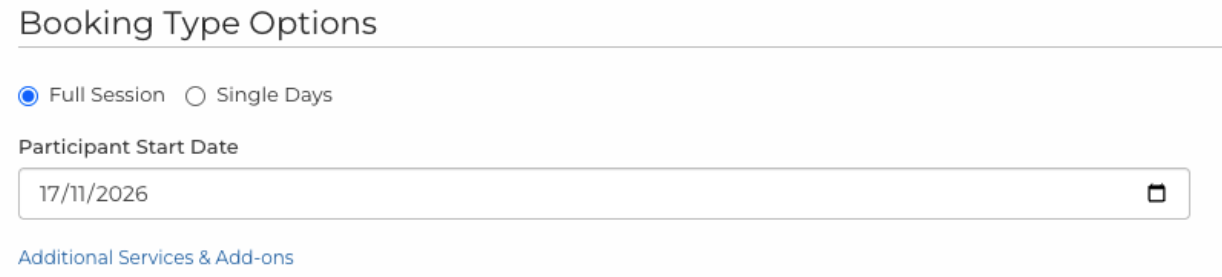
Setting the Participant Start Date while registering a participant.
Add by Student ID:
- Start a Register for Parent registration for the session, then click the Add by Student ID button next to the page title. This button is shown only for providers that have Student ID sign-in enabled.
- Enter the student IDs.
- Enter a date in the Participant Start Date field.
- Click Look up by ID, select the students, and click Register Selected.
The same start date is used for every student you add in that batch.
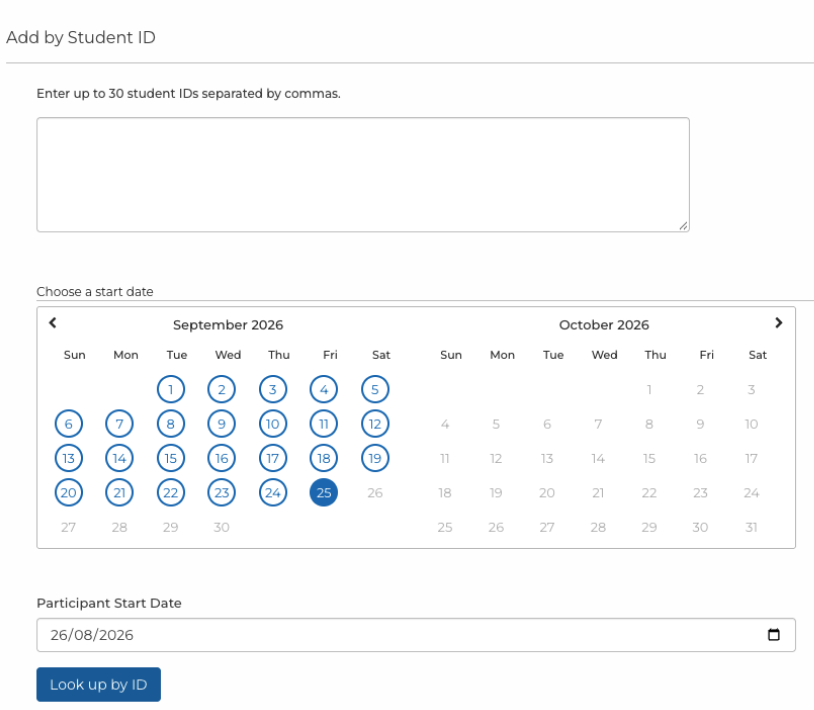
The Participant Start Date field on the Add by Student ID page.
NOTE: If you choose Single Days, the Participant Start Date field is hidden and the date is not saved. Single-day bookings use the exact days you pick.
Step 3: Set the Start Date Through Import
When you import registrations, you can add a column named participant_start_date. Use a date such as 10/01/2026 or 2026-10-01. This column is included in the sample CSV you can download from the import page.
- Rows with a date are booked from that date onward.
- Rows with a blank value, or files without the column, are imported as before.
- If the value is not a valid date, the row is reported with the error “Invalid participant_start_date”.
- If the date is before the first meeting date or after the last meeting date, the row is reported with the matching error, for example “Participant Start Date can’t be after the last meeting date ([date]).”
How the Price Is Calculated
The start date changes the price only for sessions that have proration turned on and are not monthly. Example used below: a session with 10 meeting days, a full price of $250, and a drop-in price of $30.
- No start date: The price is the same as before. If the session has already started, the price is prorated from today. For example, a participant added today with no start date pays for the remaining meeting days only, while a participant with a start date on the first meeting date pays the full price.
- Start date in the past, on the first meeting date: Full price ($250).
- Start date in the past, after the first meeting date: Drop-in price × meeting days from that date, including past days. Starting on day 4 costs $30 × 7 = $210.
- Start date today or later, on the first meeting date: The normal price, the same as a regular registration.
- Start date today or later, after the first meeting date: Drop-in price × meeting days from that date. Starting on day 6 costs $30 × 5 = $150.
Other session settings:
- Registration closes before each meeting day: A start date today or later uses the normal price for that session. A past start date follows the rules above.
- Proration turned off: The price stays at the full price. Only the booked days change.
- Monthly sessions: The price and installments do not change. Billing follows the monthly start date.
NOTE: The start date affects the amount only when you change it. Saving the registration without changing the start date keeps the amount as it is, unless you also change another price setting, such as the price option or discount.
If the registration is already paid and you move the start date later, the price goes down but the amount paid stays the same, so the parent has paid more than the new price.
For example, if the parent paid $220 and the new price is $185, the parent has overpaid by $35. On Edit Registration, the price difference note shows this amount before you save. The registration also appears under the Overpaid option of the payment status filter on the Registrations report. You can issue a refund or credit for the difference if needed.
How It Works for Each Session Type
Full sessions
The field is available on Edit Registration, Register for Parent, Add by Student ID, and import. Booked days and price follow the rules above.
Monthly sessions
- The participant is booked on meeting days from the start date, including past days, so past attendance can be recorded.
- When a start date is set, it is used for booked days instead of the monthly start date.
- The price and installments do not change. Billing still follows the monthly start date.
- Spots do not change when the start date moves, because a monthly registration already holds a spot on every day of the session.
- Clearing the start date adds back the days from the monthly start date up to the old start date. Days that are already booked, including past days, stay booked.
Custom sessions, one-day sessions, and Single Days bookings
The Participant Start Date field is not shown. These bookings use the exact days or time slots you select.
Waitlisted Participants
- A waitlisted registration can already have a start date, for example from an import or from before it was waitlisted. The booked days and spots do not change while the participant is on the waitlist.
- When you invite the participant, the invite window has the option Restrict participant to attending only on or after this date. If the registration already has a start date, this option is checked and the date is filled in for you. If that date has already passed, the next upcoming meeting day is filled in instead. Uncheck it to invite without a start date.
- When the parent completes checkout, if the session has proration turned on, the price is prorated from the start date. If that date has already passed, it is prorated from today.
Changing Sessions for a Registration
- If a registration has any attendance records, it cannot be moved to a different session. You see “Can’t change session since this registration has attendance records. Cancel it and re-register the participant for the new session instead.”
- If there is no attendance, the session change works as before. If the registration had a start date, it is updated to the first meeting date on or after today in the new session. For monthly sessions, the start date is cleared.
- Changes within the same session, such as changing the price option, are still allowed.
Attendance and Check-In
Back-dated meeting days appear on the check-in and attendance screens once the registration is Enrolled. Staff can check the participant in and out for those past days, or edit the attendance records, the same way as for any other day.
Who Can Set the Participant Start Date
Only provider staff who can manage registrations, and ActivityHero administrators, can set or change the Participant Start Date. Parents cannot set it during checkout or from the mobile app.
Key Takeaways
- The Participant Start Date sets the first day a participant attends. It can be in the past, but it must be between the first and last meeting dates of the session.
- On Edit Registration, a note shows the price difference before you save.
- Set it on Edit Registration, Register for Parent, Add by Student ID, or with the participant_start_date import column.
- Moving the date earlier adds days, including past days. Moving it later removes days, unless those days already have attendance.
- The price is prorated from the start date only when the session has proration turned on. Otherwise, and for monthly sessions, the price does not change.
- The field is hidden for custom sessions, one-day sessions, and Single Days bookings.
- A registration with attendance cannot be moved to a different session.
- Only provider staff and administrators can set the date.
Was this article helpful?
That’s Great!
Thank you for your feedback
Sorry! We couldn't be helpful
Thank you for your feedback
Feedback sent
We appreciate your effort and will try to fix the article