You can use ActivityHero's Payment Plan feature to give registrants the option to pay in monthly installments, or give the option of paying a deposit. Both options automatically charge the remaining payment to the purchaser's credit card.
Deposit Plans
Monthly Payment Plans
Adding an Existing Payment Plan to a Session
What Families See When They Register
There are two options to begin setting up a payment plan:
1. Sign into your ActivityHero account
2. Navigate to Activities & Sessions > Payment Plan
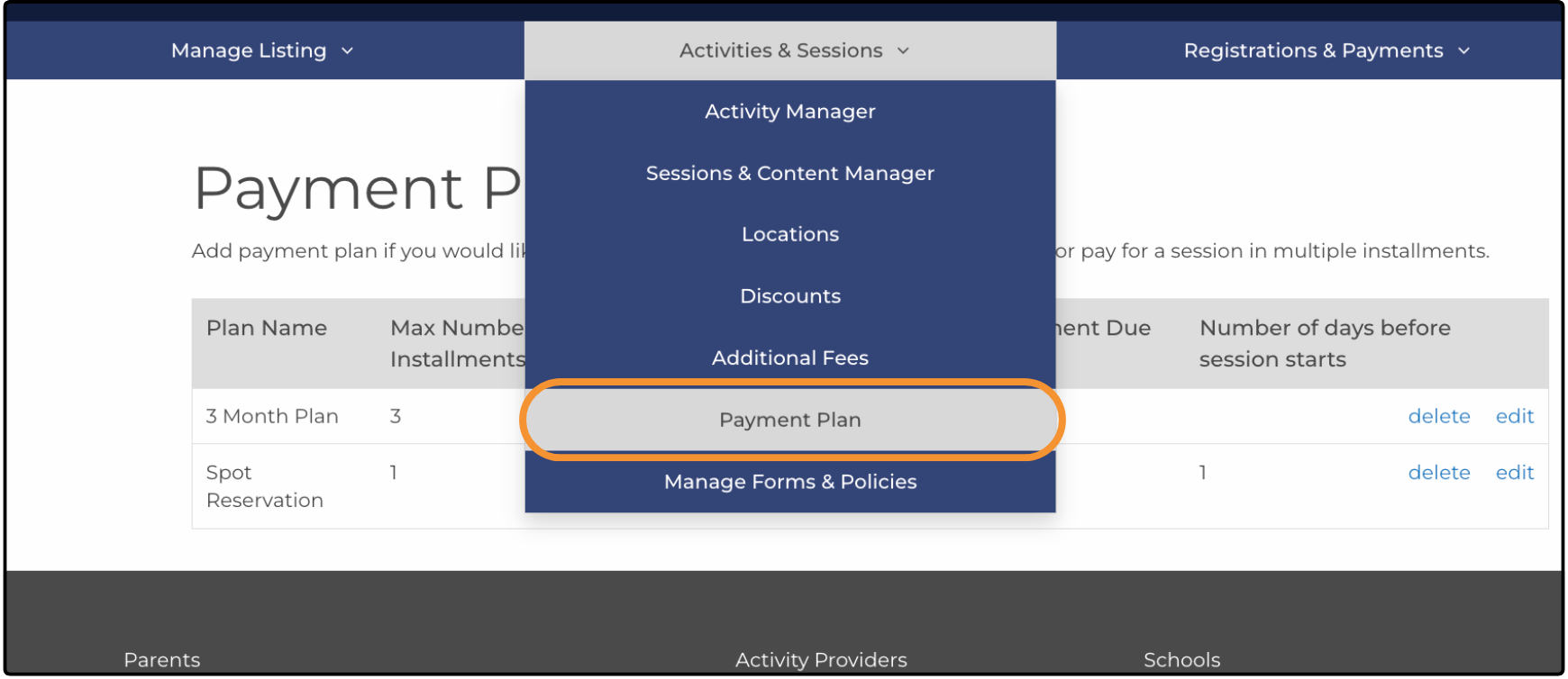
OR
When creating a session, you can select the option to add a Payment Plan near the end of the standard flow, before publishing the session.
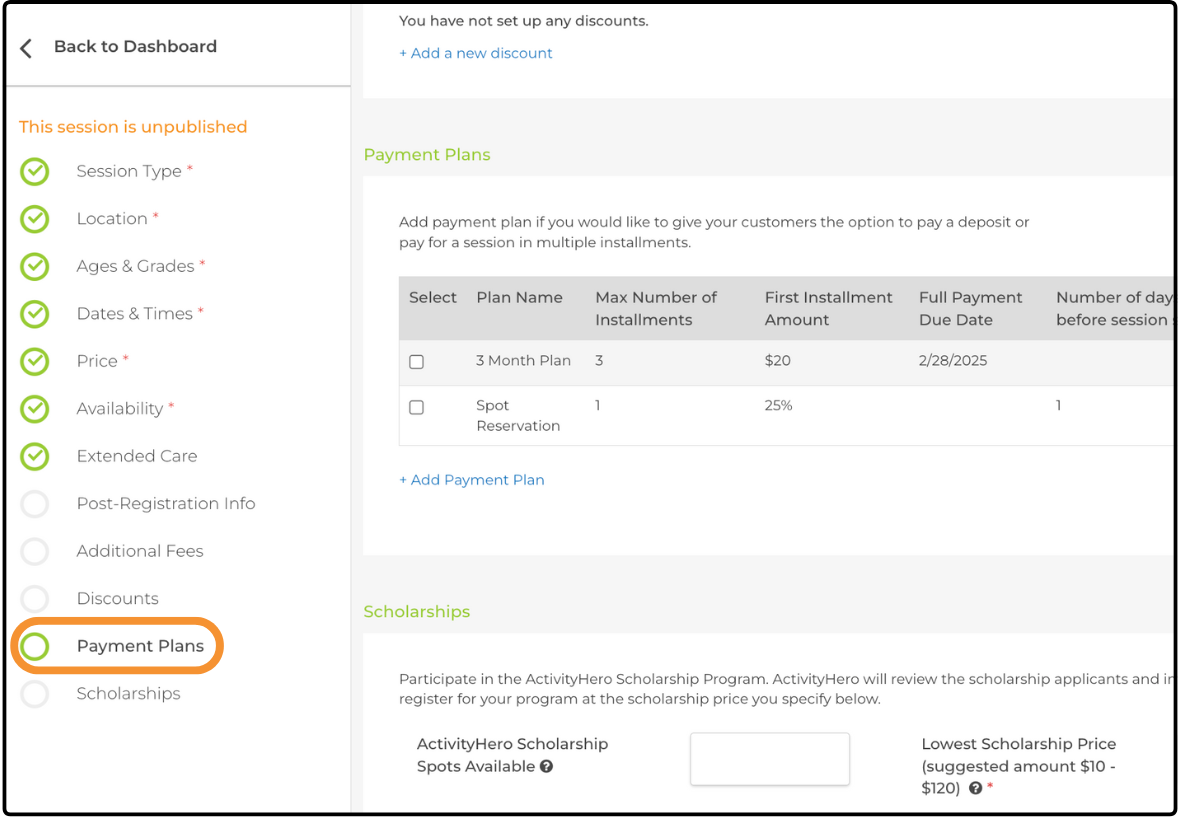
Note: Users do not have the option of selecting a payment plan if the session starts within 30 days, or if the final payment is due within 30 days.
You can create two types of payment plans: Monthly payment plans and Deposit payment plans.
Deposit Plans
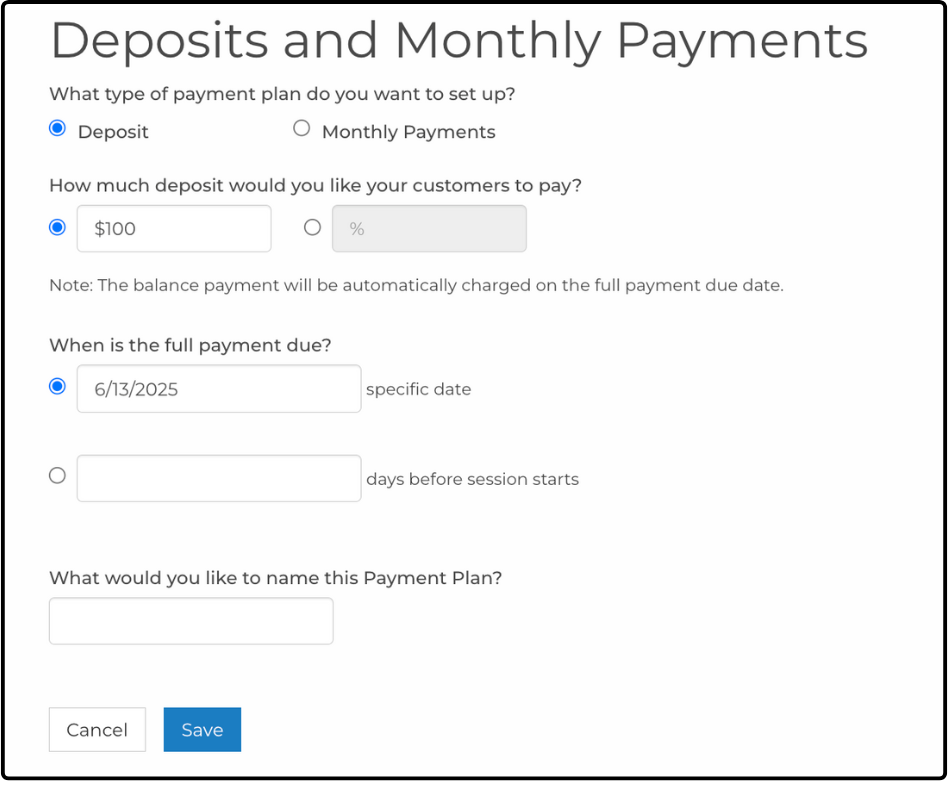
Deposit plans allow users to make a single payment up front, with the full remaining balance automatically charged on the due date.
This deposit can be a set dollar amount or a percentage of the total registration fee.
Select a due date for when the final balance is charged.
Give this payment plan a name and click Save.
Monthly Payment Plans ↑
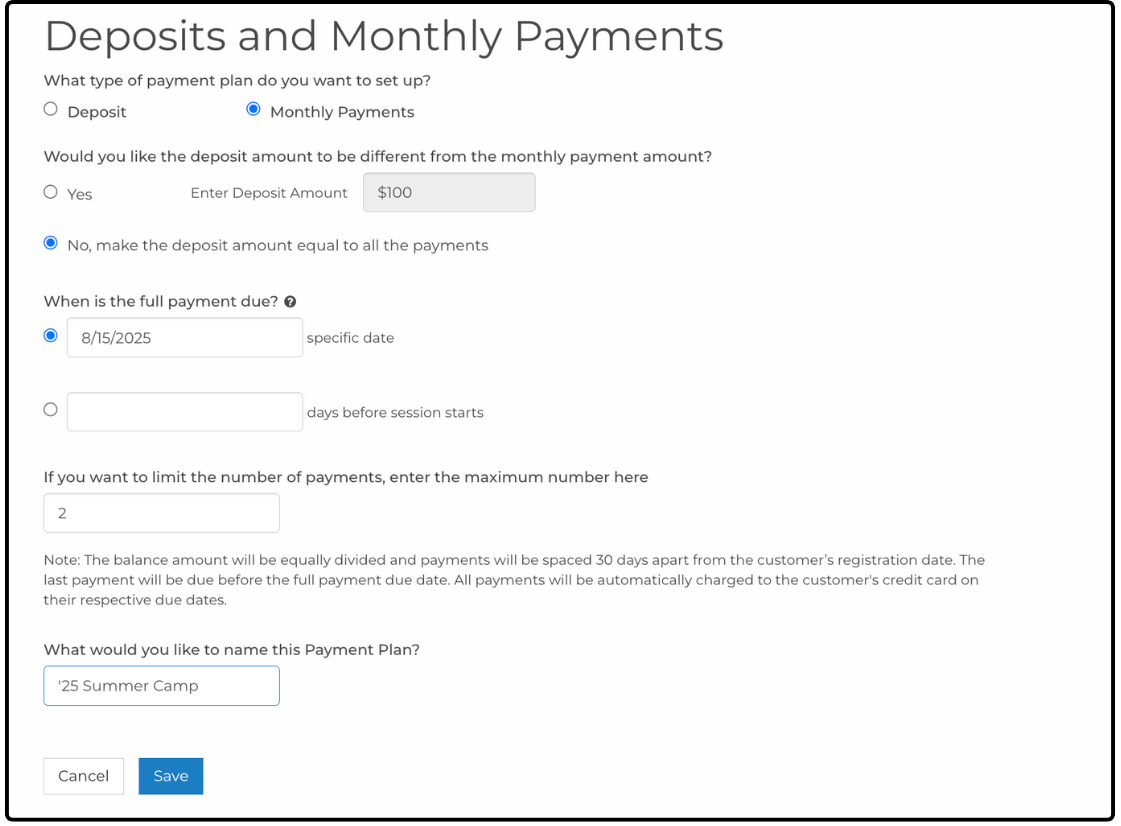
Monthly payment plans allow users to make a single payment up front, with the remaining balance split into equal payments. The sooner a user registers for a session, the more opportunities they have to make payments.
Monthly payments with a deposit allow for a different amount to be charged up front, with the remaining balance broken into equal amounts.
Monthly payments without a deposit automatically charge the user in equal monthly payments.
Type a date for when the full balance must be paid, as well as the number of payments that can be charged. The number of payments a user makes is based on the day they register, as well as the final due date.
The number you type in the If you want to limit the number of payments, enter the maximum number here field is the number of installments after the initial payment or deposit has been made.
Type a name for your payment plan and click Save.
Adding an Existing Payment Plan to a Session ↑
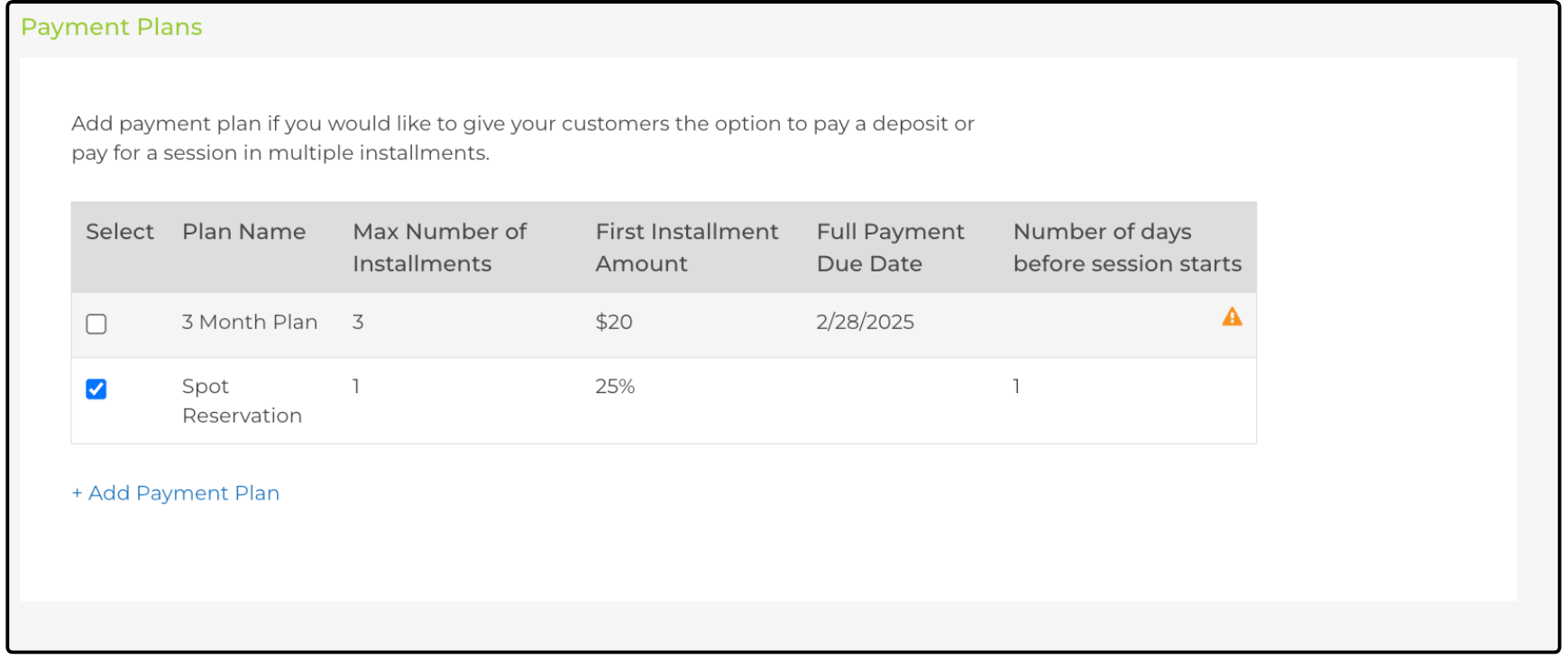
If you already have payment plans created, you can add them to any new session by selecting the check box in the Payment Plans section when you create the session.
What Families See When They Register ↑
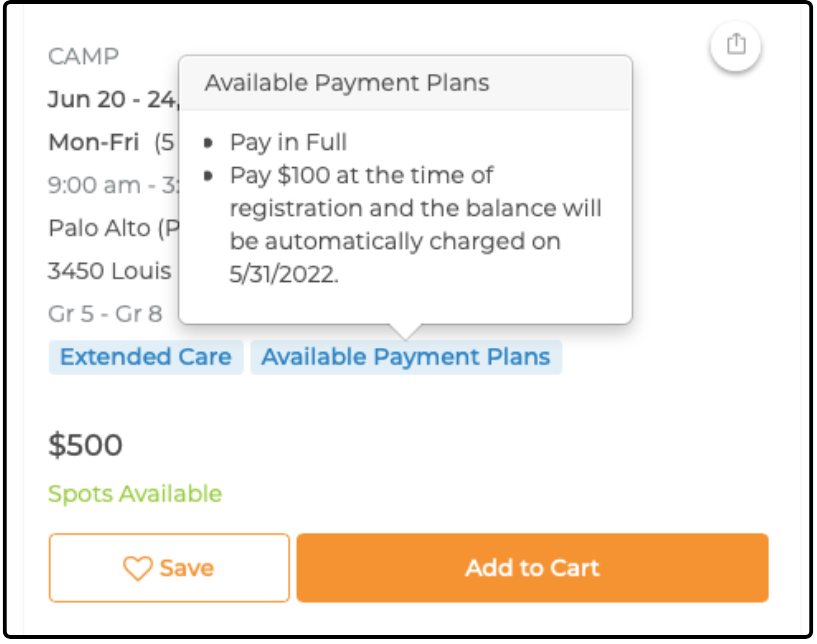
On the Activity page, families can see that payment plans are available if you have enabled a payment plan on the session.
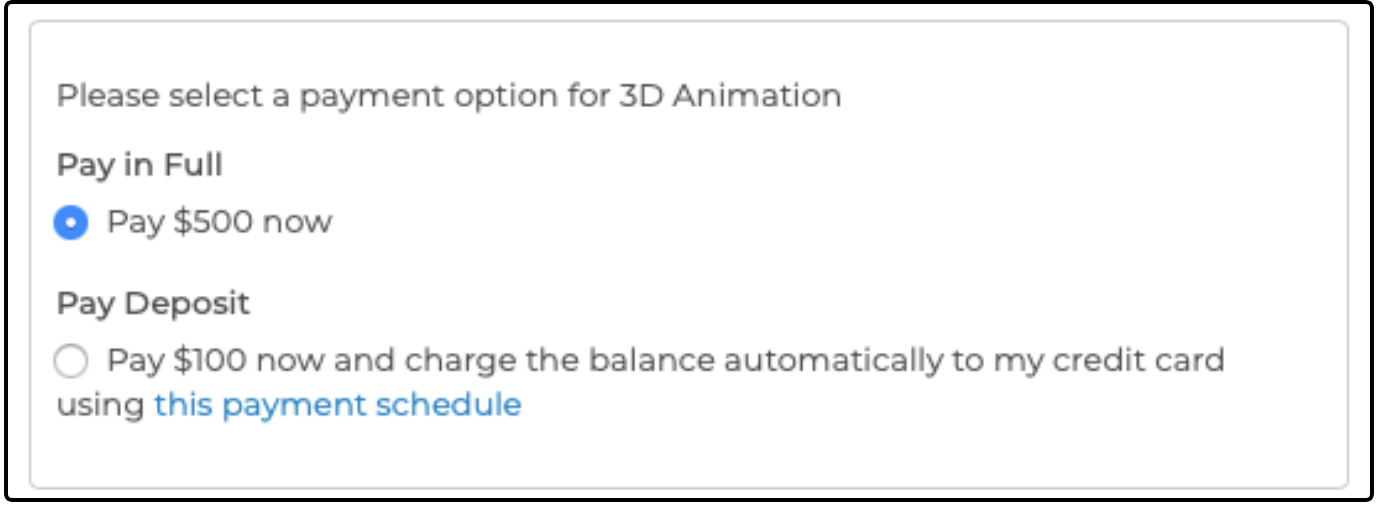
During the checkout process, the family can select full payment or a payment plan.
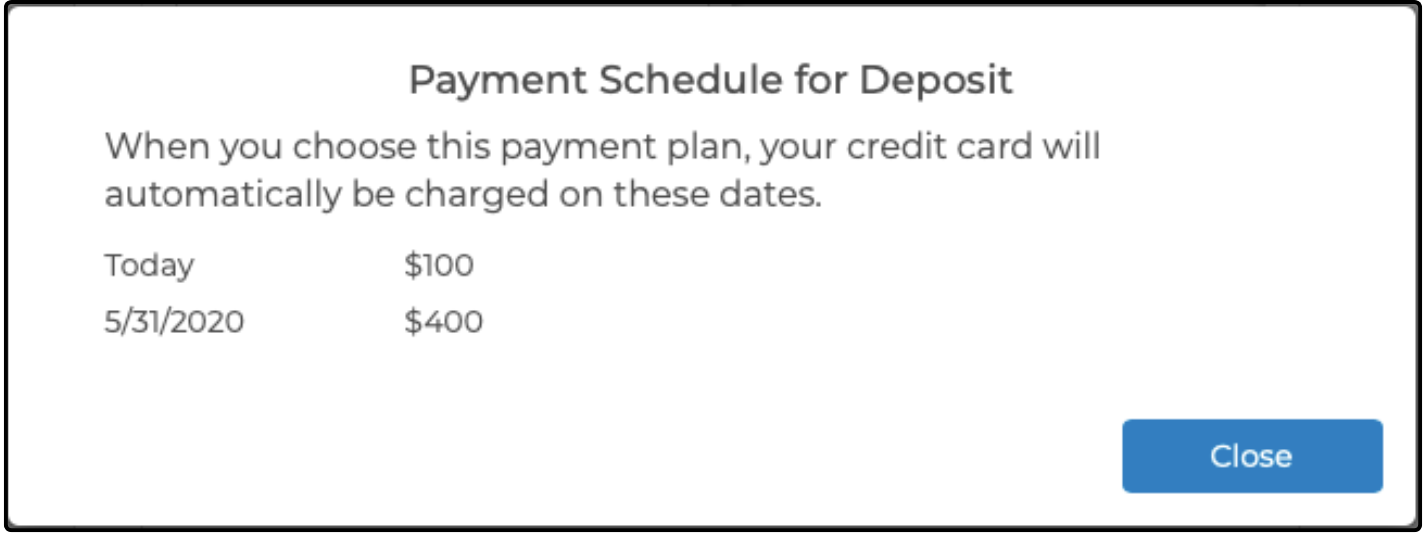
The payment dates and amounts are displayed to the family.
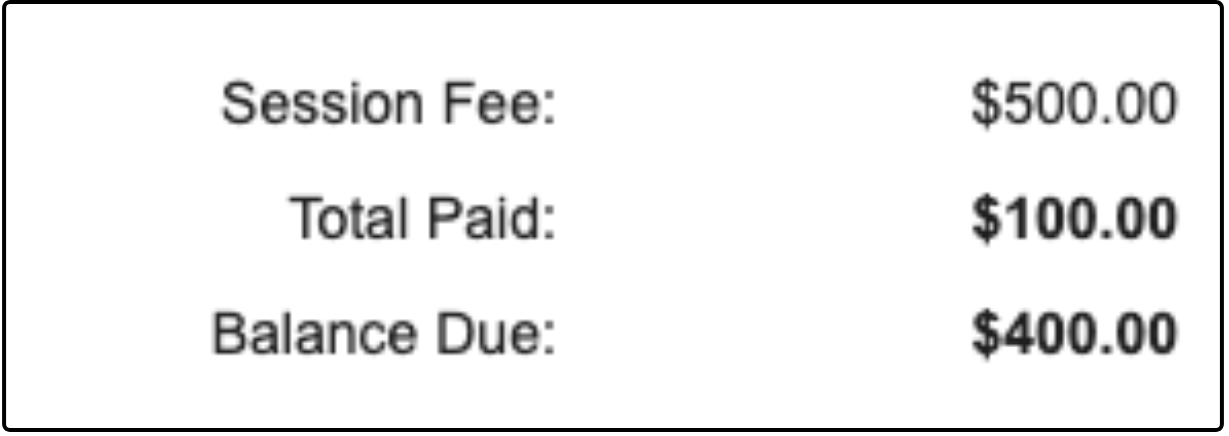
The registration confirmation email shows the total paid as well as the balance due.
Was this article helpful?
That’s Great!
Thank you for your feedback
Sorry! We couldn't be helpful
Thank you for your feedback
Feedback sent
We appreciate your effort and will try to fix the article