Overview
Families can view any scheduled payments on the Payment Settings page. They can see all upcoming automatic payments, spot problems with a payment right away and manage all saved payment methods.
How to Access the Payment Settings Page
Reviewing the Payment Schedule
Before You Begin
The Payment Schedule only lists payments that are still owed. To see entries in the Payment Schedule section, the account should have at least one of the two:
- An upcoming payment that has monthly payments or a payment plan.
- A past due payment.
Registrations that were paid in full at checkout do not appear in the Payment Schedule, because nothing more is owed on them.
How to Access the Payment Settings Page
- Log in to your ActivityHero parent account.
- Hover over the profile icon in the top-right corner and select My Account.
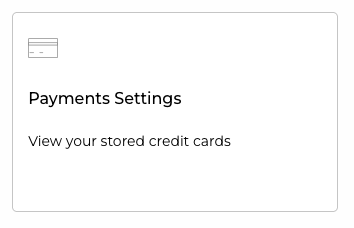
- Select the Payment Settings tile.
Reviewing the Payment Schedule
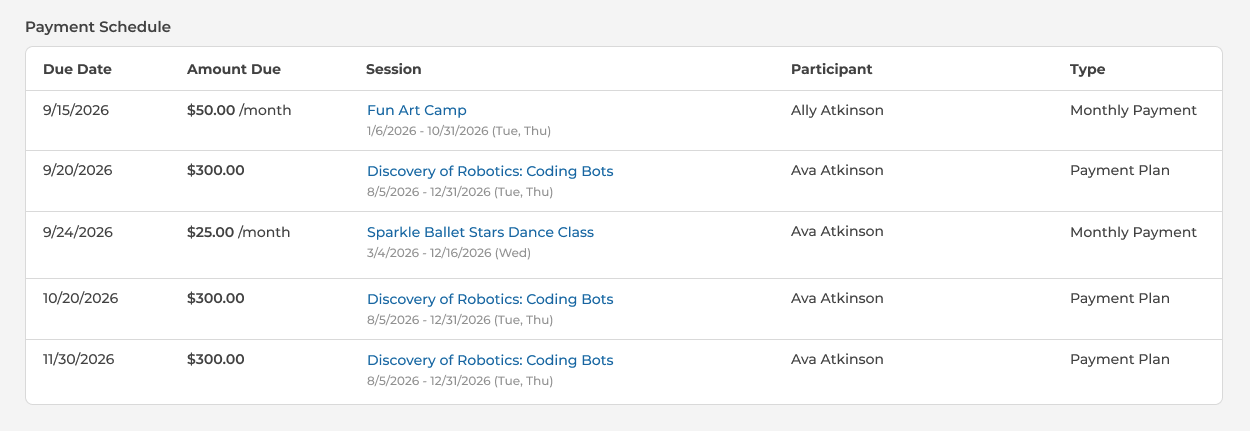
This table lists every upcoming payment, sorted with the earliest due date first. For each payment, you'll see:
- Due Date: The date the payment will be charged.
- Amount Due: How much will be charged. Monthly payments show the amount followed by "/month".
- Session: The activity the payment is for, with its session dates and days of the week. Click the blue activity name to open that registration in a new tab.
- Participant: The child the registration is for.
- Type: Whether the payment is a Monthly Payment (a recurring charge of the same time each month) or a Payment Plan (a set number of installments that add up to the total cost of the session).
If there are no upcoming payments, this section will show the message: "You have no scheduled payments."
NOTE: If a payment could not be charged on its due date, a red Past Due label appears next to the due date for that row.
Understanding Payment Alerts
A red alert banner will appear at the top of the page when something needs your attention. There are two kinds of alerts:
- "Add a payment method before <date>."
This alert appears when you have upcoming payments but no saved card or bank account. The date is the due date of your next payment.

- "We couldn't complete your payment. Please update your payment method."
This alert appears when a payment's due date has passed and there was an issue processing the payment (such as a declined or expired card), or there was no saved payment method on file.

The link inside the alert takes you straight down to the Payment Method Information section so you can update your payment method.
Managing Payment Methods
The Payment Method Information section lists your saved credit cards and bank accounts. For each one, you will see:
- Card/Bank: The card or bank account name and the last four digits.
- Expires: The expiration month and year. (For cards only)
- Default: Select this option to make the card or bank account your default payment method.
- Actions: Click delete to remove this payment method.

If no payment method is saved, this section will show the message: "You do not have any saved payment method."
To add a new card or bank account:
- Click the Add Payment Method button
- Enter payment details in the form that appears.
- Click Submit to add it to the list.
Was this article helpful?
That’s Great!
Thank you for your feedback
Sorry! We couldn't be helpful
Thank you for your feedback
Feedback sent
We appreciate your effort and will try to fix the article