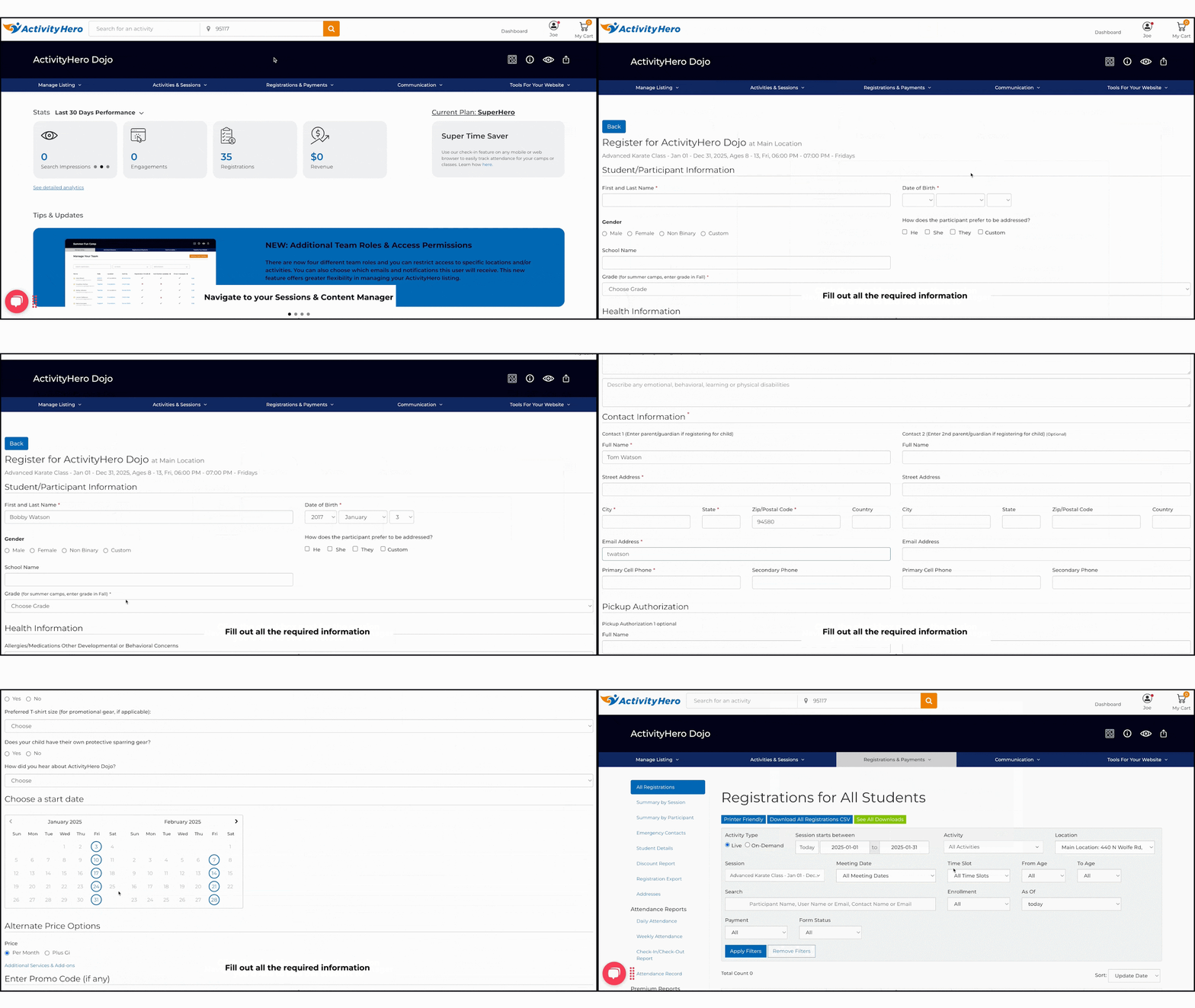
When you need to register for a parent, ActivityHero gives you access to register in the dashboard tools.
To register a new participant who has not registered for one of your activities in the past through ActivityHero:
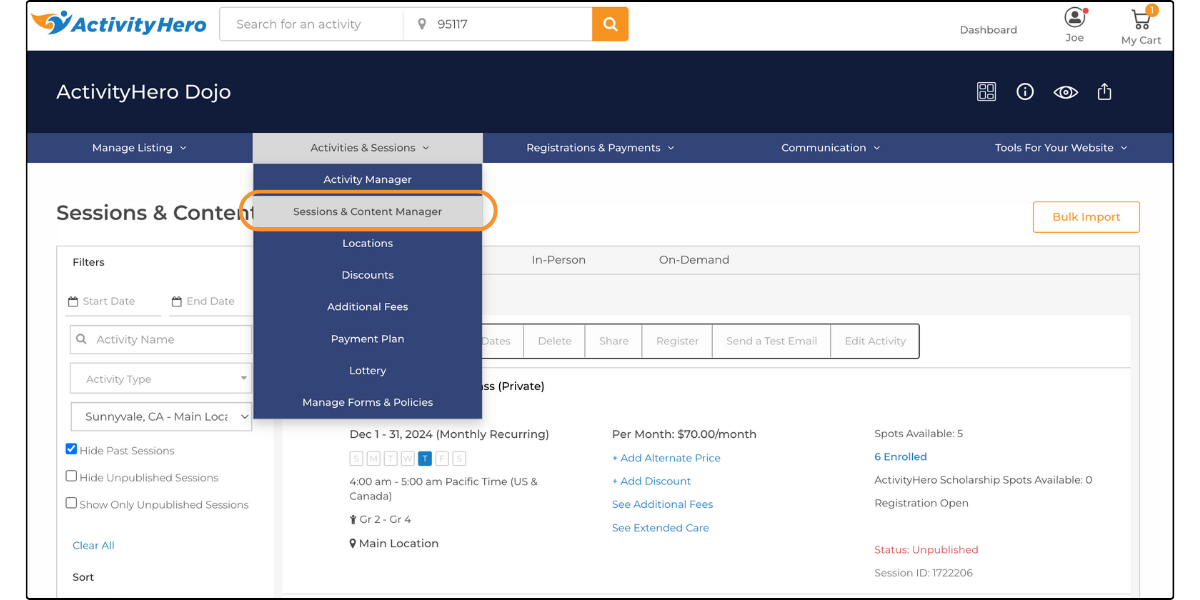
1. Navigate to Activities & Sessions > Sessions & Content Manager.
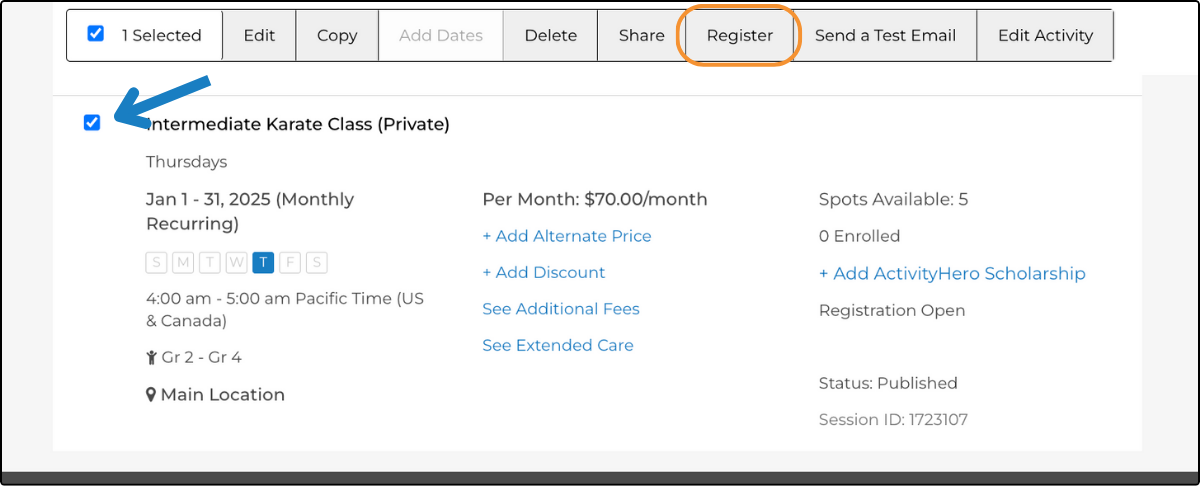
2. Select the check box on the session, then click Register near the top of the page.
3. You can create the registration by filling out the minimum requirements for the registration form or by entering the Student ID if your district has SIS integration. The simplest way is to use the Student ID, as described in this article. This will fill in the parent/guardian and other student information from the SIS.
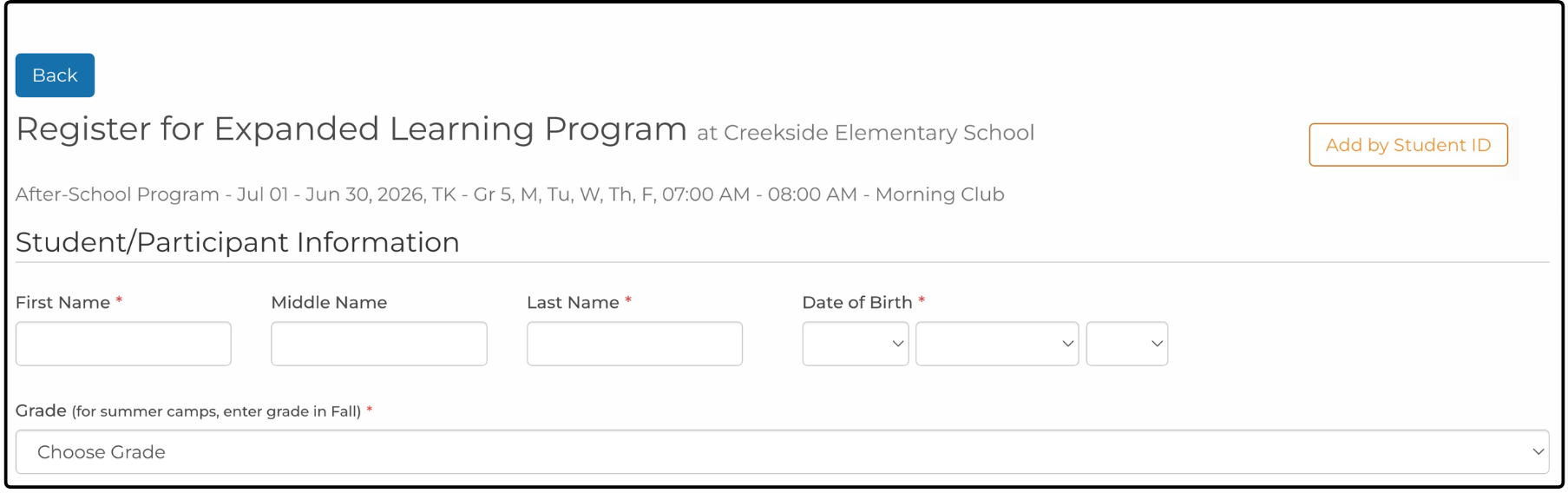
Fill in the Student Name and as much information as you have. Make sure you enter an email address or phone number for Contact 1. Not all the fields with a * will be required, but if you see that the form doesn't get saved, you can go back to fill out the fields.
If an account already exists with the email address or phone number, the new registration is added to that account.
4. Click Continue to save the registration. The Order Summary is displayed with the option to Enter Payment, Skip, or Send Invoice.
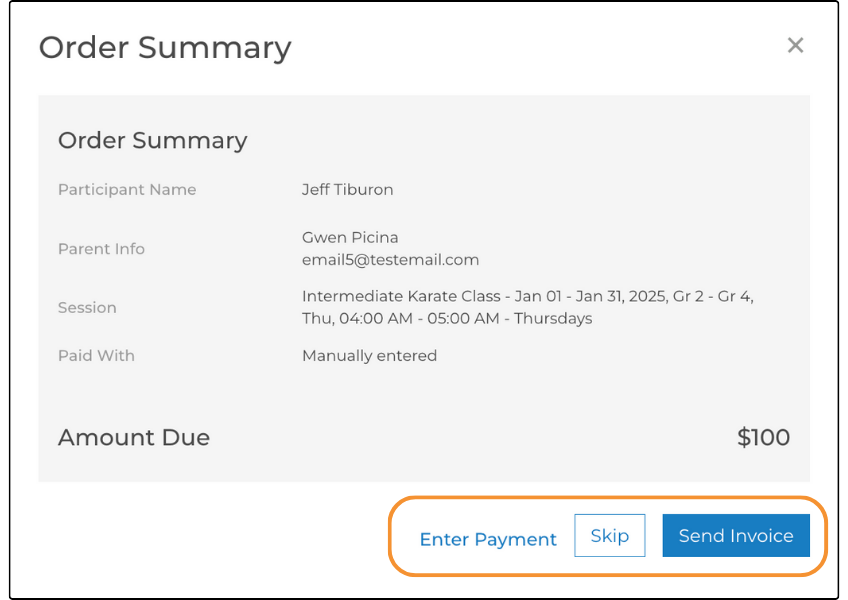
Enter Payment - Record a payment received. For more information on recording a payment, check out our help article "Can I manually enter a payment?"
Skip - The registration appears on your Registration Report with a status of pending.
Send Invoice - Issues an invoice. For more information on issuing invoices, check out our help article "How do I send an invoice?"
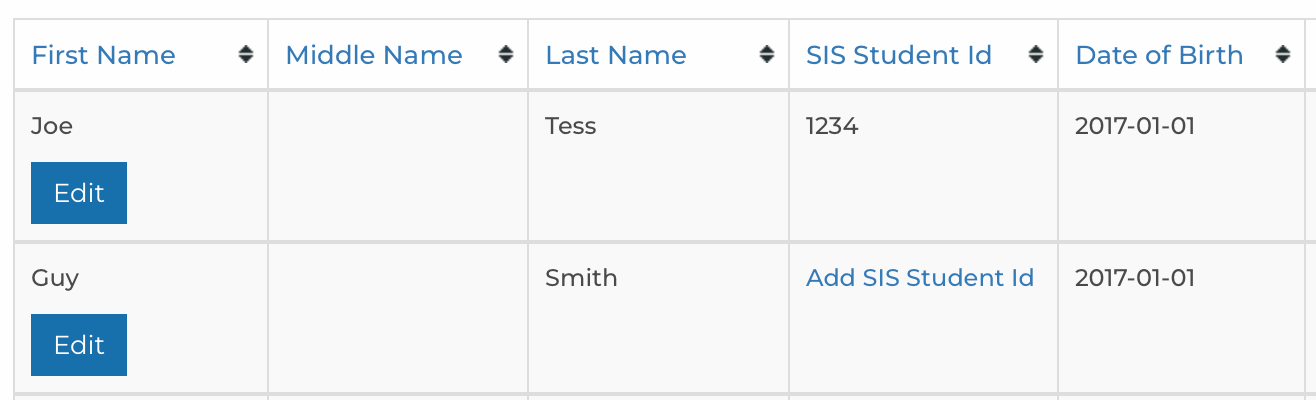
5. After the registration is created, view the registration on the Registration Report. Then add the student ID by going to the SIS Student Data report. Click the link Add SIS Student ID and enter the student ID.
If you have 10 or more registrations that need to be added, a registration import may be faster than entering registrations one at a time.
To register a person who has registered for one of your activities in the past:
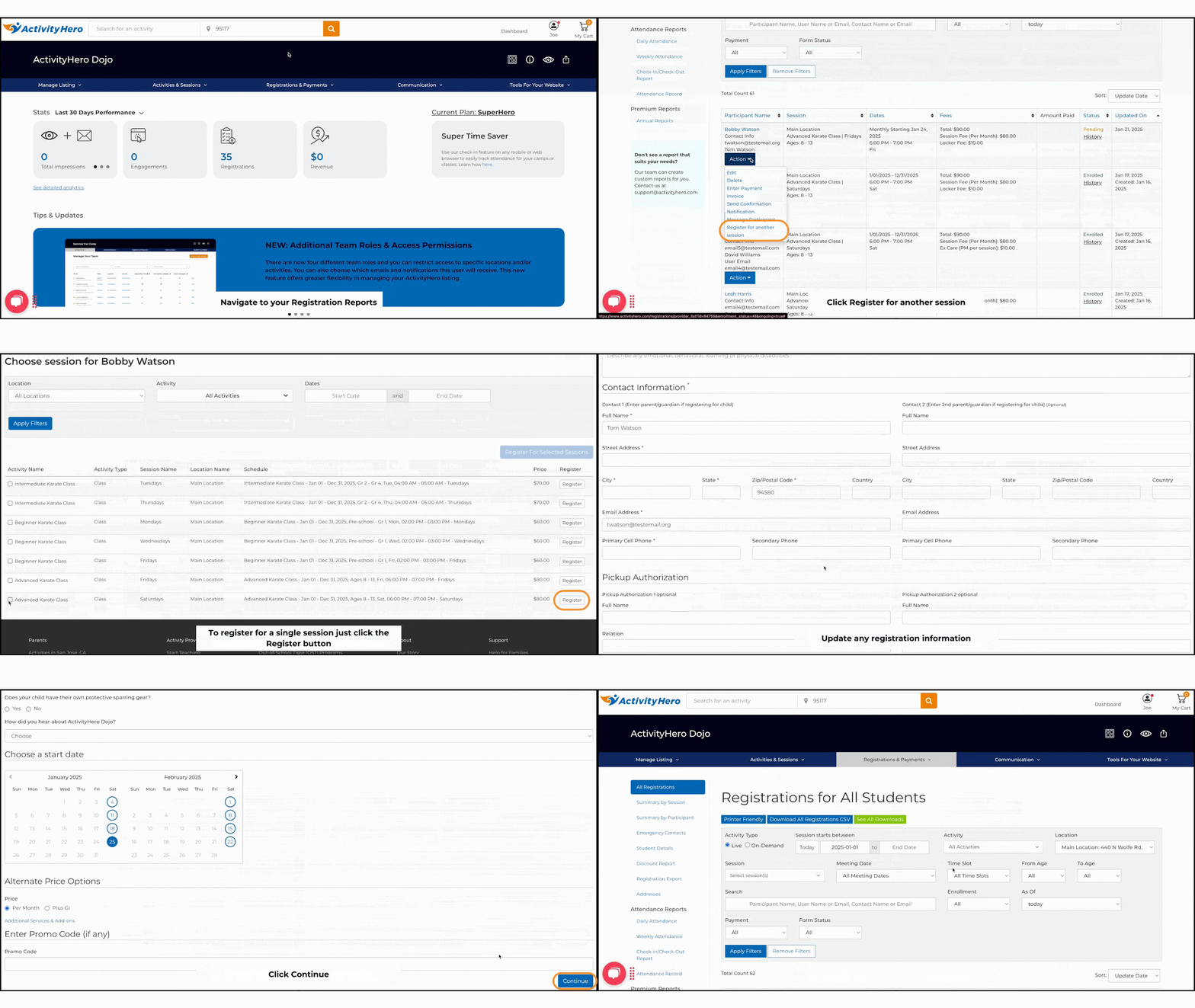
1. Navigate to Registrations & Payments > Registration Reports.
2. On the Registration Reports page, search for the name of the person to be registered.
3. In the person's name and information section, click Action.
4. Click Register for another session.
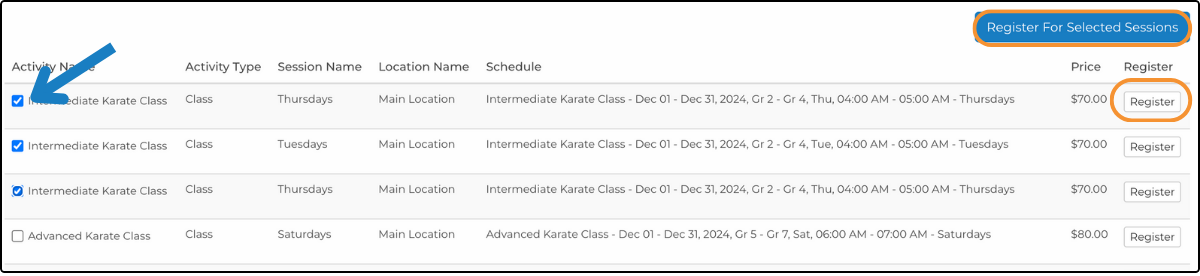
5. Find the desired session/sessions in the list.
6. Click Register to the right of the session info to register for a single session, or select multiple sessions and click Register For Selected Sessions.
7. Update any registration information, including any promo codes.

At the bottom of each registration page, you can add a Promo Code. Use this to add discounts for families as you complete the registration process for them.
8. Click Continue to save the registration. The Order Summary is displayed with the option to Enter Payment, Skip, or Send Invoice.
Enter Payment - Record a payment received. For more information on recording a payment, check out our help article "Can I manually enter a payment?"
Skip - The registration appears on your Registration Report with a status of pending.
Send Invoice - Issues an invoice. For more information on issuing invoices, check out our help article "How do I send an invoice?"
Related Articles ↑
Was this article helpful?
That’s Great!
Thank you for your feedback
Sorry! We couldn't be helpful
Thank you for your feedback
Feedback sent
We appreciate your effort and will try to fix the article